Skip to Content

Inventory & Purchase · Odoo 20, Odoo 19, Odoo 18

Done Transfer Emergency Cleanup

Clean up an exceptional done picking safely, with a preview, a reason and an audit log

Done Transfer Emergency Cleanup is an app for Odoo 18, 19 and 20 that gives chosen users an emergency action on a done transfer: take the stock back out and reset or reopen the transfer, or delete it for good, alone or with its returns. A preview shows the stock change first, a reason is required, cases tied to accounting are refused, and every run is logged.

Key features

The problem

Sometimes a validated transfer has to be cleaned up: a duplicate delivery, a test transfer, or an outgoing picking that came back in full. Cancelling done stock moves in Odoo is risky and cannot be undone. Doing it without a preview, without a reason and without a record of who did it is exactly what an auditor will question later.
Screenshots

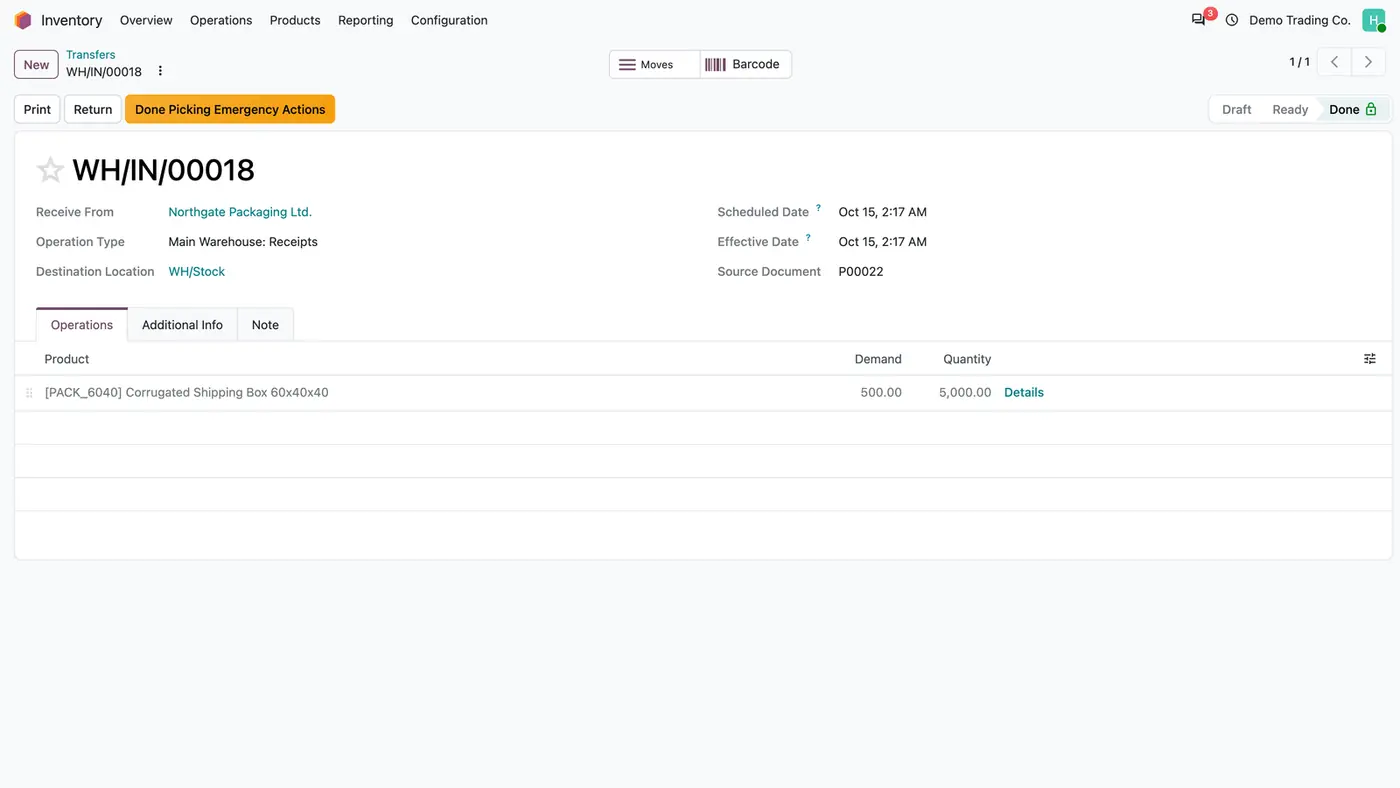
Done receipt WH/IN/00018 with demand 500 and quantity 5,000, and the orange Done Picking Emergency Actions button
A receipt validated with 5,000 instead of 500; only users with the cleanup right see the emergency button.
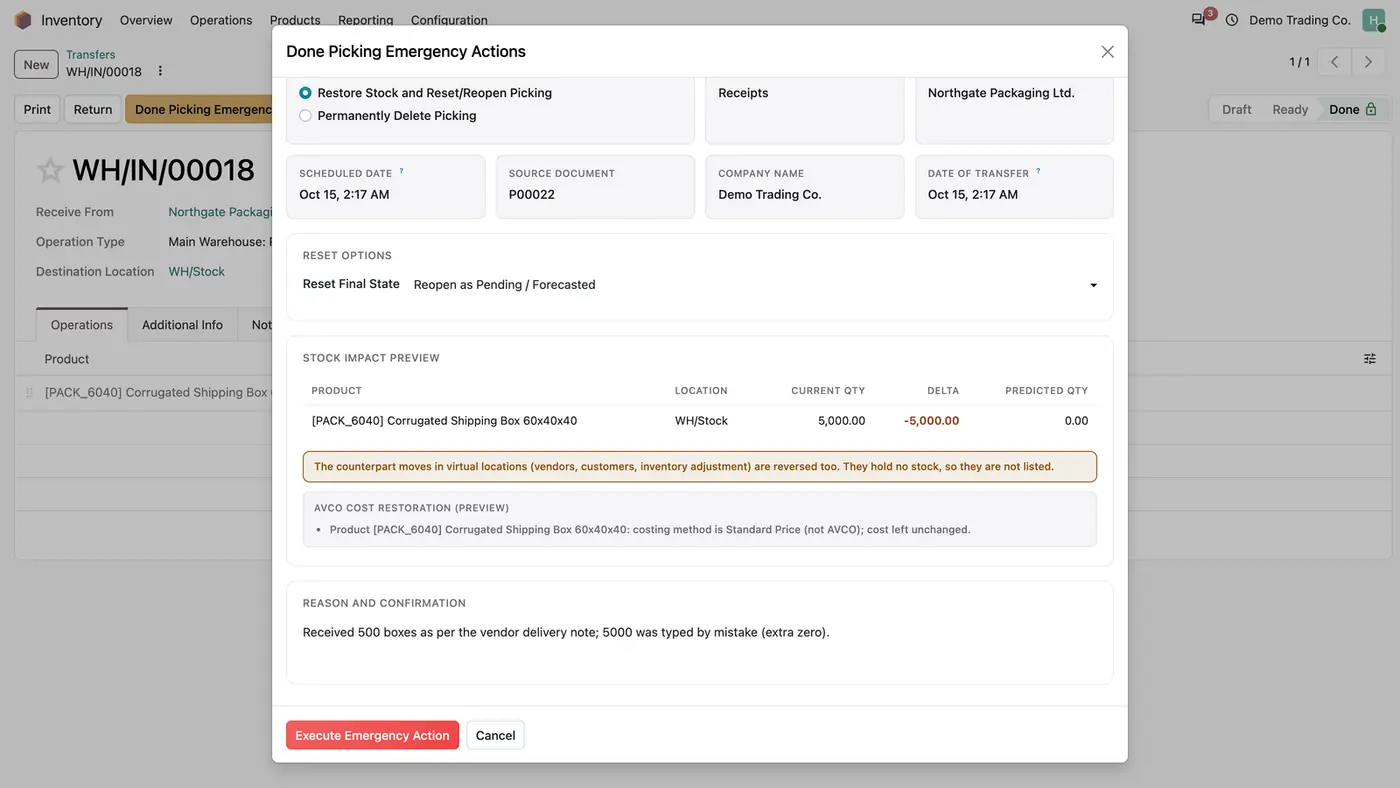
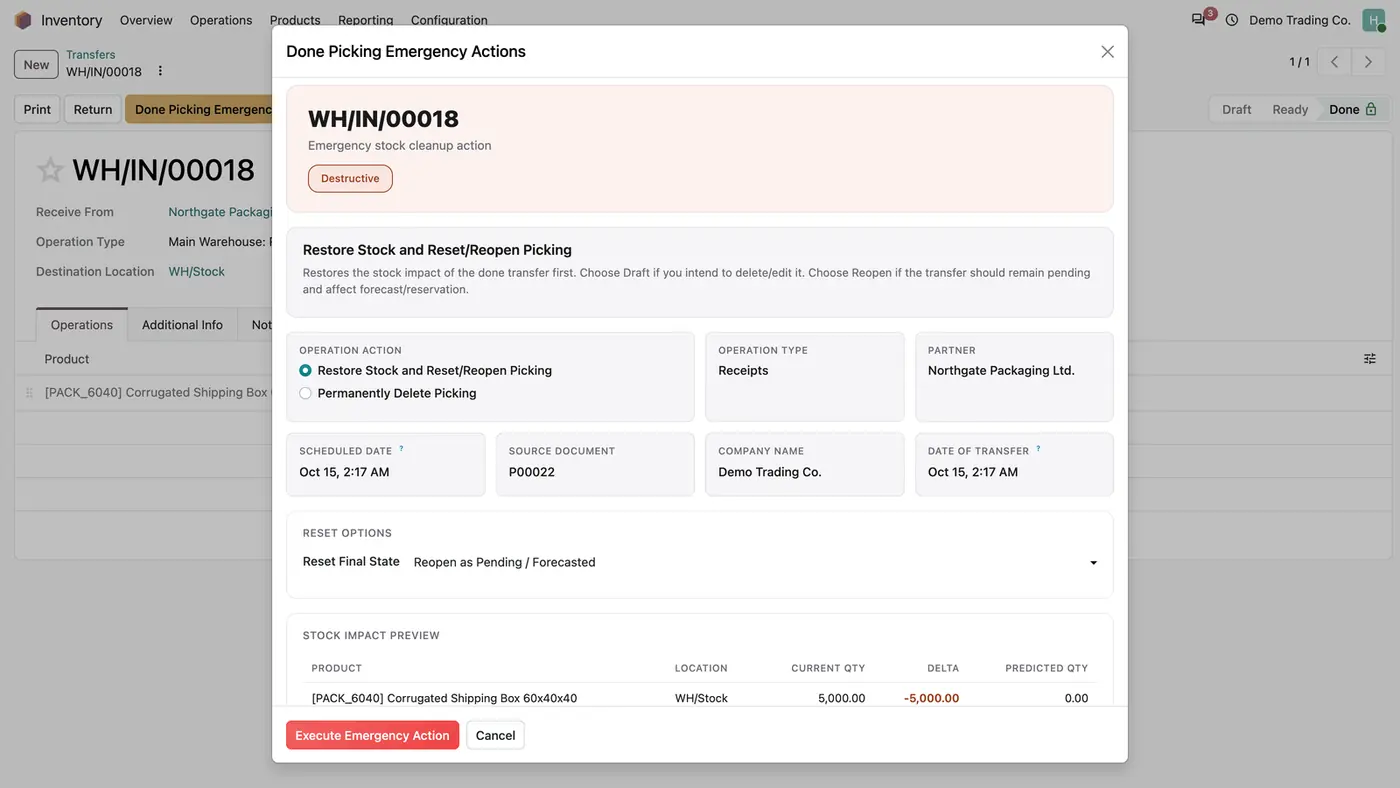
Done Picking Emergency Actions dialog with Restore Stock and Reset/Reopen Picking or Permanently Delete Picking
The dialog offers two actions and shows the transfer's details before anything changes.
Stock impact preview taking WH/Stock from 5,000 to 0, a cost note and the written reason before Execute
Before it runs, the dialog previews the stock change and the cost effect, and a reason must be written.
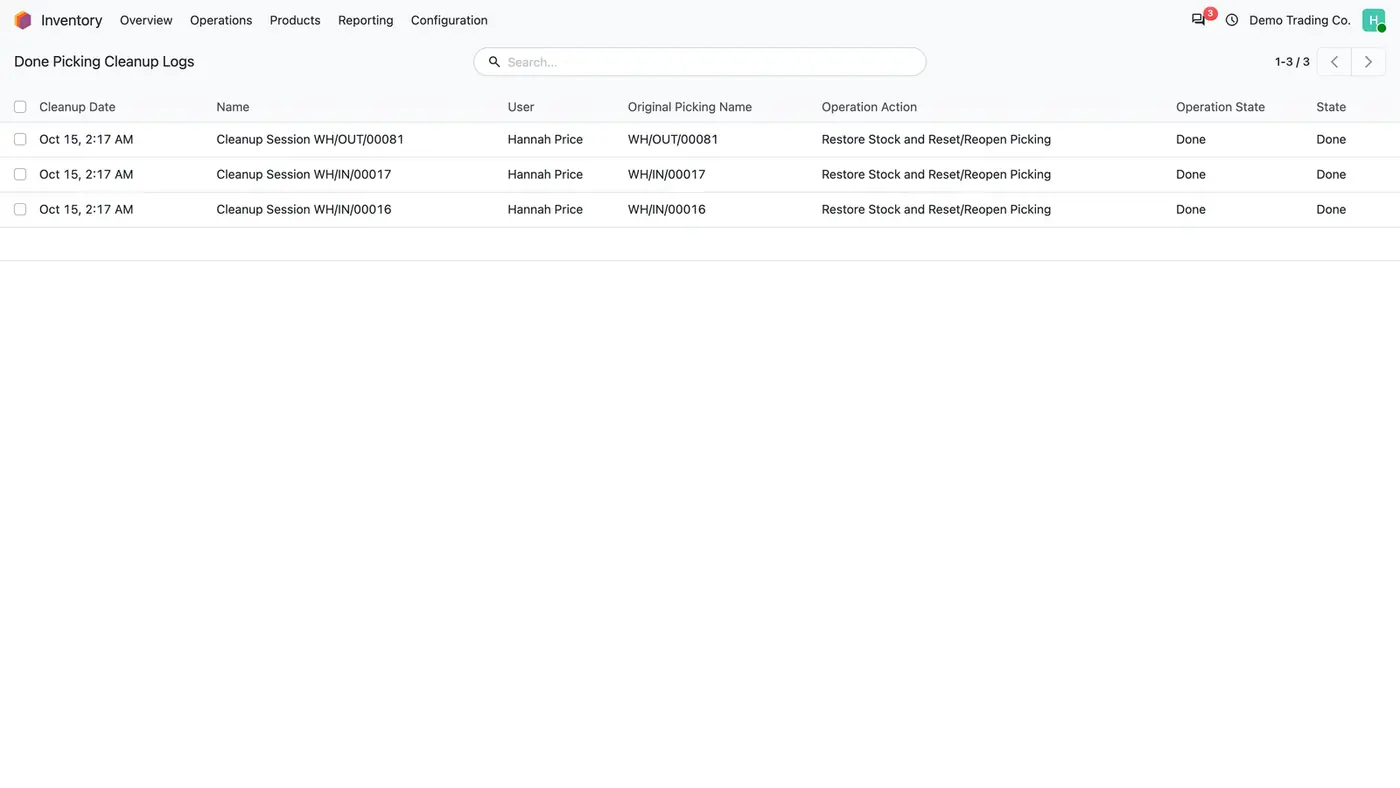
Done Picking Cleanup Logs list with three cleanups showing user, original transfer, action and state
Every executed cleanup is logged with the user, the time, the transfer, the action and the outcome.
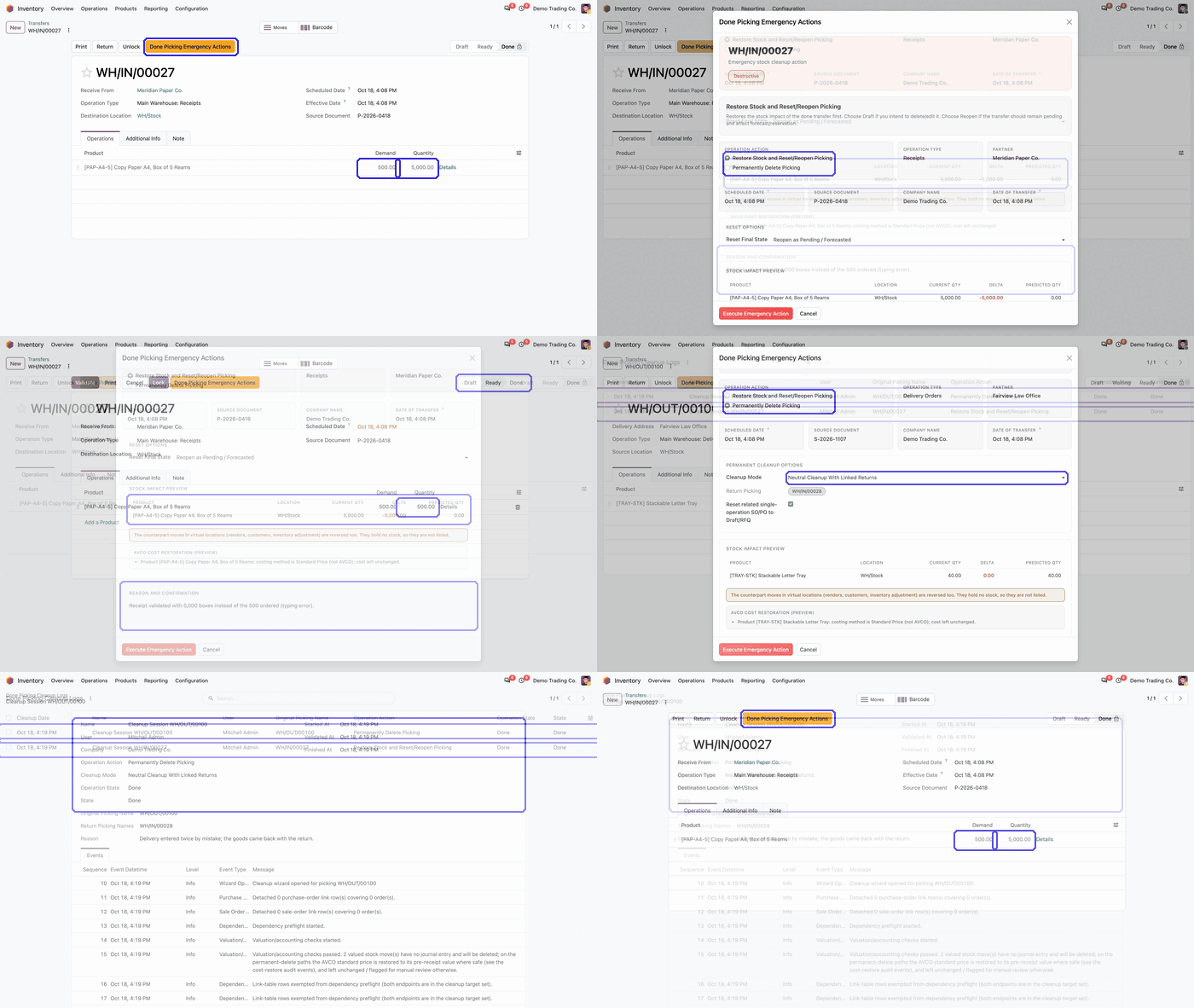
Animated demo: a done receipt with demand 500 and quantity 5,000 and the Done Picking Emergency Actions button Play demo
The demo restores a receipt that was validated with the wrong quantity.

What it does

Two emergency actions

  • Restore Stock and Reset/Reopen Picking takes the stock back out and sets the transfer to Draft or reopens it as pending.
  • Permanently Delete Picking removes the transfer for good. A transfer with done returns is deleted together with them, after a check that the returns exactly reverse it.
  • It works on done transfers in the user's allowed companies. Cancelled transfers are left to Odoo's own Delete.

Restricted and confirmed

  • Only users with the Done Picking Cleanup right see the emergency button.
  • Every run needs a reason, and a delete needs an extra confirmation.

Preview and guardrails

  • See a live Stock Impact Preview with the quantity change per product and location before anything happens.
  • Block the cleanup when a stock move carries a posted valuation entry or a manual valuation adjustment, or when an order being reset has an invoice or bill that is not cancelled.
  • Delete only the targeted records, in a controlled and safe order.

Audit trail

  • Write a persistent cleanup log for every execution.
  • Record who cleaned up which picking, and why.

Who it is for

A good fit for

  • Inventory managers handling exceptional cleanup cases.
  • Administrators who must restrict destructive stock actions.
  • Auditors who need a full trail of any stock cleanup.
  • Warehouses that occasionally create duplicate or test transfers.

Not a fit for

  • An everyday cancel. The app is an emergency action and leaves cancelled transfers to Odoo's own Delete.
  • Transfers with posted valuation entries, which the app refuses.
  • Databases on Odoo Online (SaaS), which cannot install third-party apps.

Install

Requires: Inventory (stock), Invoicing (account), Discuss (mail)

  1. Buy the app on the Odoo Apps Store for your Odoo version (18.0, 19.0 or 20.0).
  2. Add the module to your Odoo.sh project or to the addons path of your on-premise server.
  3. Update the apps list in Odoo and install Done Transfer Emergency Cleanup. Missing dependencies are installed with it.

Odoo Online (SaaS) does not allow third-party apps, so Done Transfer Emergency Cleanup cannot be installed there. Use Odoo.sh or an on-premise Odoo database, Community or Enterprise.

Every purchase includes 90 days of free support from FlexCode Systems.

Configure

  1. Give the Done Picking Cleanup right to chosen users under Settings > Users & Companies > Users > Supply Chain. Only they see the Done Picking Emergency Actions button.
  2. Find every run under Inventory > Operations > Adjustments > Done Picking Cleanup Logs. Inventory Administrators and users with the right see every cleanup.
SettingWhat it does
Authorised usersOnly these users can start a cleanup.
Reason and acknowledgementA reason is mandatory on every run; a delete also needs an explicit confirmation.
Cleanup logPersistent record of each cleanup, with the user and the reason.

How to use it

Open the emergency actions

  1. Open the done transfer that is wrong, for example a receipt validated with the wrong quantity.
  2. Click Done Picking Emergency Actions and choose Restore Stock and Reset/Reopen Picking or Permanently Delete Picking.

Preview and execute

  1. Review the Stock Impact Preview with the quantity change for each product and location.
  2. Enter the mandatory reason. For a delete, confirm it explicitly.
  3. Click Execute Emergency Action. The run is logged, or refused if accounting is involved.

Limits

  • It is not an everyday cancel, and cancelled transfers are left to Odoo's own Delete.
  • Posted valuation entries, manual valuation adjustments, open invoices or bills on an order being reset, and other records referencing the stock moves all block the cleanup.
  • It cannot be installed on Odoo Online (SaaS). The price covers one Odoo major version.

FAQ

Can I cancel a done picking in Odoo?

Odoo cannot undo a done transfer. Done Transfer Emergency Cleanup gives chosen users two emergency actions: restore the stock and reset or reopen the transfer, or delete it permanently. Each run shows a stock preview, needs a reason, is refused when accounting is involved, and is logged.

Who can run a stock cleanup?

Only users with the Done Picking Cleanup right. Each run also needs a mandatory reason, and a delete needs an extra confirmation.

What happens if the picking has accounting entries?

The cleanup is blocked when a stock move carries a posted valuation journal entry or a manual valuation adjustment, or when a related order that would be reset has an invoice or bill that is not cancelled.

Can I see the stock impact before anything is deleted?

Yes. A live Stock Impact Preview shows the quantity change per product and location before you execute.

Is there an audit trail of stock cleanups?

Yes. Every run writes a log entry with the user, the time, the reason, the action and its outcome, under Inventory, Operations, Adjustments, Done Picking Cleanup Logs.

Which Odoo versions and editions does Done Transfer Emergency Cleanup support?

It is sold for Odoo 18, 19 and 20, Community and Enterprise, on-premise and on Odoo.sh. Odoo Online does not allow third-party apps. The price is one-time per Odoo major version.

Need it set up or adapted?

We configure our apps for your process, train your team and build the extra pieces you need.