Skip to Content

Inventory & Purchase · Odoo 20, Odoo 19, Odoo 18

New Pick Batch from Invoice

Pick every order on a combined invoice in one batch, with one click

When one customer invoice covers several sales orders, Create Pick Batch on the invoice puts their ready pick transfers into one batch transfer for the warehouse. The batch names the invoice and takes its Responsible from the operation type, and returns stay out. Deliveries can also be batched by customer automatically.

Key features

The problem

A customer often gets one invoice for several sales orders, but the warehouse still sees one pick transfer per order. Someone has to look up which transfers belong to the invoice and add them to a batch by hand, and returns or transfers that are not ready slip in easily. The new batch then has no responsible until someone assigns one.
Screenshots

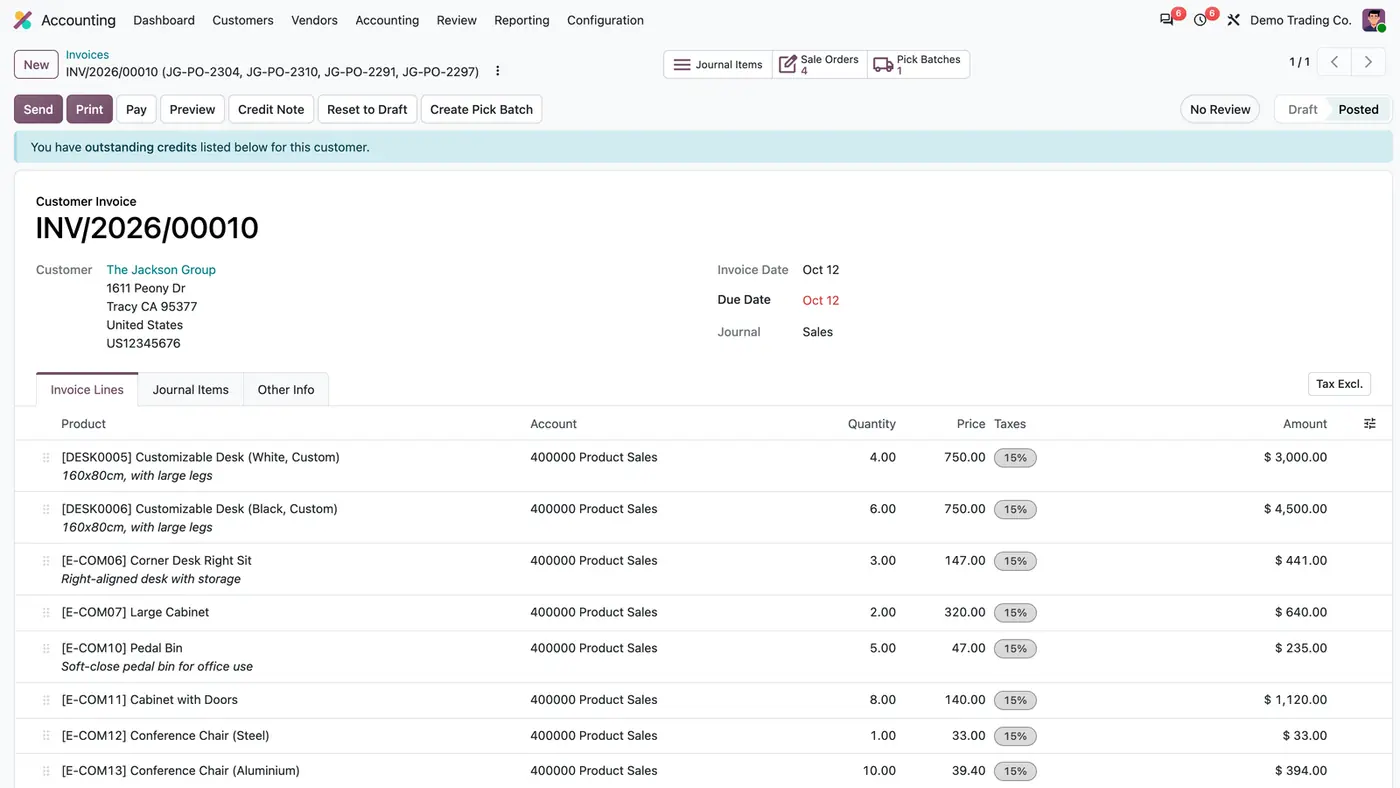
Posted customer invoice INV/2026/00010 with Create Pick Batch button and Sale Orders 4 and Pick Batches 1 smart buttons
One invoice combines four sales orders, and Create Pick Batch in the header groups their ready pick transfers.
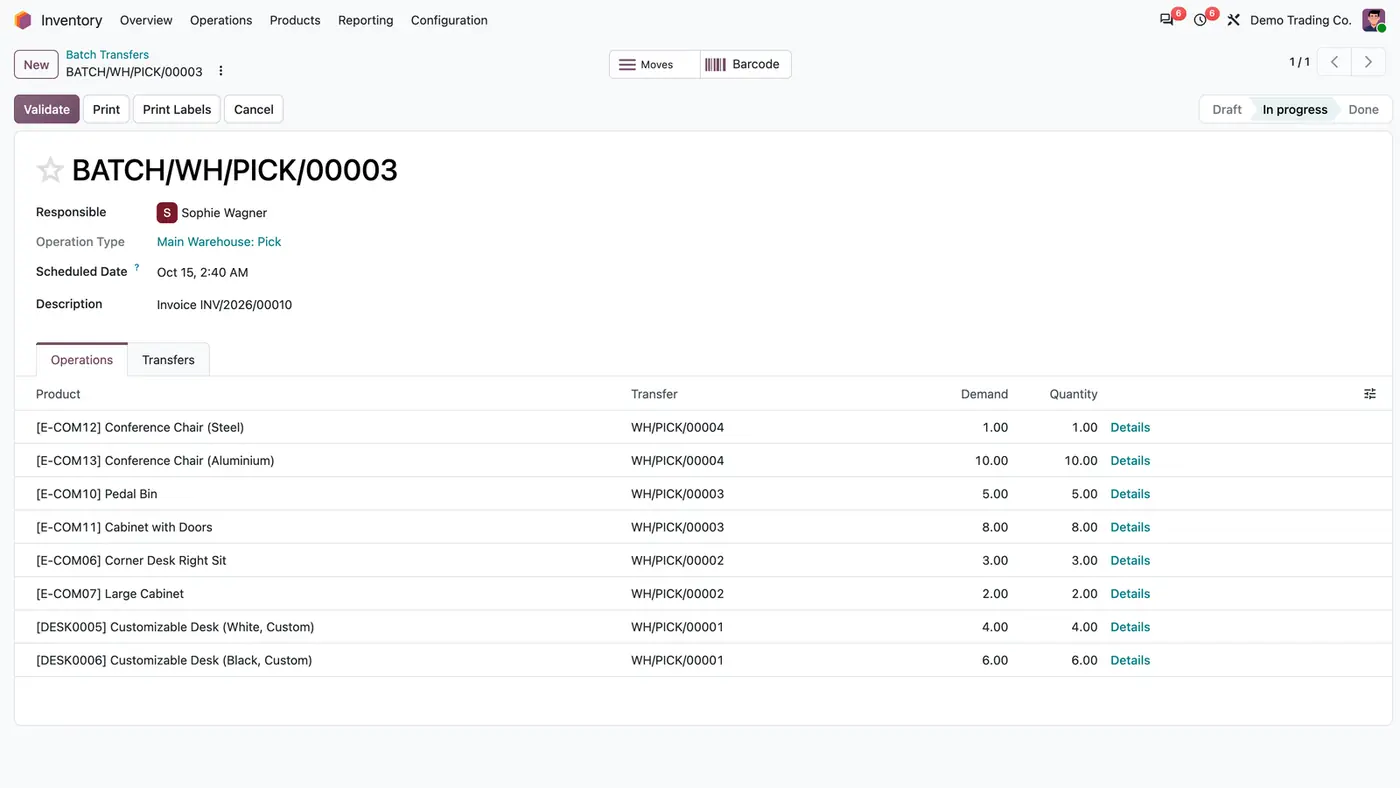
Batch BATCH/WH/PICK/00003 with responsible Sophie Wagner, description Invoice INV/2026/00010 and four pick transfers
The batch holds the pick transfers of all four orders, names the invoice and gets its Responsible from the operation type.
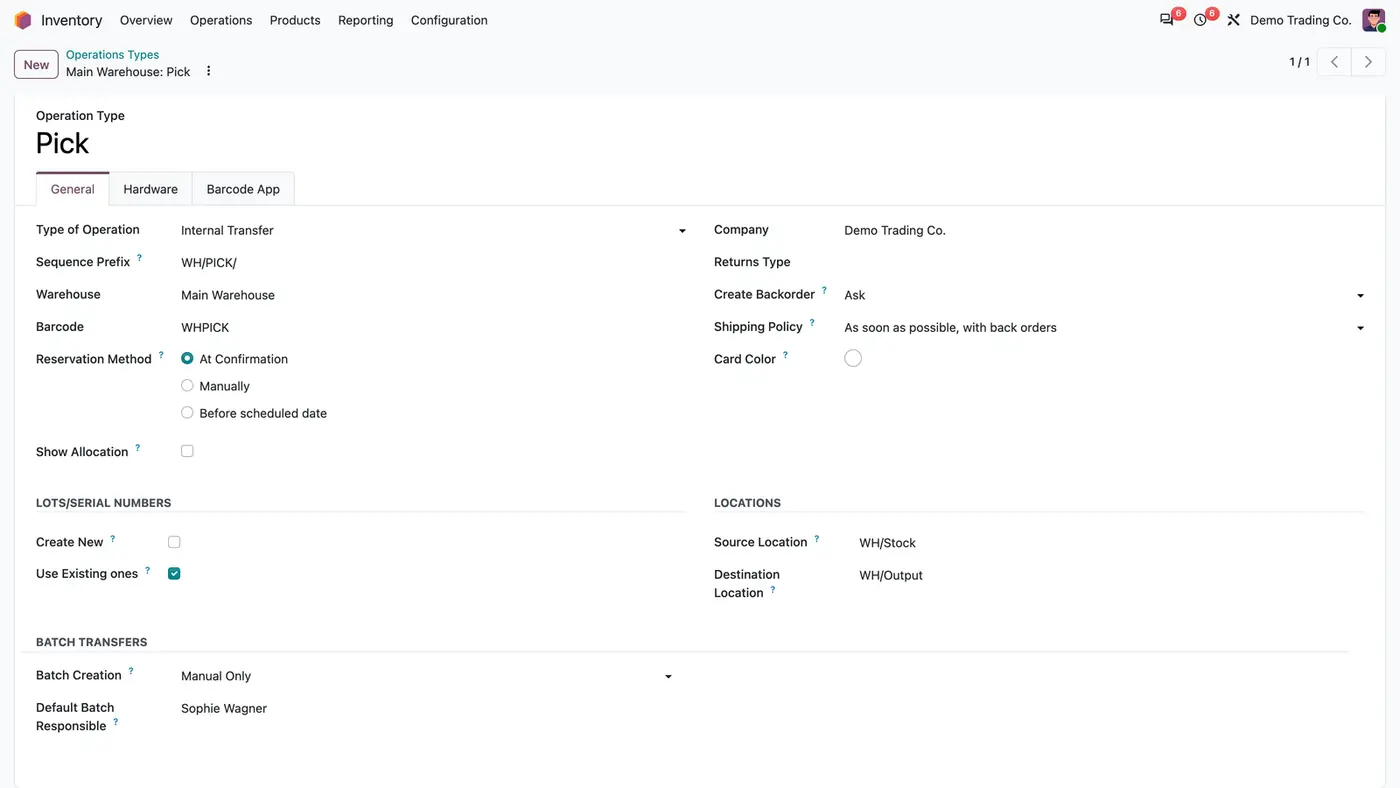
Pick operation type form with the Batch Transfers group showing Default Batch Responsible Sophie Wagner
A Default Batch Responsible on the operation type is set on every new batch that arrives without one.
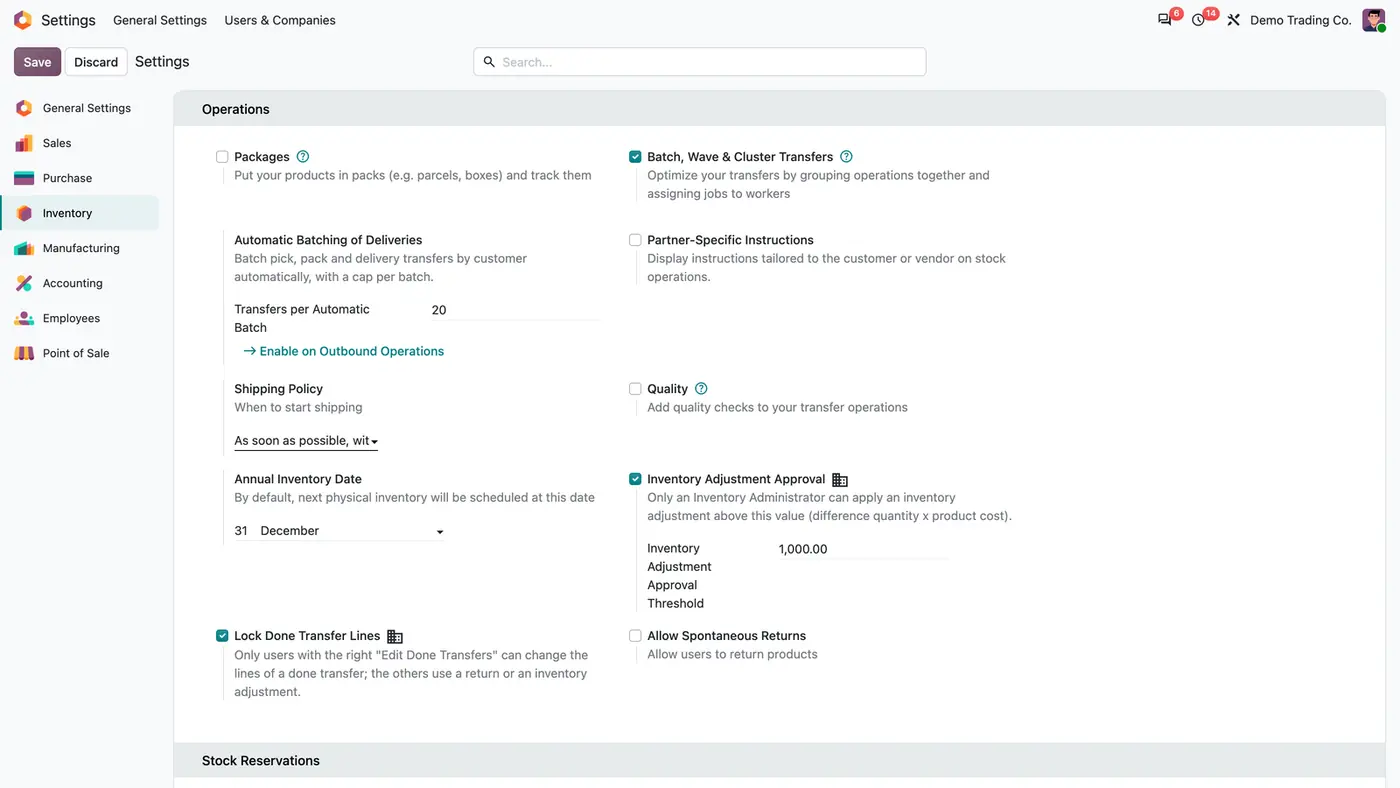
Inventory settings: Automatic Batching of Deliveries, Transfers per Automatic Batch 20, Enable on Outbound Operations
Automatic batching by customer is switched on with one button, with a cap of 20 transfers per batch by default.
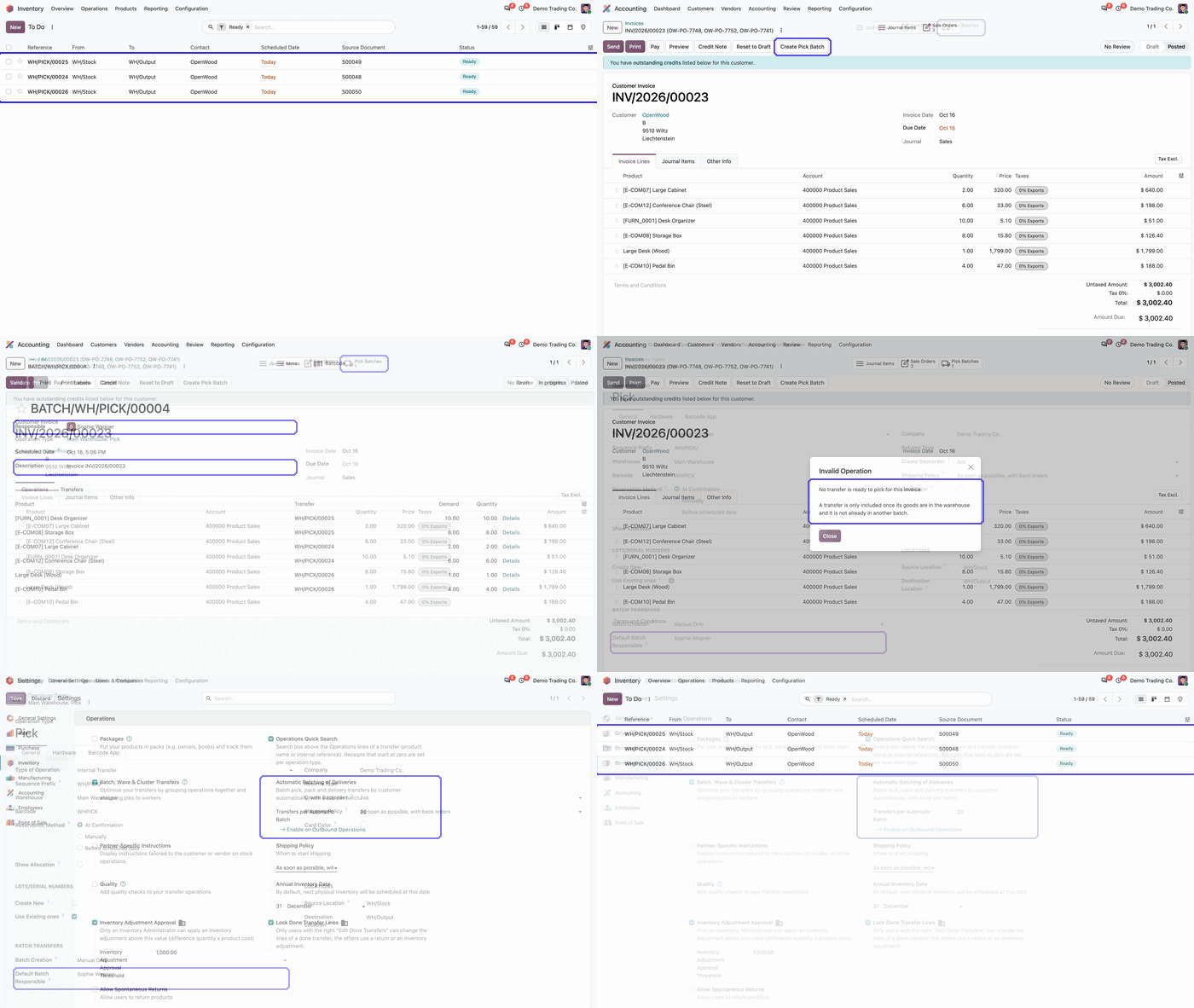
Animated demo in Odoo Inventory starting from a list of ready pick transfers Play demo
A short demo of how ready pick transfers end up in one batch.

What it does

Batch from the invoice

  • Create Pick Batch sits in the header of the posted or draft customer invoice.
  • It collects the pick transfers of the invoiced sales orders that are Ready and not already in a batch.
  • The batch description names the invoice. On a draft invoice, which has no number yet, the batch is named after its sales orders.
  • A Pick Batches smart button on the invoice opens the batch made from it.

Clean selection

  • Only whole transfers are added. Nothing is created, split or reserved, just like Odoo's Add to batch action.
  • Transfers that are waiting, done or cancelled are left out.
  • Returns are never added by the invoice button and never batched automatically.
  • If the orders are picked in two warehouses, each pick type gets its own batch, all linked to the invoice.

Default Batch Responsible

  • Give each operation type a Default Batch Responsible in its Batch Transfers group.
  • Every new batch of that type without a Responsible gets this user.
  • It applies to the invoice button, the Add to batch wizard and automatic batching.
  • A Responsible chosen by hand always wins.

Automatic batching of deliveries

  • One button in the Inventory settings switches on automatic batching by customer for the pick, pack and delivery types.
  • Transfers per Automatic Batch caps each batch, 20 by default.
  • Operation types whose batching was already configured are left alone.
  • It is opt-in: nothing is switched on at install.

Who it is for

A good fit for

  • Companies that invoice several sales orders of one customer together.
  • Warehouses that pick with batch transfers and want them built from the invoice.
  • Teams that want every new batch to arrive with a responsible person.
  • Multi-company databases: the module respects the active company and has been tested there.

Not a fit for

  • Creating, splitting or reserving stock moves.
  • Batching returns or transfers that are not ready.
  • Billing users without Inventory rights, who do not see Create Pick Batch.
  • Databases on Odoo Online (SaaS), which cannot install third-party apps.

Install

Requires: Sales and Warehouse Management, Inventory (stock), Invoicing (account), Discuss (mail)

  1. Download Pick Batch from Invoice for free from the Odoo Apps Store for Odoo 18.0, 19.0 or 20.0.
  2. Add the module to your Odoo.sh project or to the addons path of your on-premise server.
  3. Update the apps list in Odoo and install Pick Batch from Invoice. Inventory and Invoicing are installed with it if they are missing.

Odoo Online (SaaS) does not install custom apps from the Apps Store, so the app cannot be installed there. Use Odoo.sh or an on-premise database, Community or Enterprise.

Questions: info@flexcodesys.com.

Configure

  1. Nothing has to be configured: Create Pick Batch works for Inventory users right after installation.
  2. Optional: name a default Responsible under Inventory > Configuration > Warehouse Management > Operations Types > operation type > Batch Transfers > Default Batch Responsible.
  3. Optional: batch deliveries automatically under Inventory > Configuration > Settings > Operations > Automatic Batching of Deliveries > Enable on Outbound Operations.
SettingWhat it does
Default Batch ResponsiblePer operation type: the user who gets every new batch of this type that arrives without a Responsible.
Transfers per Automatic BatchCap per automatic batch, 20 by default.
Enable on Outbound OperationsSwitches on automatic batching by customer for the pick, pack and delivery types of the company's warehouses.

How to use it

Pick a combined invoice

  1. Open the customer invoice that covers several sales orders.
  2. Click Create Pick Batch. The ready pick transfers of all its orders go into one batch per operation type.
  3. Open the batch from the Pick Batches smart button and work it in the warehouse as usual.

Let deliveries batch themselves

  1. As inventory administrator, click Enable on Outbound Operations in the Inventory settings.
  2. Pick, pack and delivery transfers are then batched by customer, up to the cap per batch.

Limits

  • One batch cannot mix operation types, so orders picked in several warehouses give several batches.
  • Only Ready transfers that are not already in a batch are added.
  • Create Pick Batch is visible to Inventory users only.
  • It cannot be installed on Odoo Online (SaaS).

FAQ

Which transfers go into the batch?

The pick transfers of the invoice's sales orders that are Ready and not already in a batch. Transfers that are waiting, done, cancelled or returns are left out. With a one-step delivery, the delivery transfer is the pick step.

Does it change stock or reservations?

No. It only groups existing transfers into a batch, like Odoo's Add to batch action. Nothing is created, split or reserved.

Is automatic batching switched on at install?

No. It is applied only when an inventory administrator clicks Enable on Outbound Operations in the Inventory settings, and it leaves alone every operation type whose batching was already configured.

What if the invoiced orders are picked in two warehouses?

Odoo does not allow one batch to mix operation types, so each warehouse's pick type gets its own batch. Every batch is linked to the invoice and opens from its Pick Batches button.

Can I create the batch before the invoice is posted?

Yes. The button is also on a draft invoice; as a draft has no number yet, the batch is named after its sales orders.

Need it set up or adapted?

We configure our apps for your process, train your team and build the extra pieces you need.