Skip to Content

Inventory & Purchase · Odoo 20, Odoo 19, Odoo 18

New No Negative Stock

Stop stock from going below zero, product by product

No Negative Stock refuses a delivery, transfer, manufacturing order, scrap or Point of Sale sale that would take a product's on-hand below zero at the location the goods leave. Validate shows what is missing and where the product is in stock, and can deliver what is there with a backorder. Inventory counts stay allowed, so the stock can always be corrected.

Key features

The problem

Standard Odoo lets a delivery or a Point of Sale sale take stock below zero when the goods are not in the source location. The negative quantity hides the real problem: goods were picked from the wrong shelf, a receipt was never booked, or the register sold something the shop no longer has. Someone finds the minus figures later and has to work out which movement caused them.
Screenshots

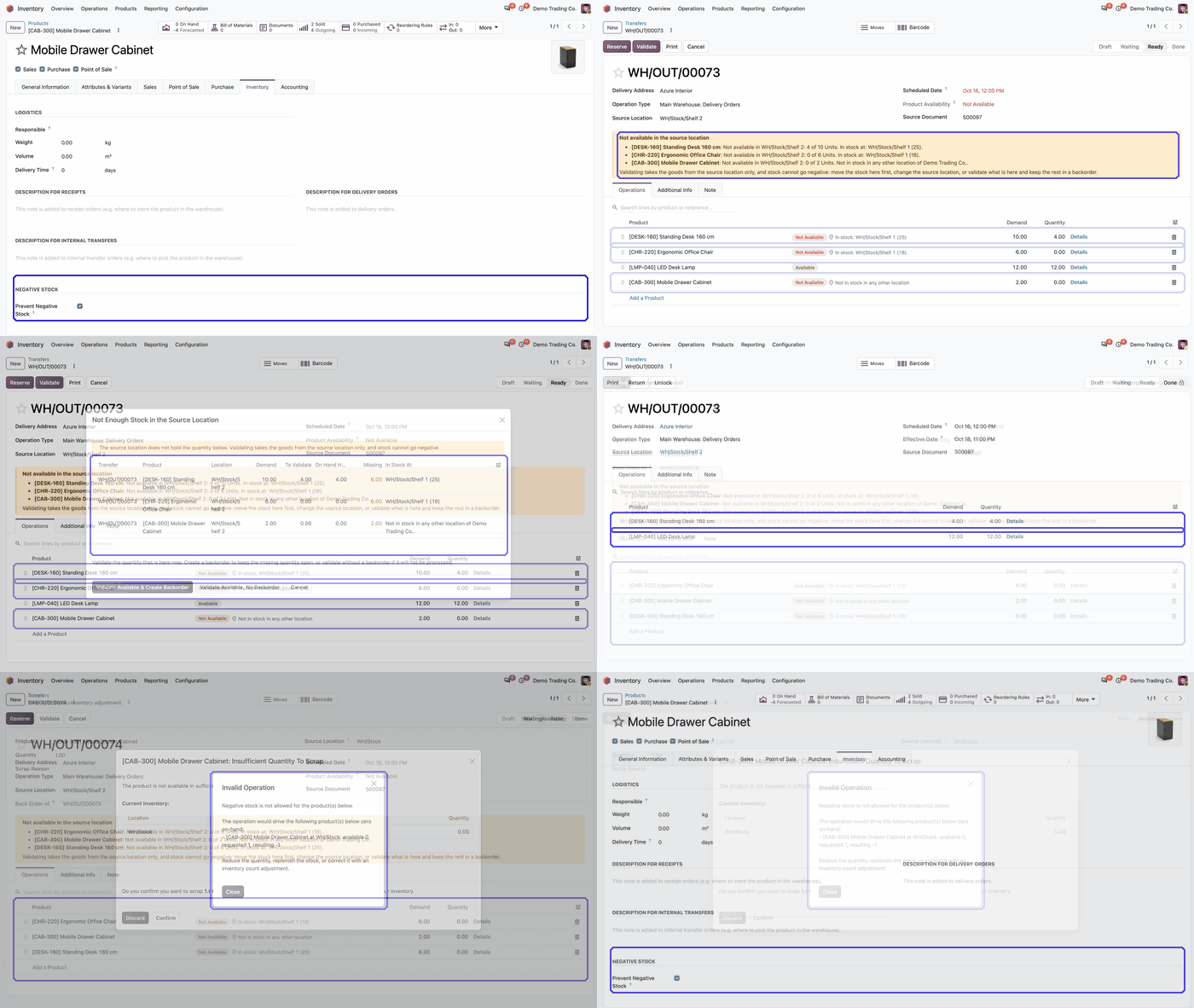
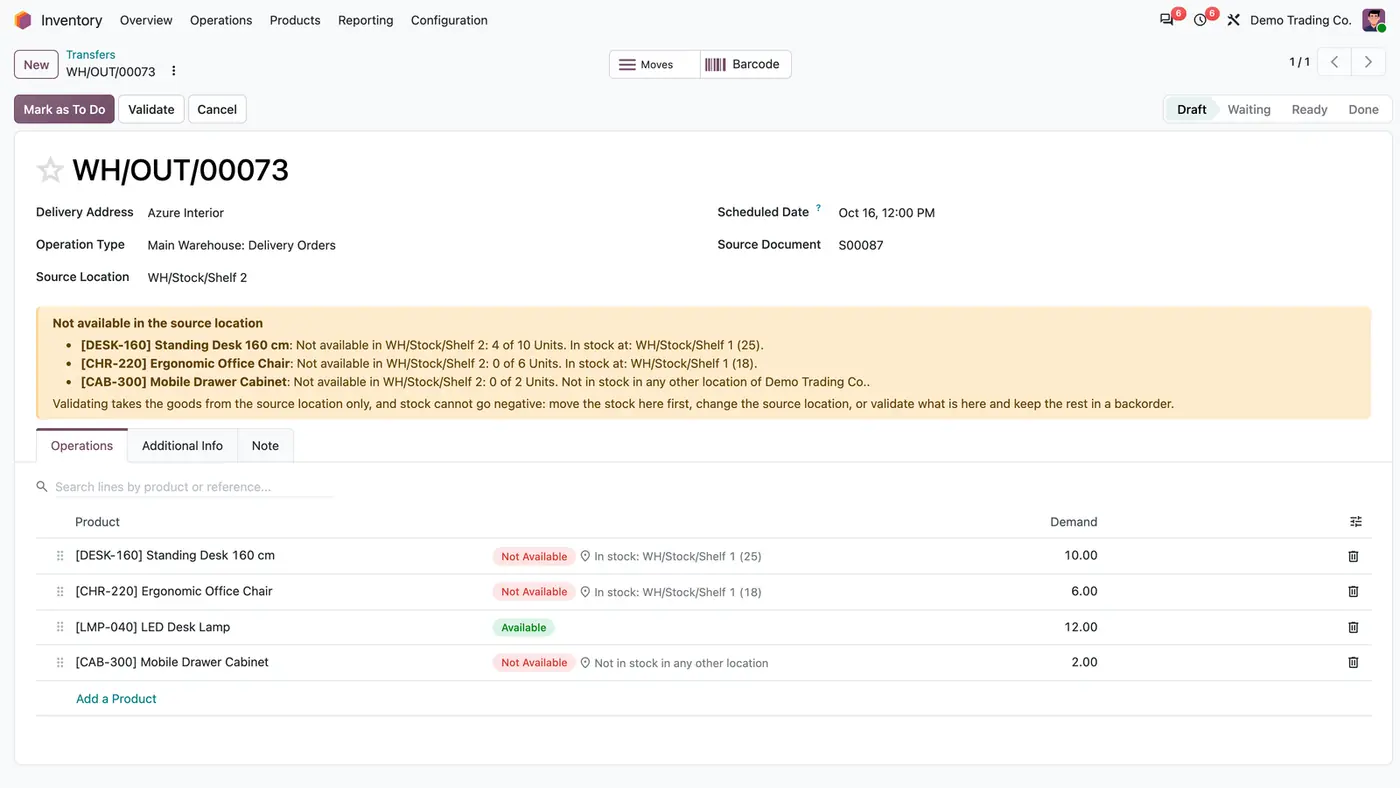
Delivery WH/OUT/00073 with a Not available in the source location banner and Not Available badges per line
A delivery shows which lines its source location cannot cover and where each product is in stock.
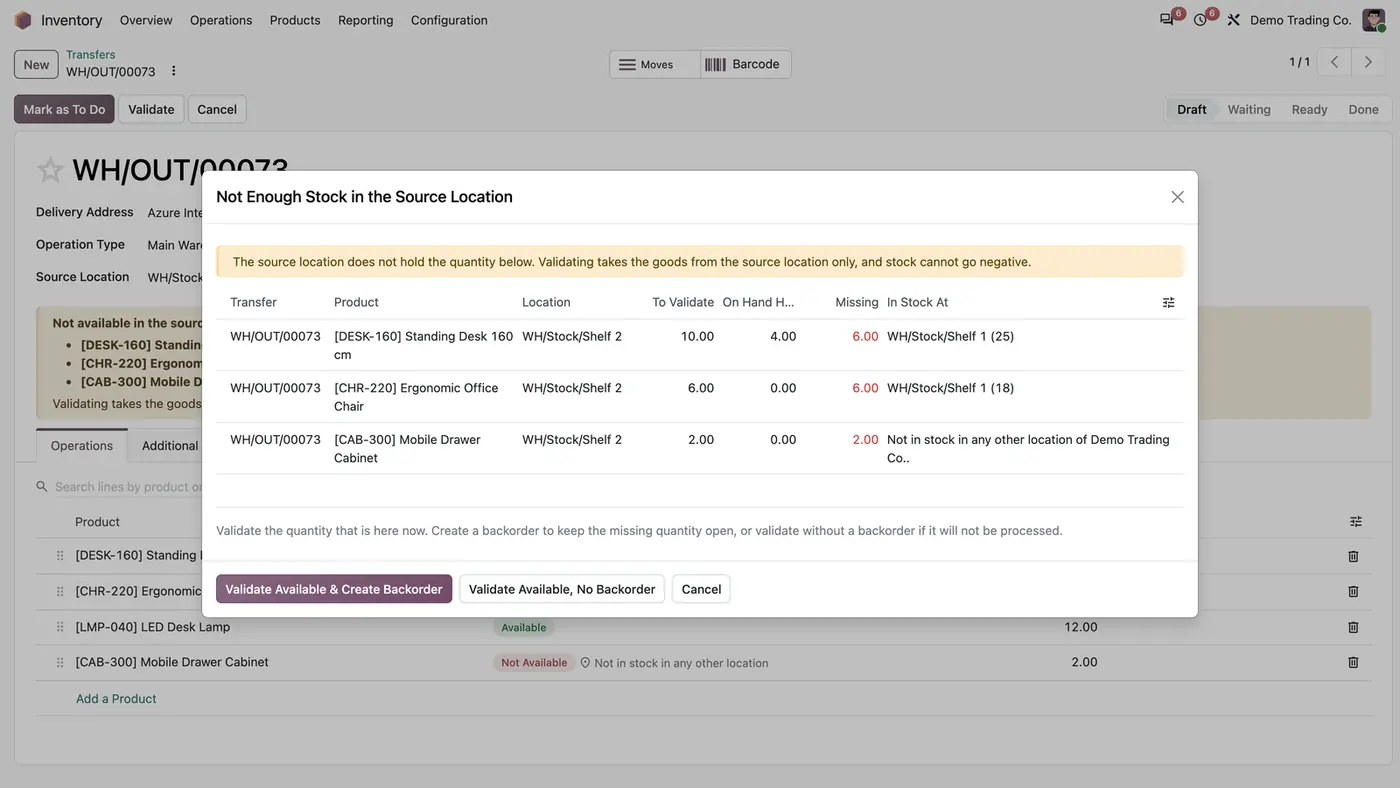
Dialog Not Enough Stock in the Source Location with to validate, on hand, missing and in stock at columns
Validate lists each short line and offers to validate what is available, with or without a backorder.
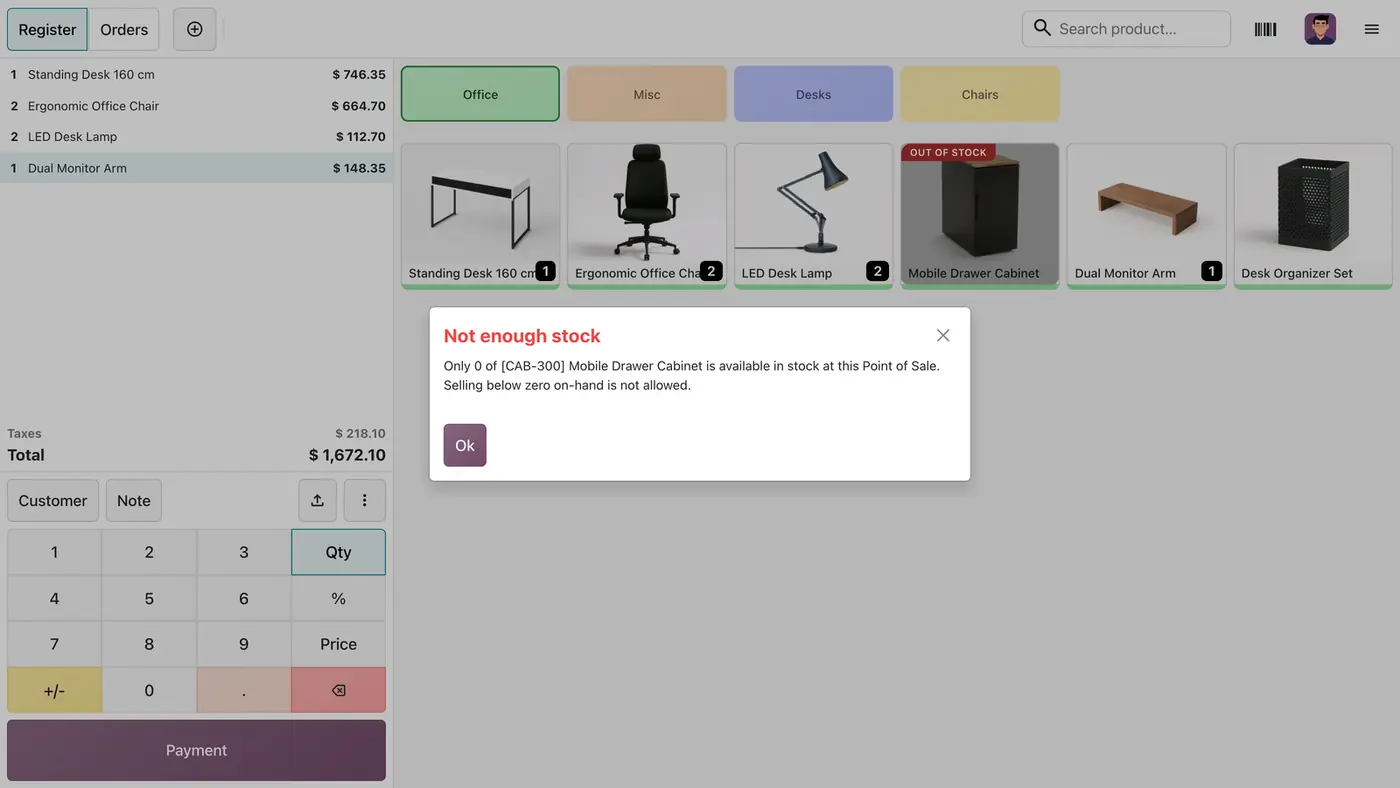
Point of Sale register with an Out of Stock ribbon on a product and a Not enough stock message
The Point of Sale refuses to sell more than is on hand at the shop's stock location.
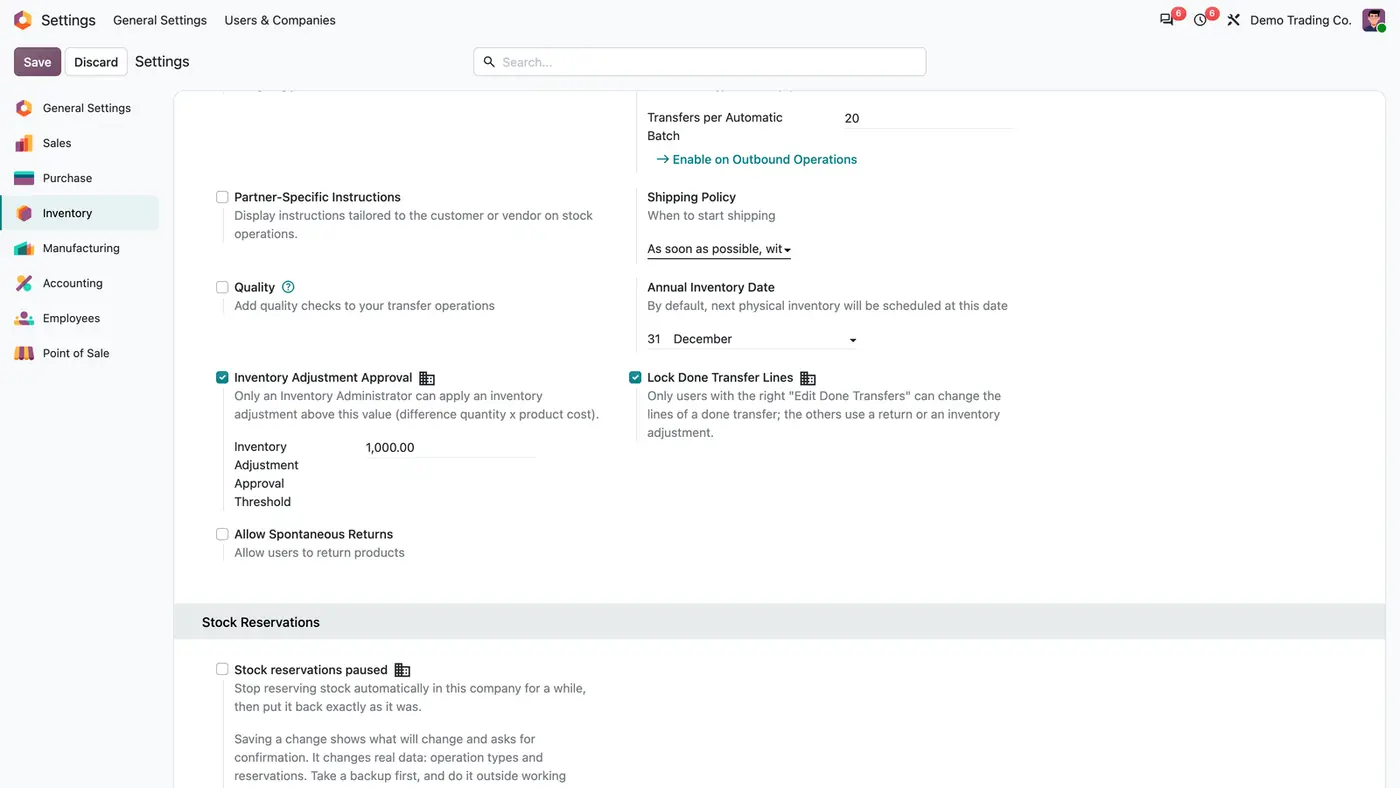
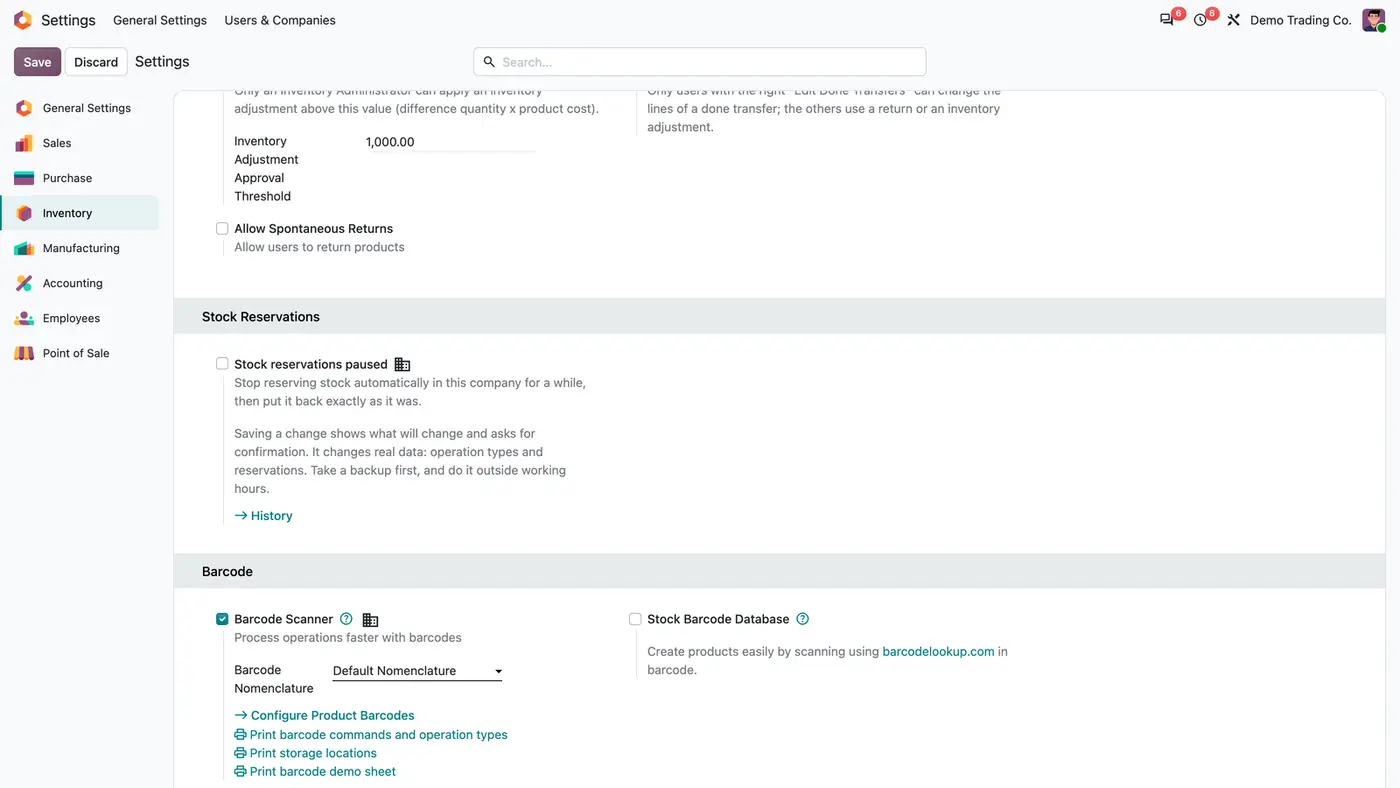
Inventory settings with Inventory Adjustment Approval threshold 1,000.00 and Lock Done Transfer Lines ticked
Two optional locks per company: approval above a value threshold and locked done transfer lines.
Animated demo: product form, Inventory tab, with the Prevent Negative Stock checkbox highlighted Play demo
The demo shows the Prevent Negative Stock switch on the product's Inventory tab.

What it does

Checked at the source location

  • Refuse any delivery, transfer, manufacturing order or scrap that would take on-hand below zero at the location the goods leave.
  • Switch the check on or off per product with Prevent Negative Stock. It is on for every product by default.
  • Only the physical on-hand counts. A negative forecast or reservations for other orders do not block anything.
  • Inventory counts are always allowed, also to set a quantity below zero on purpose.

Shortage shown before Validate fails

  • A transfer marks the lines its source location cannot cover with a Not Available badge and shows where each product is in stock in the company.
  • Validate opens Not Enough Stock in the Source Location with the quantity to validate, the on-hand quantity there, the missing quantity and the locations that hold the product.
  • Validate what is available and create a backorder, or validate what is available without a backorder.

Point of Sale

  • The register knows the on-hand quantity at the shop's stock location and refuses to add more than is there.
  • An Out of Stock ribbon marks products with nothing on hand.
  • The server checks the order again when it is synchronised, so an oversold order is refused there.

Done transfer lines and optional locks

  • Changing a done transfer line meets the same check, and every change is posted in the chatter with the old and new values.
  • Lock Done Transfer Lines per company, so only users with Edit Done Transfers may change a done line.
  • Inventory Adjustment Approval per company: only an Inventory Administrator can apply an adjustment above a value threshold in the company currency.
  • Both options are off by default.

Clear errors, every company

  • Error messages name the product, the location and the available, requested and resulting quantities.
  • Location names stay readable in Arabic and English.
  • Each company uses its own locations and settings.

Who it is for

A good fit for

  • Warehouses that want stock never to go below zero at the location goods leave from.
  • Shops whose Point of Sale must not sell what is not on hand.
  • Companies that want some products protected and others allowed to go negative.
  • Inventory managers who want changes to done transfers locked or traced.

Not a fit for

  • Blocking a negative forecast or reservations: only the physical on-hand counts.
  • Blocking inventory counts, which always stay allowed.
  • Databases on Odoo Online (SaaS), which cannot install third-party apps.

Install

Requires: Inventory (stock), Point of Sale (point_of_sale), Discuss (mail), Invoicing (account)

  1. Buy No Negative Stock on the Odoo Apps Store for your version: Odoo 18.0, 19.0 or 20.0.
  2. Add the module to your Odoo.sh project or to the addons path of your on-premise server.
  3. Update the apps list in Odoo and install No Negative Stock. Inventory and Point of Sale are installed with it if they are missing.

Odoo Online (SaaS) does not allow third-party apps, so the app cannot be installed there. Use Odoo.sh or an on-premise Odoo 18, 19 or 20 database, Community or Enterprise.

Every purchase includes 90 days of free support from FlexCode Systems.

Configure

  1. In Settings, Users & Companies, Users, give the No Negative Stock Manager role under Supply Chain to the users who may change the product switch.
  2. On products that may go negative, open the Inventory tab and untick Prevent Negative Stock.
  3. If you want them, turn on Lock Done Transfer Lines and Inventory Adjustment Approval under Inventory, Configuration, Settings, Operations.
  4. With the lock on, give the Edit Done Transfers right under Supply Chain to the users who may still change done lines.
SettingWhat it does
Prevent Negative StockPer product, on the Inventory tab. On by default; only No Negative Stock Managers see and change it.
Lock Done Transfer LinesPer company. Only users with Edit Done Transfers can change the lines of a done transfer; others use a return or an inventory adjustment.
Inventory Adjustment ApprovalPer company. Only an Inventory Administrator can apply an adjustment above the threshold (difference quantity x product cost).
Inventory Adjustment Approval ThresholdThe value above which approval is needed, in the company currency.

How to use it

Validate a transfer with a shortage

  1. Open the transfer. Lines the source location cannot cover show Not Available and where the product is in stock.
  2. Click Validate. Not Enough Stock in the Source Location lists each short line.
  3. Move the stock first, change the source location, or validate what is there with or without a backorder.

Sell at the Point of Sale

  1. Products with nothing on hand show an Out of Stock ribbon.
  2. Adding more than is on hand is refused with a Not enough stock message.

Correct the stock

  1. Use Physical Inventory or Update Quantity as usual. Counts are never blocked.

Limits

  • A negative forecast and reservations are not checked; goods reserved for other orders can still leave while they are on the shelf.
  • Inventory counts are never blocked, also when they set a quantity below zero.
  • Offline, the register checks the stock loaded with the session; the server check follows when the order is synchronised.
  • It cannot be installed on Odoo Online (SaaS).

FAQ

Can the stock still be corrected?

Yes. Inventory counts (Physical Inventory, Update Quantity) are always allowed, also to set a quantity below zero on purpose. Only operations that move goods out are checked.

Does a negative forecast block a transfer?

No. Only the physical on-hand at the source location counts. Goods reserved for other orders can still leave while they are on the shelf.

Can some products go negative?

Yes. Untick Prevent Negative Stock on those products. Only members of the No Negative Stock Manager role can change the checkbox.

Is the Point of Sale protected offline?

The register checks the stock loaded with the session, and the server checks again when the order is synchronised, so an oversold order is refused there.

Can a done transfer line still be changed?

Yes, under the same check, and every change is posted in the chatter with the old and new values. With Lock Done Transfer Lines on, only users with Edit Done Transfers may change it.

Need it set up or adapted?

We configure our apps for your process, train your team and build the extra pieces you need.