Skip to Content

Inventory & Purchase · Odoo 20, Odoo 19, Odoo 18

New Stock Reservation Pause & Resume

Pause stock reservations for a count or a go-live, then put them back

Stock Reservation Pause & Resume adds one setting per company that pauses automatic reservations. Operation types that reserve by themselves are set to Manually, reserve dates are saved and cleared, and current reservations can be released. Unticking the setting puts every method, number of days and reserve date back, with a preview first and a history of every pause.

Key features

The problem

During an inventory count or a go-live, automatic reservations keep grabbing stock while the quantities are still being corrected. Switching every operation type to Manually by hand, and later remembering which type used which method, how many days and which reserve dates, is slow and easy to get wrong.
Screenshots

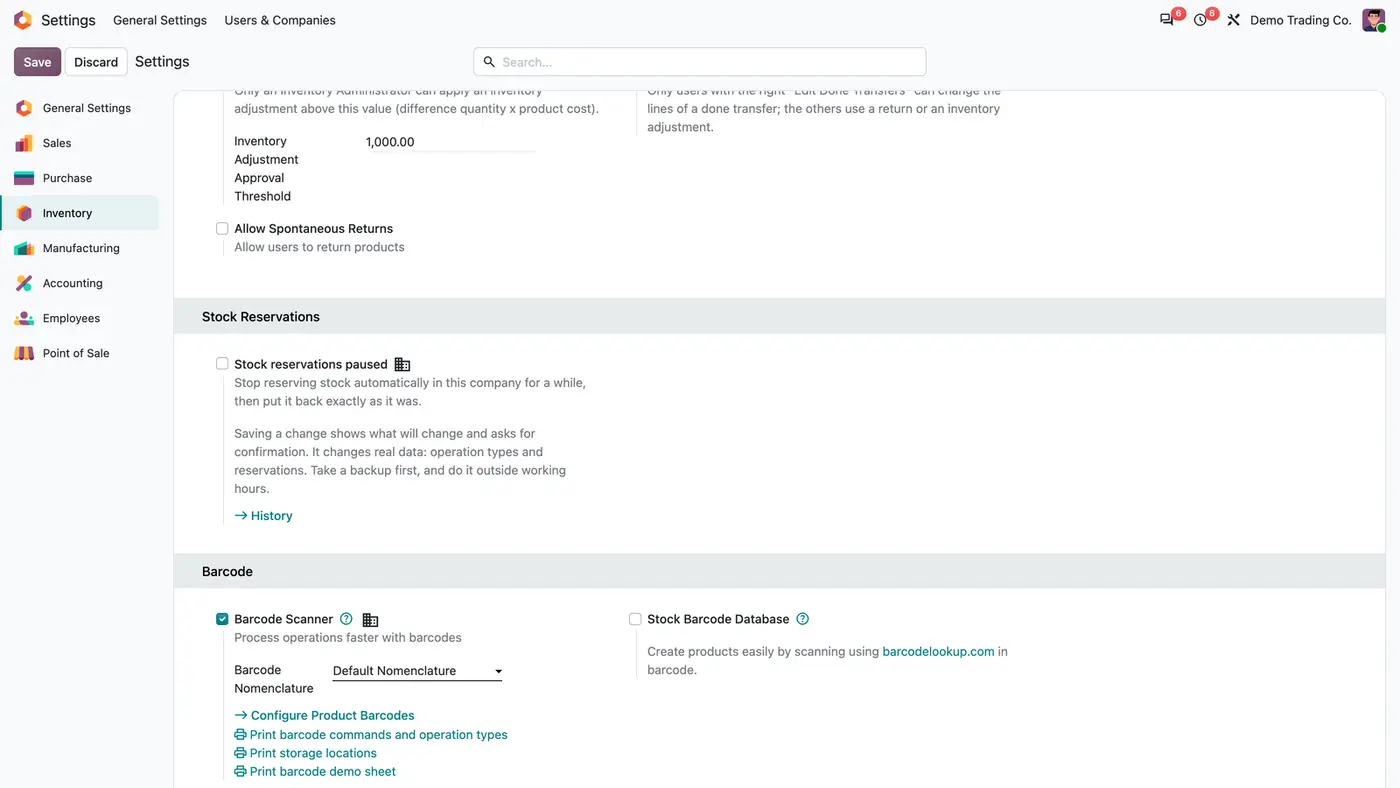
Inventory settings with the Stock Reservations block, the Stock reservations paused option and a History link
One setting per company pauses automatic reservations, with a warning to take a backup first.
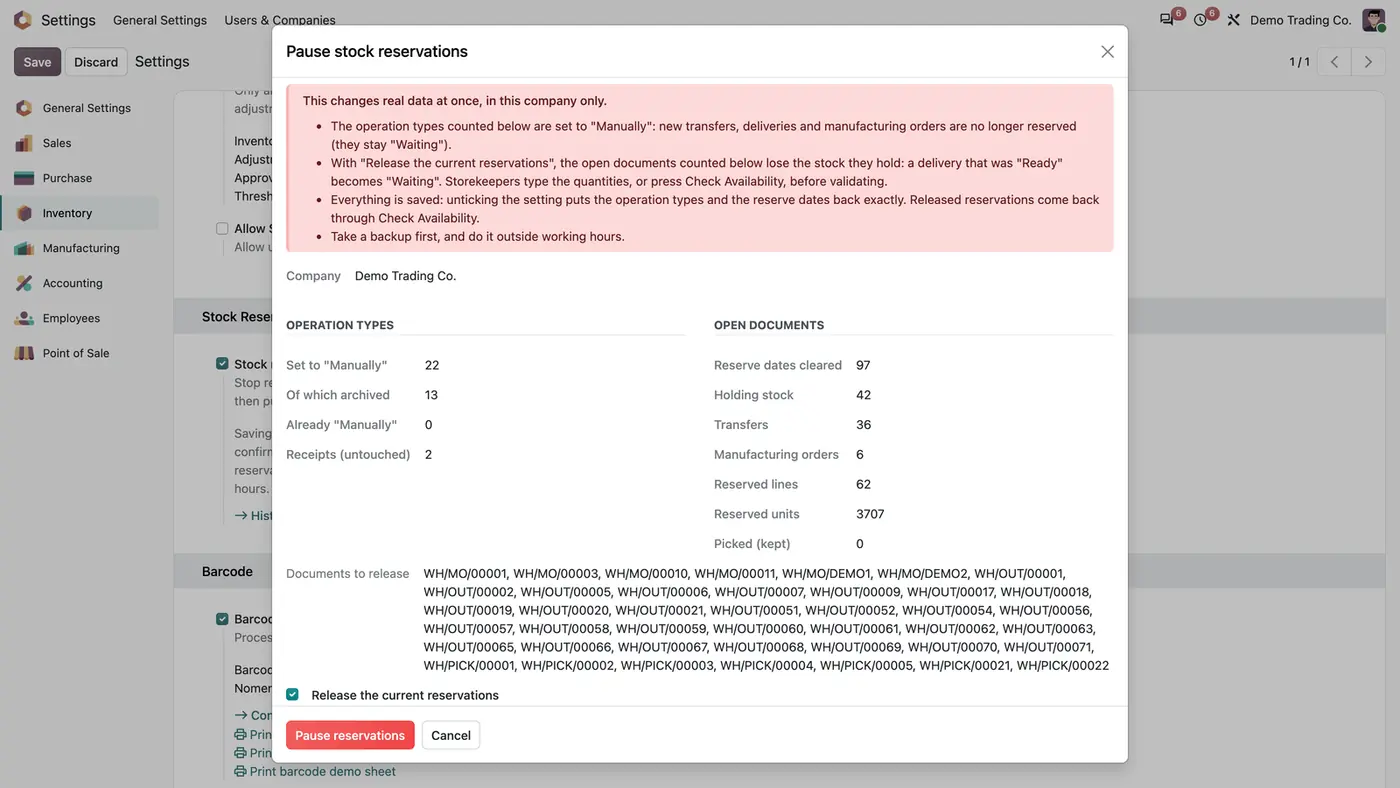
Pause stock reservations preview with counts of operation types, open documents, reserved units and documents to release
The preview shows what the pause will change before anything is touched.
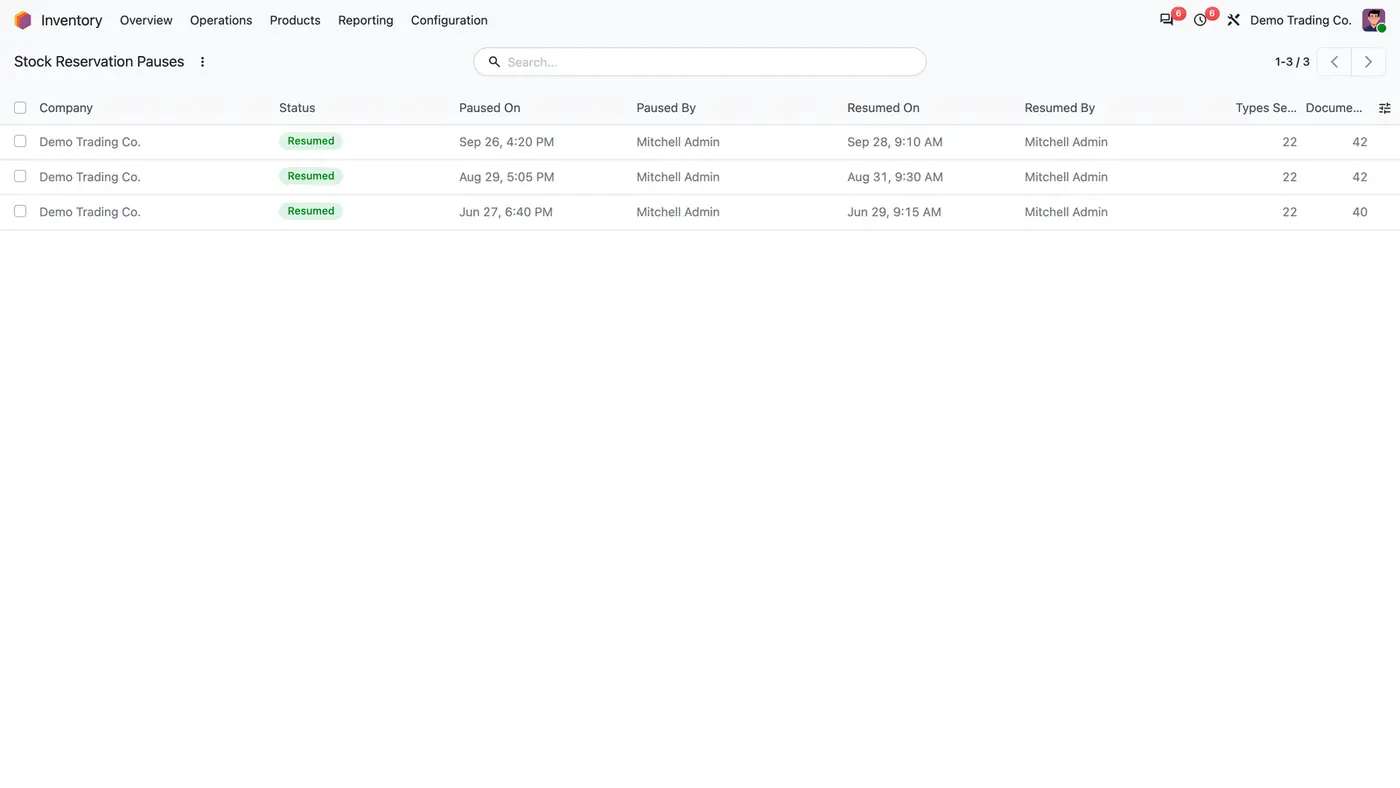
Stock Reservation Pauses list with status Resumed, paused and resumed dates and users, types and documents
Every pause is kept with who paused and resumed it and when.
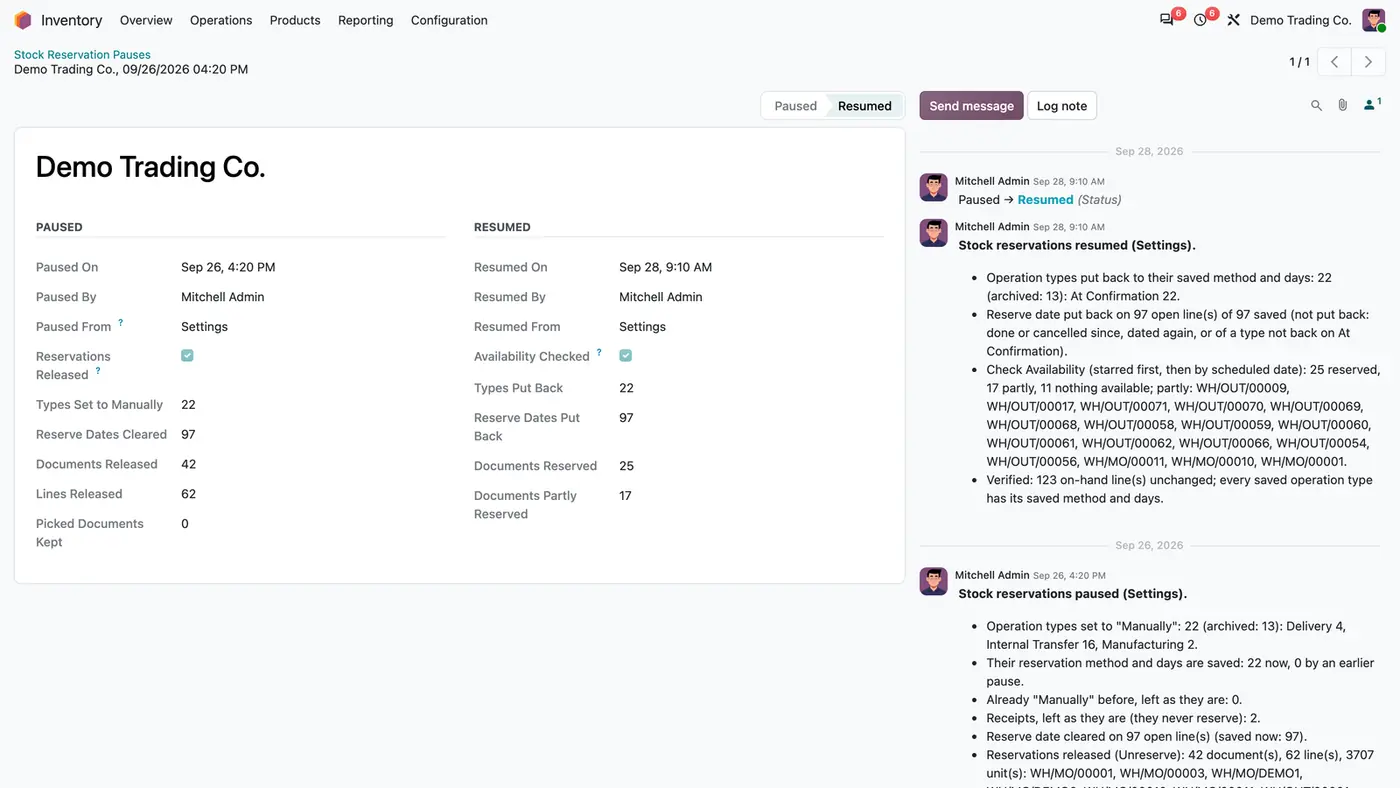
Pause record with Paused and Resumed counts and a chatter log of types put back, dates restored and availability checked
The full log of one pause and its resume, including what Check Availability reserved again.
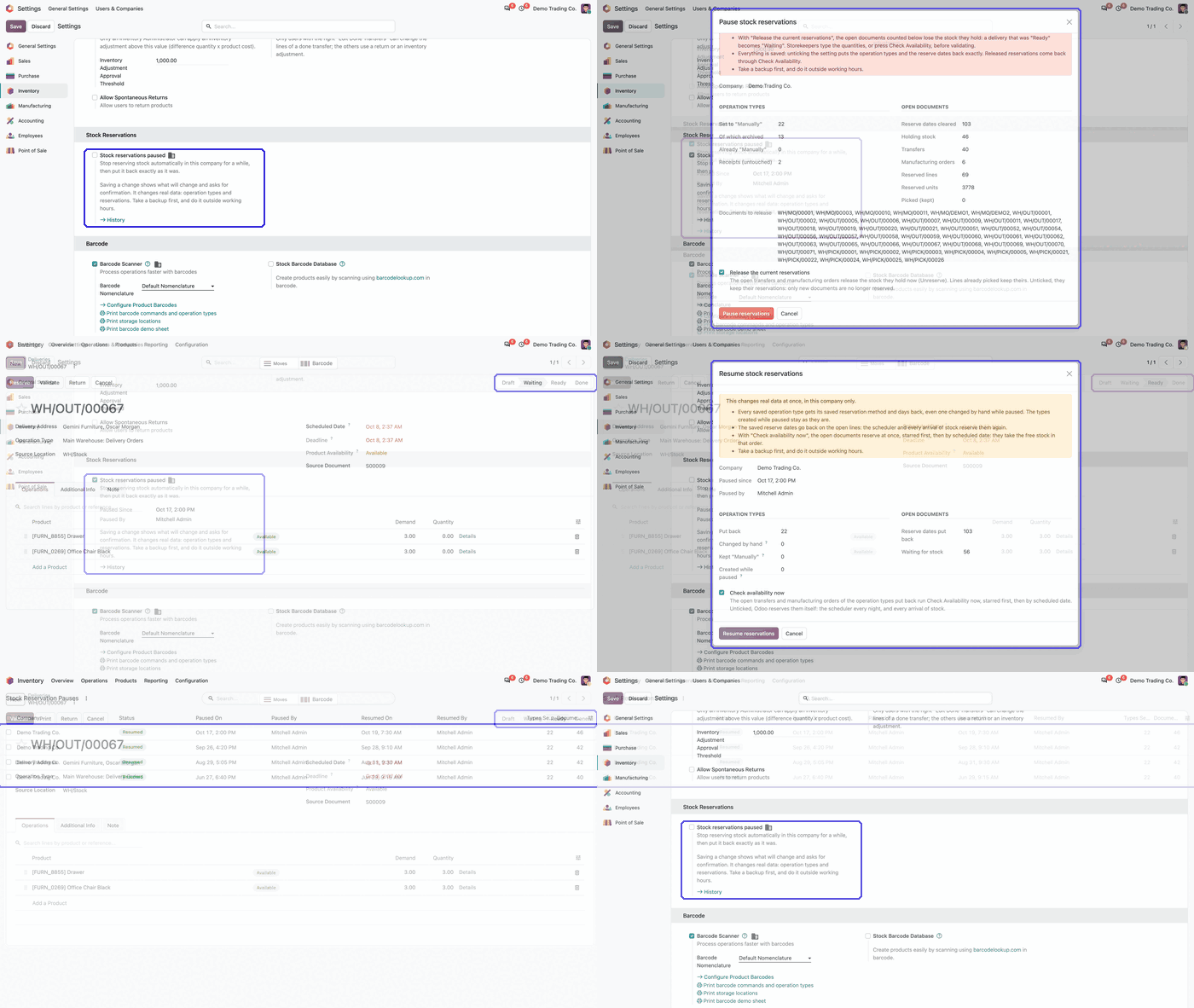
Animated demo: Inventory settings with the Stock reservations paused block highlighted Play demo
A short walk-through of where the pause setting lives.

What it does

Pause

  • Tick Stock reservations paused in the Inventory settings to pause automatic reservations in the current company.
  • Operation types that reserve At Confirmation or Before scheduled date are set to Manually, and their method and days are saved.
  • Reserve dates on open lines are saved and cleared.
  • New transfers, deliveries and manufacturing orders of those types are no longer reserved and stay Waiting.

Release current reservations

  • Optionally release the reservations of open documents, so a delivery that was Ready becomes Waiting.
  • Picked lines keep their reservation.
  • The option Release the current reservations can be unticked in the preview.

Preview and safety

  • Saving the change first shows a preview: operation types to set to Manually, archived ones, receipts left untouched, open documents, reserved lines and units, listed by name.
  • Nothing changes before you press Pause reservations.
  • The module verifies that on-hand quantities are unchanged, and any failure cancels the whole pause.

Resume

  • Untick the setting to put every reservation method, number of days and reserve date back.
  • Optionally run Check Availability at once, so the open documents are reserved again.
  • Operation types created while paused keep the Manually method and are listed when you resume.

History and scope

  • Every pause is kept with who paused and resumed it, when, from where and what changed, with a detailed log in the chatter.
  • The switch works on one company at a time and only touches that company's operation types and documents.
  • Receipts are never touched, and only Inventory Administrators see and change the setting.

Who it is for

A good fit for

  • Warehouses that run a full inventory count and do not want reservations moving stock meanwhile.
  • Companies going live on Odoo that load stock first and reserve afterwards.
  • Inventory administrators who need to restore the reservation settings exactly as they were.

Not a fit for

  • Changing on-hand quantities or receipts.
  • Pausing several companies in one step: it works on one company at a time.
  • Databases on Odoo Online (SaaS), which cannot install third-party apps.

Install

Requires: Inventory (stock), Manufacturing (mrp), Discuss (mail)

  1. Buy Stock Reservation Pause & Resume on the Odoo Apps Store for your Odoo version (18.0, 19.0 or 20.0).
  2. Add the module to your Odoo.sh project or to the addons path of your on-premise server.
  3. Update the apps list in Odoo and install the module. Inventory and Manufacturing are installed with it if they are missing.

Odoo Online (SaaS) does not allow third-party apps, so the app cannot be installed there. Use Odoo.sh or an on-premise Odoo database, Community or Enterprise.

Every purchase includes 90 days of free support from FlexCode Systems.

Configure

  1. Nothing to set up in advance. The setting appears for Inventory Administrators under Inventory > Configuration > Settings > Stock Reservations.
  2. Take a backup before the first pause and do it outside working hours, as the setting itself advises, because it changes real data.
SettingWhat it does
Stock reservations pausedPer company. Ticking and saving pauses reservations after a preview; unticking and saving resumes them.
Release the current reservationsIn the pause preview: also unreserve the open documents. Picked lines keep their reservation.
Check availability nowOn resume: reserve the open documents again at once.

How to use it

Pause before the count

  1. Open Inventory > Configuration > Settings > Stock Reservations, tick Stock reservations paused and save.
  2. Read the preview and choose whether to release the current reservations.
  3. Press Pause reservations.

Resume when you are done

  1. Untick Stock reservations paused and save.
  2. Choose Check availability now to reserve the open documents at once, then confirm.
  3. Open History to see the pause record with the counts of both steps and the detailed log.

Limits

  • On-hand quantities and receipts are never changed.
  • One company at a time.
  • Operation types created while paused stay on Manually after resume.
  • It cannot be installed on Odoo Online (SaaS).

FAQ

Does pausing change my stock?

No. Only reservations and reservation settings change. The module verifies that on-hand quantities are unchanged before saving, and any failure cancels the whole pause.

What about operation types created while paused?

They are created with the Manually method and listed when you resume; they are left as they are.

Can I pause only one company?

Yes. The switch is per company and only touches that company's operation types and documents.

Who can pause the reservations?

Only Inventory Administrators see and change the setting, in the Inventory settings.

Are manufacturing orders covered?

Yes. Transfers, deliveries and manufacturing orders of the paused operation types are no longer reserved; receipts are never touched.

Need it set up or adapted?

We configure our apps for your process, train your team and build the extra pieces you need.