Skip to Content

Inventory & Purchase · Odoo 20, Odoo 19, Odoo 18

Packing List Fields

Type of pack, dimensions and weight on delivery orders and on the printed packing list

Packing List Fields is an app for Odoo 18, 19 and 20 that adds the type of pack, the number of packs and each pack's dimensions and weight to the transfer under Shipping Information. The values print on the Delivery Slip, and the pack weights add up to the shipping weight.

Key features

The problem

Delivery slips often miss the packing details that customers and carriers ask for. Is it a pallet or a carton, how big is it, how much does it weigh? Warehouse staff write it on the paperwork by hand or answer the questions by phone and email, and shipping errors creep in.
Screenshots

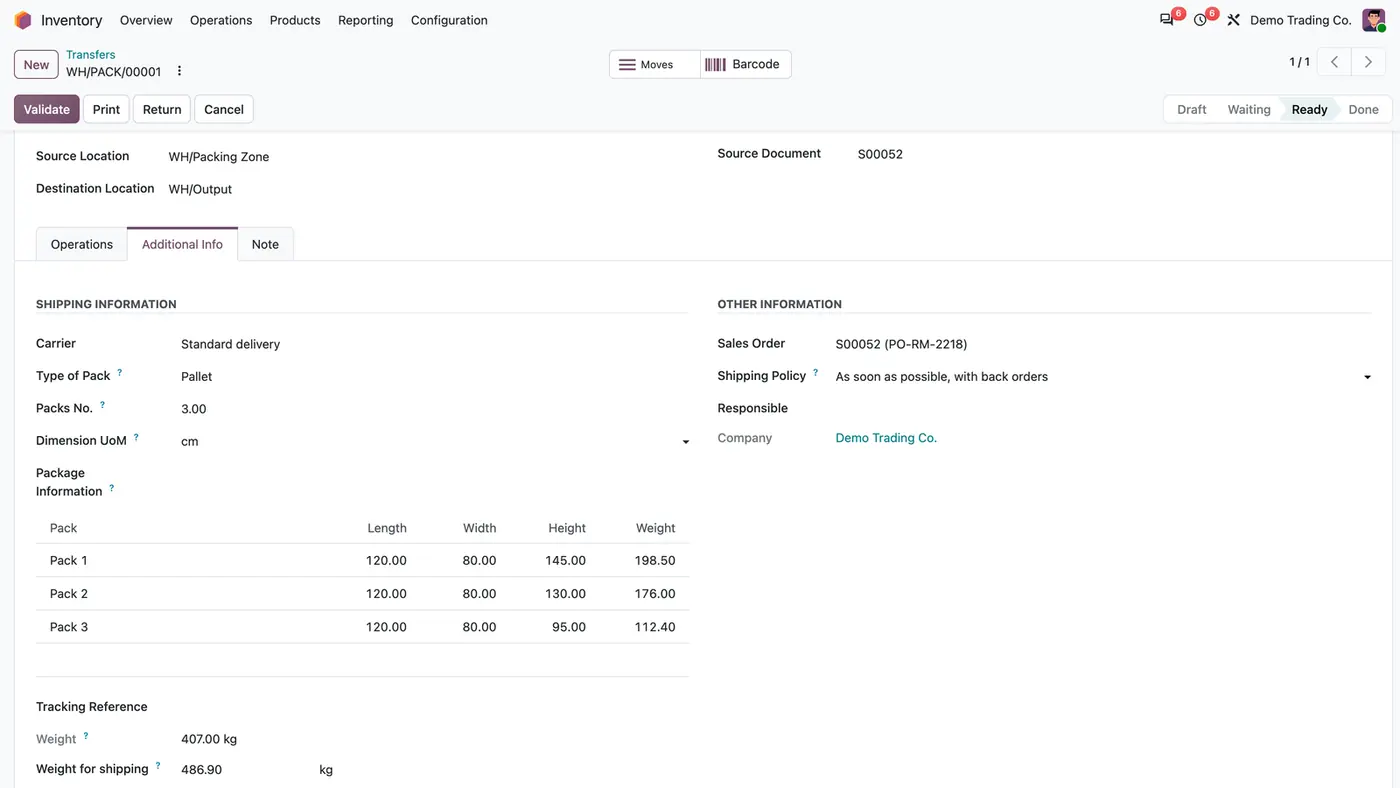
Pack step WH/PACK/00001 with Type of Pack Pallet, Packs No. 3 and three pack lines with sizes and weights
On the Pack step the packer picks the type of pack and enters one line per pack; the pack weights add up to the shipping weight.
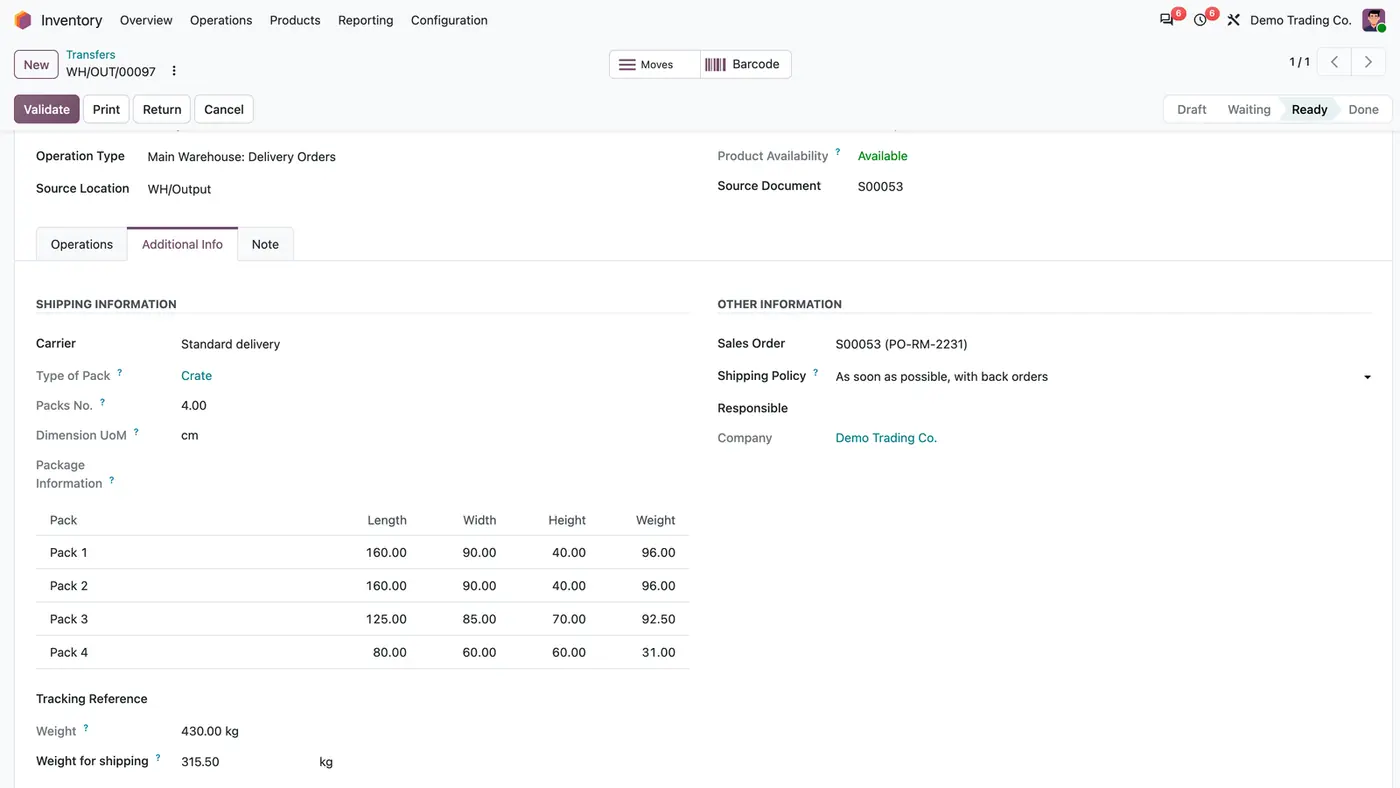
Delivery order WH/OUT/00097 with Type of Pack Crate, four read-only pack lines and Weight for shipping 315.50 kg
After the Pack step the data is copied to the delivery order and locked.
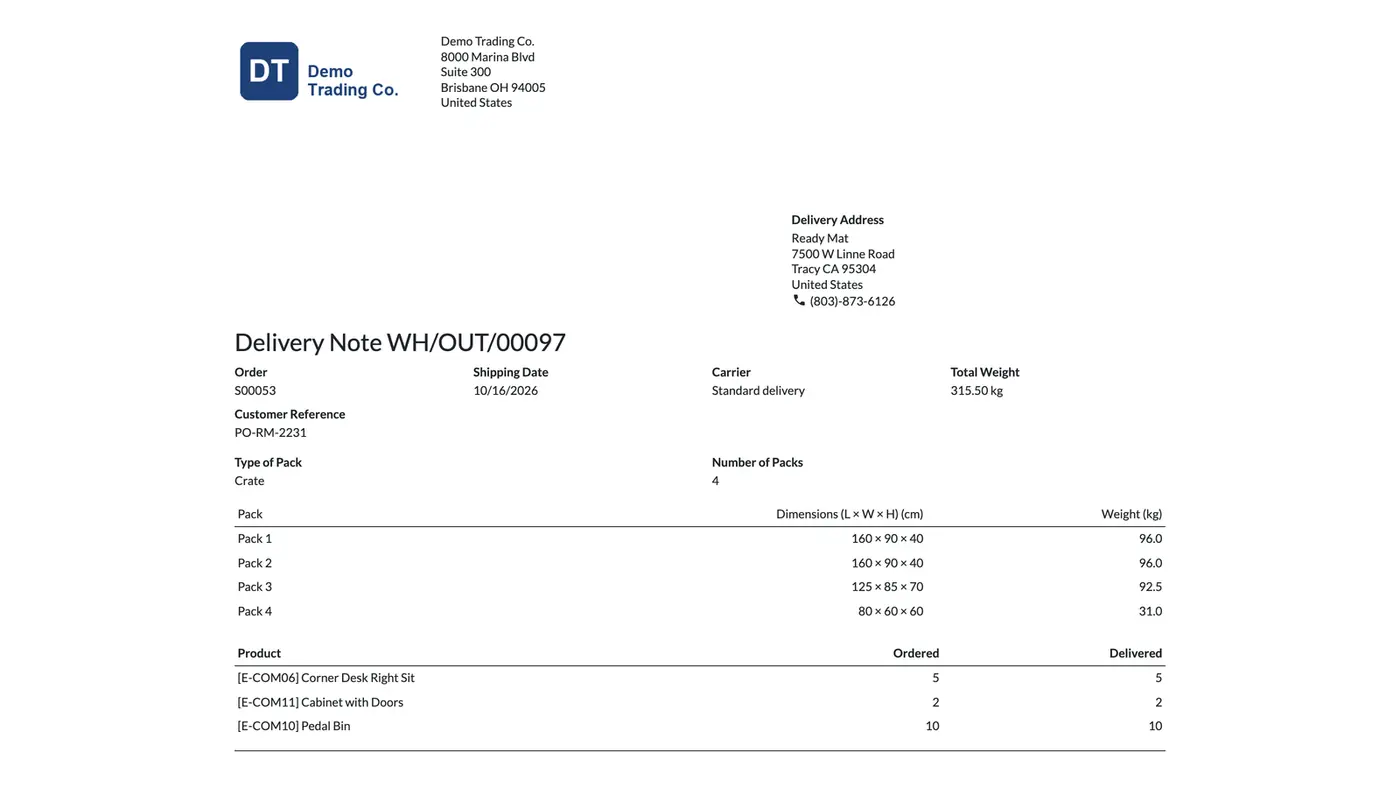
Printed Delivery Note with type of pack, number of packs and one row per pack with dimensions and weight
The delivery slip prints the type of pack, the number of packs and each pack's dimensions and weight.
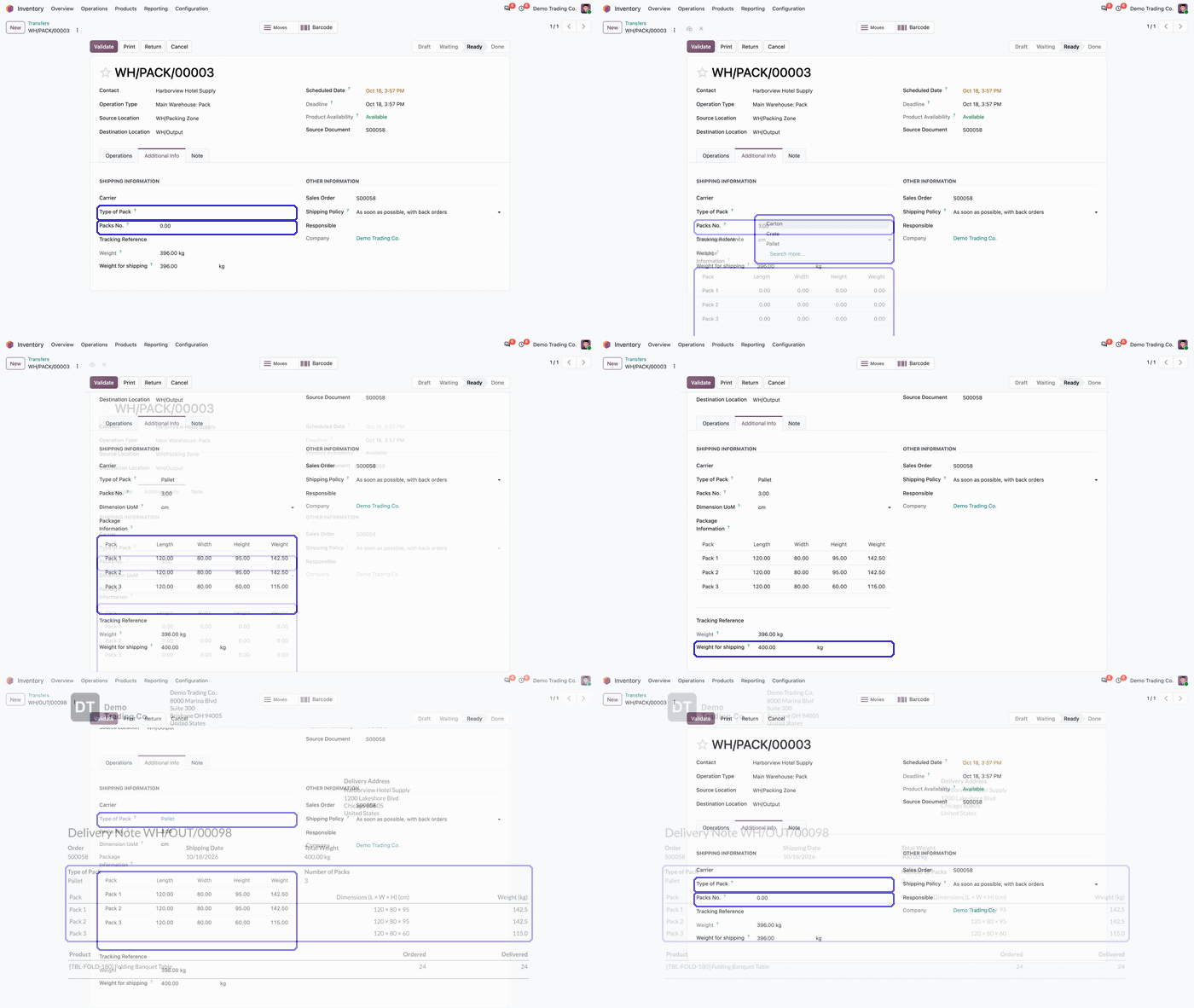
Animated demo: the Additional Info tab of a Pack step with the Type of Pack and Packs No. fields highlighted Play demo
The demo fills the pack details on a Pack step.

What it does

Packing details on every delivery order

  • Set the Type of Pack on the transfer: Pallet, Carton or your own types.
  • Enter Packs No. to get one line per pack with length, width and height, in mm, cm or m.
  • Enter a weight per pack. Weight for shipping becomes the sum of the pack weights, unless someone types a weight by hand.

Printed where it counts

  • Print type of pack, dimensions and weight on the Packing List / Delivery Slip report.
  • Find the fields on the transfer under Additional Info, Shipping Information.

Packing steps and locking

  • Fill the details on the Pack step of a 3-step delivery, or on the delivery order. They are copied forward to the next transfers in the chain.
  • The fields become read-only once the Pack step is done, or once the delivery is done when there is no Pack step.

Who it is for

A good fit for

  • Warehouse and shipping teams preparing deliveries.
  • Companies that ship pallets and cartons with size and weight.
  • Businesses that need complete packing lists for carriers.
  • Anyone printing delivery slips from Odoo 18, 19 or 20.

Not a fit for

  • Databases on Odoo Online (SaaS), which cannot install third-party apps.
  • Teams that need Odoo packages or carrier labels created. The app records and prints the pack details only.

Install

Requires: Inventory (stock), Invoicing (account), Discuss (mail)

  1. Buy the app on the Odoo Apps Store for your Odoo version (18.0, 19.0 or 20.0).
  2. Add the module to your Odoo.sh project or to the addons path of your on-premise server.
  3. Update the apps list in Odoo and install Packing List Fields. Missing dependencies are installed with it.

Odoo Online (SaaS) does not allow third-party apps, so Packing List Fields cannot be installed there. Use Odoo.sh or an on-premise Odoo database, Community or Enterprise.

Every purchase includes 90 days of free support from FlexCode Systems.

Configure

  1. Under Inventory > Configuration > Pack Types, keep Pallet and Carton and add Box, Crate or any other type you use.
  2. If a packer fills the details on a separate Pack step, turn on Multi-Step Routes and set the warehouse's outgoing shipments to Pick, Pack, then Deliver (3 steps).
SettingWhat it does
Type of PackHow the goods are packed, for example Pallet or Carton. Inventory Administrators add further types under Pack Types.
DimensionsLength, width and height per pack, with a dimension unit in mm, cm or m.
WeightEntered per pack. Weight for shipping is the sum of the pack weights unless it is typed by hand.

How to use it

Record the packing details and print the slip

  1. Open the Pack step or the delivery order and go to Additional Info, Shipping Information.
  2. Set the type of pack and Packs No., then enter each pack's dimensions and weight.
  3. Print the packing list or delivery slip. Type of pack, dimensions and weight appear on the document.

Limits

  • It does not create Odoo packages or carrier labels. It records and prints the pack details.
  • It cannot be installed on Odoo Online (SaaS).
  • The price covers one Odoo major version. It is sold for Odoo 18, 19 and 20, Community and Enterprise.

FAQ

How do I add dimensions and weight to the Odoo delivery slip?

Install Packing List Fields. Enter the type of pack, the number of packs and each pack's dimensions and weight on the transfer under Shipping Information, and the Delivery Slip prints them above the products.

Can I set pallet or carton as the type of pack in Odoo?

Yes. Pallet and Carton are there after installation, and Inventory Administrators can add more types under Inventory, Configuration, Pack Types.

Where does the weight on the packing list come from?

Weight for shipping becomes the sum of the pack weights, unless someone types a weight by hand.

Where do I enter the packing details?

On the transfer, under Additional Info, Shipping Information. In a 3-step delivery the packer fills them on the Pack step and they are copied to the delivery order.

Which Odoo versions and editions does Packing List Fields support?

It is sold for Odoo 18, 19 and 20, Community and Enterprise, on-premise and on Odoo.sh. Odoo Online does not allow third-party apps. The price is one-time per Odoo major version.

Does Packing List Fields modify Odoo core?

No. It is clean code with no core monkey-patching and no migration scripts.

Need it set up or adapted?

We configure our apps for your process, train your team and build the extra pieces you need.