Skip to Content

Access & Controls · Odoo 20, Odoo 19, Odoo 18

Date Control

Let authorised users set custom sales and purchase dates, and keep everyone else standard

Date Control is a free app for Odoo 18, 19 and 20 that controls who may change the Quotation / Order Date of a sales order and the Confirmation Date of a purchase order. Separate rights cover sales and purchase, every other user keeps standard Odoo behaviour, and confirmed sales orders can optionally be locked per company.

Key features

The problem

Sometimes the right people need to back-date an order or set a custom order date, but you do not want everyone doing it. Uncontrolled back-dating is a compliance risk, and nobody can say who was allowed to change which date.
Screenshots

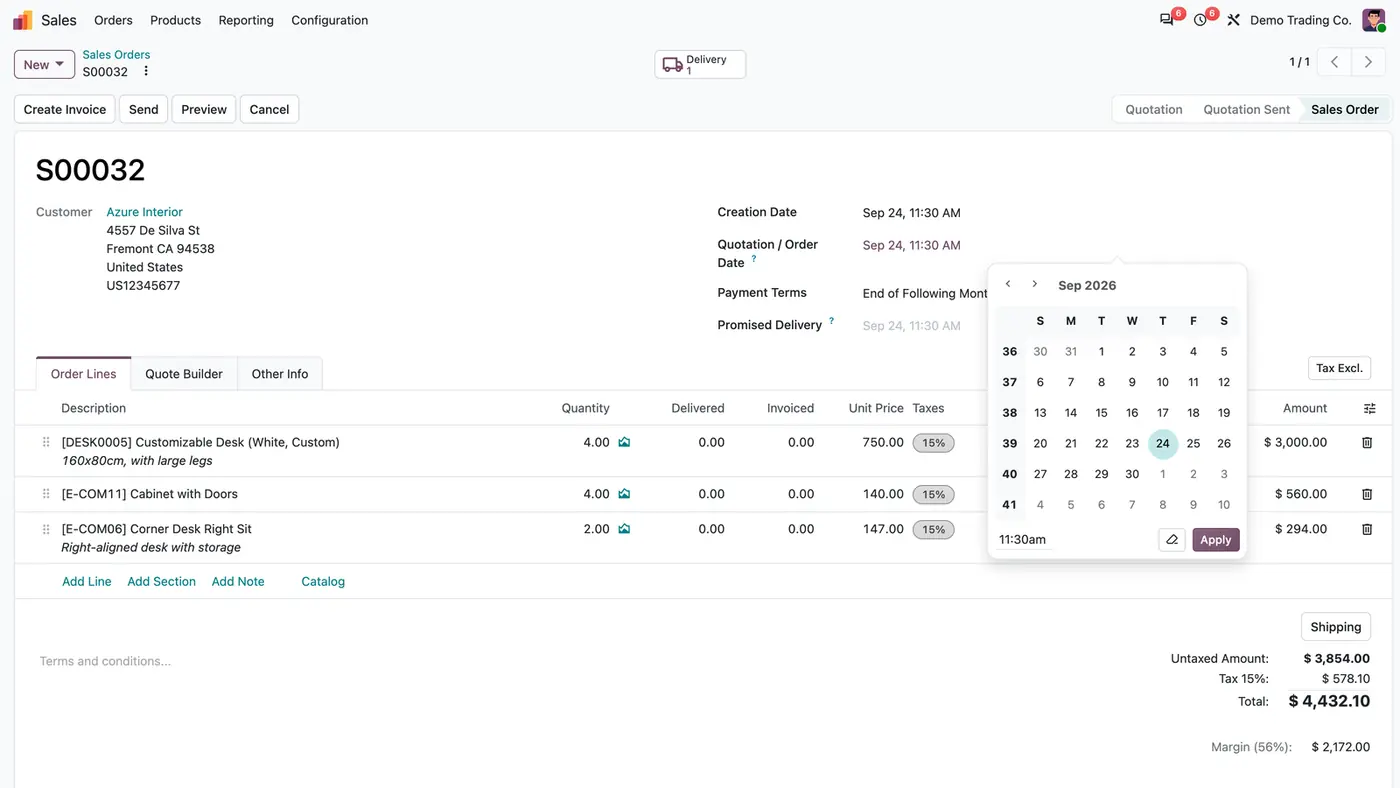
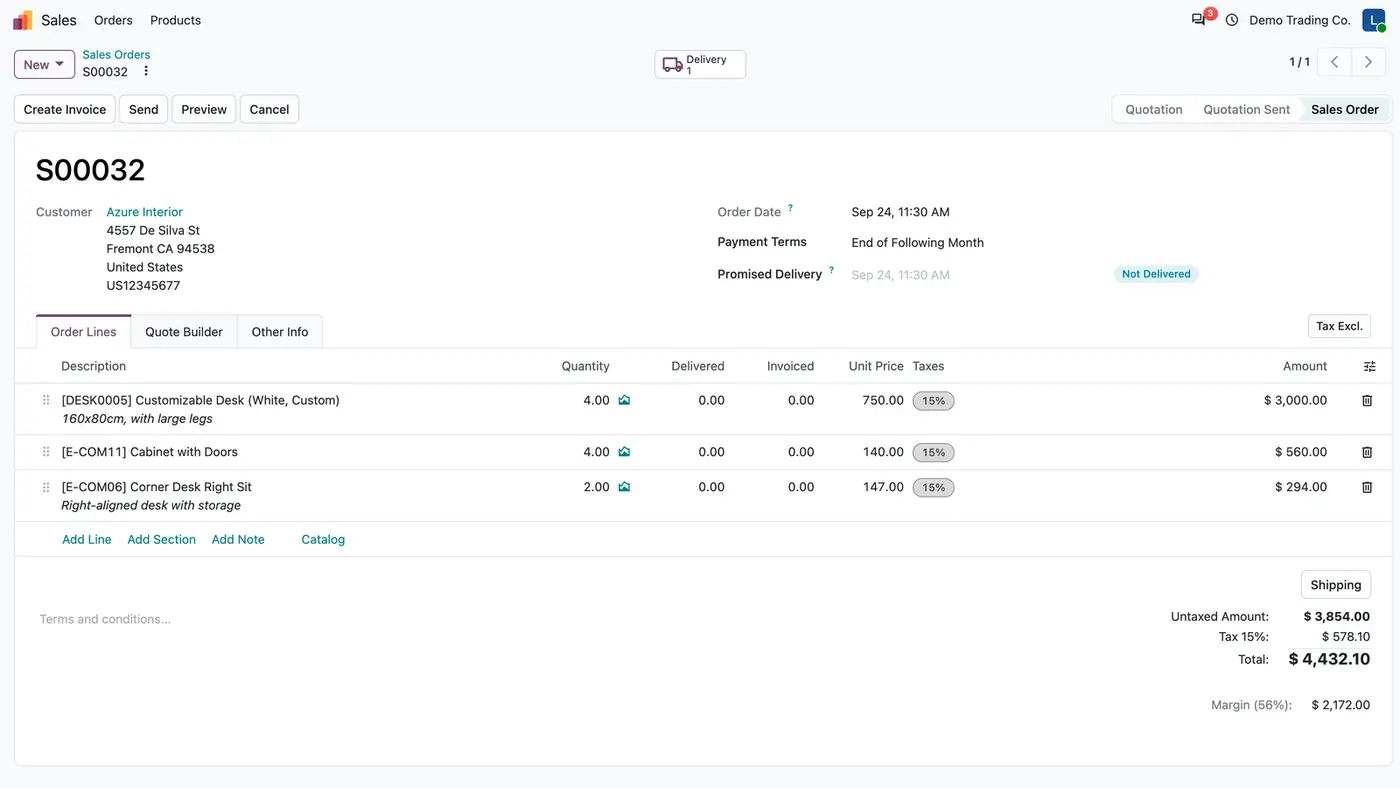
Confirmed sales order S00032 with editable Creation Date and Quotation / Order Date, date picker open
With the Quotation Date right, the Quotation / Order Date stays editable after confirmation.
The same sales order S00032 opened by a salesperson without the right, showing only the read-only Order Date
A salesperson without a date right sees Odoo's standard read-only Order Date.
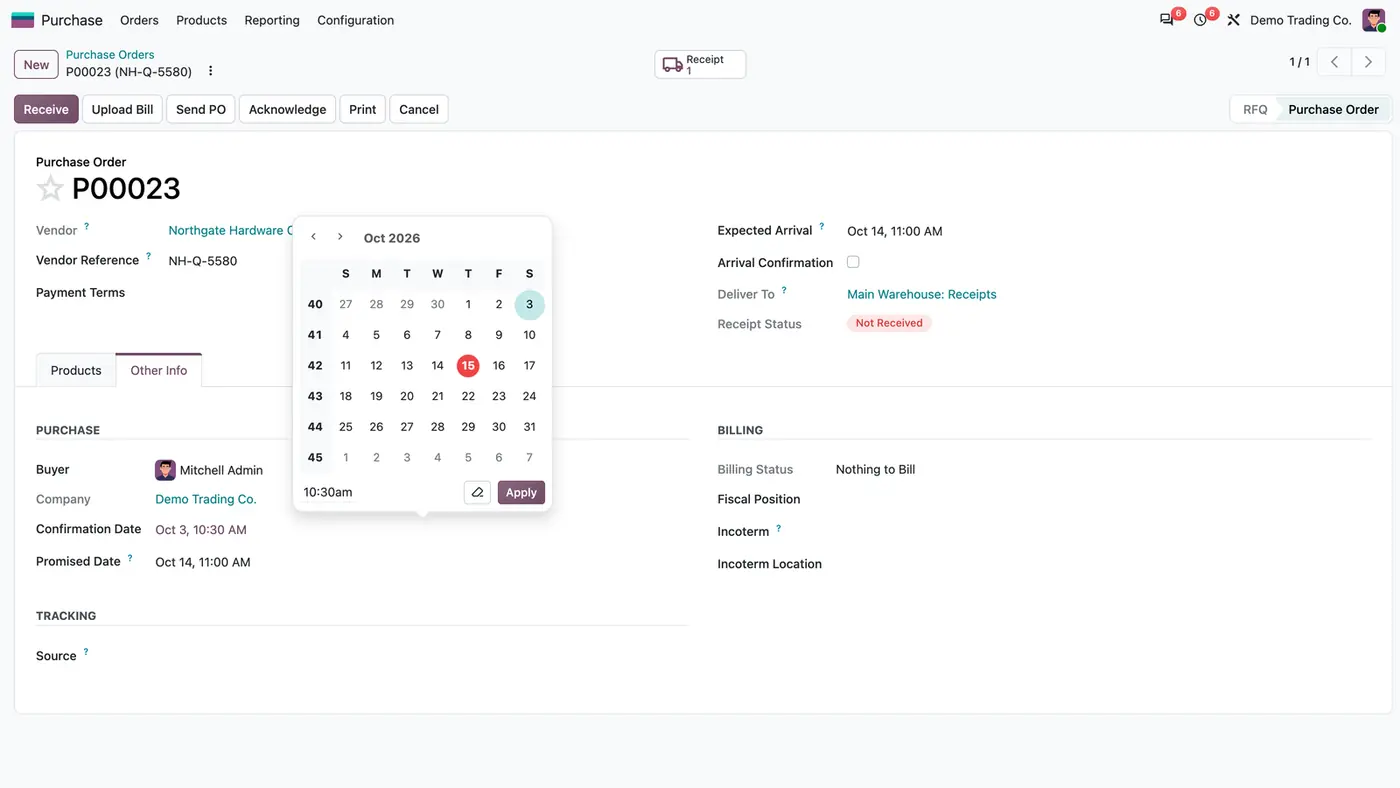
Purchase order P00023, Other Info tab, date picker open on Confirmation Date Oct 3, 10:30 AM
With the Purchase Approval Date right, the Confirmation Date can be preset on an RFQ or corrected later.
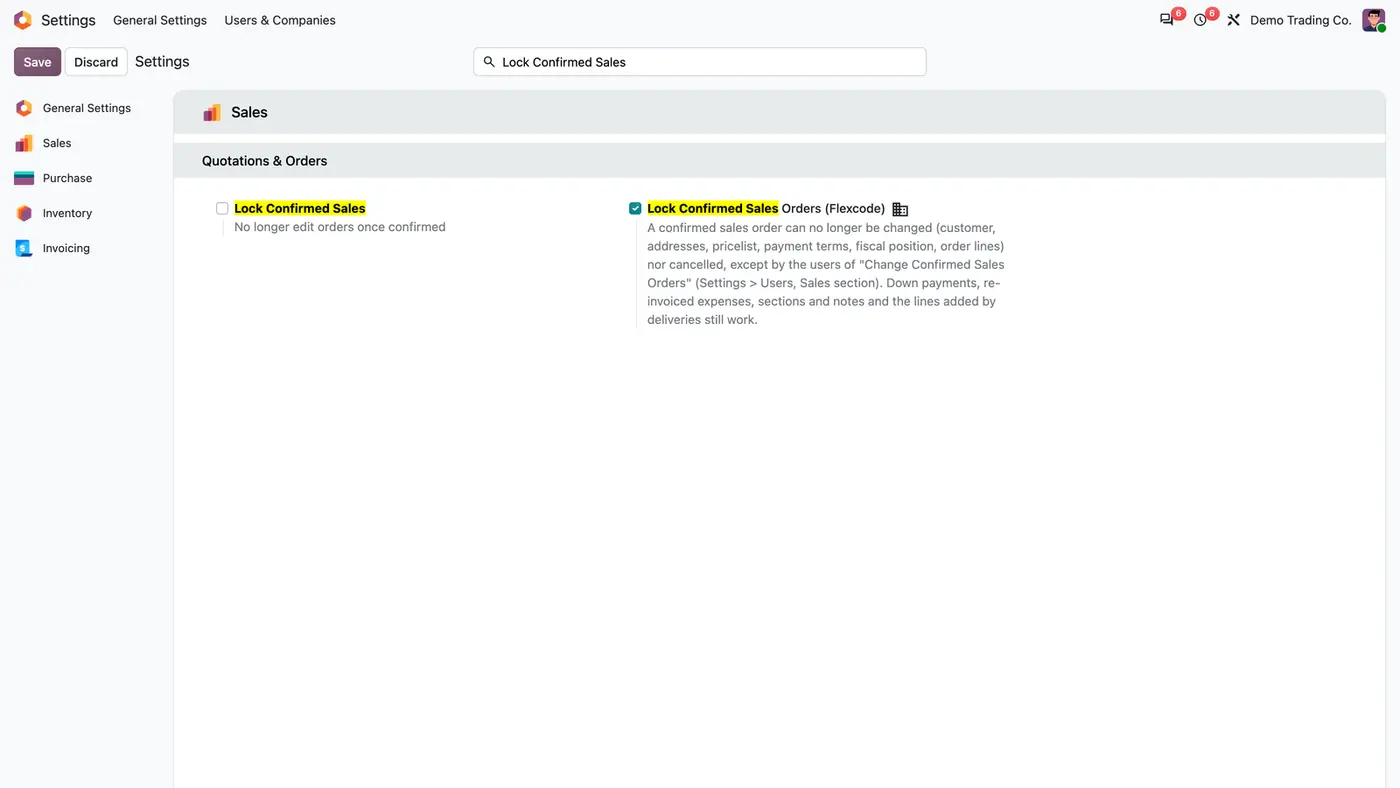
Sales settings with the option Lock Confirmed Sales Orders (Flexcode) ticked next to Odoo's Lock Confirmed Sales
The optional per-company lock for confirmed sales orders in the Sales settings.
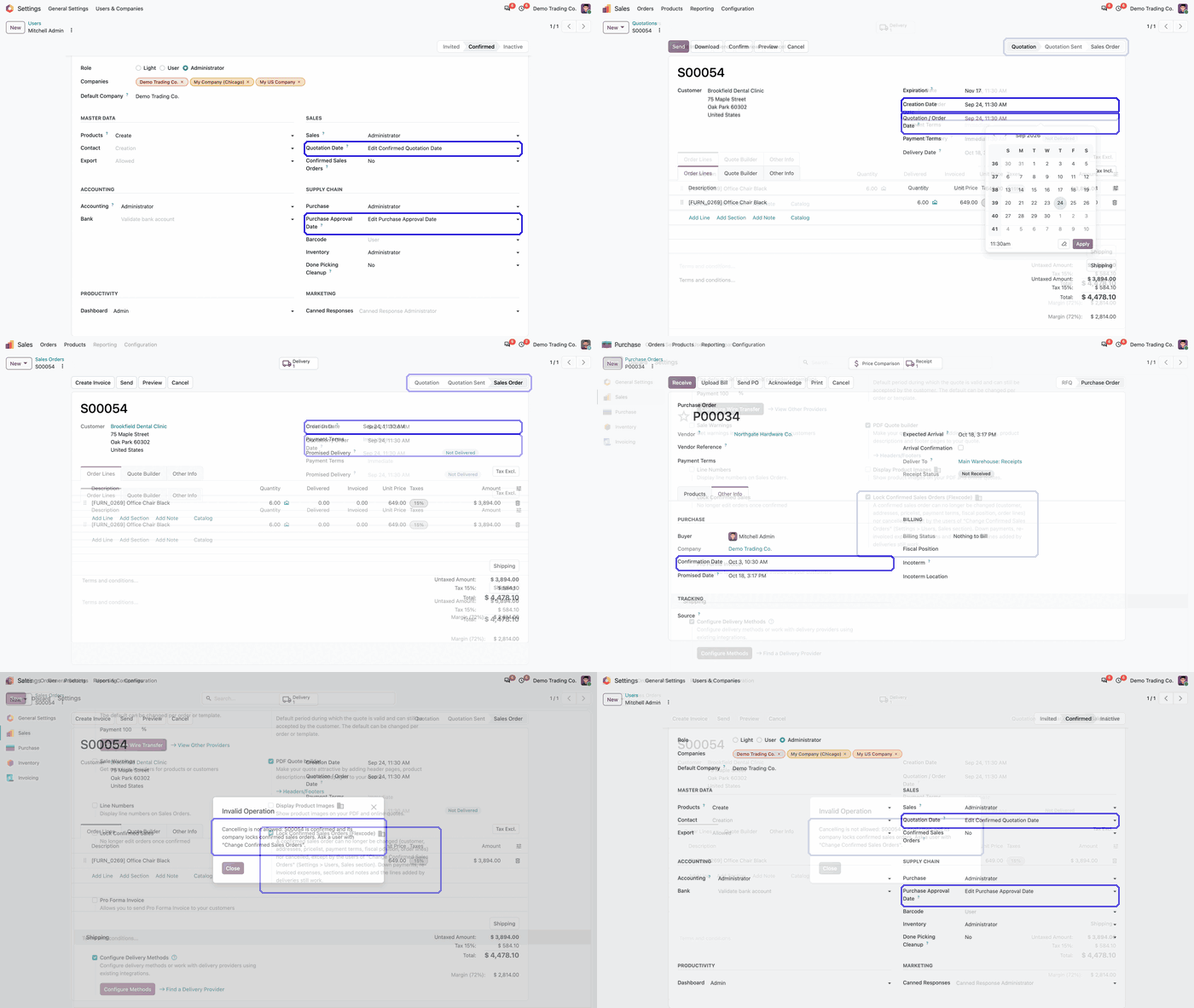
Animated demo: user form with the Quotation Date and Purchase Approval Date rights highlighted Play demo
Animated demo of granting the sales and purchase date rights on the user form.

What it does

Sales dates, under control

  • Let authorised users set custom dates on sales quotations and sales orders.
  • Keep the standard date behaviour for everyone outside the group.

Purchase dates, under control

  • Let authorised users set custom purchase confirmation dates.
  • Keep the standard date behaviour for everyone outside the group.

Separate access rights

  • Grant Edit Confirmed Quotation Date for sales and Edit Purchase Approval Date for purchase, independently of each other.
  • Optionally lock confirmed sales orders per company; users with Change Confirmed Sales Orders may still change or cancel them.

Light and non-intrusive

  • Change nothing for regular users; they see Odoo exactly as before.
  • Rely on focused view extensions with a small footprint, without changing Odoo core.

Who it is for

A good fit for

  • Sales and purchase managers who need custom document dates.
  • Companies that must control back-dating for compliance.
  • Administrators who want one simple permission to manage.
  • Teams that need custom dates without disrupting normal users.

Not a fit for

  • Databases on Odoo Online (SaaS), which cannot install third-party apps.
  • Dates on documents other than sales quotations, sales orders and purchase confirmations.

Install

Requires: Sales (sale), Purchase (purchase), Invoicing (account), Discuss (mail)

  1. Download Date Control free from the Odoo Apps Store for Odoo 18.0, 19.0 or 20.0.
  2. Add the module to your Odoo.sh project or to the addons path of your on-premise server.
  3. Update the apps list in Odoo and install Date Control.

Odoo Online (SaaS) does not allow third-party apps, so Date Control cannot be installed there. Use Odoo.sh or an on-premise Odoo 18, 19 or 20 database.

Questions: info@flexcodesys.com.

Configure

  1. On the user form, set Quotation Date to Edit Confirmed Quotation Date (Sales section) or Purchase Approval Date to Edit Purchase Approval Date (Supply Chain section) for the users who may set dates.
  2. Leave everyone else without these rights; they keep standard Odoo date behaviour. If needed, turn on Lock Confirmed Sales Orders (Flexcode) in the Sales settings and give Change Confirmed Sales Orders to those who may still change locked orders.
SettingWhat it does
Date Control groupSecurity group whose members can set custom sales quotation, sales order and purchase confirmation dates.

How to use it

Set a custom date as an authorised user

  1. Open a sales quotation, sales order or purchase document as a member of the Date Control group.
  2. Set the custom date the document needs.
  3. Confirm as usual.

Check who can change dates

  1. Review the members of the Date Control group.
  2. Add or remove users to grant or withdraw the right.

Limits

  • It covers sales quotation, sales order and purchase confirmation dates.
  • It does not change invoice or delivery dates. There are no per-document or per-date-range rules.
  • It cannot be installed on Odoo Online (SaaS).

FAQ

How do I back-date a sales order in Odoo?

With Date Control, members of the Date Control security group can set custom dates on sales quotations and sales orders. All other users keep the standard Odoo date behaviour.

Can I change the purchase order confirmation date in Odoo?

Yes, if you are in the Date Control group. Date Control gives authorised users role-based control over purchase confirmation dates.

How do I control who can change order dates in Odoo?

Date Control uses separate rights on the user form: Edit Confirmed Quotation Date for sales and Edit Purchase Approval Date for purchase. Only users with a right can change that date.

Does Date Control change Odoo for normal users?

No. Users outside the group see Odoo exactly as before, with no change to their workflow.

Does Date Control modify Odoo core?

No. It uses focused view extensions with clean code, no core monkey-patching and no migration scripts.

Which Odoo versions and editions does Date Control support?

Date Control is a free app for Odoo 18, 19 and 20, Community and Enterprise, on-premise and on Odoo.sh. Odoo Online cannot install third-party apps.

Need it set up or adapted?

We configure our apps for your process, train your team and build the extra pieces you need.