Give every new storekeeper the same access rights in one step
Access Profiles turns access rights into reusable profiles such as Storekeeper or Accountant. You give a profile to one user on the user form or to several at once from the Users list. A change to the profile reaches all its users, and the exceptions you made for one person stay.
Several people often do the same job, and each new one needs the same access rights, set again by hand on the user form. Sooner or later two storekeepers have different rights and nobody knows which one is correct. When the job changes, someone has to walk through every user and adjust the same groups again.
Screenshots
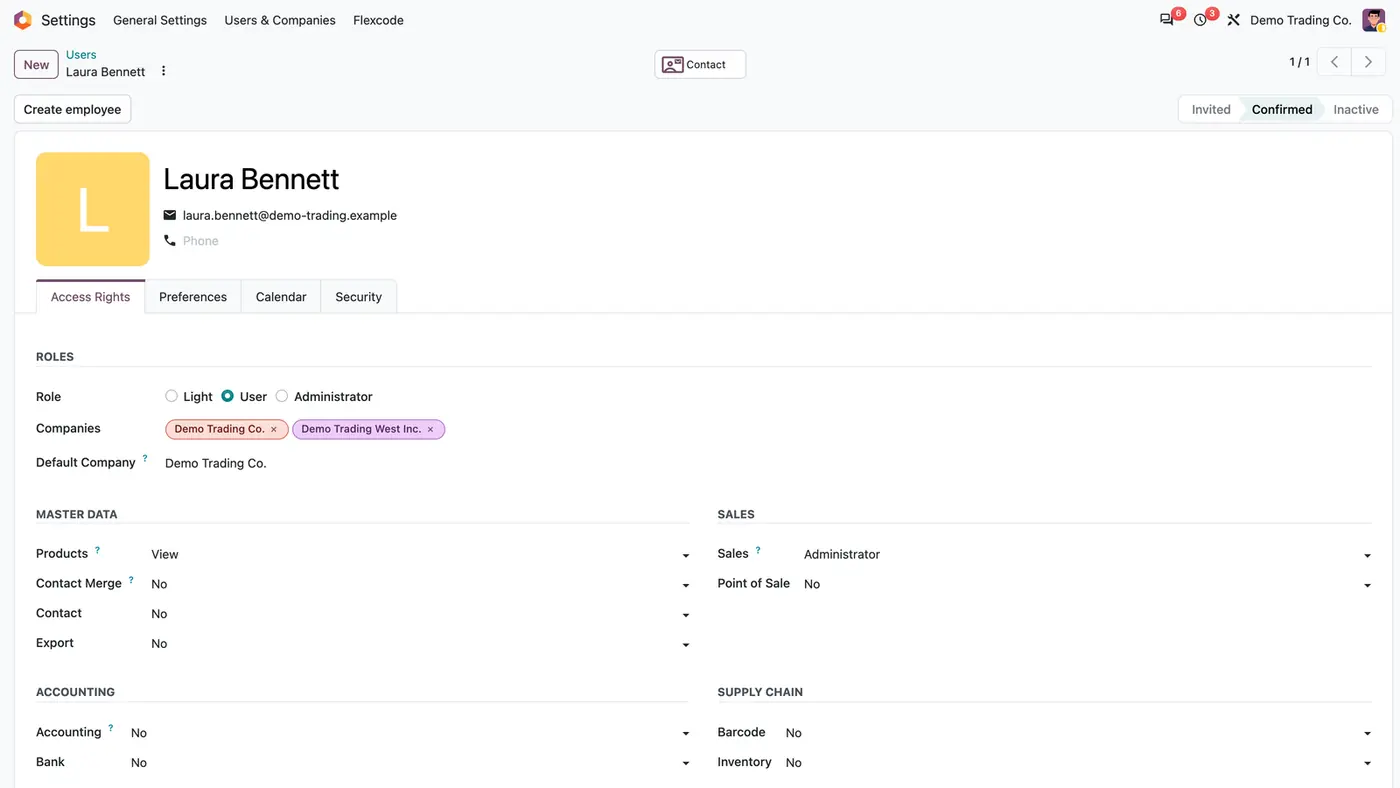
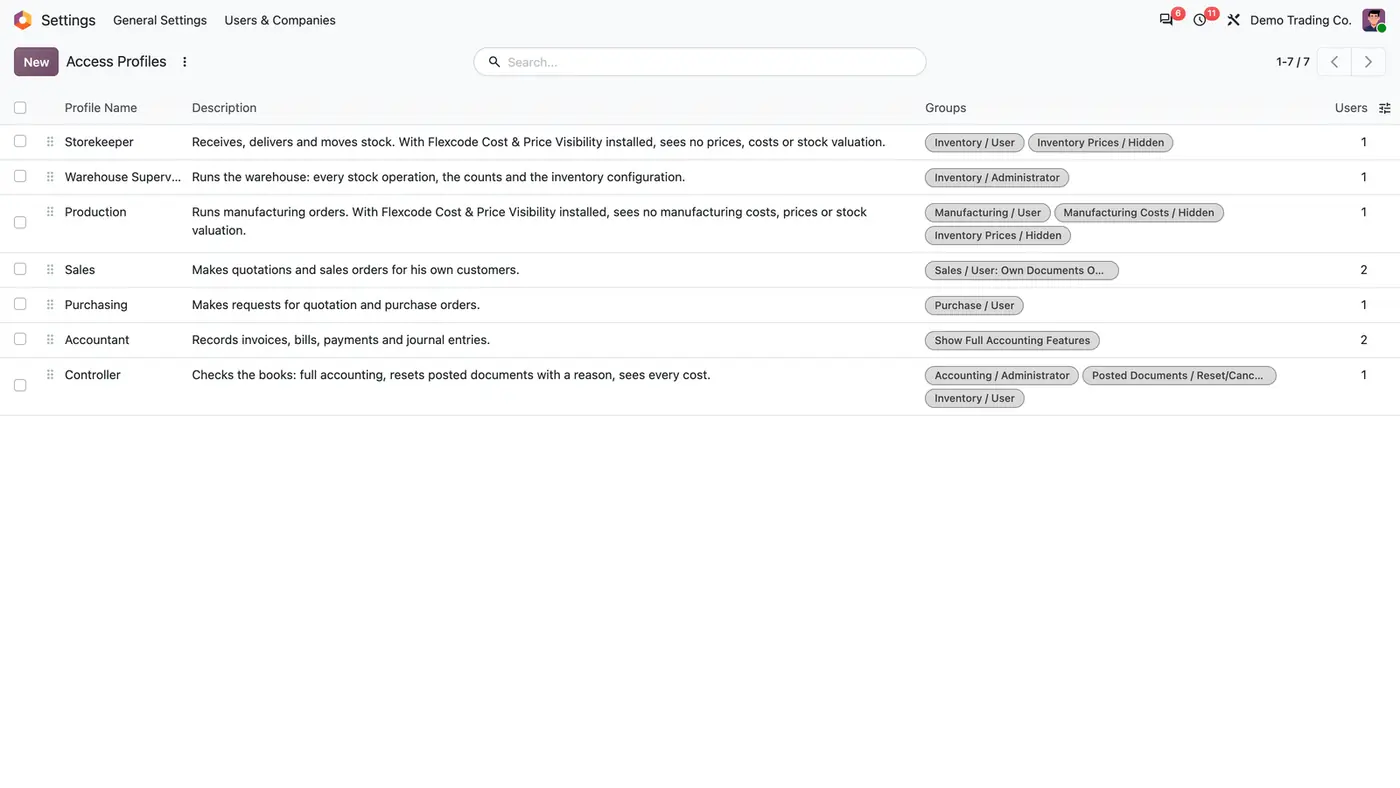
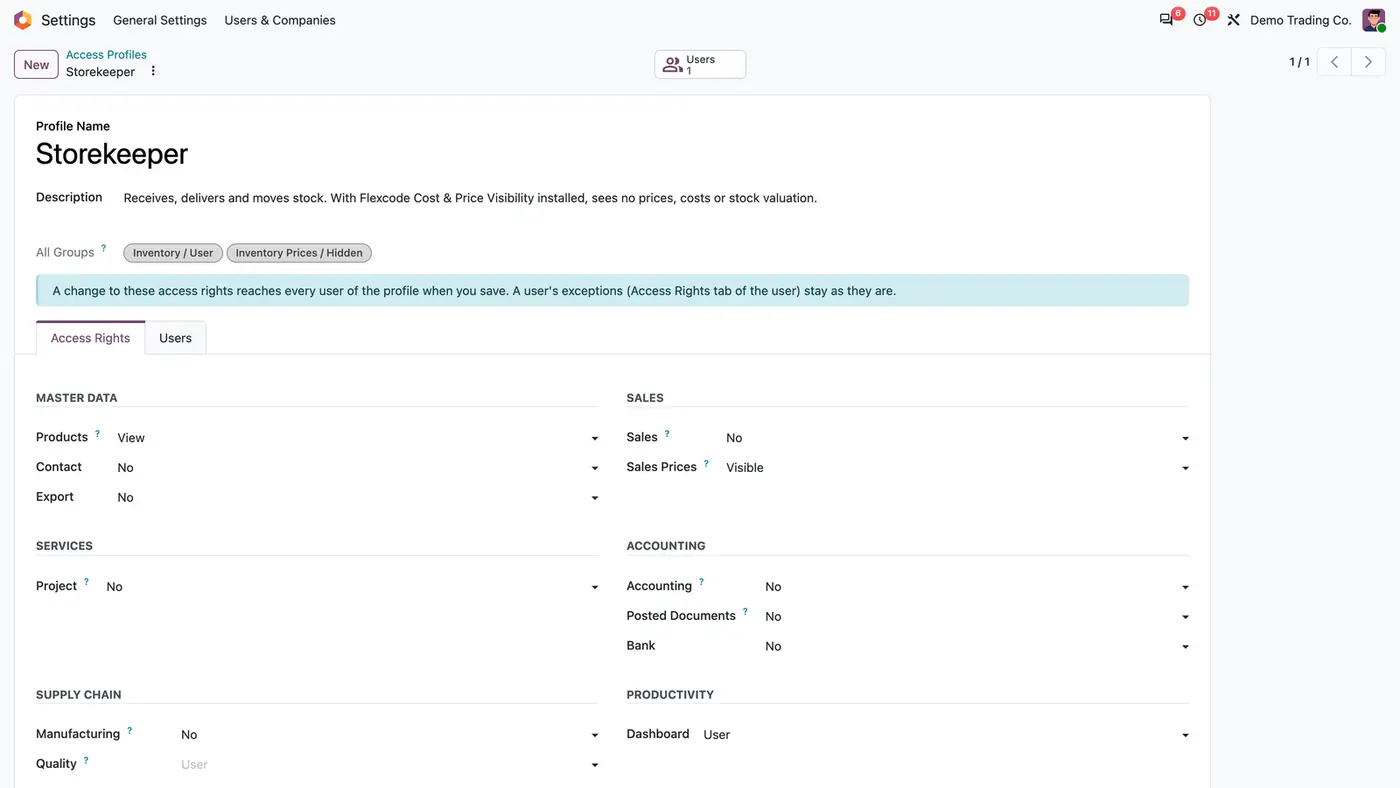
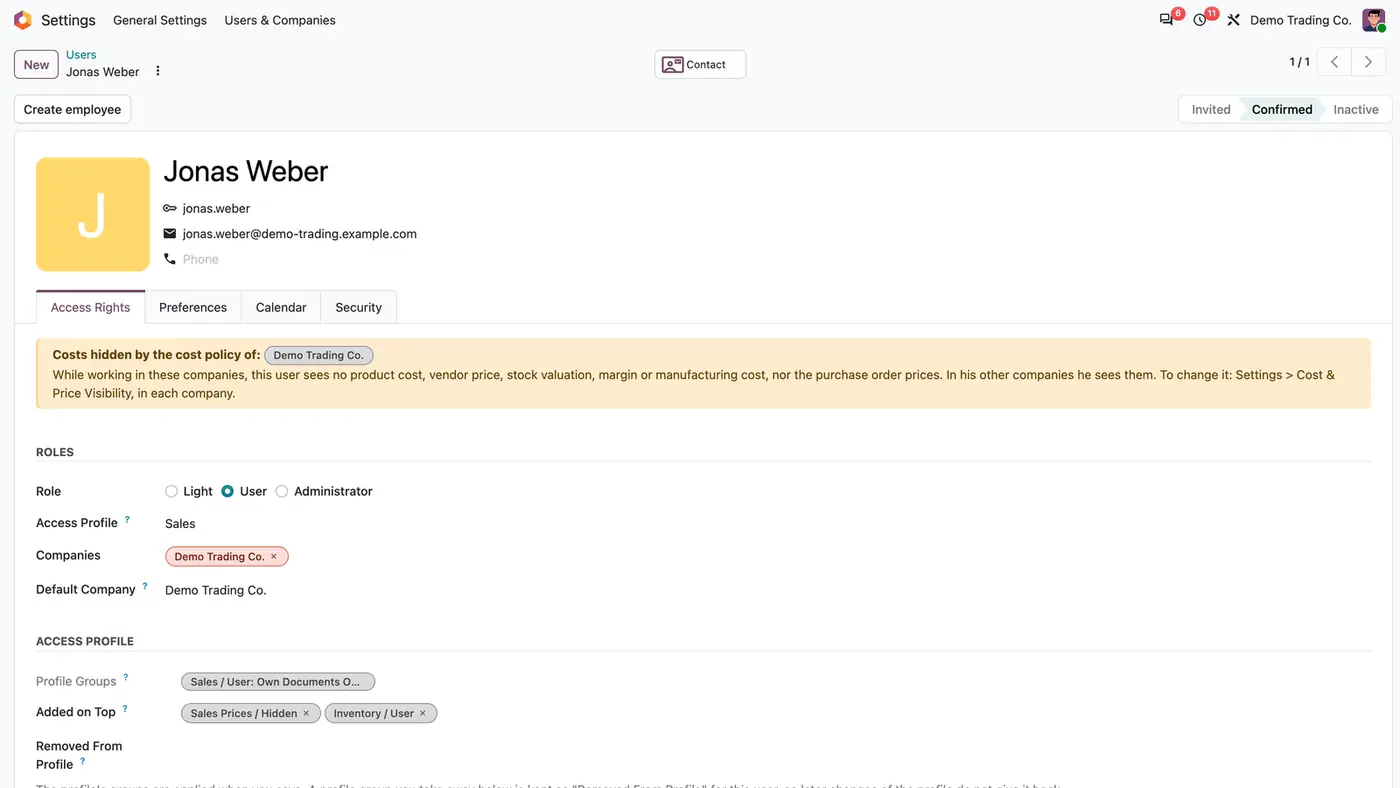
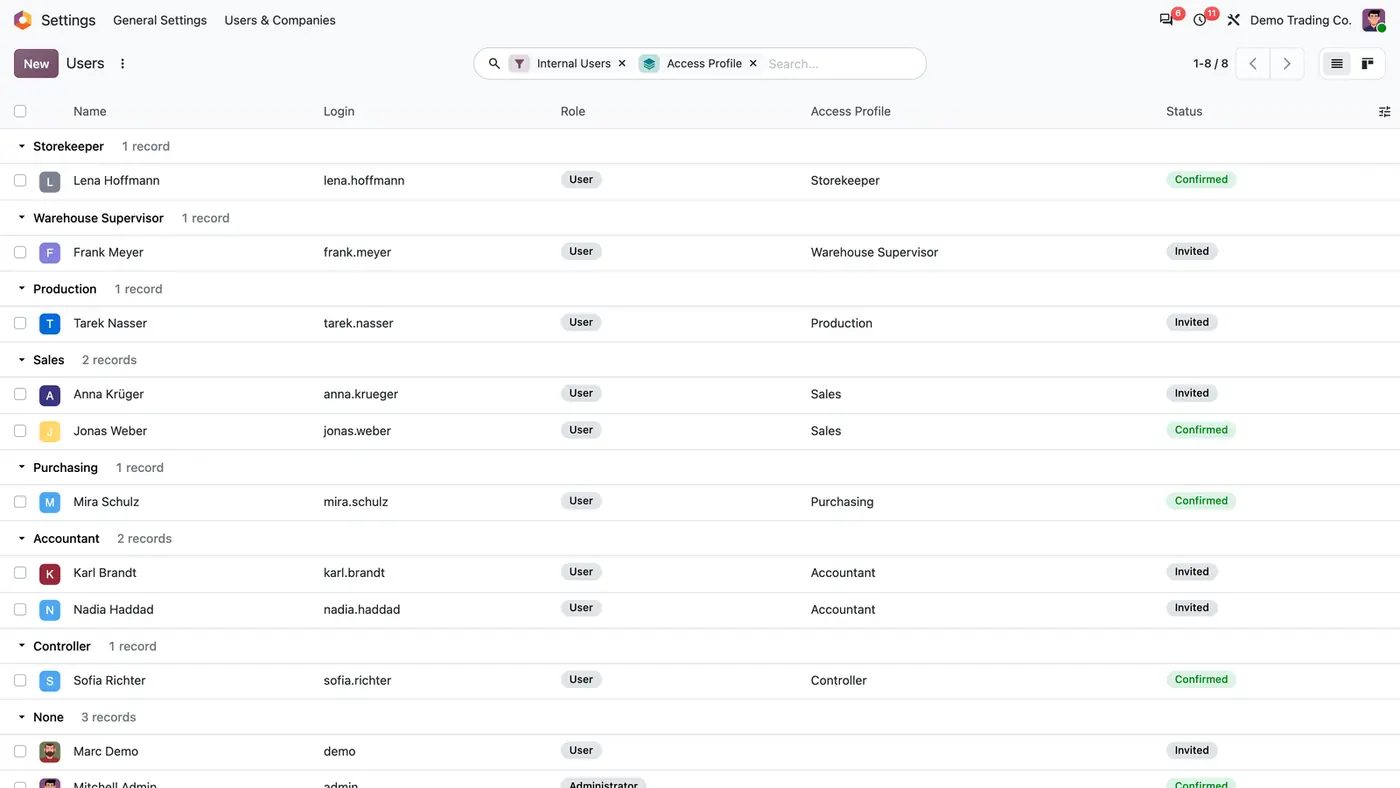
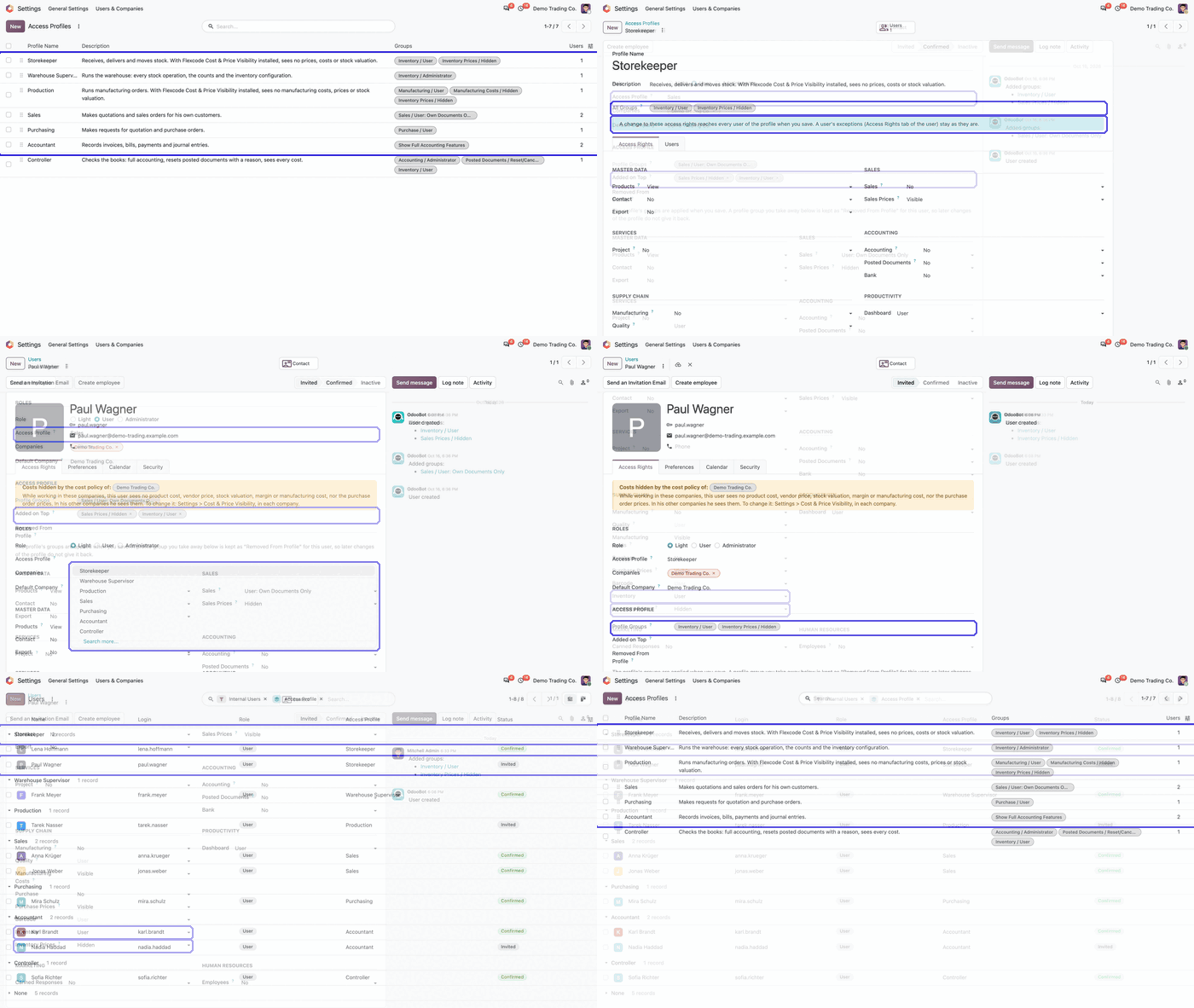
The six ready-made profiles plus a Controller profile added by the administrator, each with its groups and users.A profile is edited with the same Access Rights editor as a user, and a change reaches every user of the profile on save.On the user form the profile sits under the Role, and per-user exceptions are listed as Added on Top or Removed From Profile.Grouping the Users list by Access Profile shows who is on which profile, and the column can be edited for several users at once. Play demoA short walk through the access profiles and how they are applied to users.
What it does
One profile per job
Name a profile such as Storekeeper or Accountant and pick its rights with the same Access Rights editor as the user form.
Six ready-made profiles are included: Storekeeper, Warehouse Supervisor, Production, Sales, Purchasing and Accountant.
All Groups lists every group, including those of developer mode.
Drag profiles into order, archive the ones you do not use. A profile still in use cannot be deleted.
Live link to the users
A change to a profile reaches all its users when you save.
Changing a user's profile swaps the groups it manages. Clearing the profile removes them, except the groups Added on Top.
The Users tab of a profile shows who is on it and their exceptions.
Archived users follow the profile too.
Exceptions for one person
Groups you give one user in addition are kept as Added on Top, whatever the profile does.
A profile group you take away by hand is recorded as Removed From Profile and does not come back with later profile changes.
Groups outside the profile are never touched.
The user form shows Access Profile right under the Role, with Profile Groups, Added on Top and Removed From Profile.
Assign many users at once
Group the Users list by Access Profile to see who is on which profile.
Edit the Access Profile column for several users in one go.
Users without a profile stay as they are.
Safe by design
Only users with Administration: Access Rights can create and edit profiles, the same right the Users menu needs.
Profiles never hold the internal, portal or public user type. A user who becomes portal leaves his profile.
Profiles are shared by all companies, like the groups themselves.
The module needs only the base of Odoo. Groups of other apps are linked to the ready-made profiles once those apps are installed.
Who it is for
A good fit for
Companies where several people do the same job and need the same rights.
Administrators who set up new users regularly and want it done in one step.
Teams that want a job's rights changed once instead of user by user.
Multi-company databases: the module respects the active company and has been tested there.
Not a fit for
Setting the user type: internal, portal and public stay as they are.
Managing groups outside the profile: those are never touched.
Portal or public users, who cannot get a profile.
Databases on Odoo Online (SaaS), which cannot install third-party apps.
Install
Requires: Base (base), Web (web)
Download Access Profiles for free from the Odoo Apps Store for Odoo 18.0, 19.0 or 20.0.
Add the module to your Odoo.sh project or to the addons path of your on-premise server.
Update the apps list in Odoo and install Access Profiles. No other app is required.
Odoo Online (SaaS) does not install custom apps from the Apps Store, so Access Profiles cannot be used there. Use Odoo.sh or an on-premise database, Community or Enterprise.
Questions: info@flexcodesys.com.
Configure
Open a ready-made profile or create one under Settings > Users & Companies > Access Profiles, and pick its rights on the Access Rights tab.
Give the profile to users on the user form under Access Profile, or select several users in the Users list and set Access Profile for all of them.
Make exceptions for one person on the user's Access Rights tab: add groups as Added on Top, and remove a profile group to record it as Removed From Profile.
Setting
What it does
Access Profile (user form)
The profile the user is on, shown right under the Role.
Added on Top
Groups this user keeps in addition, whatever the profile does.
Removed From Profile
Profile groups taken away from this user; later profile changes do not give them back.
How to use it
Set up a new employee
Create the user as usual.
Pick the matching Access Profile on the user form and save. The profile's groups are applied.
Add any extra group for this person; it is kept as Added on Top.
Change the rights of a whole job
Open the profile under Settings > Users & Companies > Access Profiles.
Change its access rights and save. Every user of the profile gets the change, and their exceptions stay as they are.
Review who has which profile
Open the Users list and group it by Access Profile.
Select several users and edit the Access Profile column to move them in one go.
Limits
It never sets the user type; a user who becomes portal leaves his profile.
Groups outside the profile are not managed by the app.
Profiles are shared by all companies, like the groups.
It cannot be installed on Odoo Online (SaaS).
FAQ
What happens to groups a user already has?
Groups that are not in the profile are never touched. Giving a profile only adds its groups, except those the user has as Removed From Profile.
Does a profile change undo my hand-made changes?
No. A profile group you take away from a user becomes Removed From Profile, and groups you add on top stay, so later profile changes respect them.
Can a profile make someone an administrator?
Only users who may already manage users and groups (Administration: Access Rights) can edit profiles, and they can give the same rights on the user form anyway.
Does it need the Inventory, Sales or Accounting apps?
No. It depends only on the base of Odoo. Each ready-made profile names its groups by app, and a group is added to the profile as soon as its app is installed.
Does it work with multi-company databases?
Yes. The module respects the active company and its records, and has been tested in multi-company databases.
 Play demo