Inventory & Purchase
Supplier Delivery Note on Receipts
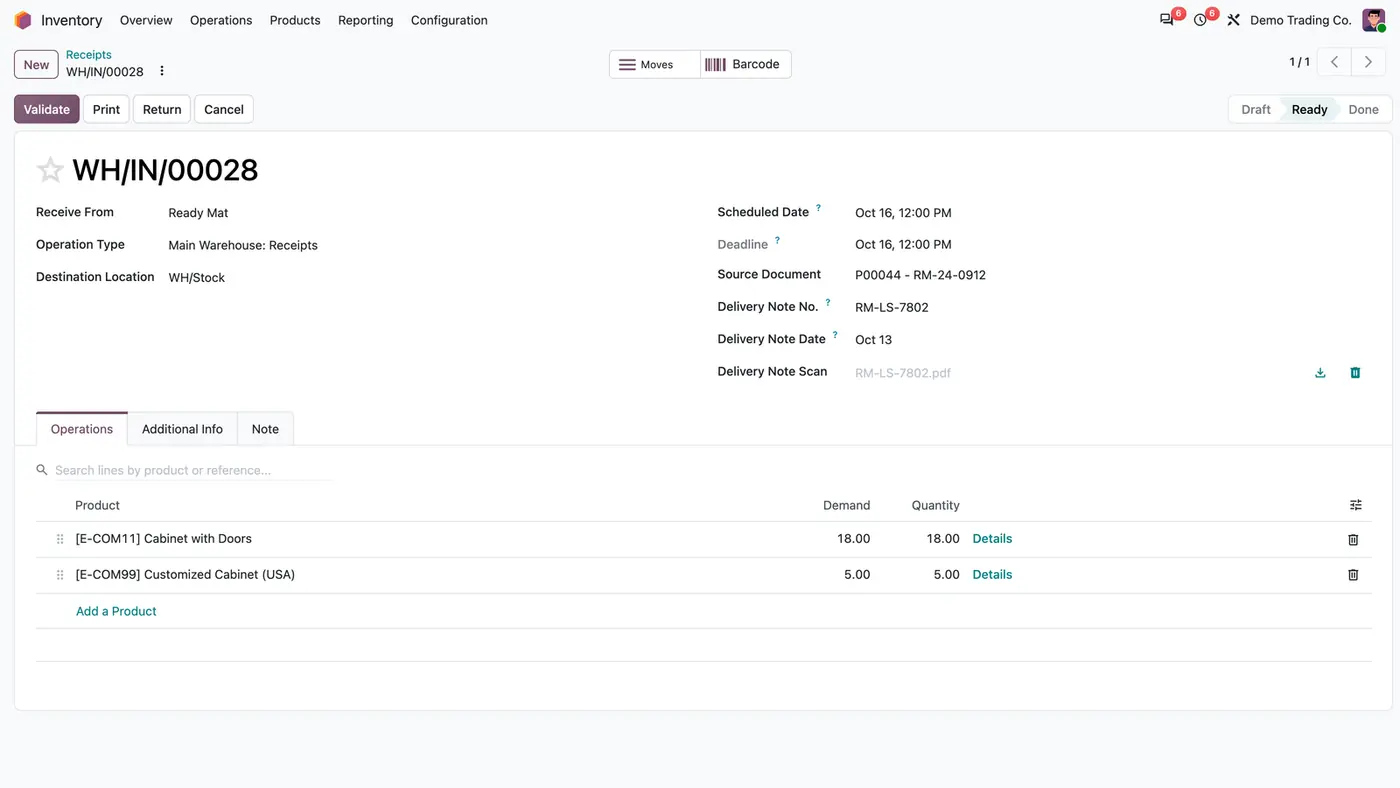
Supplier delivery note number, date and scan on every vendor receipt, optional or required.
Odoo 20 Odoo 19 Odoo 18€34.30
Inventory & Purchase · Odoo 20, Odoo 19, Odoo 18
Receive only what was counted, not what was ordered
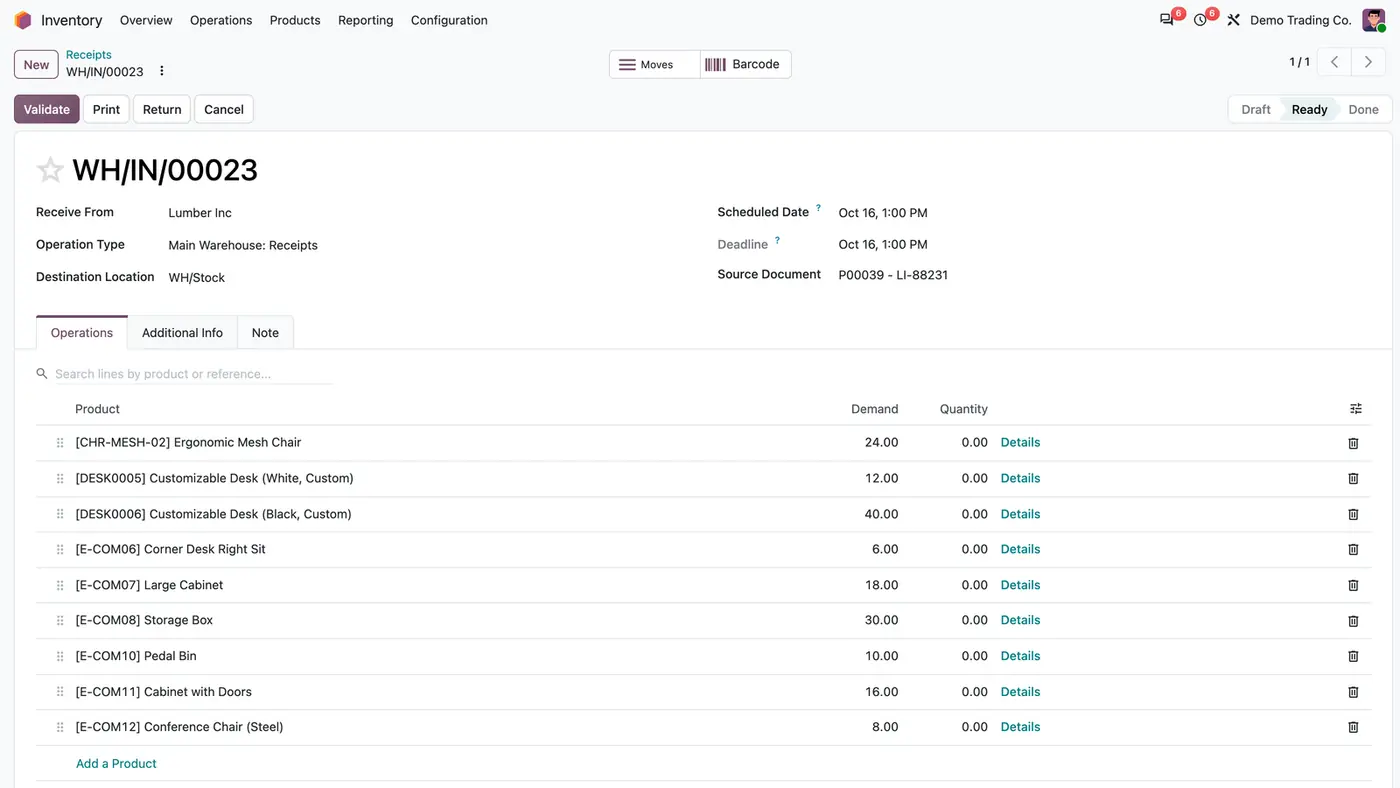
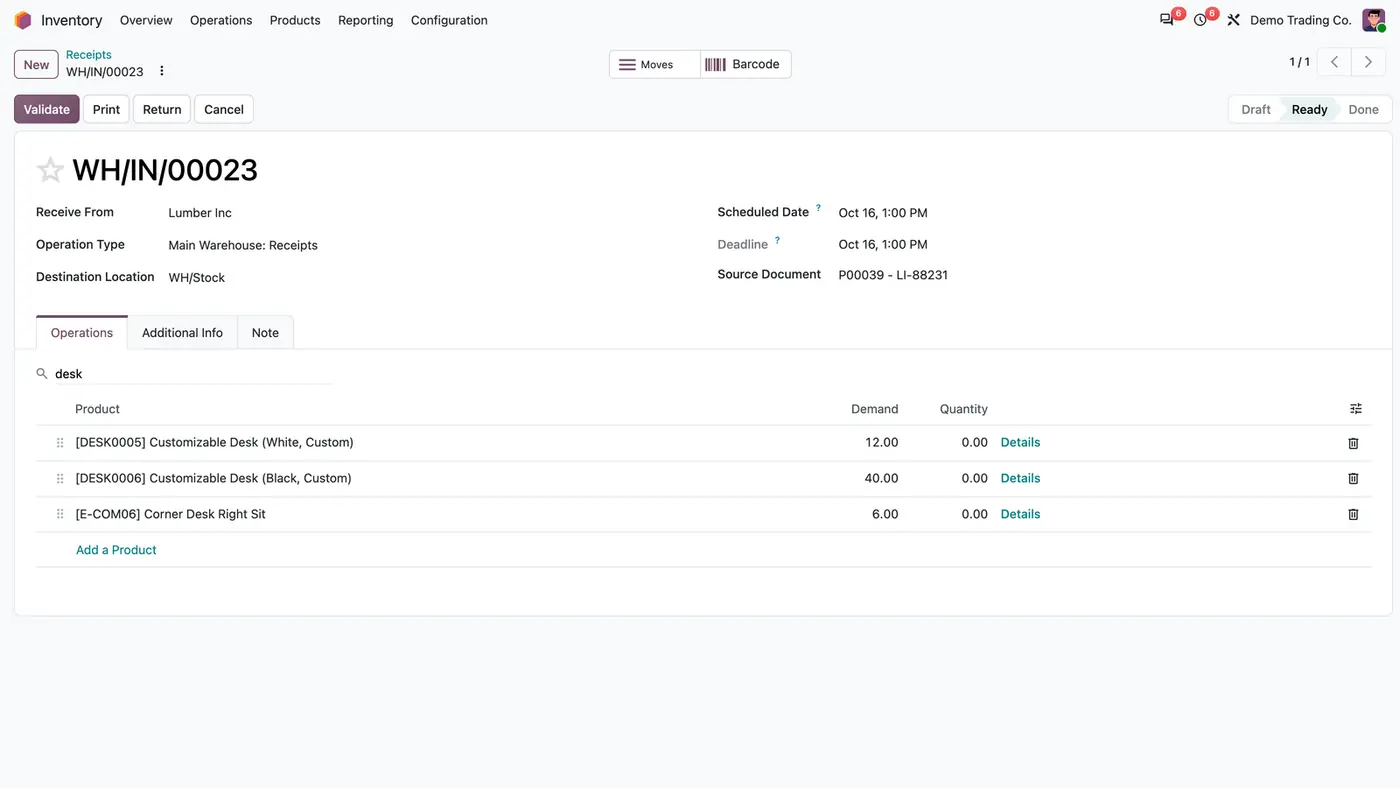
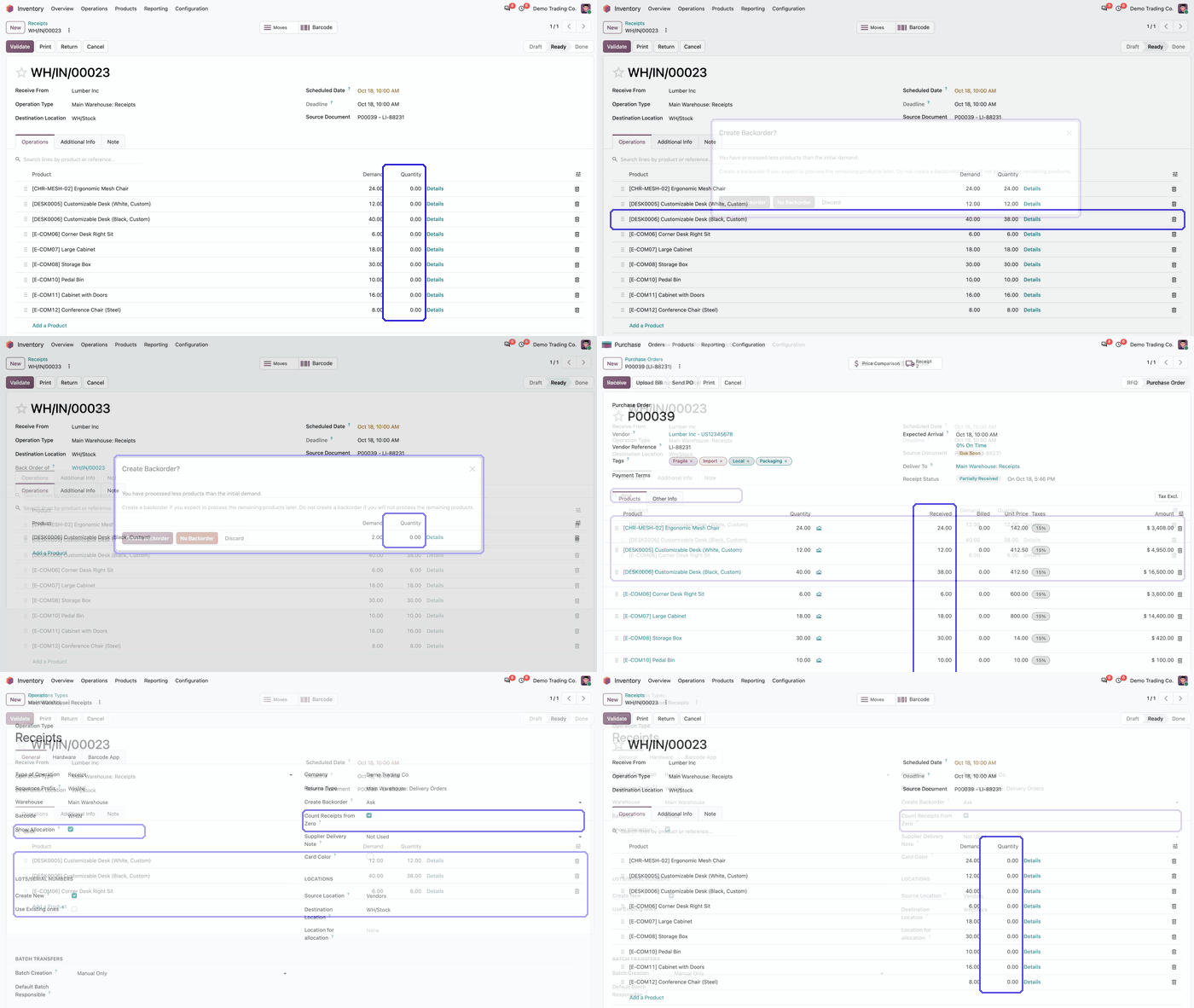
Receipt Count-In and Operations Search makes vendor receipts start with a Quantity of 0 instead of the ordered quantity, so the clerk enters what was really counted. After that, backorders, validation and the received quantity on the purchase order work as in standard Odoo. A search box above the Operations lines finds a product by name or internal reference.
Key features
In standard Odoo a vendor receipt arrives with the ordered quantity already filled in. A busy clerk clicks Validate, and stock is booked for goods that may never have arrived. Shortfalls only show up later, at the next stock count or when a customer order cannot be served. On a receipt with many lines, finding one product to check means scrolling through the whole list.
 Play demo
Requires: Inventory (stock), Discuss (mail)
Odoo Online (SaaS) does not allow third-party apps, so the app cannot be installed there. Use Odoo.sh or an on-premise database, Community or Enterprise.
Every purchase includes 90 days of free support from FlexCode Systems.
| Setting | What it does |
|---|---|
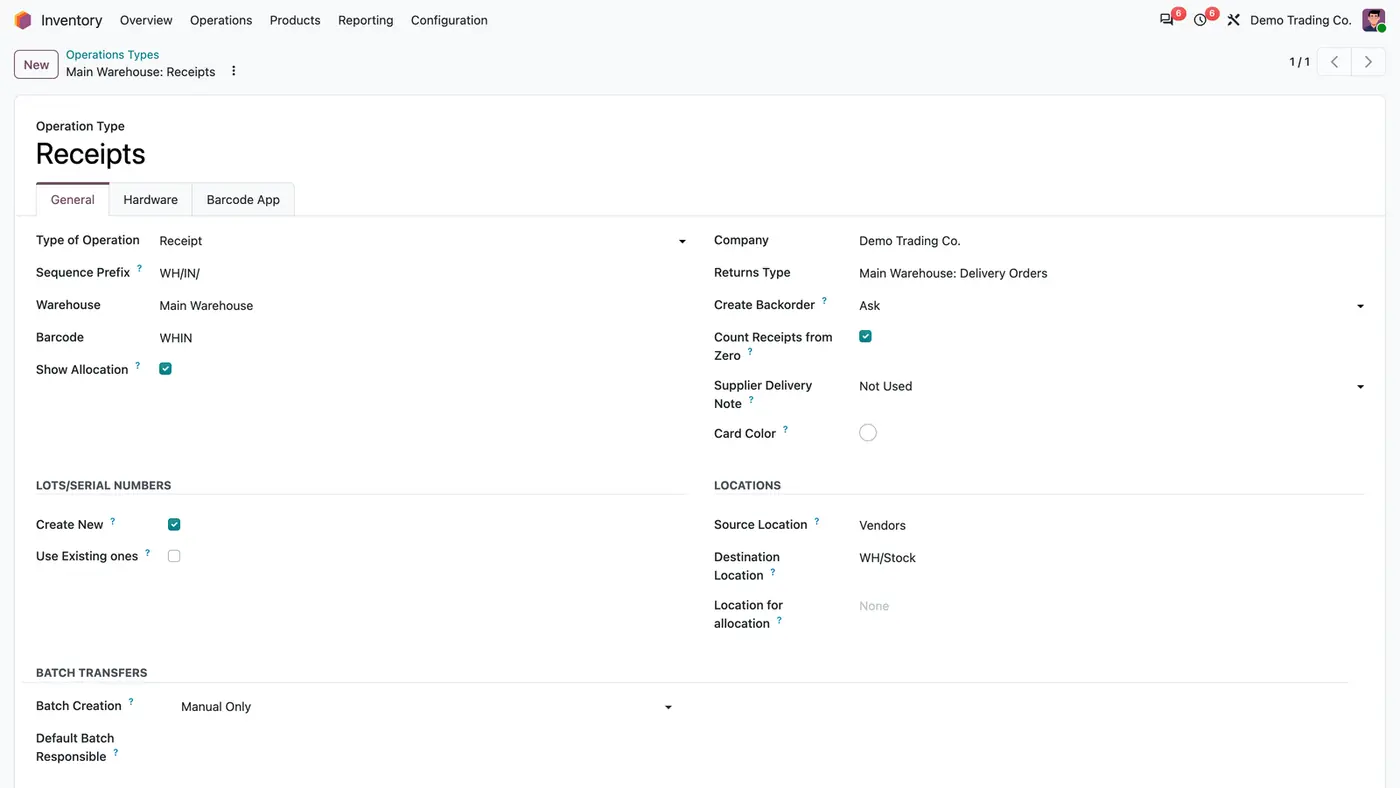
| Count Receipts from Zero | On each receipt operation type. Ticked by default for receipts. |
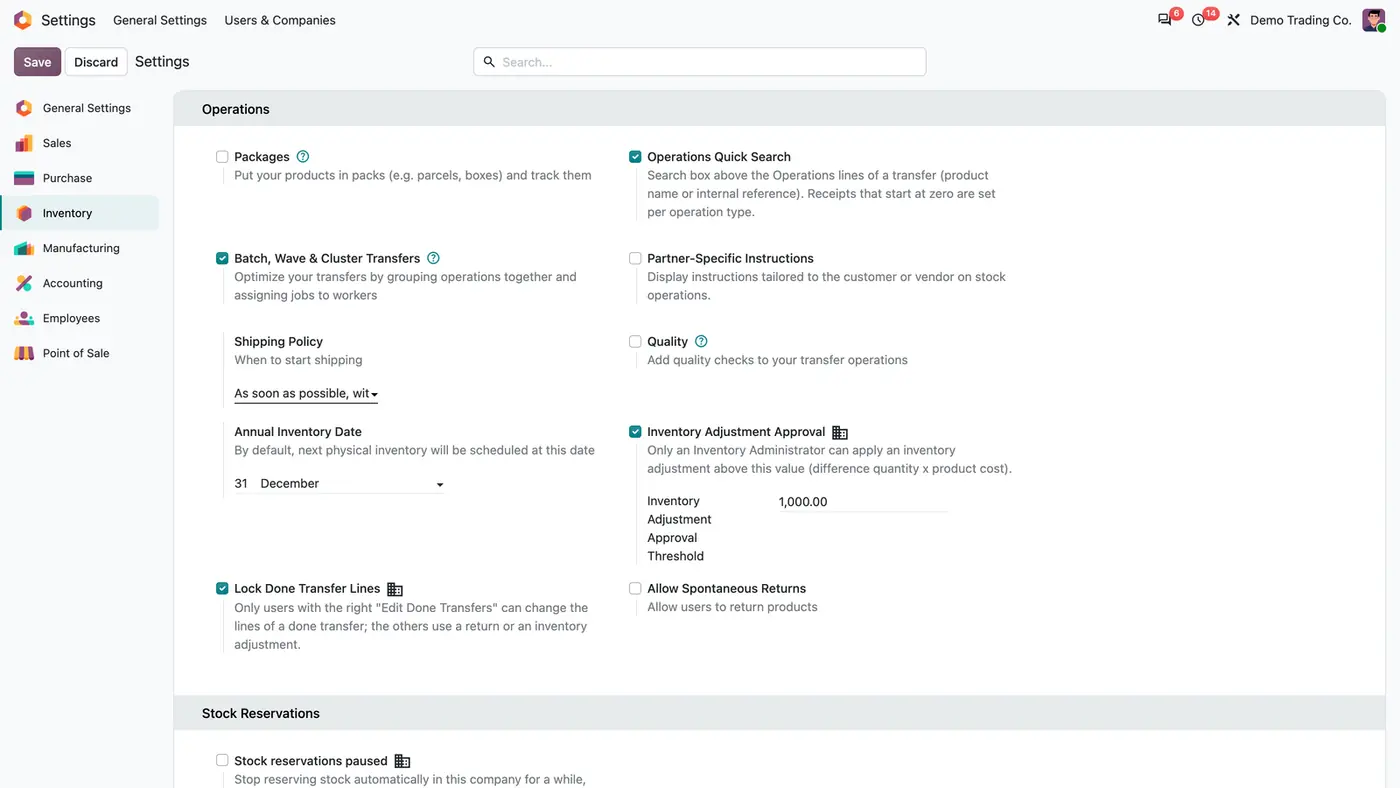
| Operations Quick Search | In the Inventory settings. Shows the search box above the Operations lines for every user; on after installation. |
Receipts from a vendor location of an operation type with Count Receipts from Zero ticked. Returns, later steps of a multi-step reception, inter-warehouse resupplies and serial-tracked products keep Odoo's pre-filled quantity.
No. Once a quantity is entered the transfer behaves exactly as in standard Odoo, including the backorder choice and the purchase received quantity.
No. It only hides lines in the browser while you look at the transfer. Saving and validating work the same with a filter active.
Yes. The search box sits above the Operations lines of every transfer. Only vendor receipts start at zero.
No. It filters the list of lines on a desktop screen. On a narrow screen the lines show as cards, which it does not filter.
Supplier delivery note number, date and scan on every vendor receipt, optional or required.
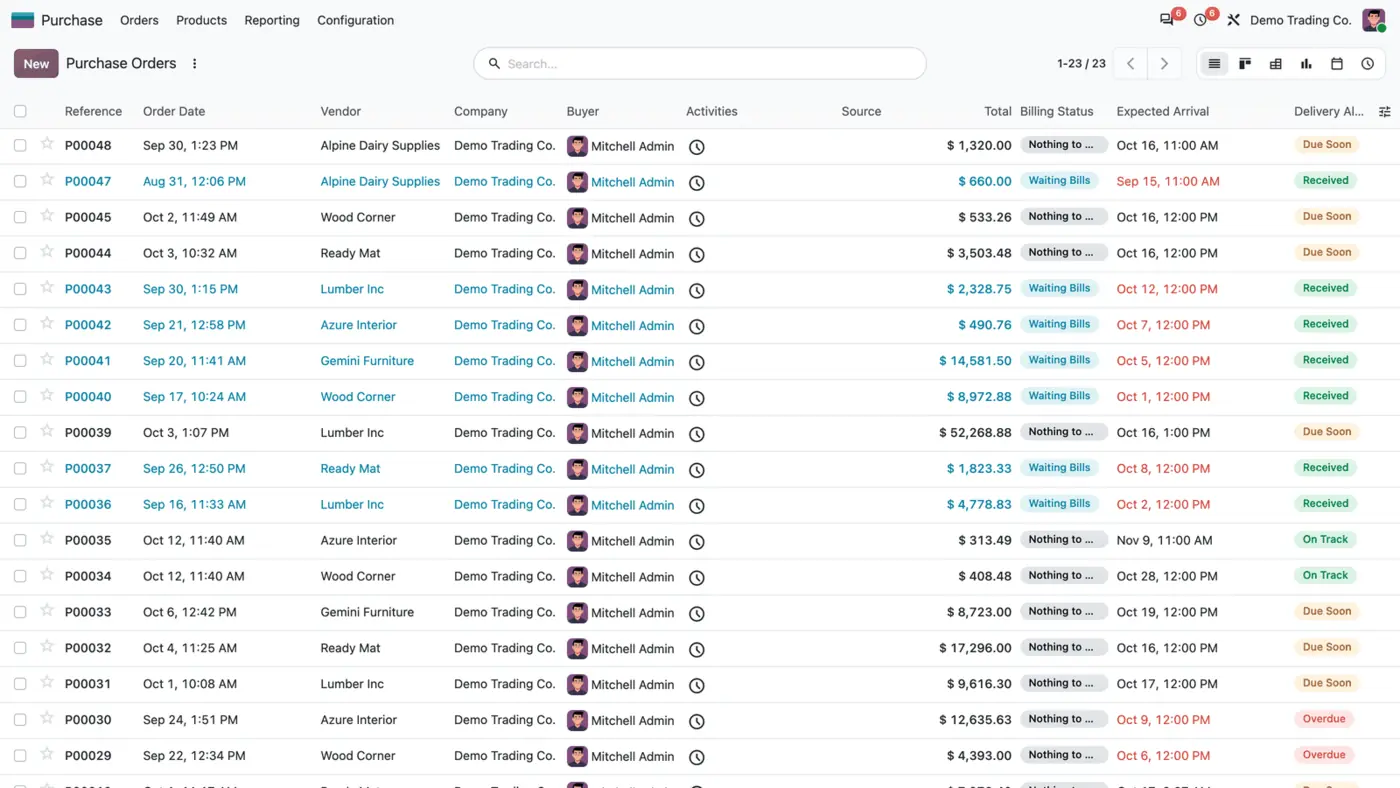
Overdue, Due Soon, On Track or Received on every confirmed purchase order, with filters. Free.
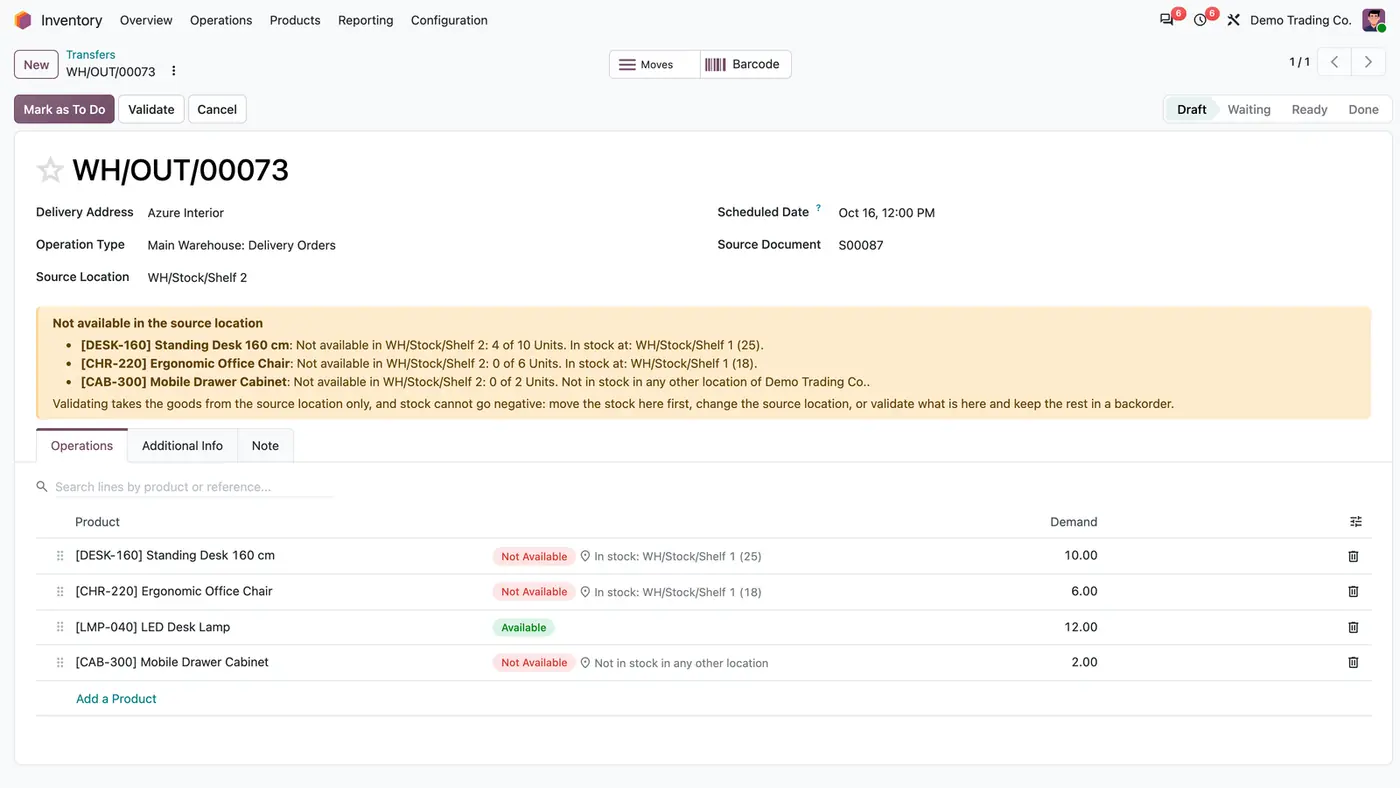
Block deliveries, transfers, manufacturing, scrap and POS sales that would take stock below zero, per product.
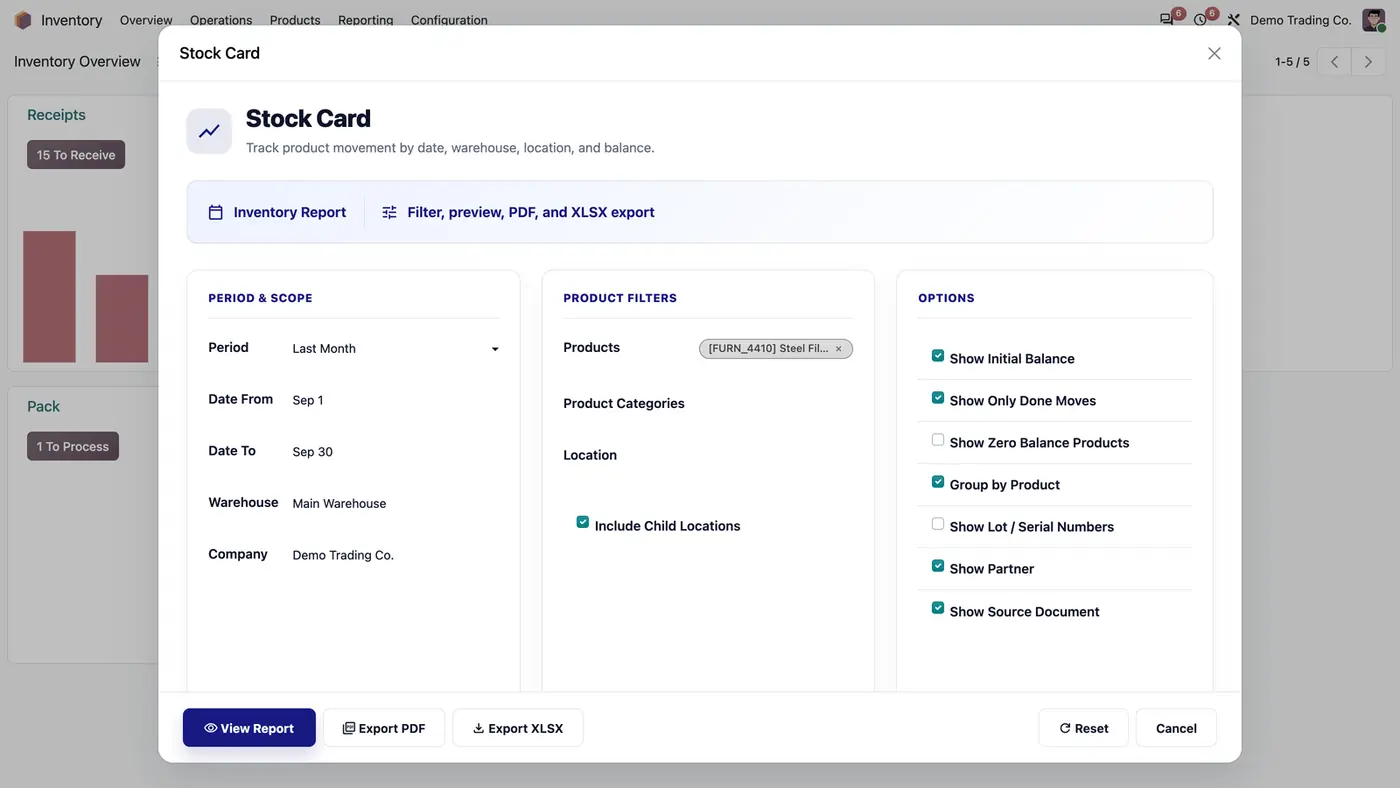
Stock card report with HTML preview, PDF and XLSX exports.
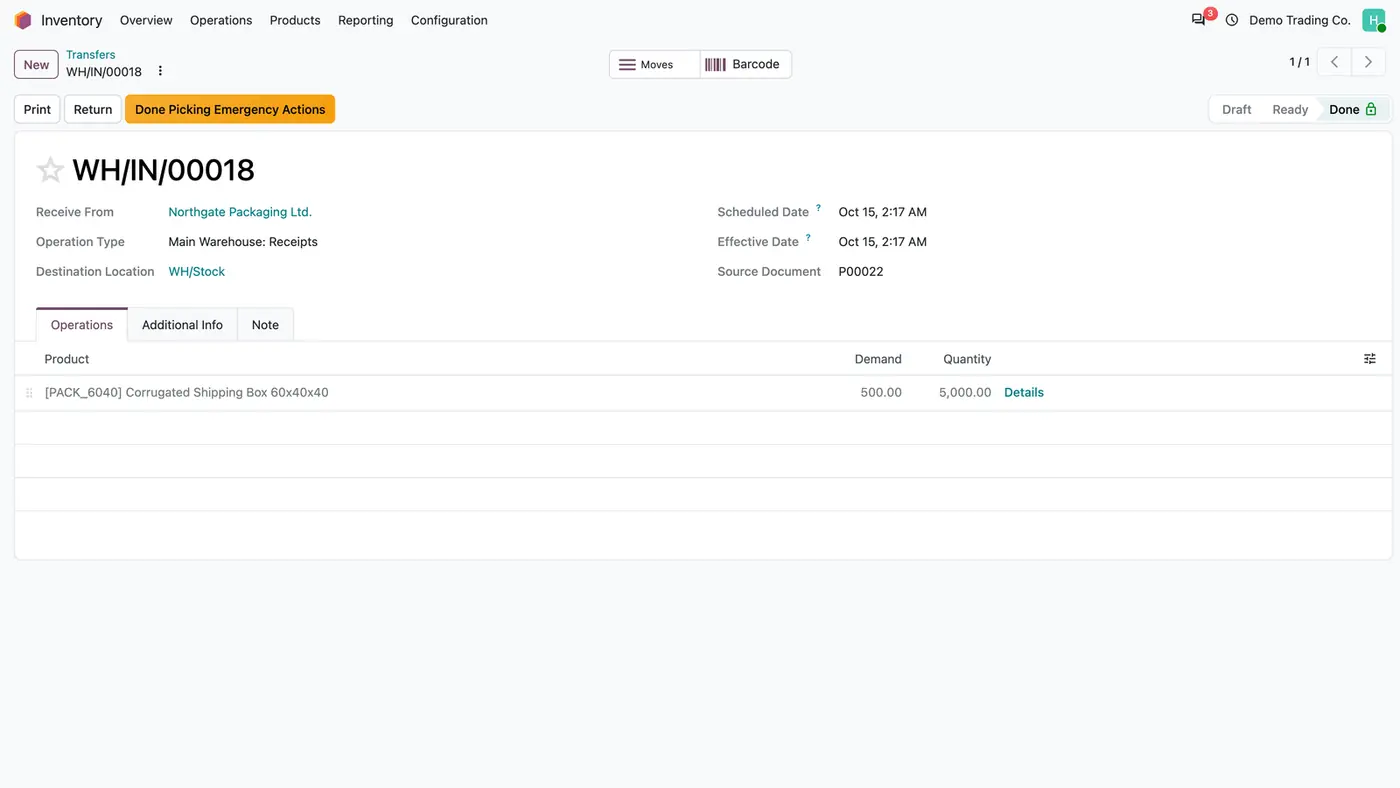
Restore, reopen or delete a done transfer under control, with a preview of the stock impact.
Structured product and variant barcodes built from category, attributes and a sequence.
We configure our apps for your process, train your team and build the extra pieces you need.