Skip to Content

Inventory & Purchase · Odoo 20, Odoo 19, Odoo 18

New Supplier Delivery Note on Receipts

Match supplier invoices to the delivery note on the receipt

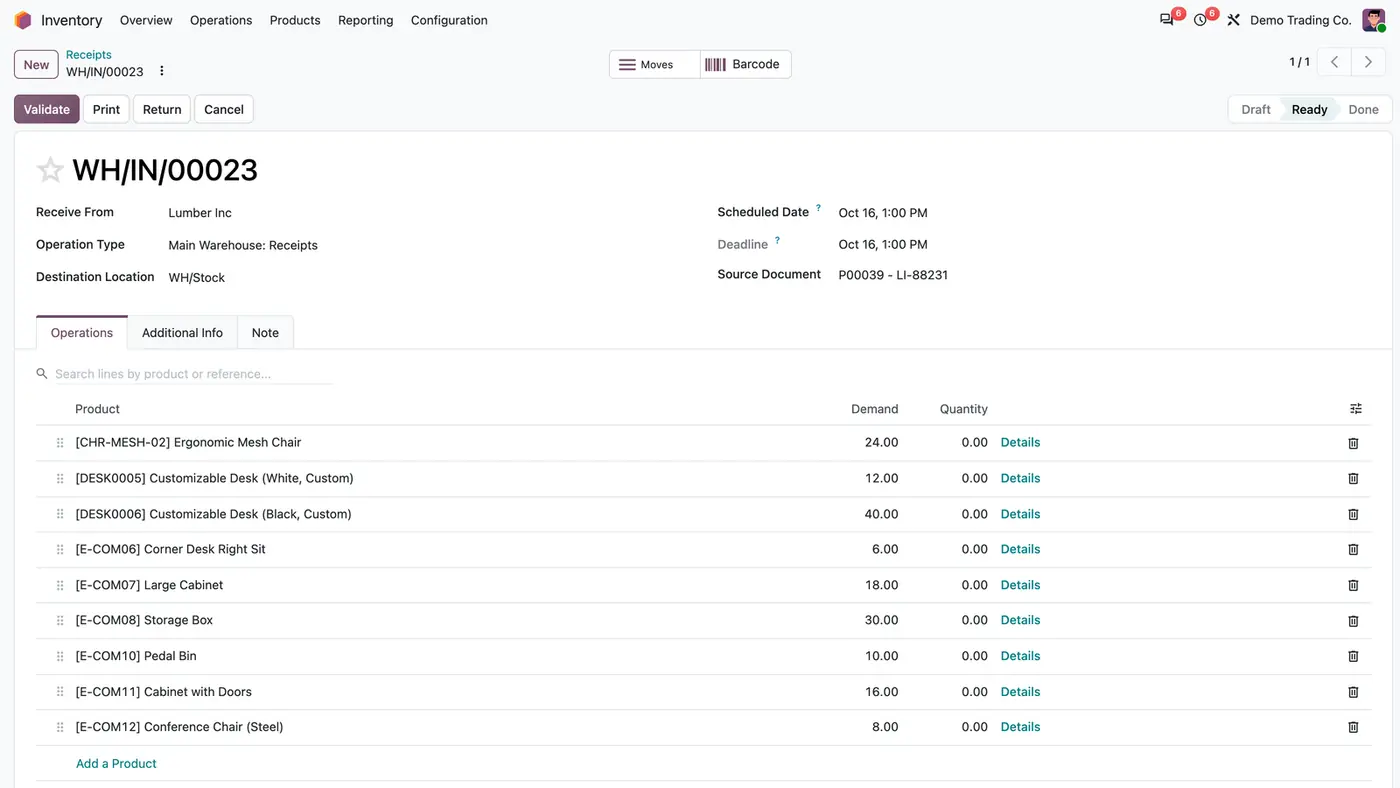
Supplier Delivery Note on Receipts adds the supplier's Delivery Note No., Delivery Note Date and a scan of the paper note to every receipt from a vendor. Each receipt operation type decides whether these are not used, optional or required before validation. The number shows in the transfer list and can be searched.

Key features

The problem

The supplier's invoice quotes the delivery note number, but standard Odoo has no field for it on the receipt. Accounting cannot tell which receipt the invoice belongs to and asks the warehouse, which goes looking for the paper. When the note was never recorded at all, there is nothing to check against.
Screenshots

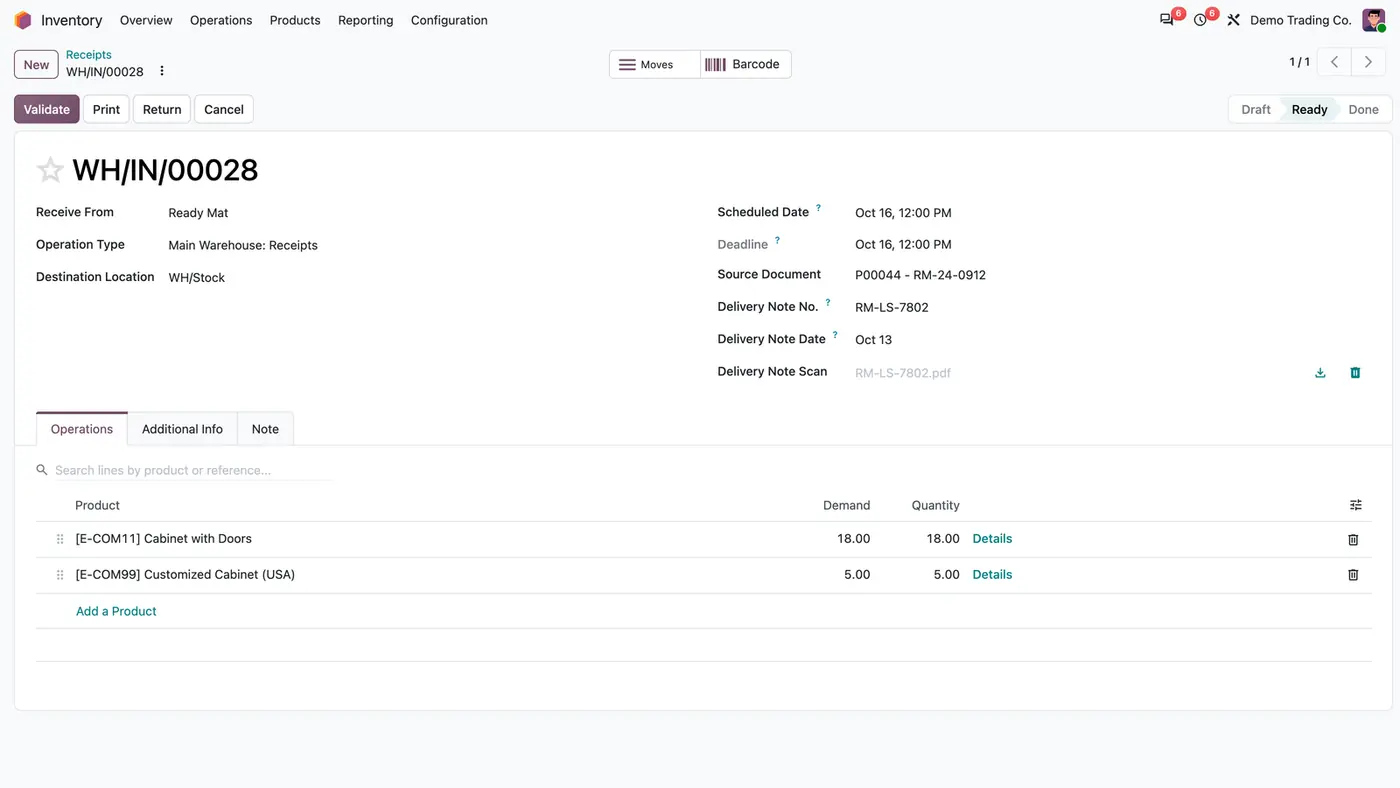
Receipt WH/IN/00028 with Delivery Note No. RM-LS-7802, Delivery Note Date and the scan RM-LS-7802.pdf
The supplier's delivery note number, date and scan on a vendor receipt.
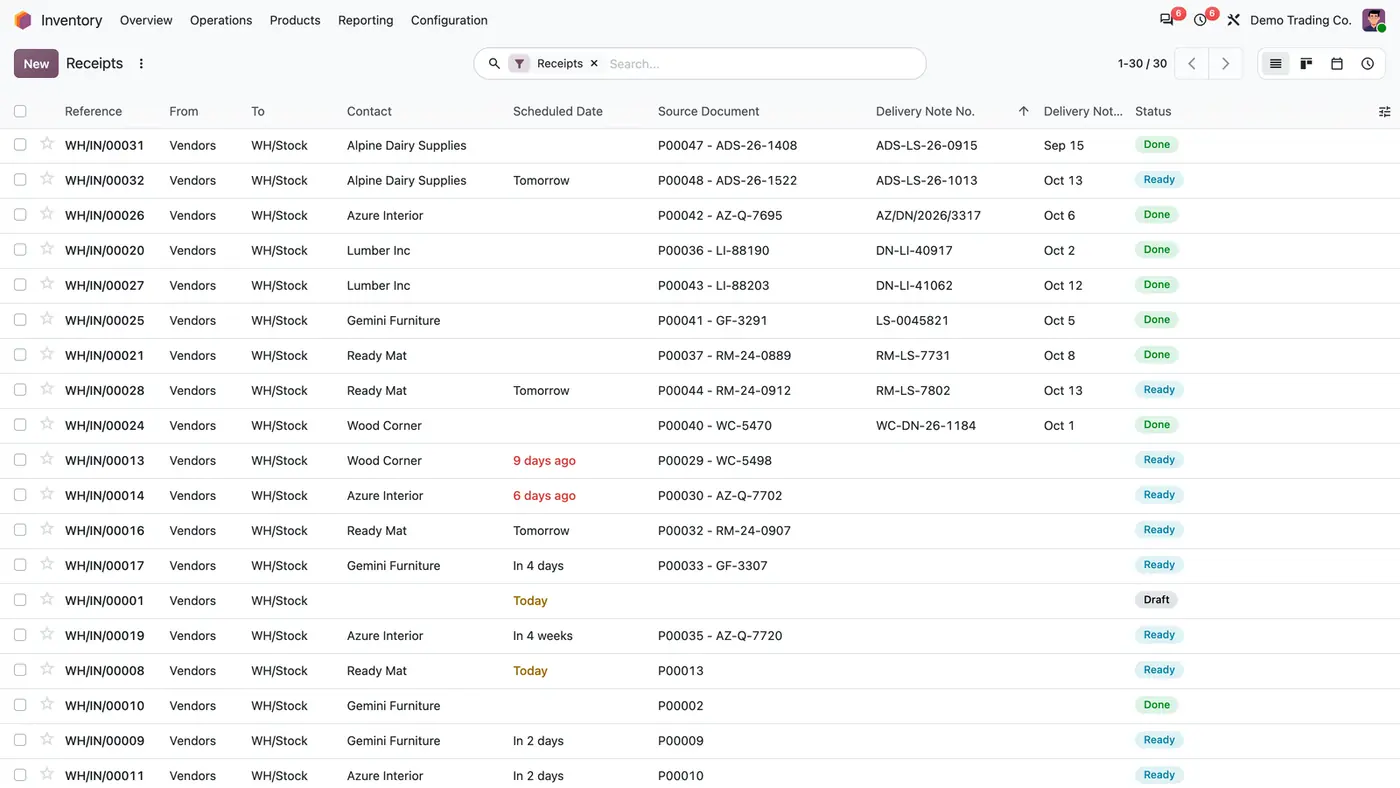
Receipts list with Delivery Note No. and Delivery Note Date columns next to Source Document and Status
Delivery note numbers in the receipts list, ready to search by the number on the invoice.
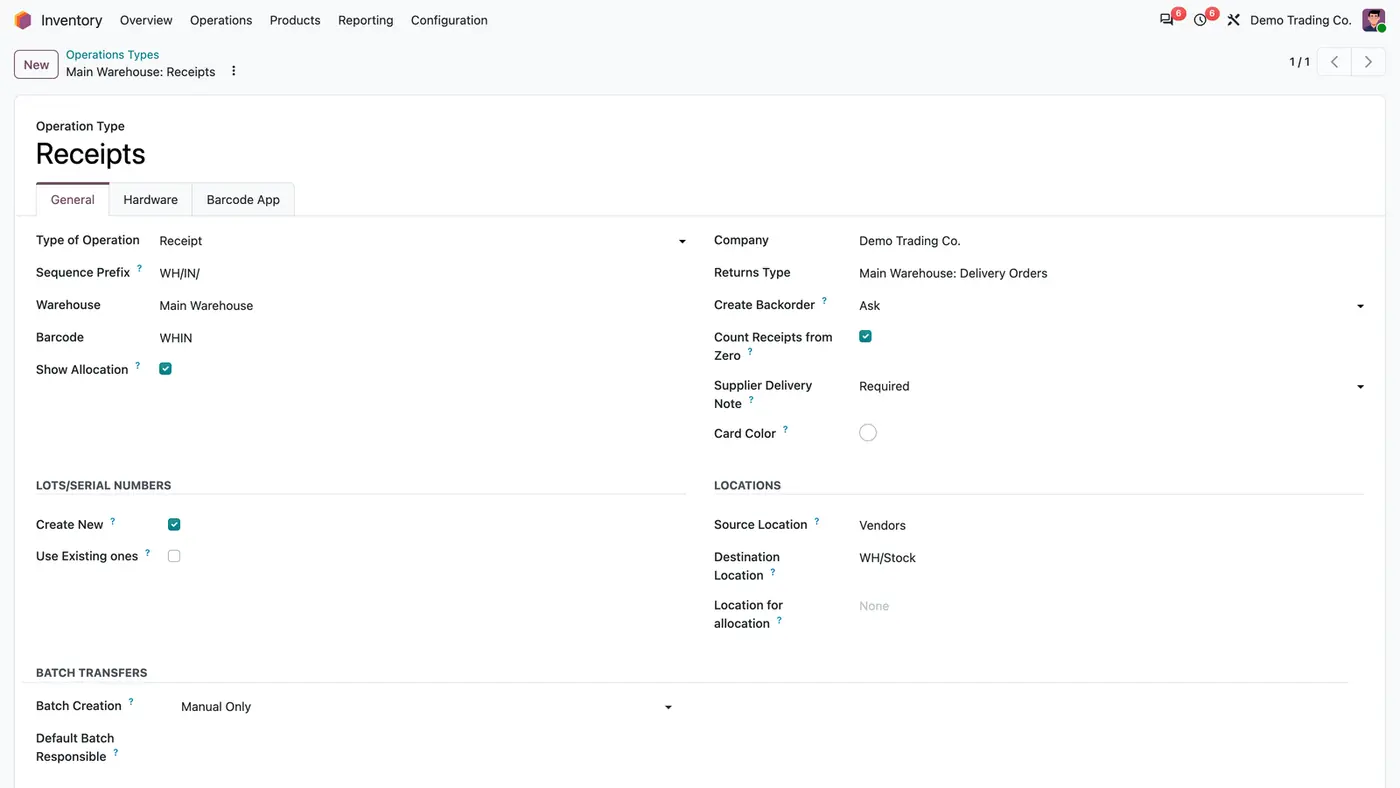
Operation type Main Warehouse: Receipts with Supplier Delivery Note set to Required
Each receipt operation type sets the delivery note to Not Used, Optional or Required.
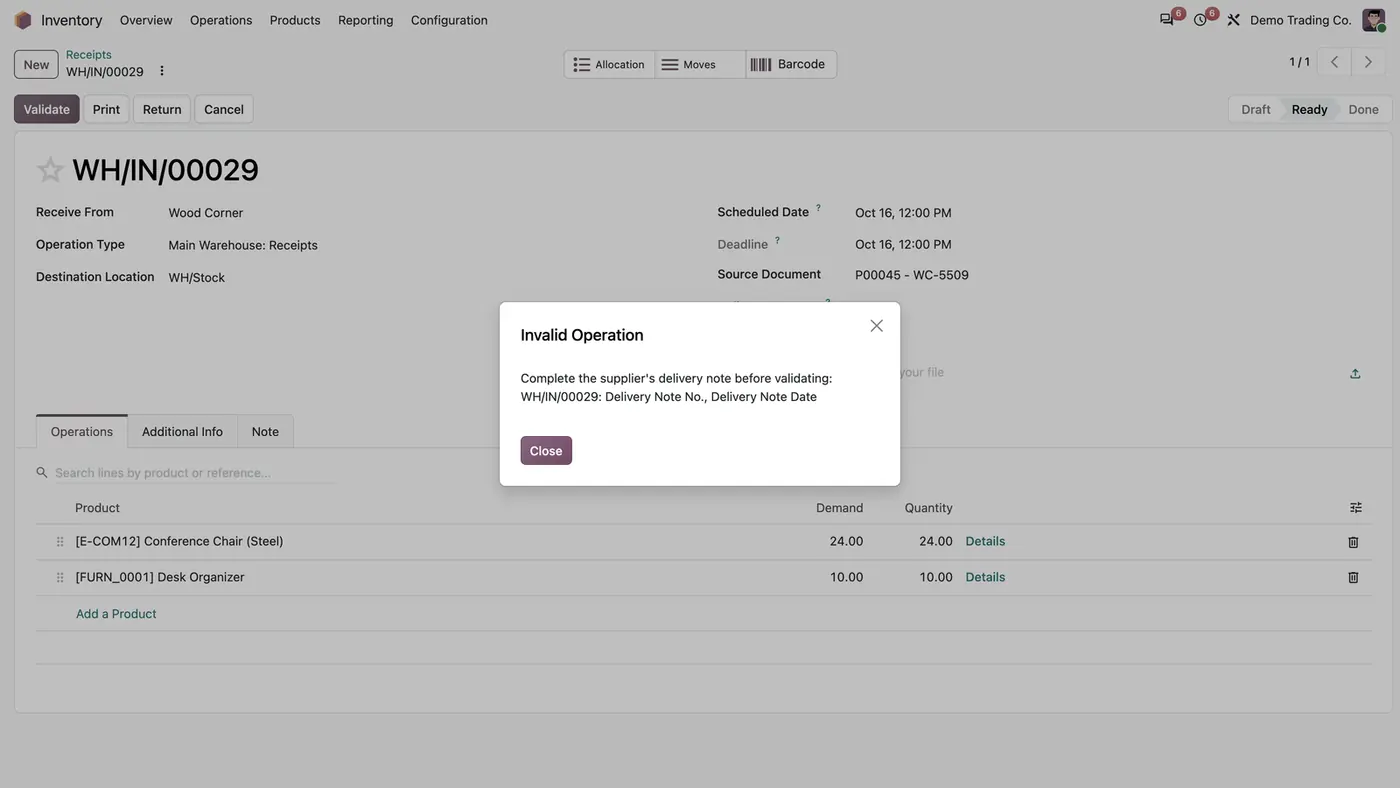
Invalid Operation dialog: complete the supplier's delivery note before validating, missing number and date
When the note is required, validation stops and names the fields still missing.
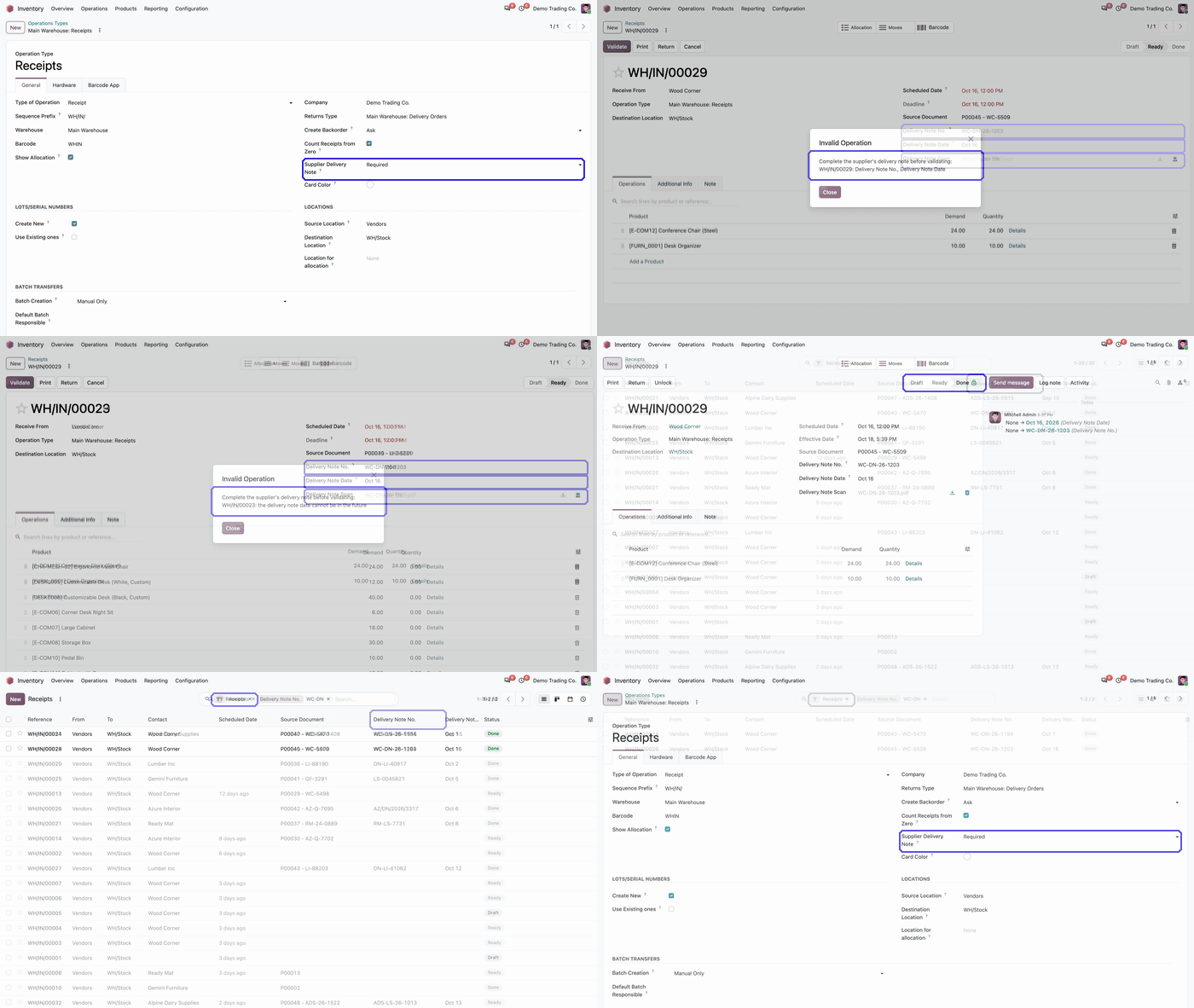
Animated demo of the receipt operation type with the Supplier Delivery Note setting highlighted Play demo
Animated demo of setting the delivery note policy on a receipt type.

What it does

Number, date and scan

  • Record the supplier's Delivery Note No. and Delivery Note Date on the receipt.
  • Attach a scan of the paper delivery note to the receipt.
  • Changes to the number and date are tracked in the chatter.

Policy per operation type

  • Set Supplier Delivery Note to Not Used, Optional or Required on each receipt operation type. Optional is the default.
  • When Required, Validate stops and names the receipt and the fields still missing.
  • A number of only spaces does not count, and a delivery note date in the future is refused.

Find receipts by delivery note

  • Delivery Note No. is a column in the receipts list, shown by default.
  • Delivery Note Date is available as an optional column.
  • Search transfers by the number quoted on the supplier invoice.

Only where it belongs

  • Only incoming transfers from a vendor location that are not returns show the fields.
  • Deliveries, internal transfers, returns and receipts from transit locations are not affected.
  • A backorder starts without delivery note values, so the next delivery records its own note.

Who it is for

A good fit for

  • Accounting teams that match supplier invoices to receipts by delivery note number.
  • Warehouses that must record the supplier's paperwork before a receipt is validated.
  • Companies that want the scan of the delivery note kept on the receipt.

Not a fit for

  • Reading the paper note automatically: the number is typed on the receipt.
  • Matching supplier invoices by itself.
  • Deliveries, internal transfers, returns and resupplies.
  • Databases on Odoo Online (SaaS), which cannot install third-party apps.

Install

Requires: Inventory (stock), Discuss (mail)

  1. Buy Supplier Delivery Note on Receipts on the Odoo Apps Store for Odoo 18, 19 or 20.
  2. Add the module to your Odoo.sh project or to the addons path of your on-premise server.
  3. Update the apps list in Odoo and install the app. The Inventory app is installed with it if it is missing.

Odoo Online (SaaS) does not allow third-party apps, so the app cannot be installed there. Use Odoo.sh or an on-premise database, Community or Enterprise.

Every purchase includes 90 days of free support from FlexCode Systems.

Configure

  1. Open Inventory > Configuration > Operations Types and open a receipt operation type.
  2. On the General tab, set Supplier Delivery Note to Not Used, Optional or Required.
  3. Repeat for each receipt operation type that needs a different policy.
SettingWhat it does
Supplier Delivery NoteOn each receipt operation type: Not Used, Optional (the default) or Required before validation.

How to use it

Record the delivery note

  1. Open the receipt when the goods arrive.
  2. Enter the Delivery Note No. and Delivery Note Date from the paper note, and upload the scan.
  3. Validate. If the operation type requires the note and a field is missing, Odoo names the receipt and the missing fields.

Find the receipt for a supplier invoice

  1. Open Inventory > Operations > Receipts.
  2. Search by the delivery note number quoted on the supplier invoice.
  3. Open the receipt to see the date and the scan.

Limits

  • The number is typed by hand; the paper note is not read automatically.
  • Supplier invoices are not matched automatically.
  • Only receipts from a vendor location are affected; returns and resupplies are never asked.
  • It cannot be installed on Odoo Online (SaaS).

FAQ

Which transfers show the fields?

Incoming transfers whose source is a vendor location and that are not returns. Deliveries, internal transfers, returns and receipts from transit locations are not affected.

What does Required check?

When the receipt is validated: that the delivery note number (not just spaces) and the date are filled in, and that the date is not in the future.

What happens with a partial receipt?

The backorder starts without delivery note values, so the next delivery records its own note.

May the delivery note date be earlier than the validation?

Yes. It is usually the real arrival date and may lie in the past, but never in the future.

Is a change to the number recorded?

Yes. Number and date are tracked in the chatter of the receipt.

Need it set up or adapted?

We configure our apps for your process, train your team and build the extra pieces you need.