Skip to Content

Inventory & Purchase · Odoo 20, Odoo 19, Odoo 18

New Receipt Count-In and Operations Search

Receive only what was counted, not what was ordered

Receipt Count-In and Operations Search makes vendor receipts start with a Quantity of 0 instead of the ordered quantity, so the clerk enters what was really counted. After that, backorders, validation and the received quantity on the purchase order work as in standard Odoo. A search box above the Operations lines finds a product by name or internal reference.

Key features

The problem

In standard Odoo a vendor receipt arrives with the ordered quantity already filled in. A busy clerk clicks Validate, and stock is booked for goods that may never have arrived. Shortfalls only show up later, at the next stock count or when a customer order cannot be served. On a receipt with many lines, finding one product to check means scrolling through the whole list.
Screenshots

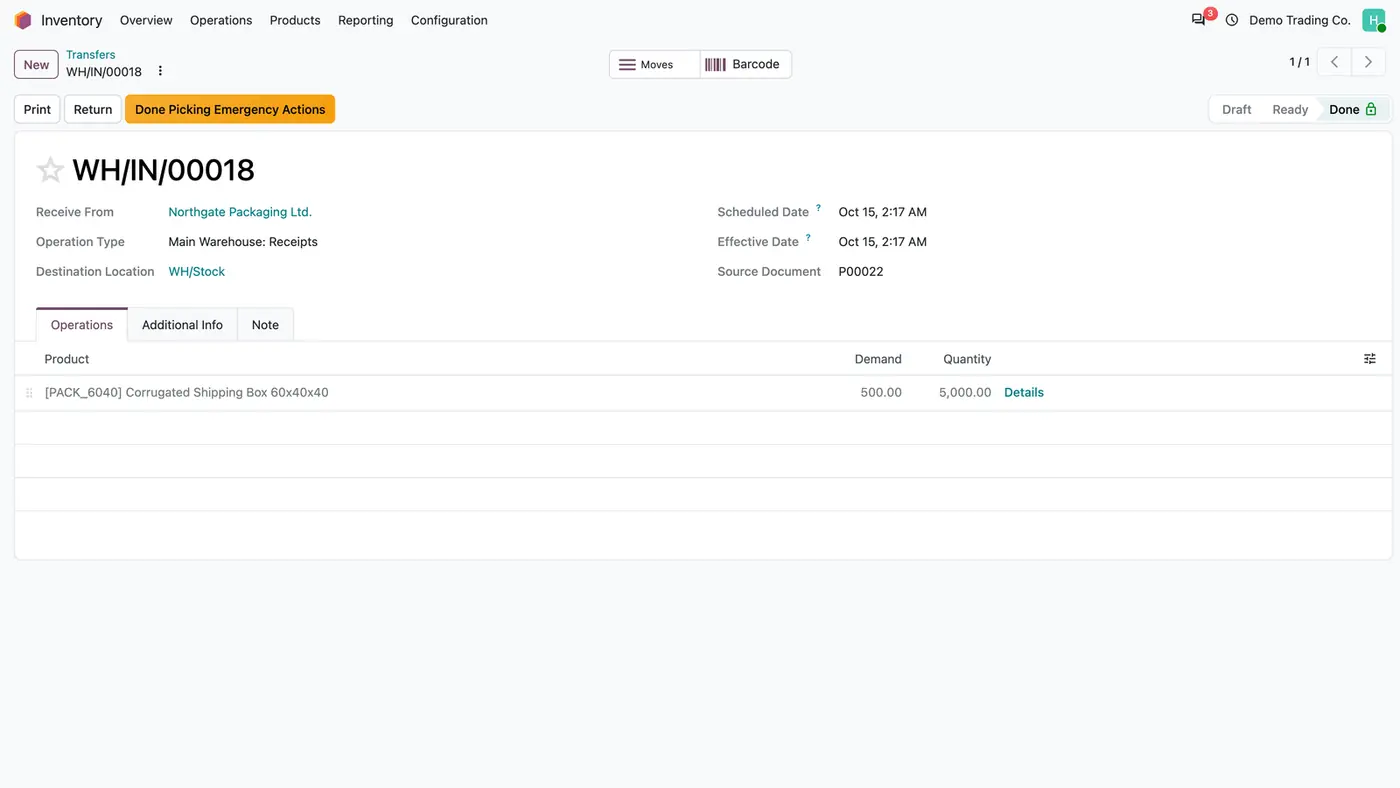
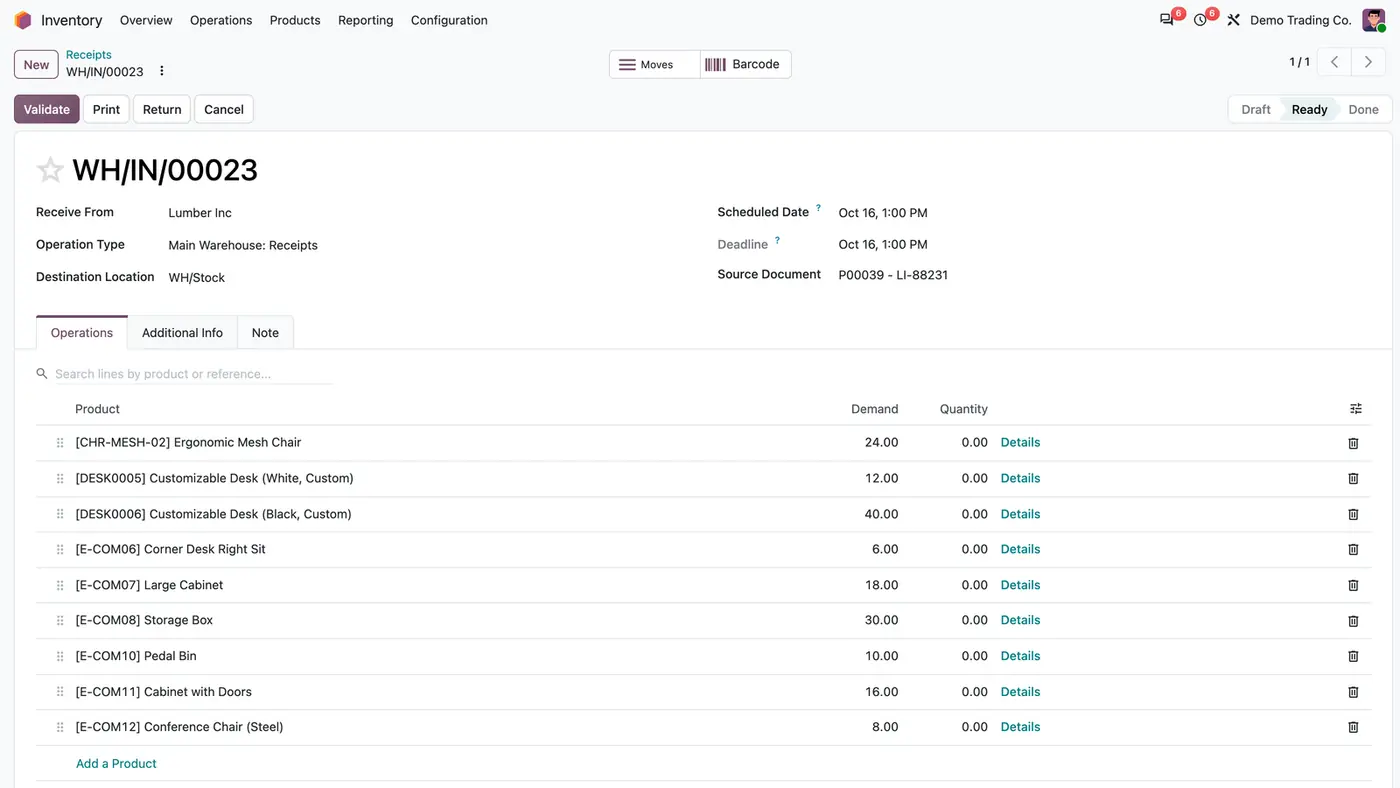
Receipt WH/IN/00023 with nine lines, Demand as ordered and Quantity 0.00 on every line
A vendor receipt starts at zero, so the clerk enters what was actually counted.
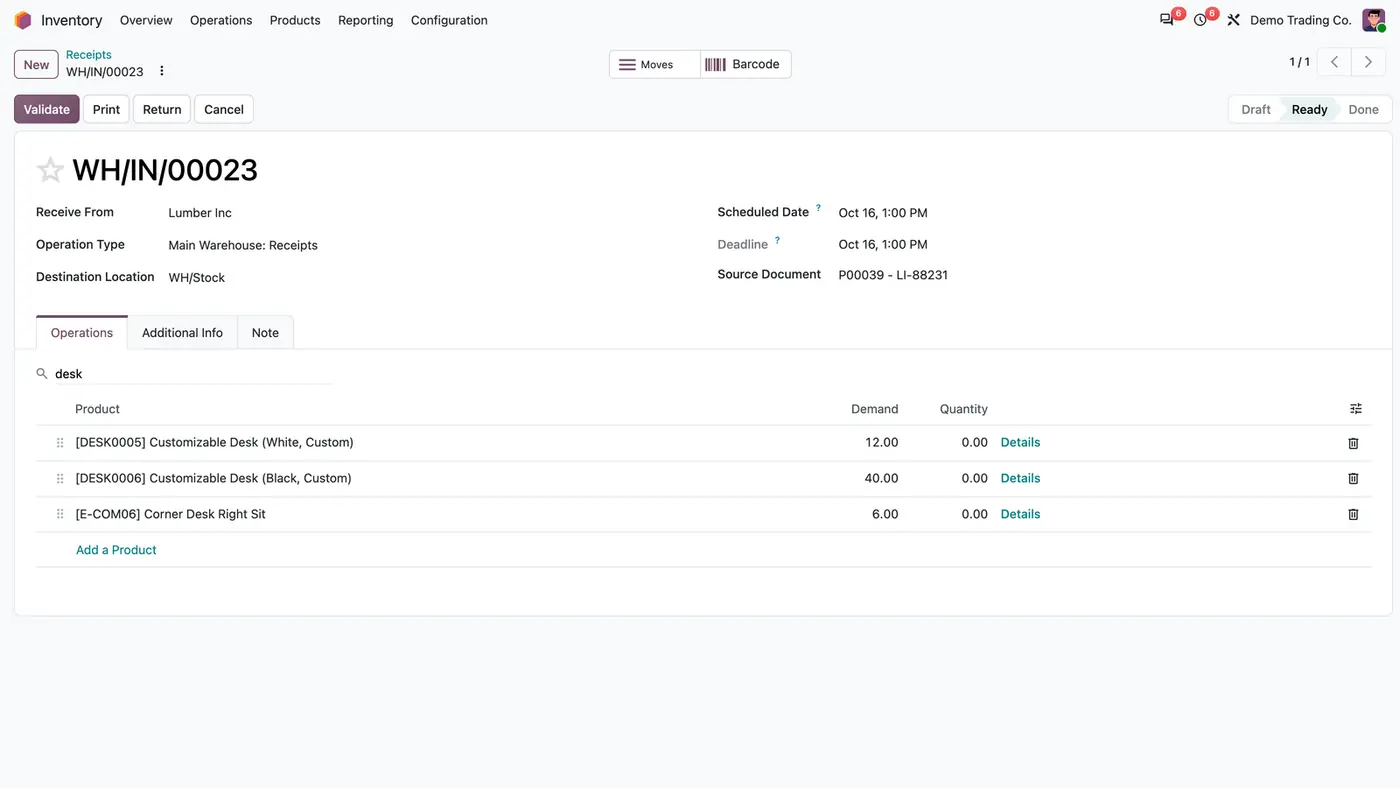
Search box above the Operations lines with desk typed, three matching lines left
The search box keeps only the lines that match the product name or reference.
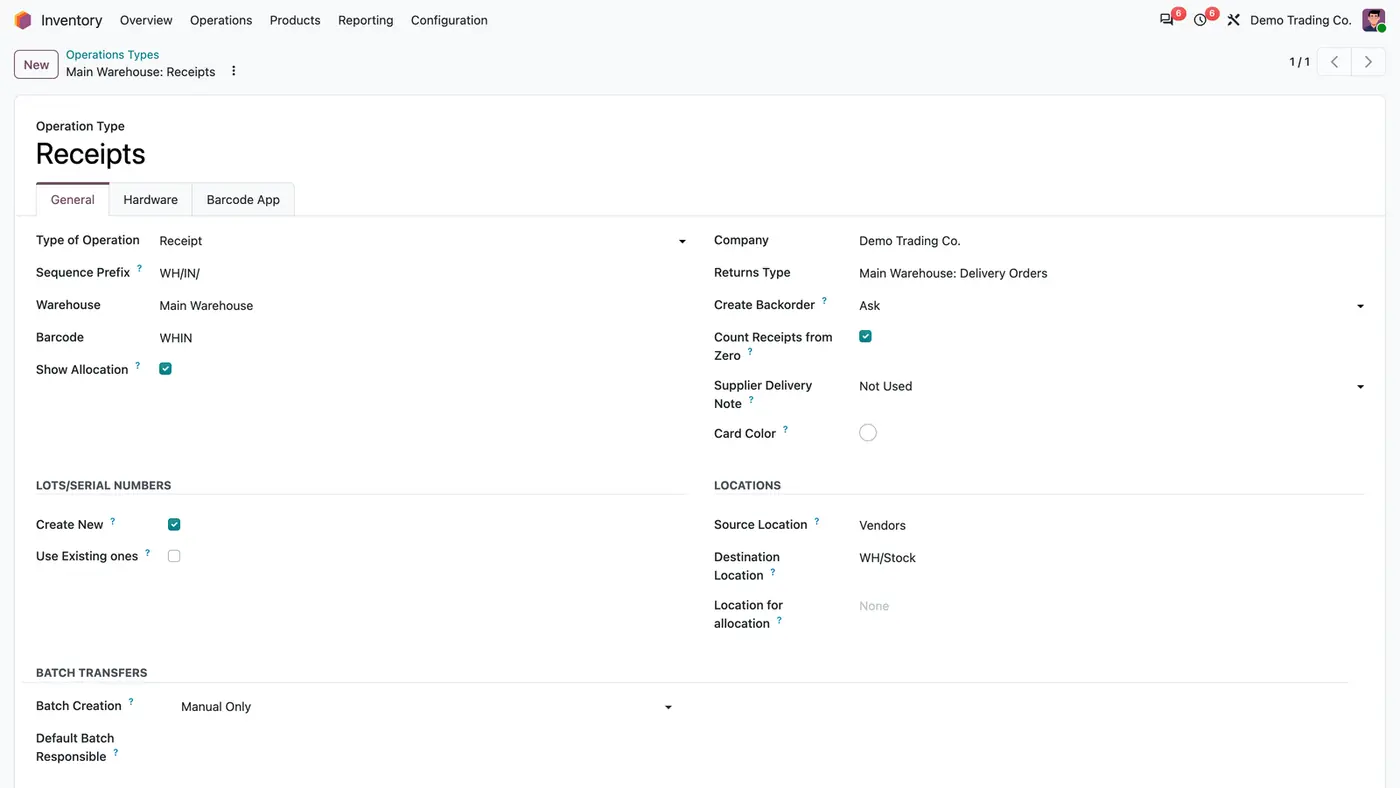
Operation type Main Warehouse: Receipts with the Count Receipts from Zero checkbox ticked
Count Receipts from Zero is set on each receipt operation type.
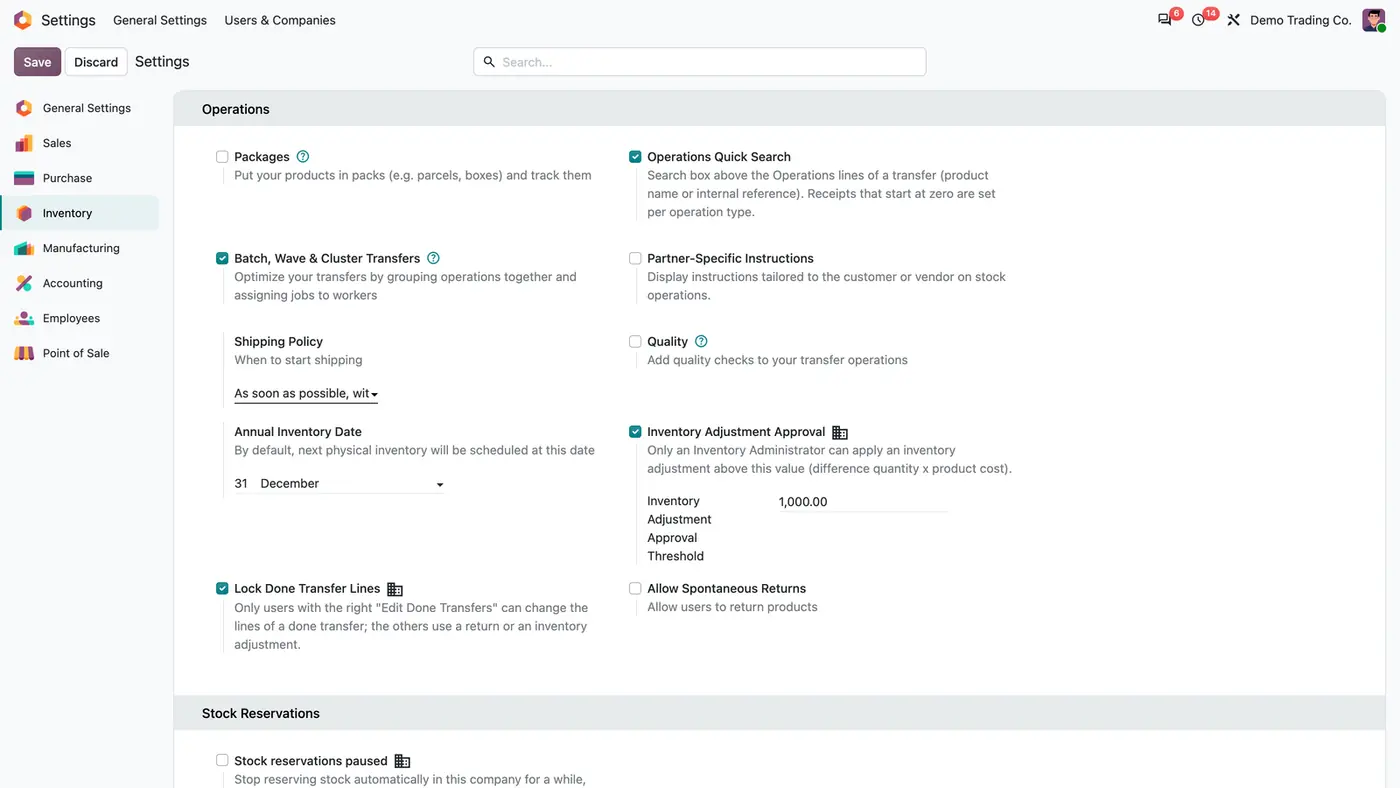
Inventory settings, Operations section, with Operations Quick Search ticked
Operations Quick Search switches the line search on or off for every user.
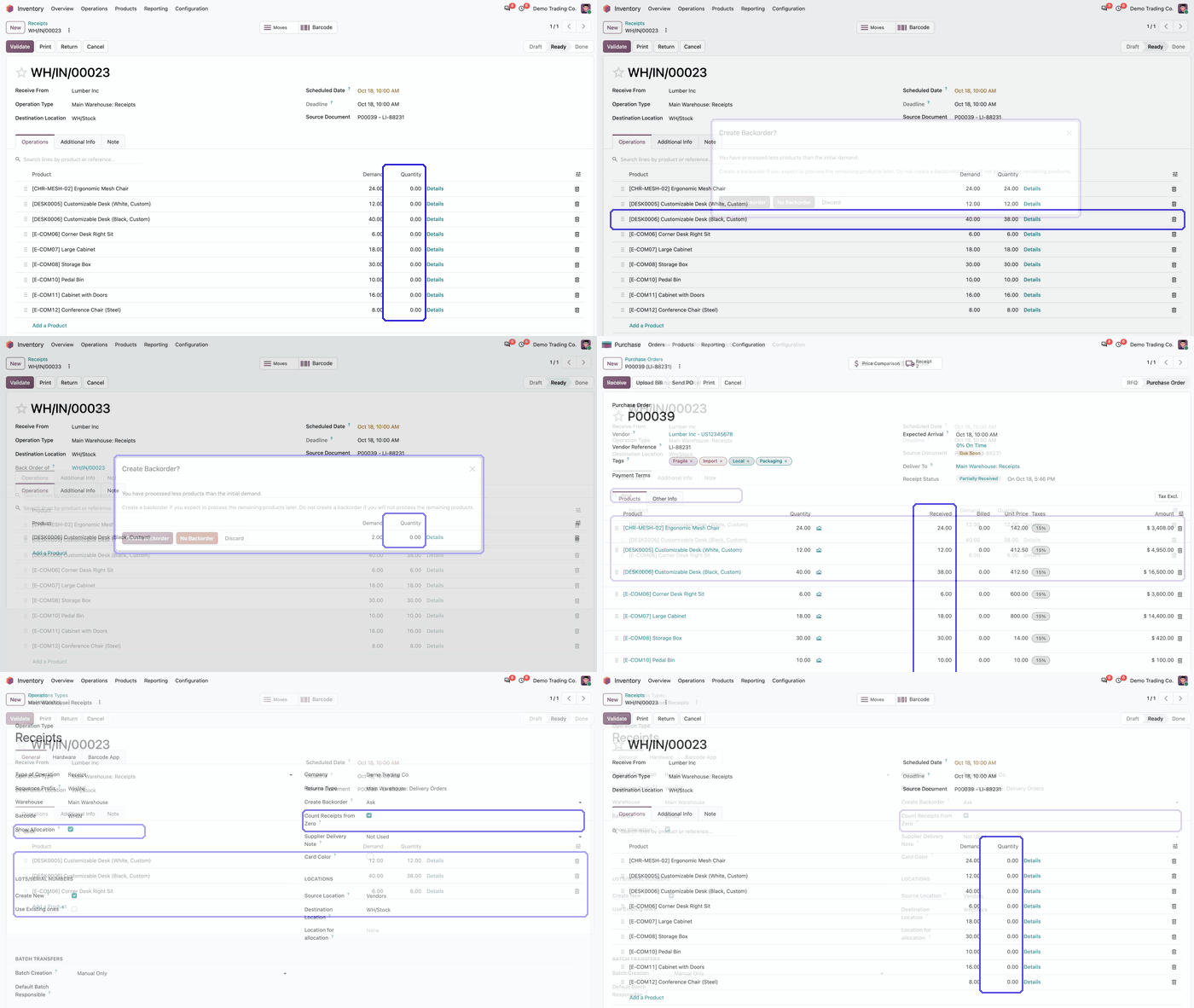
Animated demo of a receipt with the Quantity column at 0.00 highlighted Play demo
Animated demo of a receipt that starts at zero.

What it does

Count-in from zero

  • Vendor receipt lines start with a Quantity of 0, while the Demand stays as ordered.
  • The clerk types the counted quantity on each line.
  • Switch it on or off per receipt operation type. It is ticked by default for receipts.

Standard Odoo afterwards

  • Once a quantity is entered, the transfer behaves exactly as in standard Odoo.
  • A shortfall can go to a backorder, as usual.
  • Validation, valuation and the received quantity on the purchase order follow the count.

Clear exclusions

  • Returns keep Odoo's pre-filled quantity.
  • Later steps of a multi-step reception and inter-warehouse resupplies keep the pre-fill.
  • Serial-numbered products keep the standard behaviour.

Search the operation lines

  • A search box above the Operations lines hides the lines that do not match the product name or internal reference.
  • It works on receipts, deliveries and internal transfers.
  • It is display only: nothing is saved, and saving and validating work the same with a filter active.
  • Switch the search box on or off for every user in the Inventory settings.

Who it is for

A good fit for

  • Warehouses that want goods counted on arrival instead of confirmed from the purchase order.
  • Teams that find stock differences after validating receipts unchecked.
  • Clerks working on receipts or deliveries with many lines.

Not a fit for

  • Returns, later steps of a multi-step reception, inter-warehouse resupplies and serial-numbered products: they keep Odoo's pre-filled quantity.
  • Filtering lines on a phone: on a narrow screen the lines show as cards, which the search box does not filter.
  • Databases on Odoo Online (SaaS), which cannot install third-party apps.

Install

Requires: Inventory (stock), Discuss (mail)

  1. Buy Receipt Count-In and Operations Search on the Odoo Apps Store for Odoo 18, 19 or 20.
  2. Add the module to your Odoo.sh project or to the addons path of your on-premise server.
  3. Update the apps list in Odoo and install the app. The Inventory app is installed with it if it is missing.

Odoo Online (SaaS) does not allow third-party apps, so the app cannot be installed there. Use Odoo.sh or an on-premise database, Community or Enterprise.

Every purchase includes 90 days of free support from FlexCode Systems.

Configure

  1. Open Inventory > Configuration > Operations Types and open a receipt operation type. On the General tab, keep Count Receipts from Zero ticked, or untick it where the pre-fill should stay.
  2. Open Inventory > Configuration > Settings and, under Operations, keep Operations Quick Search on or switch it off.
SettingWhat it does
Count Receipts from ZeroOn each receipt operation type. Ticked by default for receipts.
Operations Quick SearchIn the Inventory settings. Shows the search box above the Operations lines for every user; on after installation.

How to use it

Receive goods

  1. Open the receipt created from the confirmed purchase order. Each line shows its Demand and a Quantity of 0.
  2. Count the goods and type the counted quantity on each line.
  3. Validate. If less arrived than ordered, choose whether to create a backorder, as in standard Odoo.

Find a line quickly

  1. Type a product name or internal reference in the search box above the Operations lines.
  2. Only the matching lines stay visible. Clear the search to see all lines again.

Limits

  • Only receipts from a vendor location of an operation type with Count Receipts from Zero ticked start at zero.
  • Returns, later steps of a multi-step reception, inter-warehouse resupplies and serial-tracked products keep the pre-filled quantity.
  • The search box filters the list of lines on a desktop screen only.
  • It cannot be installed on Odoo Online (SaaS).

FAQ

Which receipts start at zero?

Receipts from a vendor location of an operation type with Count Receipts from Zero ticked. Returns, later steps of a multi-step reception, inter-warehouse resupplies and serial-tracked products keep Odoo's pre-filled quantity.

Does it change validation or backorders?

No. Once a quantity is entered the transfer behaves exactly as in standard Odoo, including the backorder choice and the purchase received quantity.

Does the search box change anything on the transfer?

No. It only hides lines in the browser while you look at the transfer. Saving and validating work the same with a filter active.

Can I search the lines of deliveries too?

Yes. The search box sits above the Operations lines of every transfer. Only vendor receipts start at zero.

Does the search box work on a phone?

No. It filters the list of lines on a desktop screen. On a narrow screen the lines show as cards, which it does not filter.

Need it set up or adapted?

We configure our apps for your process, train your team and build the extra pieces you need.