Skip to Content

Inventory & Purchase · Odoo 20, Odoo 19, Odoo 18

New Purchase Delivery Alert

Know which vendor deliveries are late or due soon

Purchase Delivery Alert gives every confirmed purchase order a Delivery Alert: Overdue, Due Soon, On Track or Received. The status is worked out from the Expected Arrival and Receipt Status each time the order is read and shows as a coloured badge in the purchase lists and on the order, with a search filter for each value. The Due Soon window is set per company.

Key features

The problem

Odoo shows an Expected Arrival on every purchase order, but not whether that date has already passed. To find late deliveries, a buyer has to compare dates with today and check the receipt status order by order. Vendors get chased too late, and goods that are due this week go unnoticed until they are missing.
Screenshots

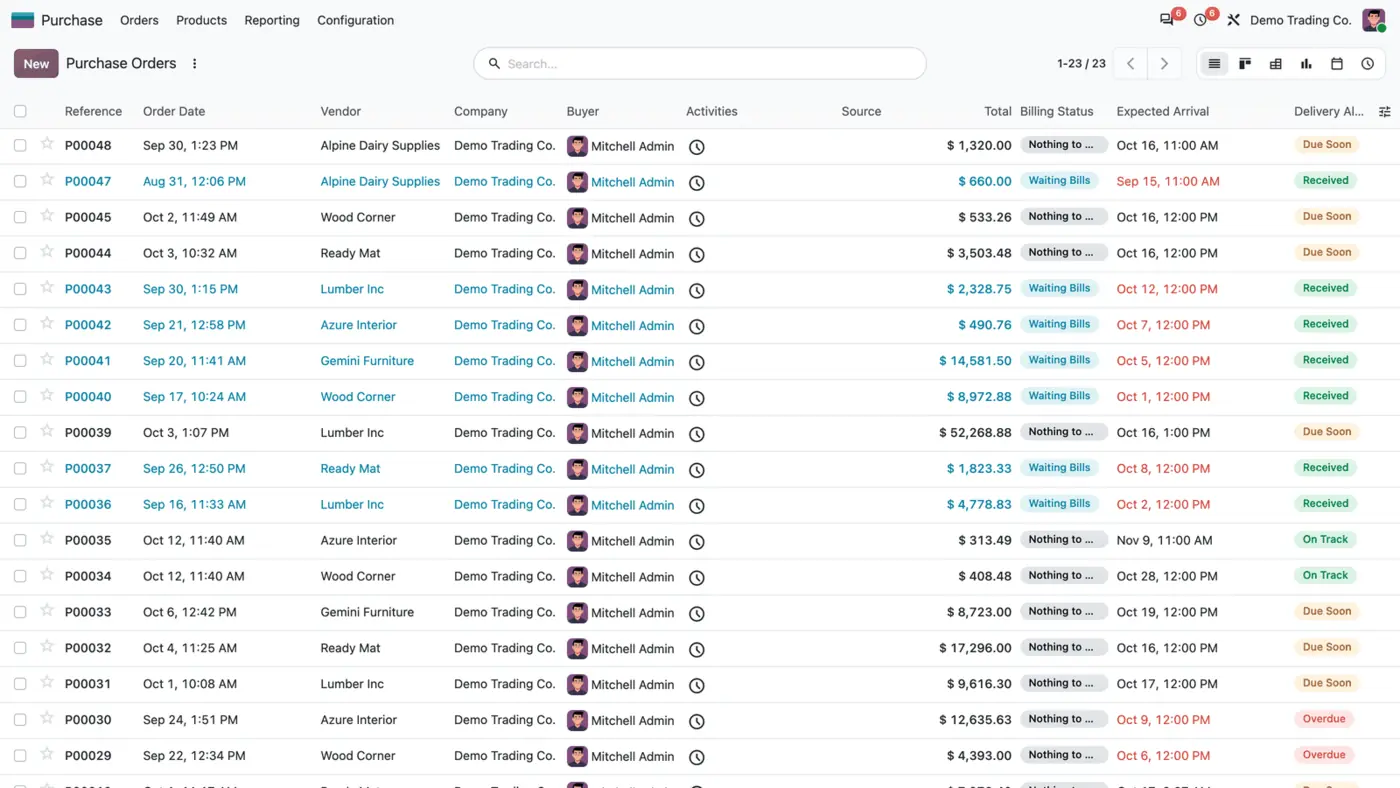
Purchase order list with Expected Arrival and a Delivery Alert badge: Due Soon, Received, On Track or Overdue
Every confirmed purchase order shows a coloured Delivery Alert next to its Expected Arrival.
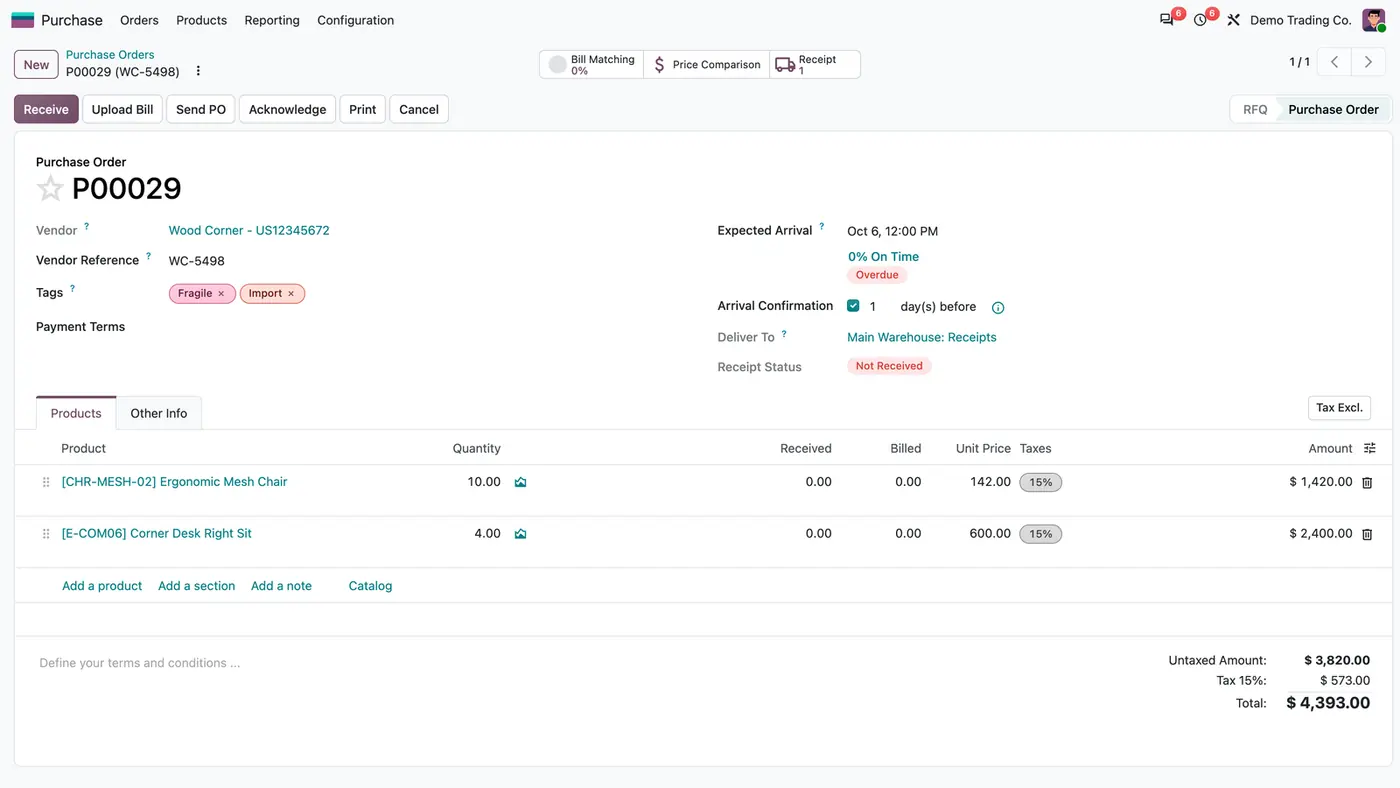
Purchase order P00029 expected Oct 6 with an Overdue badge and Receipt Status Not Received
On the order the badge sits next to Expected Arrival; this one is overdue and nothing was received.
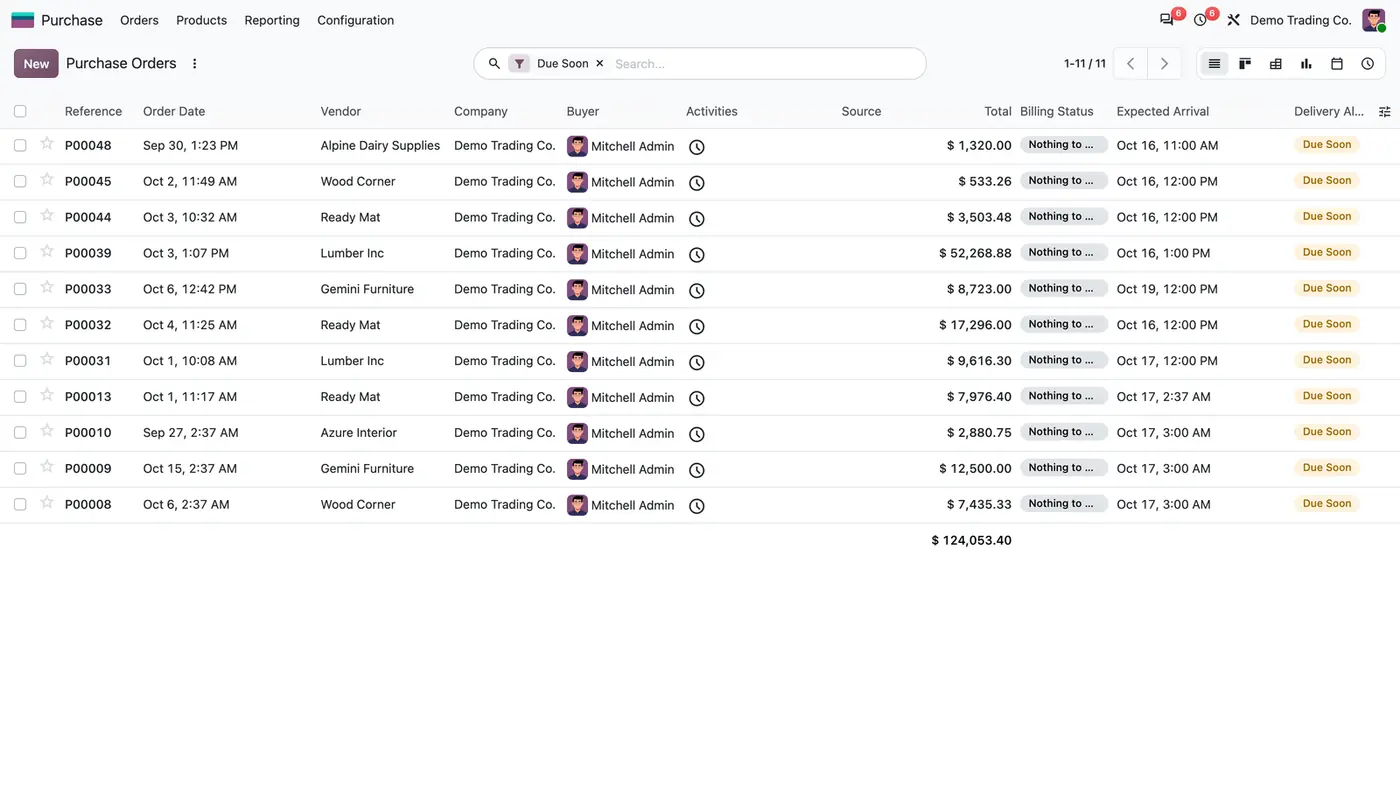
Purchase orders filtered by Due Soon: eleven orders expected within the next 7 days
The Due Soon filter lists the orders expected from today up to the configured window.
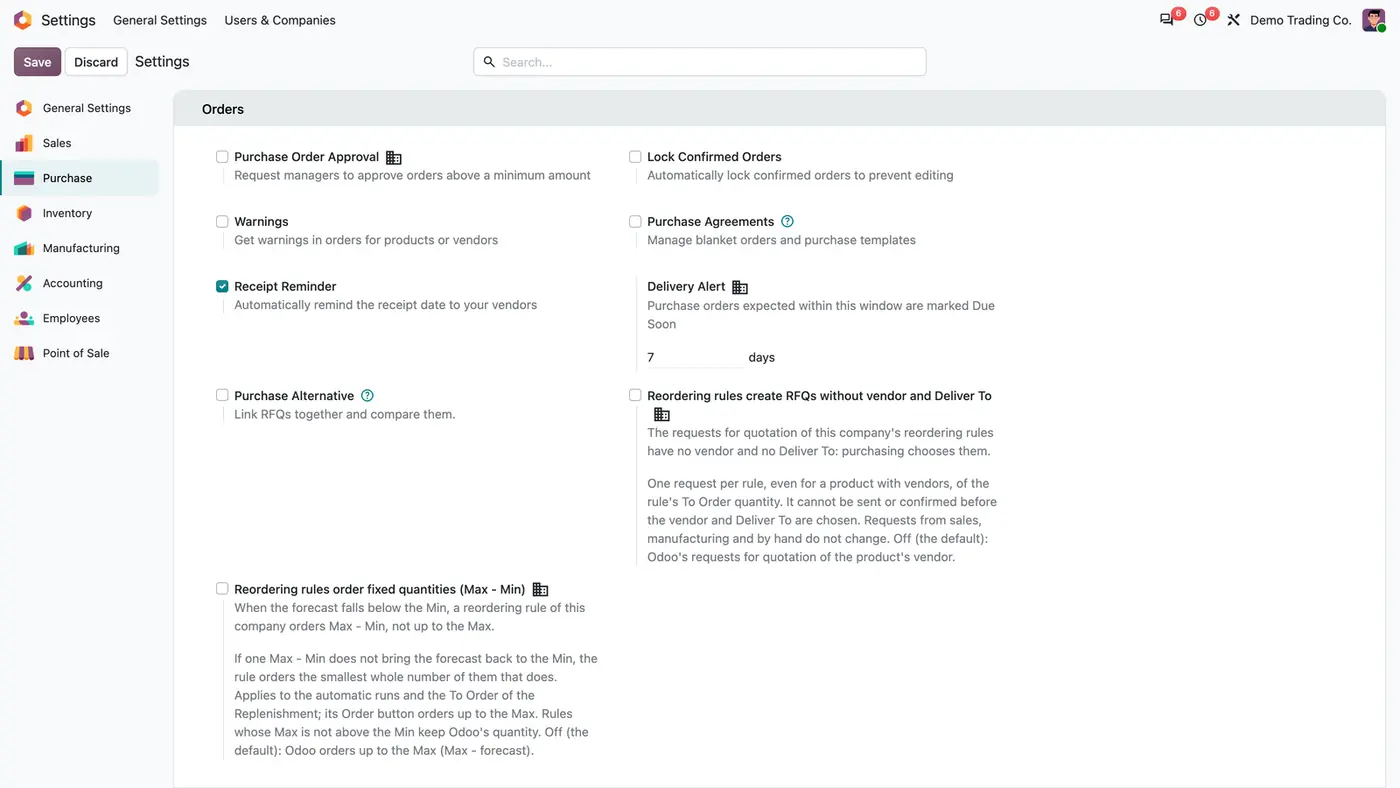
Purchase settings, Orders section, with the Delivery Alert window set to 7 days
The Due Soon window is set per company in the Purchase settings.
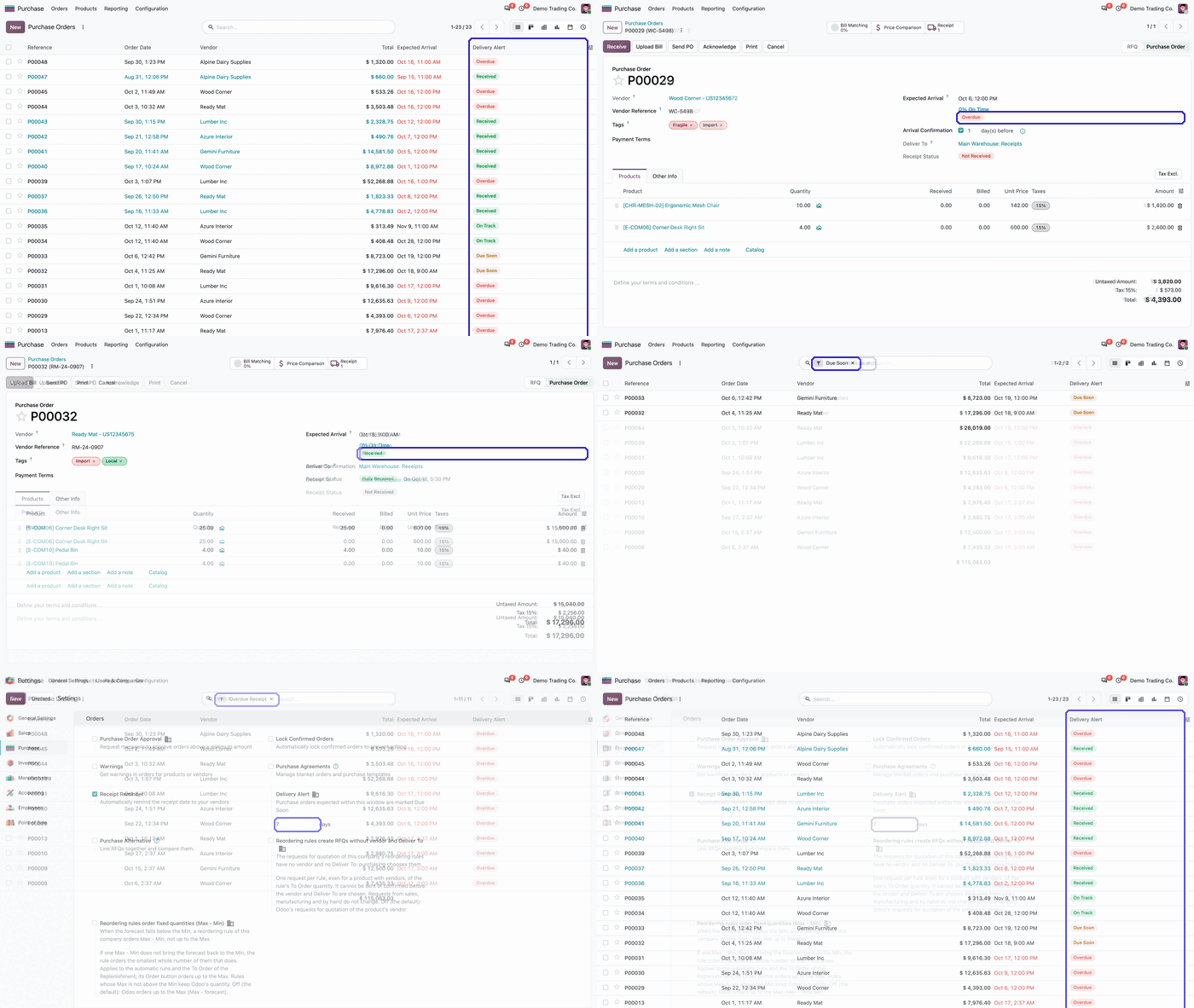
Animated demo: the Delivery Alert column highlighted in the purchase order list Play demo
A short animation of the Delivery Alert column in the purchase order list.

What it does

A status on every confirmed order

  • Overdue when the Expected Arrival is before today in your time zone and the order is not fully received.
  • Due Soon when the order is expected from today up to the window you set. An order expected today is Due Soon.
  • On Track for later dates, and Received only when the order is fully received.
  • Requests for quotation and cancelled orders get no status.

Always current

  • The status is recalculated each time the order is read, from Odoo's own date and receipt status.
  • No scheduled action runs and nothing is written to the database.

In the lists and on the order

  • A coloured badge column in the RFQ and purchase order lists: Overdue in red, Due Soon in orange, On Track and Received in green.
  • The column is optional and shown by default.
  • On the purchase order form the badge sits next to Expected Arrival.

Search filters

  • One search filter per status: Due Soon, Overdue Receipt, On Track and Fully Received.
  • Works in the RFQ and purchase order lists, across the companies you are in.

Due Soon window per company

  • Set how many days ahead an order counts as Due Soon in the Purchase settings.
  • 7 days by default, set per company.

Who it is for

A good fit for

  • Buyers who need to know which vendors to call about late deliveries.
  • Warehouse teams that want to see which receipts are due this week.
  • Multi-company databases where each company plans with a different lead window.

Not a fit for

  • Sending reminders to vendors: the app only shows the status.
  • Changing receipts or orders: receipts, bills, reports and vendor reminders stay as they are.
  • Databases on Odoo Online (SaaS), which cannot install third-party apps.

Install

Requires: Purchase (purchase), Inventory (stock), Invoicing (account), Discuss (mail)

  1. Download Purchase Delivery Alert for free on the Odoo Apps Store for your Odoo version (18.0, 19.0 or 20.0).
  2. Add the module to your Odoo.sh project or to the addons path of your on-premise server.
  3. Update the apps list in Odoo and install Purchase Delivery Alert. A guide opens inside the app after installation.

Odoo Online (SaaS) does not allow third-party apps, so the app cannot be installed there. Use Odoo.sh or an on-premise Odoo 18, 19 or 20 database, Community or Enterprise.

Questions: info@flexcodesys.com.

Configure

  1. Go to Purchase > Configuration > Settings and find Delivery Alert in the Orders section.
  2. Enter how many days ahead count as Due Soon for this company. The default is 7.
  3. Save. The guide stays in the app's Configuration menu.
SettingWhat it does
Delivery AlertDays ahead that count as Due Soon, per company; 7 by default.

How to use it

Find late deliveries

  1. Open Purchase > Orders > Purchase Orders.
  2. Apply the Overdue Receipt filter to list the orders that should have arrived already.
  3. Call the vendor, then receive and bill as usual when the goods arrive.

Plan this week's receipts

  1. Apply the Due Soon filter to see the orders expected from today up to the window.
  2. Open an order to see the badge next to its Expected Arrival.

Limits

  • It sends no reminders and changes no receipts or orders.
  • Only confirmed purchase orders with an Expected Arrival get a status.
  • A partly received order is not shown as Received; it stays Overdue, Due Soon or On Track by its date.
  • It cannot be installed on Odoo Online (SaaS).

FAQ

Which orders get a status?

Confirmed purchase orders with an Expected Arrival. Requests for quotation and cancelled orders have none.

When is an order Overdue?

When its Expected Arrival is before today in your time zone and it is not fully received. An order expected today is Due Soon.

Does it change receipts or send reminders?

No. It only calculates and displays the status. Receipts, bills, reports and vendor reminders are unchanged.

Can I change how many days count as Due Soon?

Yes, per company in the Purchase settings, under Delivery Alert. An order expected from today up to that many days ahead is Due Soon.

Is a partly received order shown as Received?

No. Only a fully received order is Received. A partly received one stays Overdue, Due Soon or On Track by its date.

Need it set up or adapted?

We configure our apps for your process, train your team and build the extra pieces you need.