Sales & Customers
Customer Credit Phone Control
Customer credit limits at order and invoice, plus unique customer phone numbers.
Odoo 20 Odoo 19 Odoo 18€55.30
Sales & Customers · Odoo 20, Odoo 19, Odoo 18
See what you charged and paid last time, right on the Odoo product form
Sales & Purchase Price History for Products adds two read-only tabs to the product form in Odoo 18, 19 and 20 with recent sale and purchase prices taken from your sales and purchase orders. Sales reps and buyers quote and negotiate with real numbers without leaving the product.
Key features
Sales reps and buyers ask the same question every day: what did we charge or pay for this last time? In standard Odoo the answer means searching through old sales and purchase orders or running a report. Quotes get delayed, or people guess and give away margin. Notes kept in spreadsheets go stale the moment the next order is placed.
Requires: Purchase (purchase), Sales (sale_management), Invoicing (account), Discuss (mail)
Odoo Online (SaaS) does not allow third-party apps, so this app cannot be installed there. Use Odoo.sh or an on-premise Odoo 18, 19 or 20 database, Community or Enterprise.
Questions: info@flexcodesys.com.
| Setting | What it does |
|---|---|
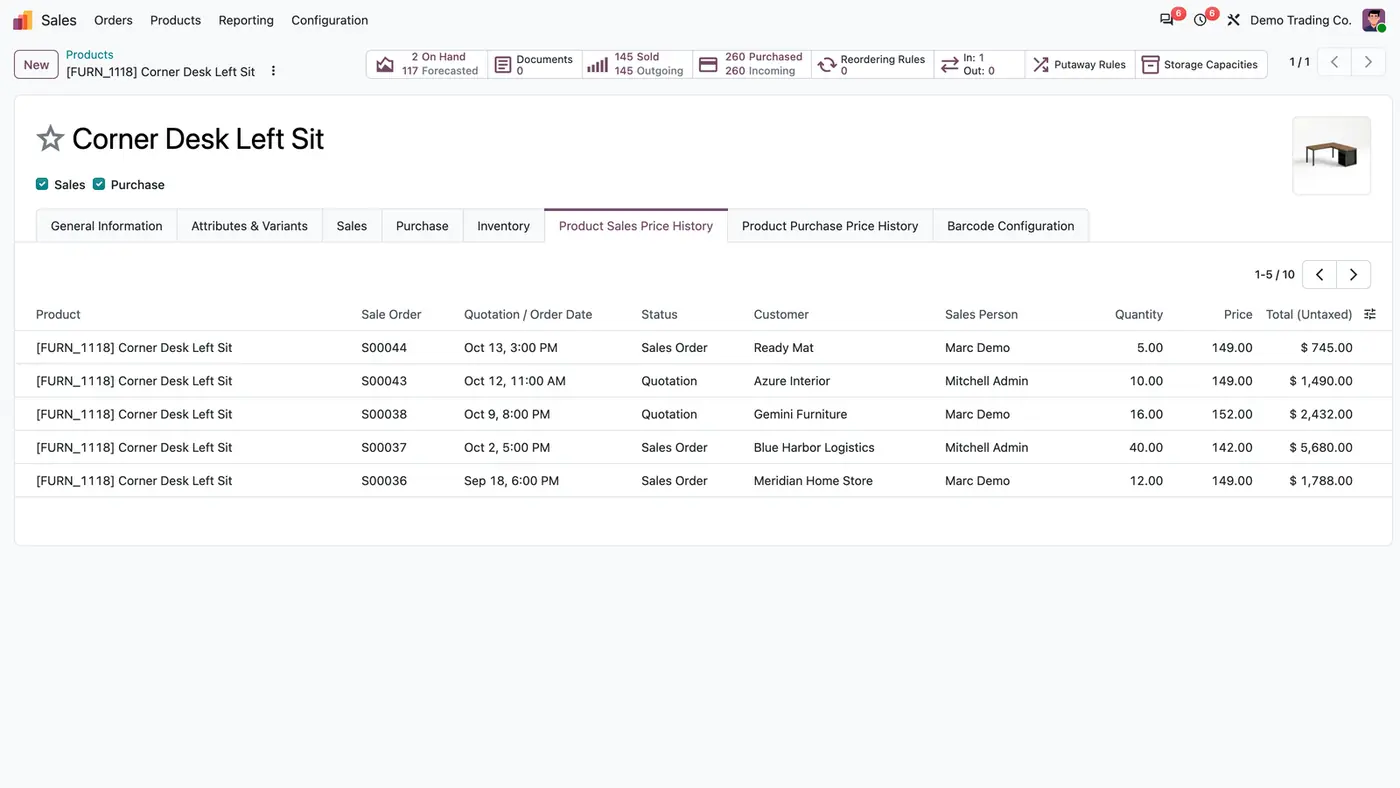
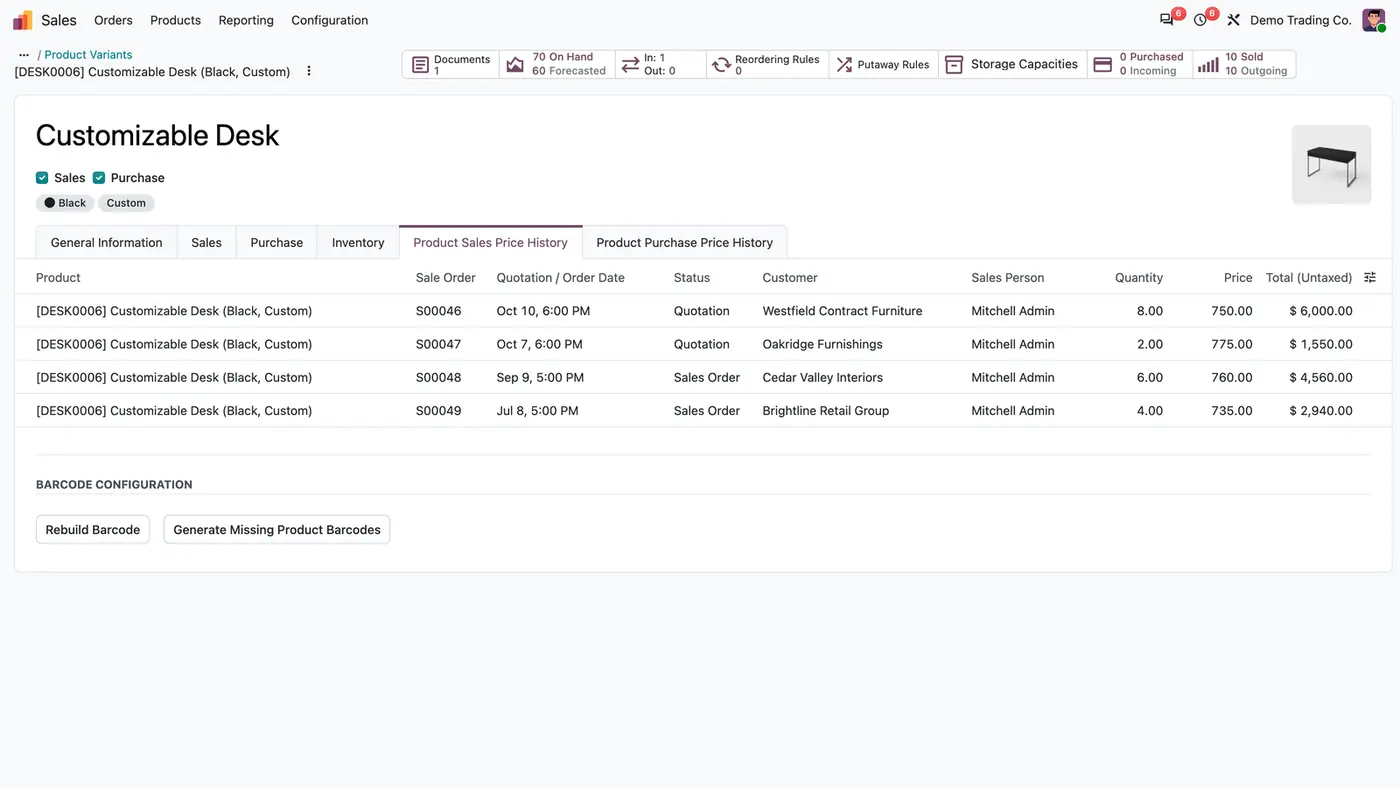
| Product Sales Price History tab | Read-only list of recent sale prices from sales orders. |
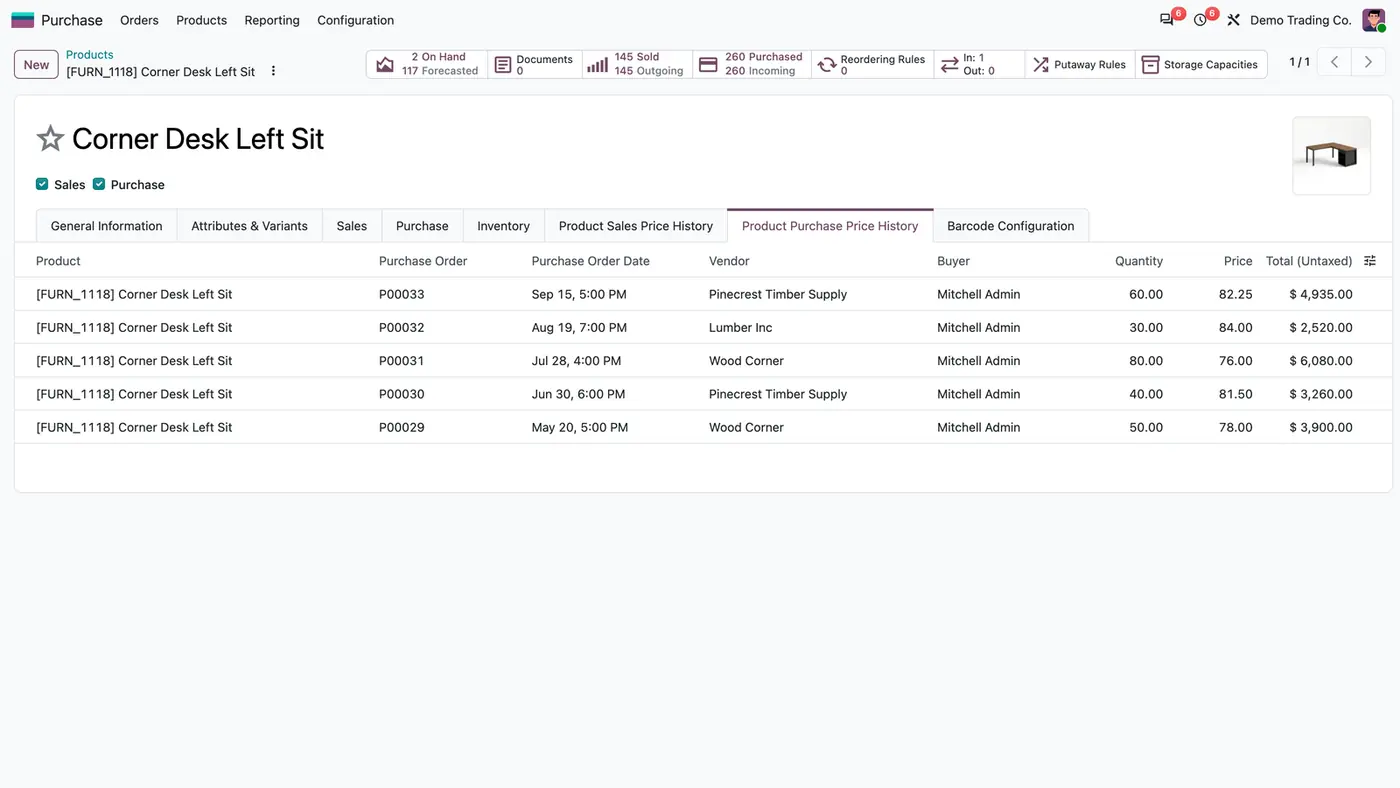
| Product Purchase Price History tab | Read-only list of recent purchase prices from purchase orders. |
With Sales & Purchase Price History for Products, open the product form and go to the Product Sales Price History tab. It lists recent sale prices taken directly from your sales orders.
Open the product form and go to the Product Purchase Price History tab. It shows recent purchase prices from your purchase orders, so buyers can negotiate with real numbers.
Directly from your sales orders and purchase orders, so it is always based on real transactions and stays up to date as new orders come in.
No. Both tabs are read-only, which makes them safe as a reference for everyone who opens the product.
No. The history is generated automatically from your orders, so there is nothing to maintain.
It is a free app for Odoo 18, 19 and 20, Community and Enterprise, on-premise and on Odoo.sh. Odoo Online (SaaS) does not allow third-party apps. The app adds no core monkey-patching and no migration scripts.
Customer credit limits at order and invoice, plus unique customer phone numbers.
Make-to-order RFQs automatically go to the vendor with the lowest valid price.
Clean product descriptions on quotation and sale order PDFs without changing order data.
Sales returns and exchanges with return transfers, fees and automatic credit notes.
Pay sales commission on each customer payment, pro rata, with reversals and POS cashier commission.
Rules check every e-mail on a CRM alias: junk is dropped or quarantined, real requests get priority and tags.
We configure our apps for your process, train your team and build the extra pieces you need.