See what you charged and paid last time, right on the Odoo product form
Sales & Purchase Price History for Products adds two read-only tabs to the Odoo 19 product form with recent sale and purchase prices taken from your sales and purchase orders. Sales reps and buyers quote and negotiate with real numbers without leaving the product.
Sales reps and buyers ask the same question every day: what did we charge or pay for this last time? In standard Odoo the answer means searching through old sales and purchase orders or running a report. Quotes get delayed, or people guess and give away margin. Notes kept in spreadsheets go stale the moment the next order is placed.
What it does
Sales price history on the product
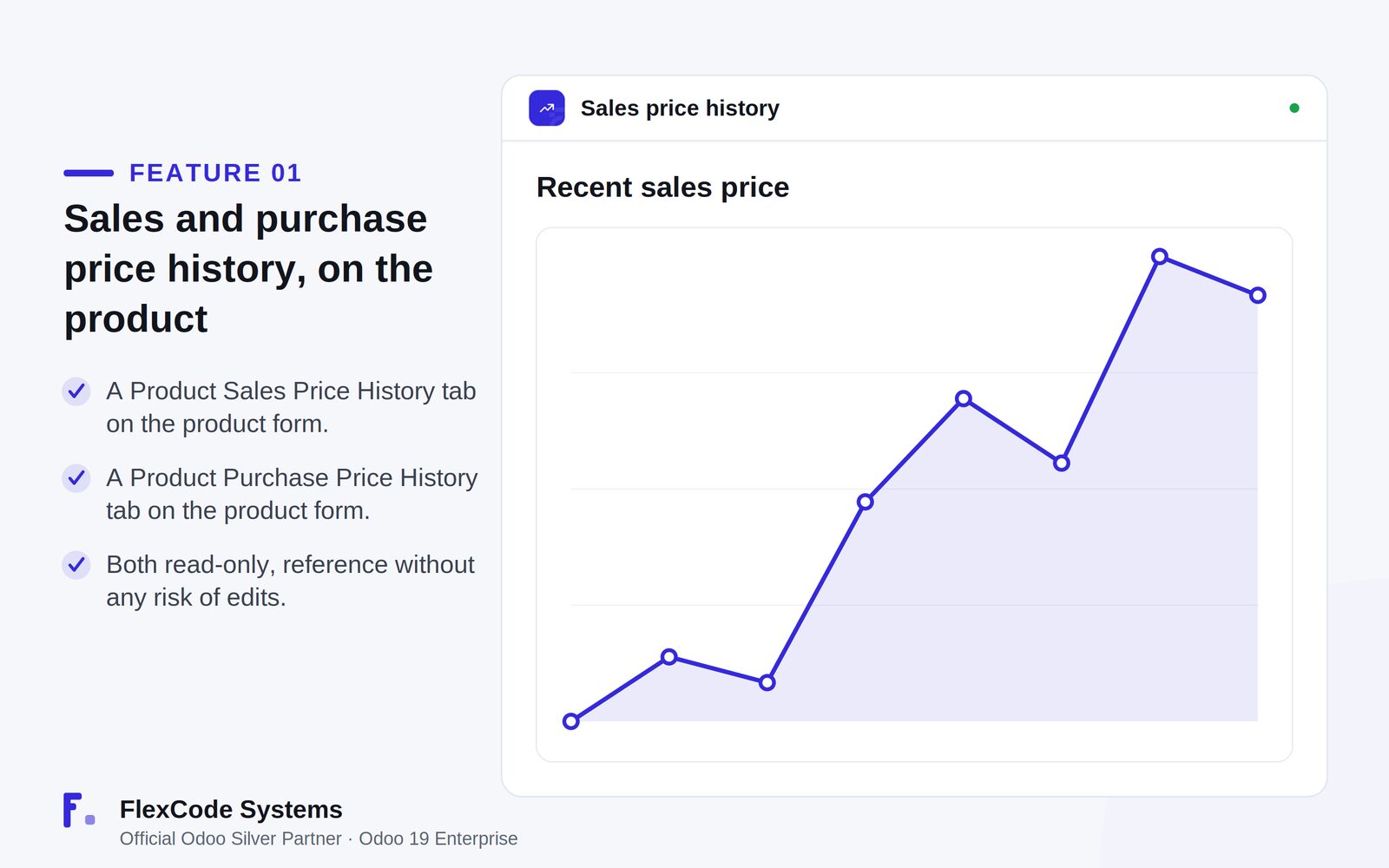
Add a Product Sales Price History tab to the product form.
See recent sale prices per product, taken from your sales orders.
Purchase price history on the product
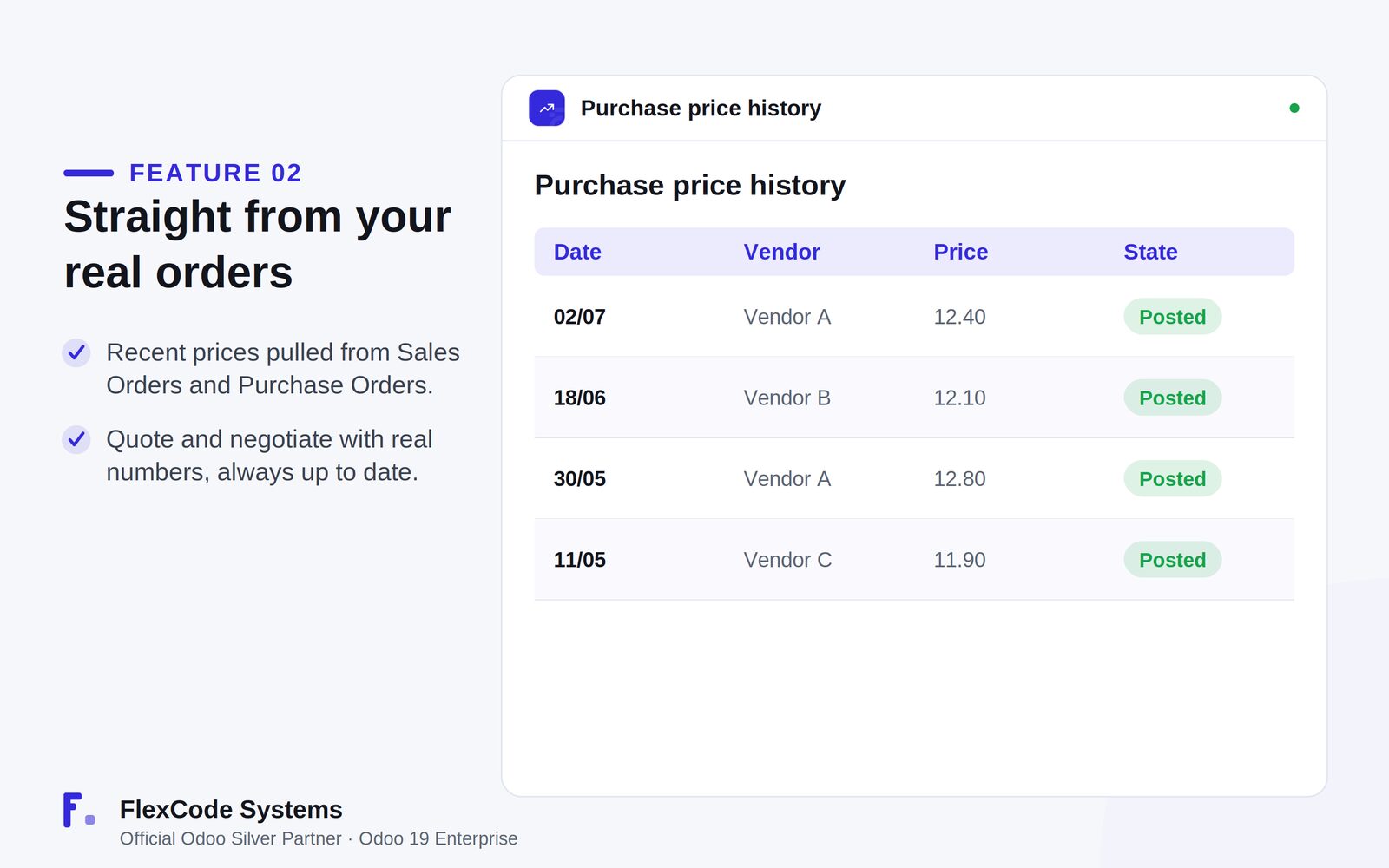
Add a Product Purchase Price History tab to the product form.
See recent purchase prices per product, taken from your purchase orders.
Safe and always current
Keep both tabs read-only, so reference data cannot be edited by accident.
Rely on real transactions: the history comes from your orders, with no manual logging.
Use it where you need it, without a separate report to run.
Recent sales prices shown on the product. Illustration from the store listing.Purchase prices taken from real orders. Illustration from the store listing.
Who it is for
Salespeople who quote with confidence from past prices.
Buyers who negotiate with real purchase history.
Managers who review price trends per product.
Anyone who wants price context without leaving the product.
Not a fit when:
Databases on Odoo Online (SaaS), which cannot install third-party apps.
Teams that need a full price analysis report; this app shows recent prices on the product form.
Add the module to your Odoo.sh project or the addons path of your on-premise server.
Update the apps list and install Sales & Purchase Price History for Products. Sales and Purchase are installed with it if they are missing.
Odoo Online (SaaS) does not allow third-party apps, so this app cannot be installed there. Use Odoo.sh or an on-premise Odoo 19 Enterprise database.
Configure
No setup is needed: once installed, the two tabs appear on the product form.
Make sure the users who should see prices have access to the product form in Sales or Purchase.
Setting
What it does
Product Sales Price History tab
Read-only list of recent sale prices from sales orders.
Product Purchase Price History tab
Read-only list of recent purchase prices from purchase orders.
How to use it
Quote with the last sale price
Open the product form.
Open the Product Sales Price History tab.
Use the recent prices from real sales orders to set your quote.
Negotiate with the last purchase price
Open the product form.
Open the Product Purchase Price History tab.
Compare recent purchase prices before you place or negotiate an order.
Limits
It cannot be installed on Odoo Online (SaaS).
The tabs are read-only and show history from sales and purchase orders only.
It is built for Odoo 19 Enterprise. The price covers one Odoo major version; each future version is sold separately.
Frequently asked questions
How do I see the last sale price of a product in Odoo?
With Sales & Purchase Price History for Products, open the product form and go to the Product Sales Price History tab. It lists recent sale prices taken directly from your sales orders.
How do I see past purchase prices for a product in Odoo?
Open the product form and go to the Product Purchase Price History tab. It shows recent purchase prices from your purchase orders, so buyers can negotiate with real numbers.
Where does the price history come from?
Directly from your sales orders and purchase orders, so it is always based on real transactions and stays up to date as new orders come in.
Can the price history be edited?
No. Both tabs are read-only, which makes them safe as a reference for everyone who opens the product.
Do I need to log prices manually?
No. The history is generated automatically from your orders, so there is nothing to maintain.
Which Odoo version does it support?
It is built and tested for Odoo 19 Enterprise, on-premise and on Odoo.sh. Odoo Online (SaaS) does not allow third-party apps. The app adds no core monkey-patching and no migration scripts.