Skip to Content

Sales & Customers · Odoo 20

Sale Returns, Exchanges and Credit Notes

Returns, exchanges and credit notes from the sale order, reconciled with the invoice

Sale Returns, Exchanges and Credit Notes adds a controlled returns and exchanges workflow to Odoo 20 sale orders. A wizard creates the return transfer, an exchange creates the replacement order and delivery, and the credit note posts itself once the warehouse validates the return.

Key features

The problem

In standard Odoo one customer return turns into three manual jobs: a receipt in the warehouse, a credit note in accounting and a spreadsheet to track what was refunded. Exchanges add a second sale order on top. Steps get skipped, refunds go out twice or not at all, and return fees are quietly absorbed. Finance then spends month end matching returns to invoices by hand.
Screenshots

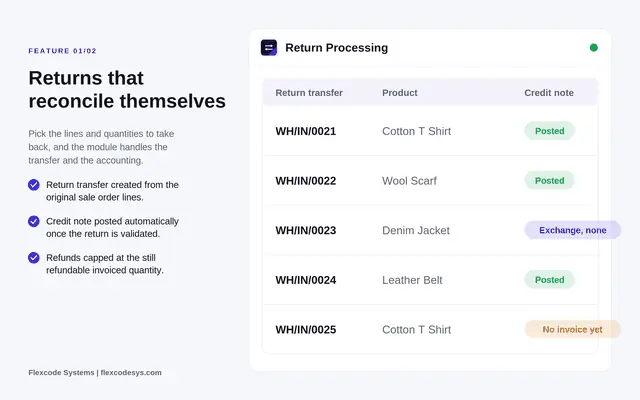
Return Processing list of WH/IN return transfers with product and credit note state such as Posted or No invoice yet
Each return transfer with the state of its credit note. Illustration from the store listing.
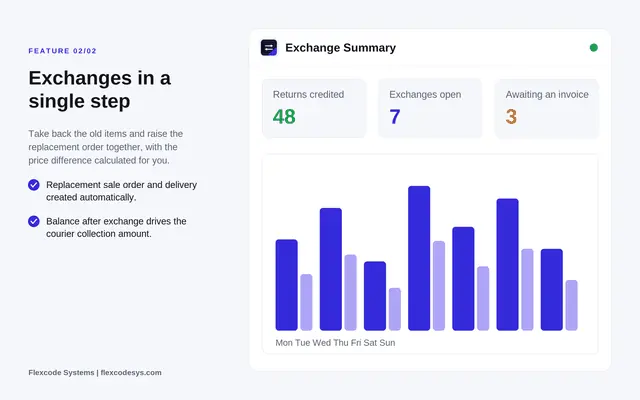
Exchange Summary panel with counters for returns credited, exchanges open and awaiting an invoice, above a weekly chart
Returns and exchanges at a glance; an exchange creates the replacement order in the same step. Illustration from the store listing.

What it does

Returns that reconcile themselves

  • Create the return transfer from the original sale order lines, choosing lines and quantities.
  • Receive the goods as a draft receipt at the warehouse you choose.
  • Post the credit note automatically against the original invoice once the return is validated.
  • Cap every refund at the still refundable invoiced quantity, so nothing is refunded twice.

Exchanges in a single step

  • Take back the old items and create the replacement sale order and its delivery in the same wizard.
  • Let the app calculate the price difference between returned and replacement items.
  • Link the replacement order to the original order.

Return fees

  • Add a return fee in the wizard as a service line on the original order.
  • Recalculate the net refund after the fee.

Carriers and Bosta

  • Work with any carrier, or none at all.
  • A free bridge adds Bosta return pickups for databases that also run Bosta Shipping.

Traceability

  • See return and exchange counts on the sale order.
  • Open each credit note from the return transfer it belongs to.

Who it is for

A good fit for

  • Retail and fashion sellers with a high volume of returns.
  • Customer service teams that handle returns directly from the sale order.
  • Finance teams that want credit notes posted without re-entering data.
  • Warehouses that receive customer returns every day.

Not a fit for

  • Databases on Odoo Online (SaaS), which cannot install third-party apps.
  • Returns of goods that were never invoiced, which cannot be refunded through a credit note.

Install

Requires: Inventory (stock), Invoicing (account), Sales (sale_management), Discuss (mail), Contacts (contacts), Delivery (delivery)

  1. Buy the app on the Odoo Apps Store for Odoo 20.0.
  2. No other FlexCode app is required. If you also run Bosta Shipping, a free bridge adds Bosta return pickups.
  3. Add the module to your Odoo.sh project or the addons path of your on-premise server.
  4. Update the apps list and install Sale Returns, Exchanges and Credit Notes. Missing standard apps such as Inventory and Sales are installed with it.

Odoo Online (SaaS) does not allow third-party apps, so this app cannot be installed there. Use Odoo.sh or an on-premise Odoo 20 database.

Every purchase includes 90 days of free support from FlexCode Systems.

Configure

  1. Decide which warehouse receives customer returns, so the draft receipts land in the right place.
  2. Agree internally when a return fee applies and how much it is, since the fee is entered in the return or exchange wizard.
  3. If you ship with Bosta, install Bosta Shipping as well; the free bridge then adds Bosta return pickups.
SettingWhat it does
Return warehouseThe warehouse where the draft receipt for returned goods is created, chosen in the wizard.
Return feeOptional amount added as a service line on the original order; it reduces the net refund.
Bosta pickup and shipmentOptional, through the free bridge to Bosta Shipping: Bosta return pickups, with the balance after an exchange driving the courier collection amount.

How to use it

Process a return

  1. Open the sale order and choose Return.
  2. Pick the lines and quantities the customer sends back, and add a return fee if one applies.
  3. Let the warehouse validate the draft receipt when the goods arrive.
  4. The credit note is posted automatically against the original invoice, limited to the still refundable quantity.

Process an exchange

  1. Open the sale order and choose Exchange.
  2. Select the items coming back and the replacement items.
  3. The app creates the replacement sale order and its delivery and calculates the price difference.
  4. If you ship with Bosta, create the exchange shipment so the courier collects the balance.

Follow up

  1. Check the return and exchange counts on the sale order.
  2. Open the credit note from the return transfer to see how a refund was settled.

Limits

  • It cannot be installed on Odoo Online (SaaS).
  • Bosta return pickups need Bosta Shipping and its free bridge; any other carrier is handled through standard Odoo deliveries.
  • Refunds are capped at the still refundable invoiced quantity; it does not refund goods that were never invoiced.
  • The price covers one Odoo major version; each future version is sold separately.

FAQ

How do I process a customer return in Odoo?

With Sale Returns, Exchanges and Credit Notes you open the sale order, choose Return and pick the lines and quantities. The app creates the return transfer, and once the warehouse validates it, the credit note is posted against the original invoice.

Does Odoo create the credit note automatically after a return?

With this app, yes. As soon as the return transfer is validated, a credit note is created and posted against the original invoice, limited to the quantity that can still be refunded.

What is the difference between a return and an exchange?

A return takes goods back and refunds them. An exchange also creates a new sale order for the replacement items and its outgoing delivery, and calculates the price difference.

Can I charge a return fee in Odoo?

Yes. A fee entered in the return wizard is added as a service line on the original sale order, and the net refund is recalculated after the fee.

Does it work with Bosta for return pickups?

Yes, through a free bridge that adds Bosta return pickups when Bosta Shipping is installed too. Without it, the app works with any carrier, or none at all.

Which Odoo versions and languages are supported?

Odoo 20, Community and Enterprise, on Odoo.sh or on-premise, and each Odoo series is published as its own version of the app. English, German and Arabic translations are included, and it has been tested in multi-company databases.

Need it set up or adapted?

We configure our apps for your process, train your team and build the extra pieces you need.