Skip to Content

Access & Controls · Odoo 20, Odoo 19, Odoo 18

New Posted Document Control

Know who reset a posted invoice or payment, and why

Posted Document Control puts posted journal entries, invoices, bills, credit notes and payments under control, company by company. Only holders of a Reset/Cancel right, or only named users, may reset them to draft or cancel them, with a reason posted in the chatter. Every reset, cancel and refused attempt is kept in an append-only Control Log, and a daily email lists them.

Key features

The problem

In standard Odoo every accounting user may reset a posted invoice, bill, journal entry or payment to draft. A posted document can be changed and posted again, and afterwards nobody can say who did it or why. Auditors and finance managers have to trust that it did not happen, because there is no record to check.
Screenshots

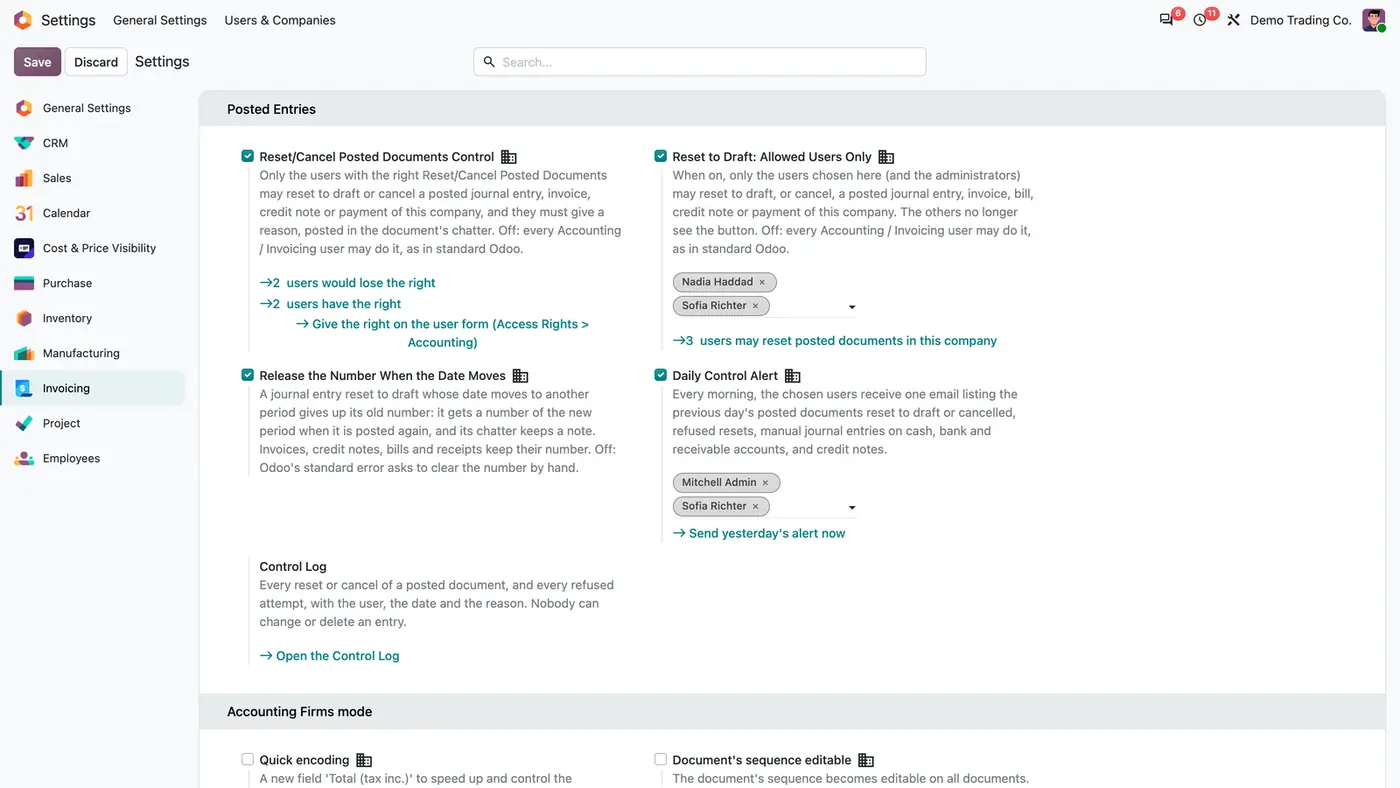
Posted Entries settings with Reset/Cancel control, allowed users, number release and Daily Control Alert switched on
All controls sit in the Posted Entries section of the settings, each per company and off by default.
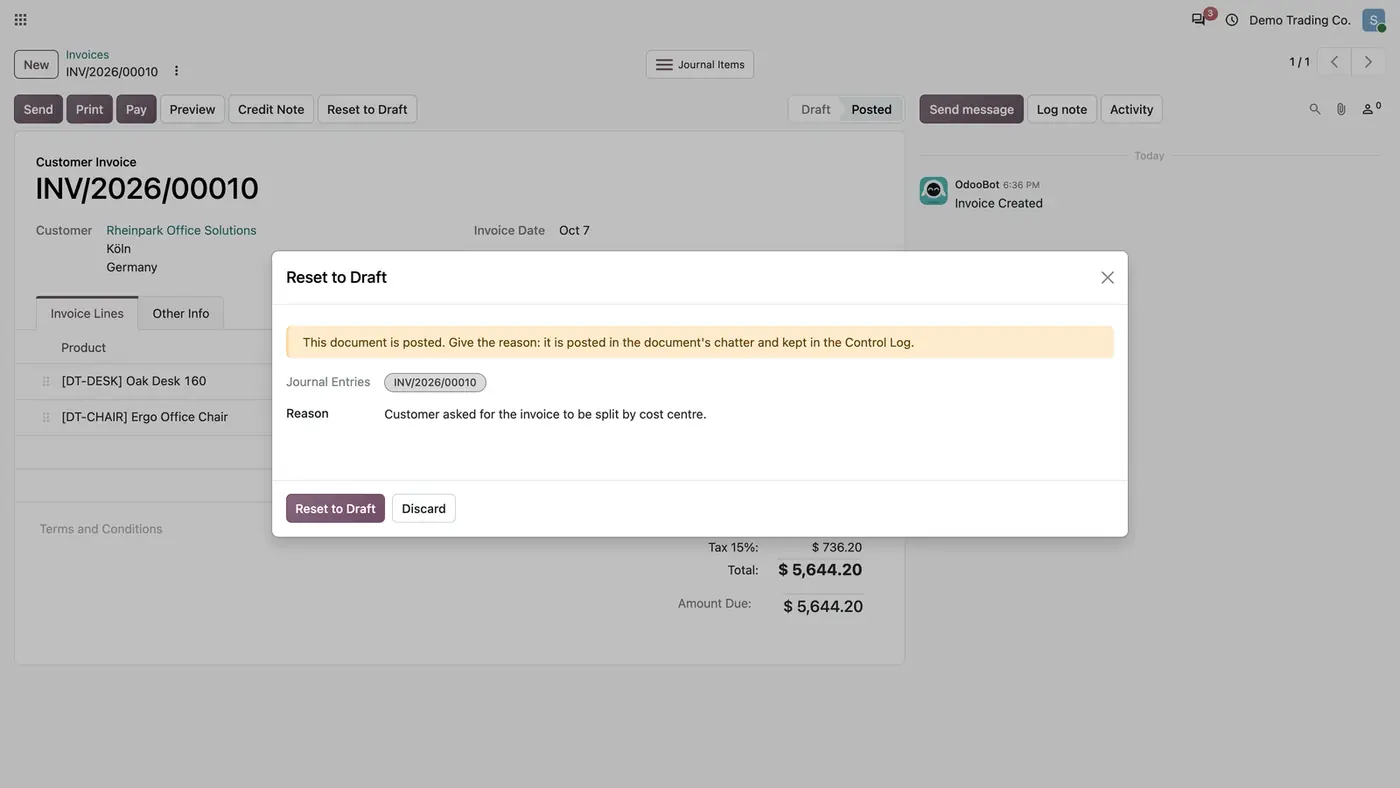
Reset to Draft window on a posted invoice asking for the reason, which is posted in the chatter and the Control Log
Reset to Draft on a posted invoice asks for a reason before anything changes.
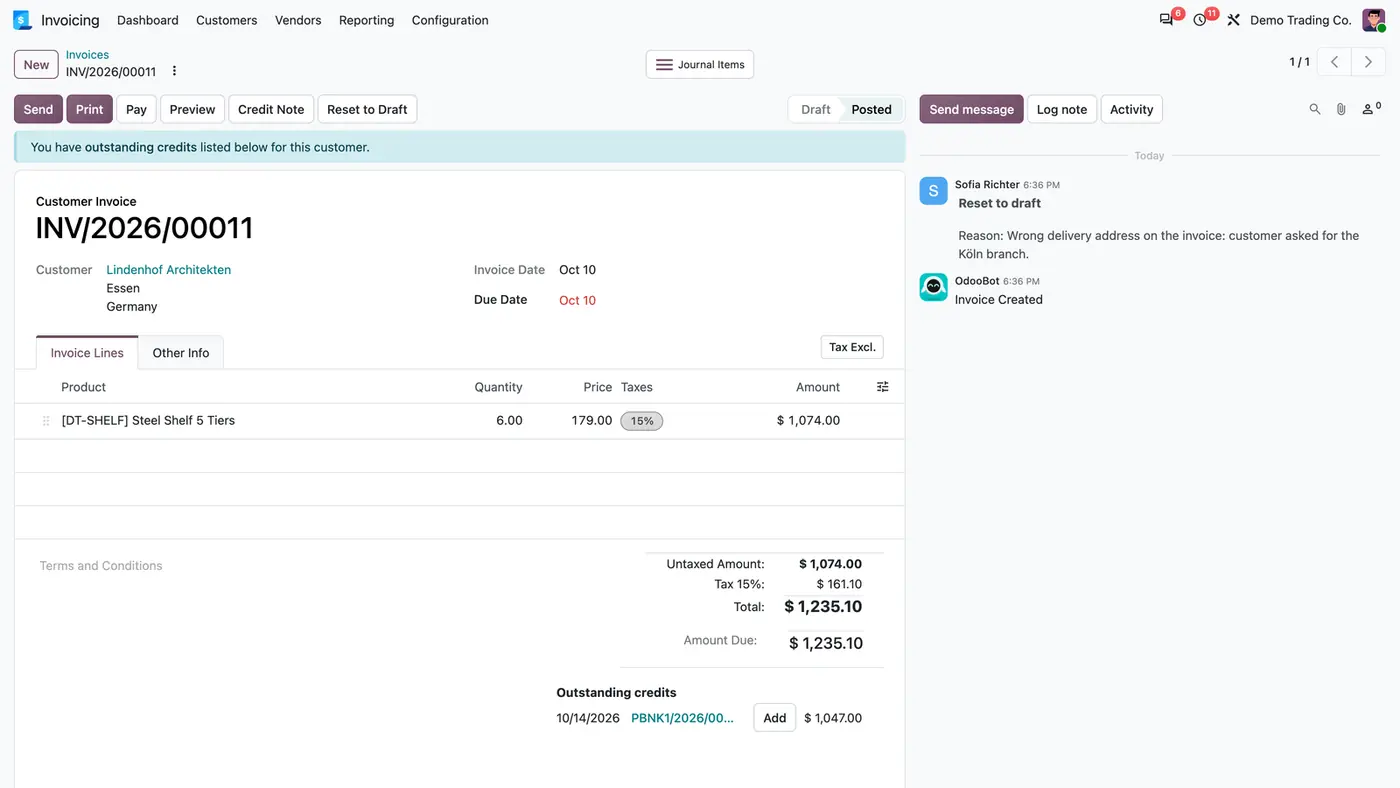
Posted invoice INV/2026/00011 with a chatter note: Reset to draft, Reason: wrong delivery address
The reason stays in the invoice's chatter, visible to everyone who can open the invoice.
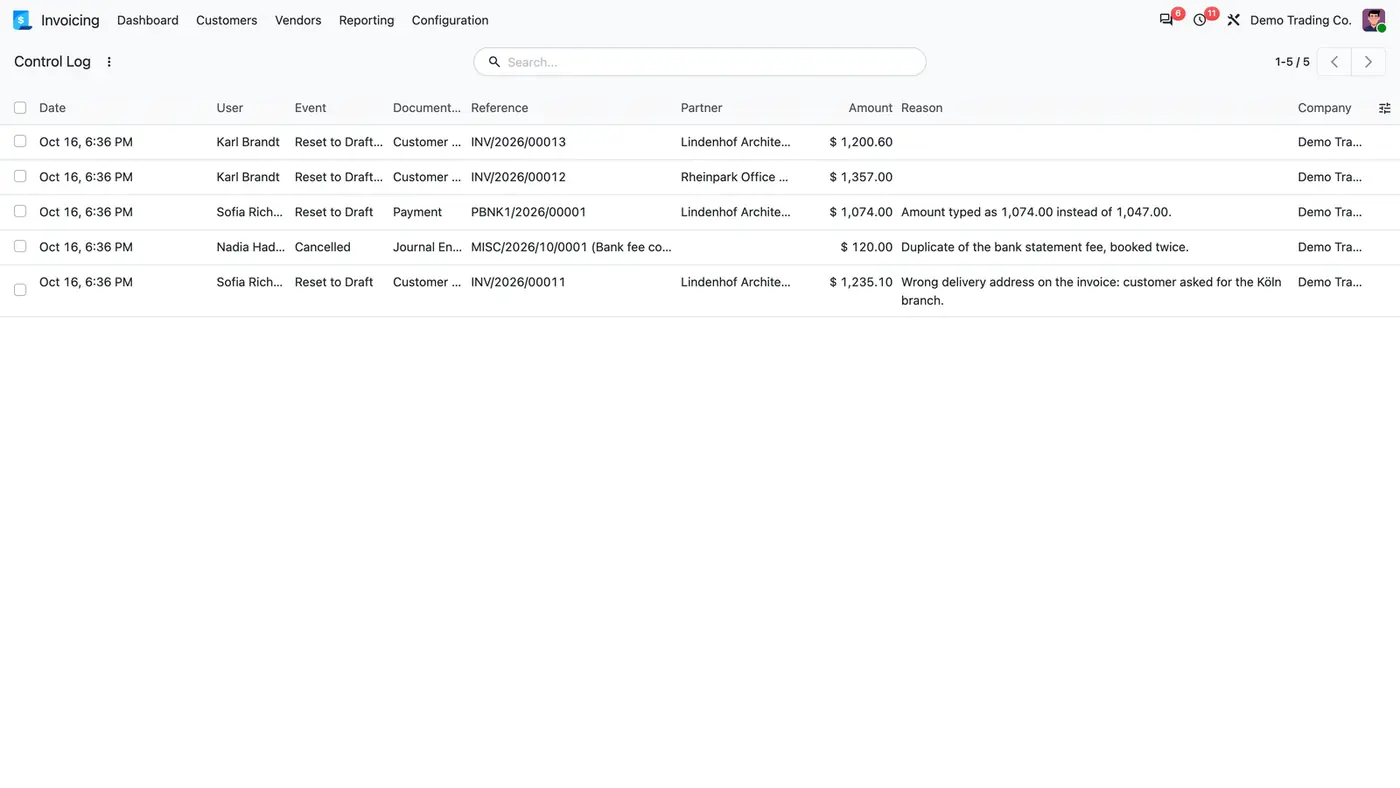
Control Log list with resets, a cancellation and refused attempts, each with user, document, amount and reason
The append-only Control Log keeps every reset, cancel and refused attempt.
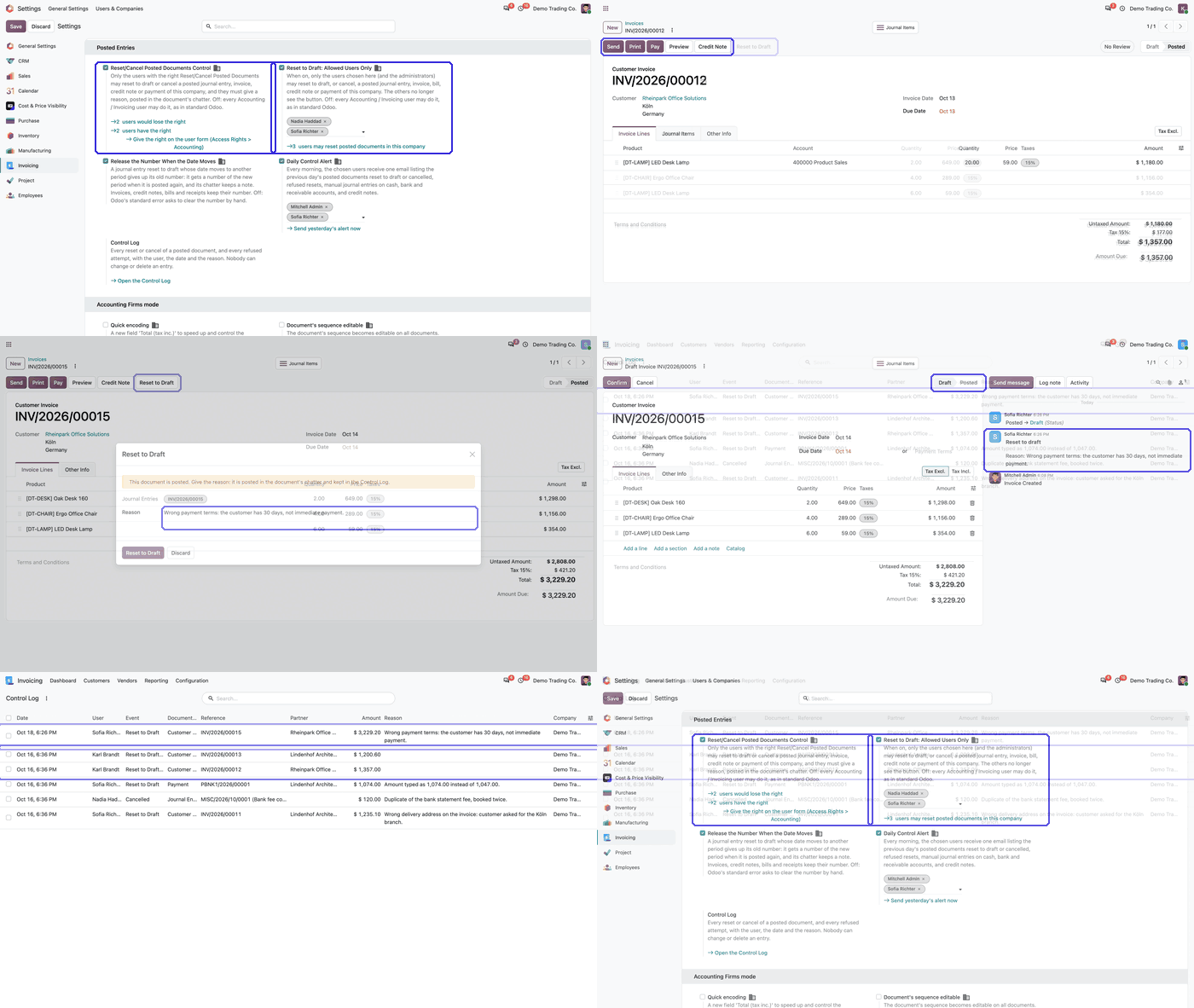
Animated demo: Posted Entries settings with the Reset/Cancel control and Allowed Users Only options highlighted Play demo
The demo shows the two ways to limit who may reset posted documents.

What it does

Reset or cancel only with the right and a reason

  • With Reset/Cancel Posted Documents Control on, only users with the Reset/Cancel Posted Documents right may reset to draft or cancel a posted document of that company.
  • Reset to Draft opens a window that asks for the reason; the reason is required and posted in the document's chatter.
  • Cancelling a confirmed payment asks for the reason the same way.
  • Users without the right are refused on every path. Before switching on, the settings show who would lose the right.

Or name the users who may reset

  • With Reset to Draft: Allowed Users Only on, only the users chosen there and the administrators may reset or cancel.
  • The others no longer see the Reset to Draft button in this company.
  • A user outside the list who tries is refused, and the attempt is kept in the Control Log.

Control Log

  • Every reset, cancel and refused attempt with user, date, event, document, partner, amount and reason.
  • Append-only: nobody can change or delete an entry, administrators included. Only uninstalling the app removes it.
  • Refused attempts are kept although the user's change is rolled back.
  • Filter by event and date, group by user and company. Accounting administrators read the log of their companies.

Daily Control Alert

  • Each morning the chosen recipients get one email about the previous day, with a part per company.
  • It lists posted documents reset to draft or cancelled, refused resets, manual journal entries on cash, bank and receivable accounts, and credit notes.
  • Send yesterday's alert at once from the settings.

New number when the date moves

  • With Release the Number When the Date Moves on, a journal entry reset to draft and moved to another period gets a number of the new period when posted again, and its chatter keeps a note.
  • Invoices, bills, credit notes, receipts and hash-locked journals keep their number.
  • Off, Odoo's standard error asks you to clear the number by hand.

Off by default, per company

  • Every switch is per company and starts off. Installing changes nothing until you decide.
  • Each company has its own switches and lists, and the log follows the user's companies.
  • A guide opens inside the app after installation and stays in its Configuration menu.

Who it is for

A good fit for

  • Finance teams that want to know who reset a posted invoice or payment, and why.
  • Companies with auditors who ask for a record of changes to posted documents.
  • Multi-company databases where each company needs its own rules.
  • Accounting managers who want a daily summary of resets, cancellations and manual cash and bank entries.

Not a fit for

  • Blocking Odoo's own corrections: reversals, credit notes, payments and reconciliation keep working for every user.
  • Changing invoice numbers: only journal entries of the Entry type can get a new number.
  • Databases on Odoo Online (SaaS), which cannot install third-party apps.

Install

Requires: Invoicing (account), Discuss (mail)

  1. Download Posted Document Control free of charge from the Odoo Apps Store for your version: Odoo 18.0, 19.0 or 20.0.
  2. Add the module to your Odoo.sh project or to the addons path of your on-premise server.
  3. Update the apps list in Odoo and install Posted Document Control. Invoicing is installed with it if it is missing.

Odoo Online (SaaS) does not allow third-party apps, so the app cannot be installed there. Use Odoo.sh or an on-premise Odoo 18, 19 or 20 database, Community or Enterprise.

Questions: info@flexcodesys.com.

Configure

  1. Open Invoicing or Accounting, Configuration, Settings, Posted Entries and turn on Reset/Cancel Posted Documents Control for the company.
  2. In Settings, Users & Companies, Users, choose Reset/Cancel Posted Documents under Accounting for each user who may still reset or cancel.
  3. Or turn on Reset to Draft: Allowed Users Only in the same section and name the users.
  4. Turn on Daily Control Alert and choose the recipients.
SettingWhat it does
Reset/Cancel Posted Documents ControlOnly users with the Reset/Cancel Posted Documents right may reset or cancel, and they must give a reason. Off: as in standard Odoo.
Reset to Draft: Allowed Users OnlyOnly the users chosen here and the administrators may reset or cancel; the others no longer see the button.
Release the Number When the Date MovesA journal entry moved to another period gets a number of the new period when posted again.
Daily Control AlertOne email each morning to the chosen users about the previous day.

How to use it

Reset a posted invoice

  1. Click Reset to Draft on the posted invoice.
  2. Enter the reason in the window and confirm.
  3. The reason appears in the invoice's chatter and the reset in the Control Log. Correct the invoice and post it again.

Review the Control Log

  1. Open Invoicing or Accounting, Reporting, Control Log.
  2. Filter by event and date, or group by user and company, to see resets, cancellations and refused attempts.

Limits

  • Odoo's own corrections are not blocked: reversals, credit notes, payments, reconciliation, deferred entries, Point of Sale closings and deleting a bank transaction keep working.
  • Odoo's automatic flows are not asked for a reason.
  • Only journal entries of the Entry type get a new number when their date moves.
  • It cannot be installed on Odoo Online (SaaS).

FAQ

Does it stop Odoo's own corrections?

No. Reversals, credit notes, payments, reconciliation, deferred entries, Point of Sale closings and deleting a bank transaction keep working for every user.

Can an administrator delete Control Log entries?

No. The log is append-only for everybody; only uninstalling the app removes it.

Are invoice numbers ever changed?

No. Only journal entries of the Entry type get a new number when their date moves; invoices, bills, credit notes, receipts and journals locked with a hash keep their number.

Which documents are covered?

Posted journal entries, customer invoices and credit notes, vendor bills and refunds, and payments.

Is a refused reset recorded?

Yes, with Reset to Draft: Allowed Users Only on. A user outside the list who tries is refused, and the attempt is kept in the Control Log and listed in the daily alert.

Need it set up or adapted?

We configure our apps for your process, train your team and build the extra pieces you need.