Productivity & Tools · Odoo 20, Odoo 19, Odoo 18
New Home Search
Find any customer, order or invoice straight from the home screen
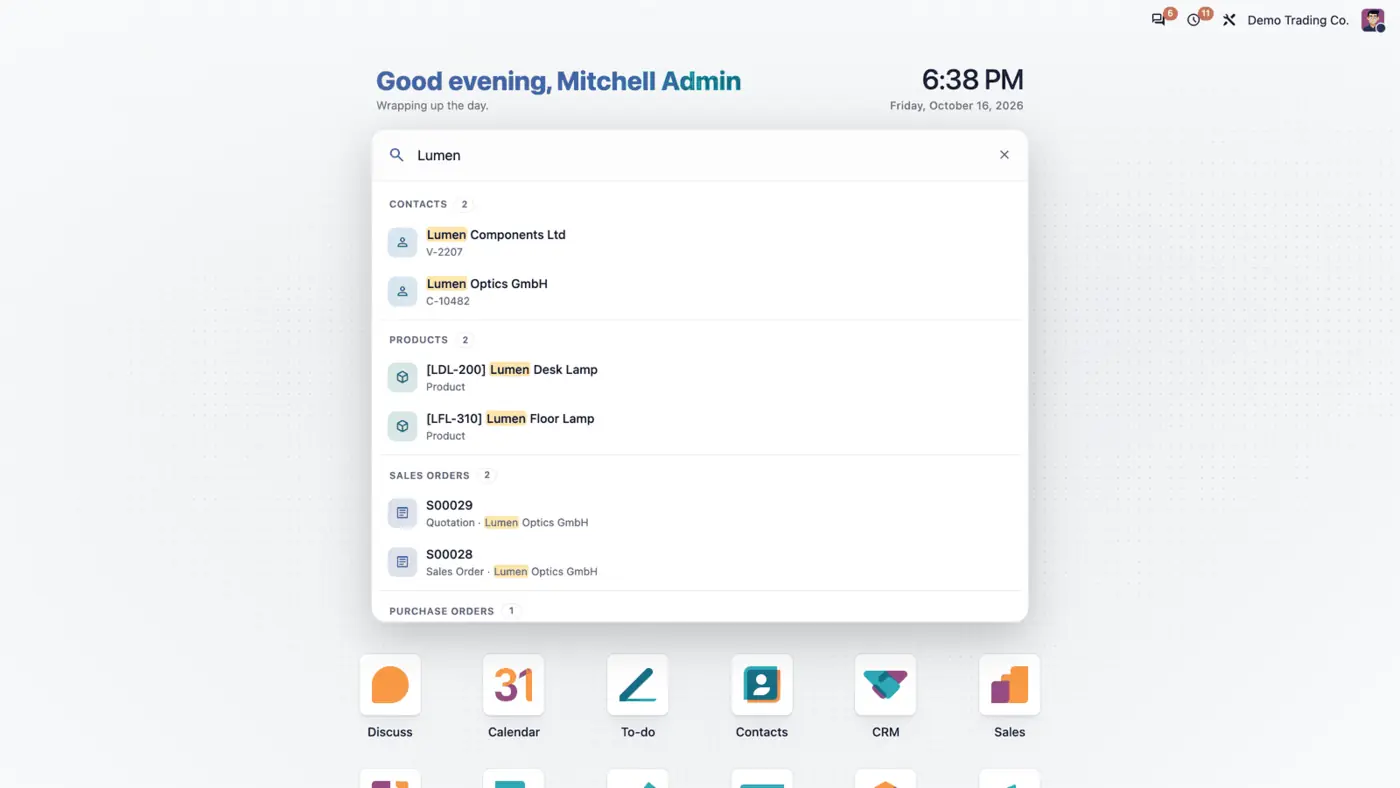
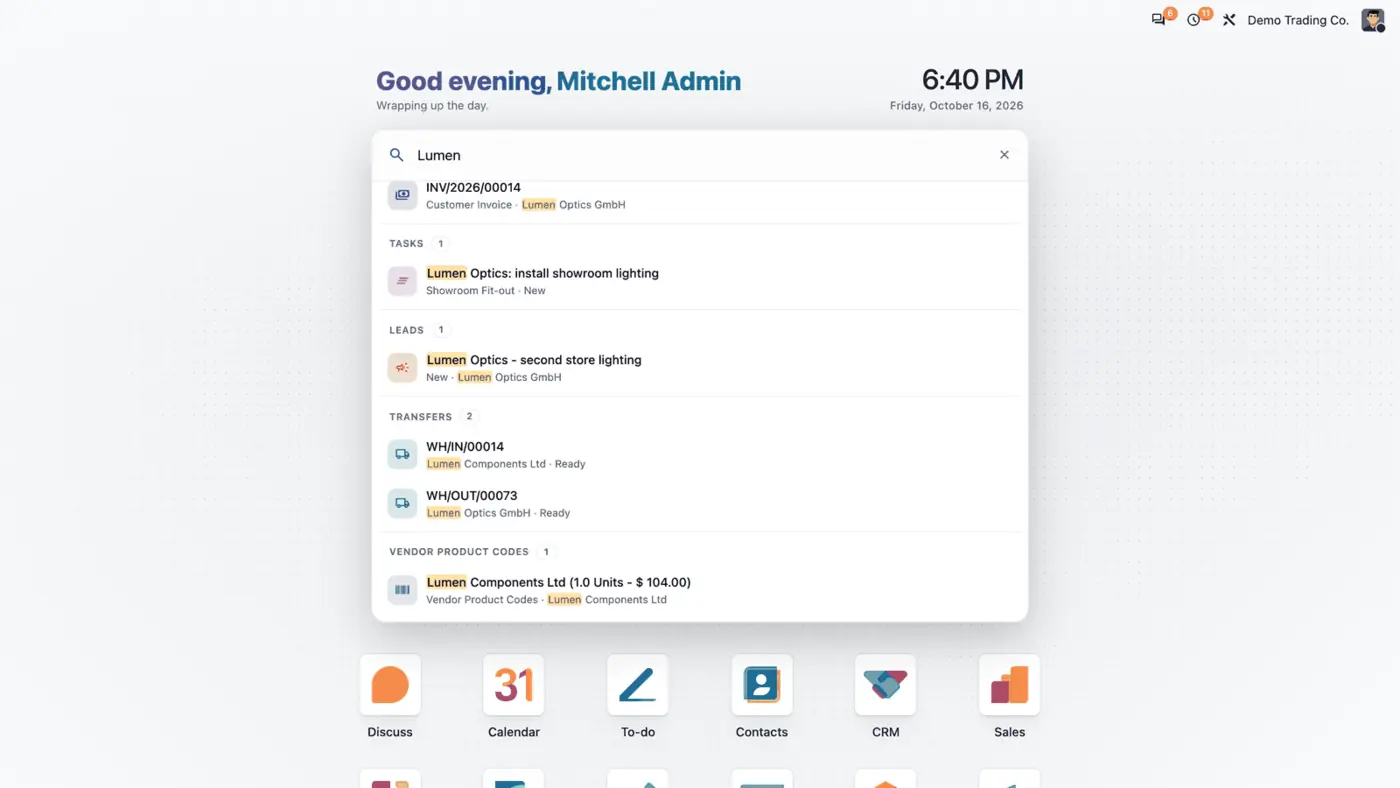
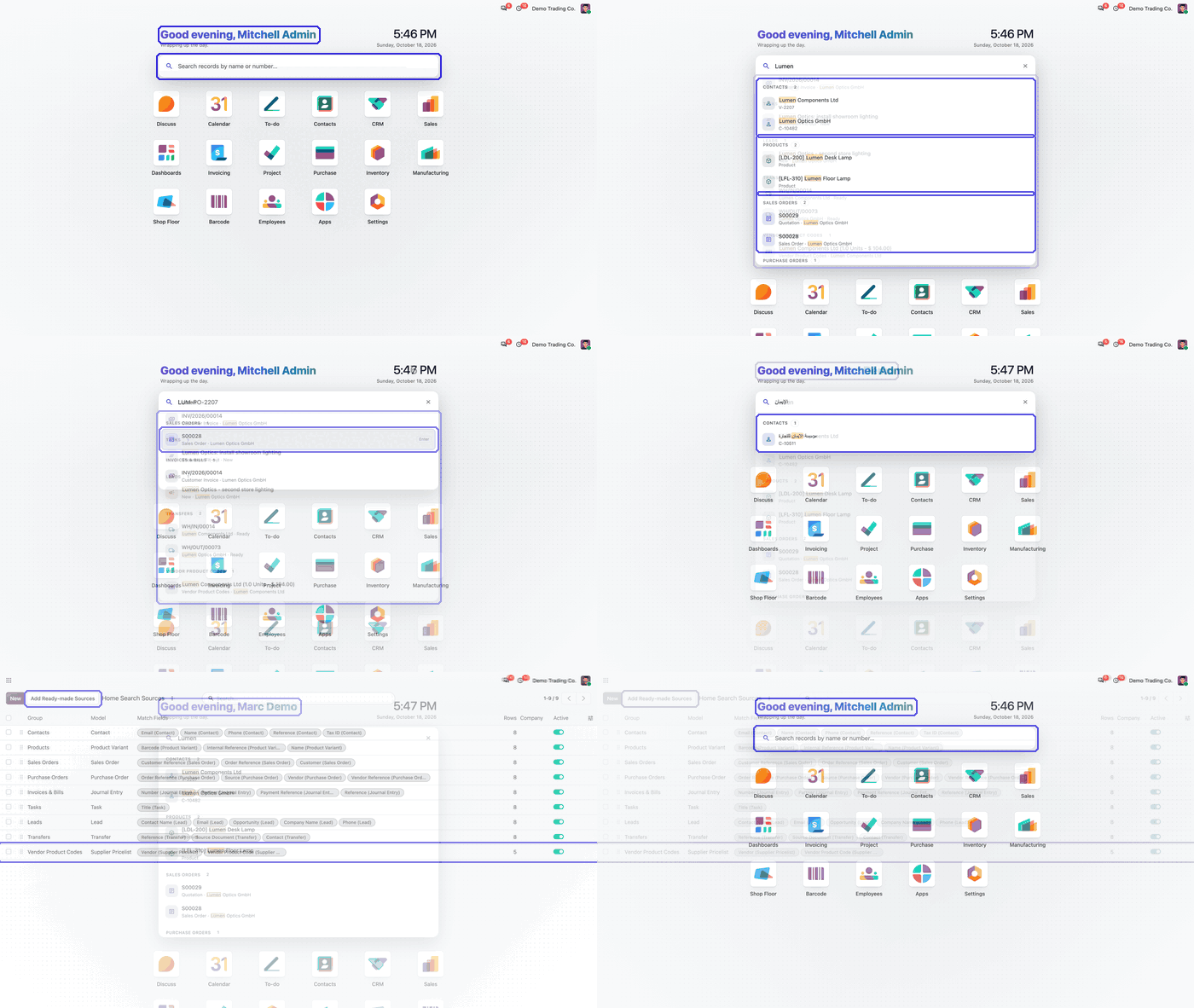
Home Search puts one search box on the apps home screen of Odoo Enterprise. Typing a name, a document number or a reference lists the matching contacts, products, orders, invoices and records of other apps, grouped by model, and one click opens the record. Every search runs as the user, so access rights, record rules and the selected companies decide what is found.
Key features
The problem
To find one record in Odoo you first have to know which app it lives in. A customer calls with a purchase order number, and someone opens Sales, then Invoicing, then Inventory, searching each list in turn. The apps home screen shows tiles, but no way to search across them.
Screenshots
 Play demo
What it does
One search box on the home screen
- Type at least two characters of a name, number or reference above the app tiles.
- See the matching records grouped by model, with a count on every group and the typed text highlighted.
- Open a record with one click or with Enter. The arrow keys move the highlight and Esc closes the list.
- The app tiles stay below, unchanged.
Configurable search sources
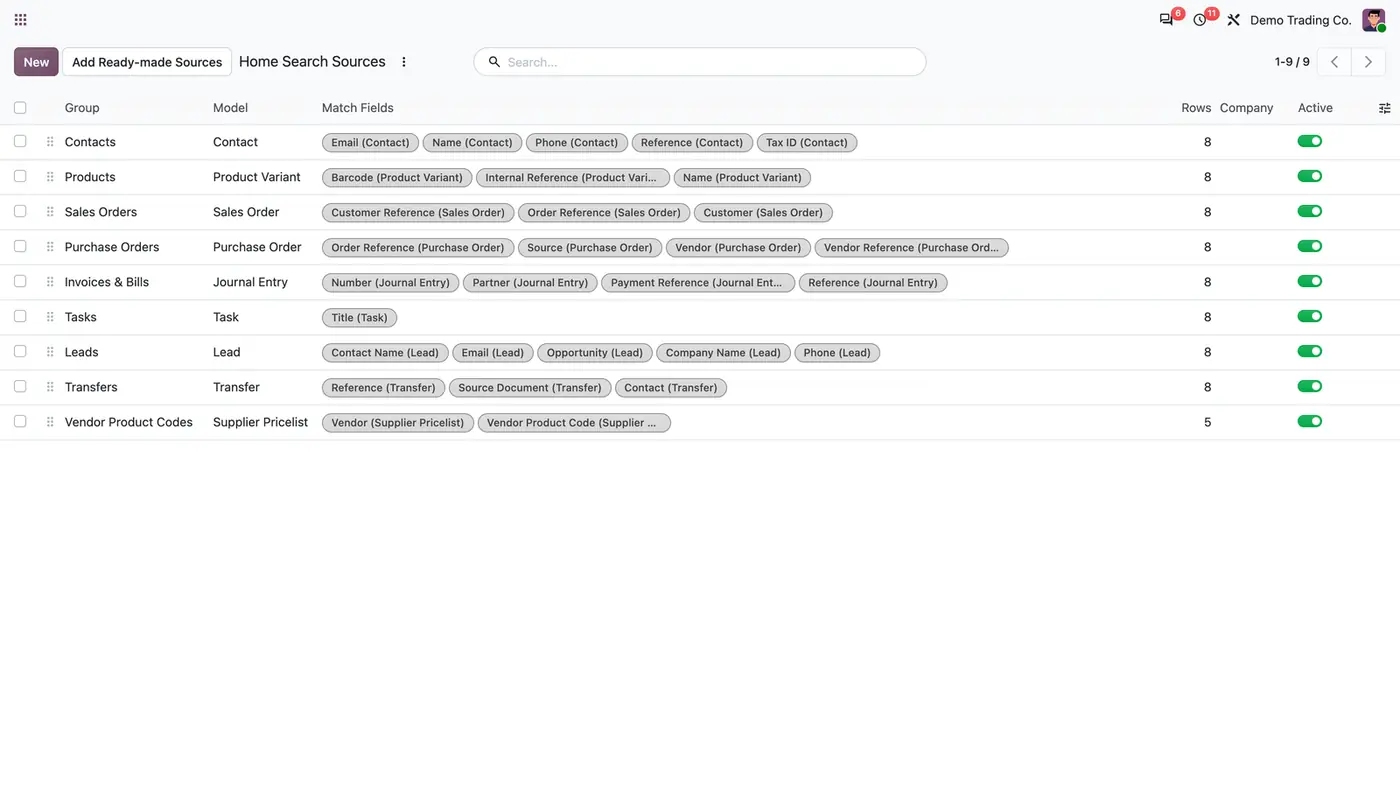
- Each source is a model searched from the home screen, with its match fields and the number of rows it shows.
- Ready-made sources are created for the installed apps, such as contacts, products, sales and purchase orders, invoices, tasks, leads and transfers.
- Add any model as a source, with text fields or relational fields such as Customer as match fields.
- Drag sources to reorder them, or switch one off to stop searching that model.
- Optionally search every other model the user can open from a menu, on its name and reference fields, and list models that are never searched.
Searches as the user
- Every query runs as the user, never with elevated rights.
- Access rights, record rules and the companies selected in the company switcher apply. A model the user cannot read is skipped.
Fast and Arabic-aware
- Every query has a time limit, so one slow model never blocks the others.
- Alef and hamza forms and diacritics are folded in the typed text and in the stored names, so different spellings of the same Arabic name find each other.
Look
- A greeting for the time of day and a live clock with the date above the search box.
- Works in light, dark and right-to-left layouts.
Who it is for
A good fit for
- Odoo Enterprise users who look up customers, orders and invoices many times a day.
- Support and sales teams that get asked about a document number and need the record quickly.
- Companies with Arabic customer names typed in different spellings.
Not a fit for
- Odoo Community: the app extends the apps home screen of Odoo Enterprise, which Community does not have.
- Searching inside the apps: the search box appears on the apps home screen only.
- Databases on Odoo Online (SaaS), which cannot install third-party apps.
Install
Requires: Web Enterprise (web_enterprise), Initial Setup Tools (base_setup)
- Download Home Search for free on the Odoo Apps Store for your Odoo version (18.0, 19.0 or 20.0).
- Add the module to your Odoo.sh project or to the addons path of your on-premise server.
- Update the apps list in Odoo and install Home Search. A guide opens inside the app after installation.
Odoo Online (SaaS) does not allow third-party apps, so the app cannot be installed there. Use Odoo.sh or an on-premise Odoo 18, 19 or 20 Enterprise database.
Questions: info@flexcodesys.com.
Configure
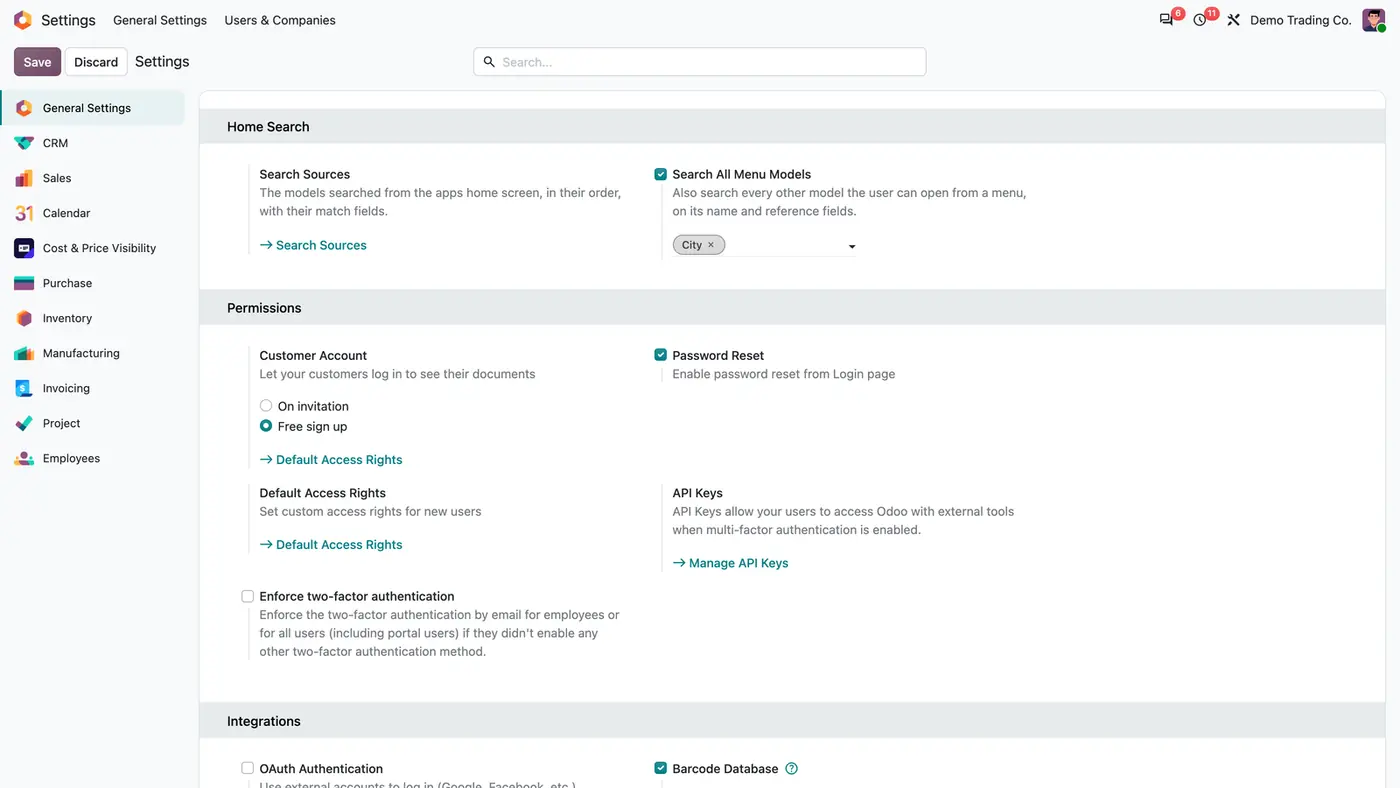
- Go to Settings > General Settings > Home Search and open Search Sources. Reorder, edit or add sources; Add Ready-made Sources creates the missing sources of the installed apps.
- Decide whether Search All Menu Models is on, then list the models that must never be searched.
- The guide stays in the app's Configuration menu if you need it again.
| Setting | What it does |
|---|---|
| Search Sources | The models searched from the apps home screen, in their order, with their match fields and the number of rows shown. |
| Search All Menu Models | Also searches every other model the user can open from a menu, on its name and reference fields. |
| Models Never Searched | Models left out of the search. |
How to use it
Find a record
- Open the apps home screen and type a name, a document number or a reference.
- Scan the grouped results. Each group shows how many records it found.
- Click a result or move to it with the arrow keys and press Enter to open it.
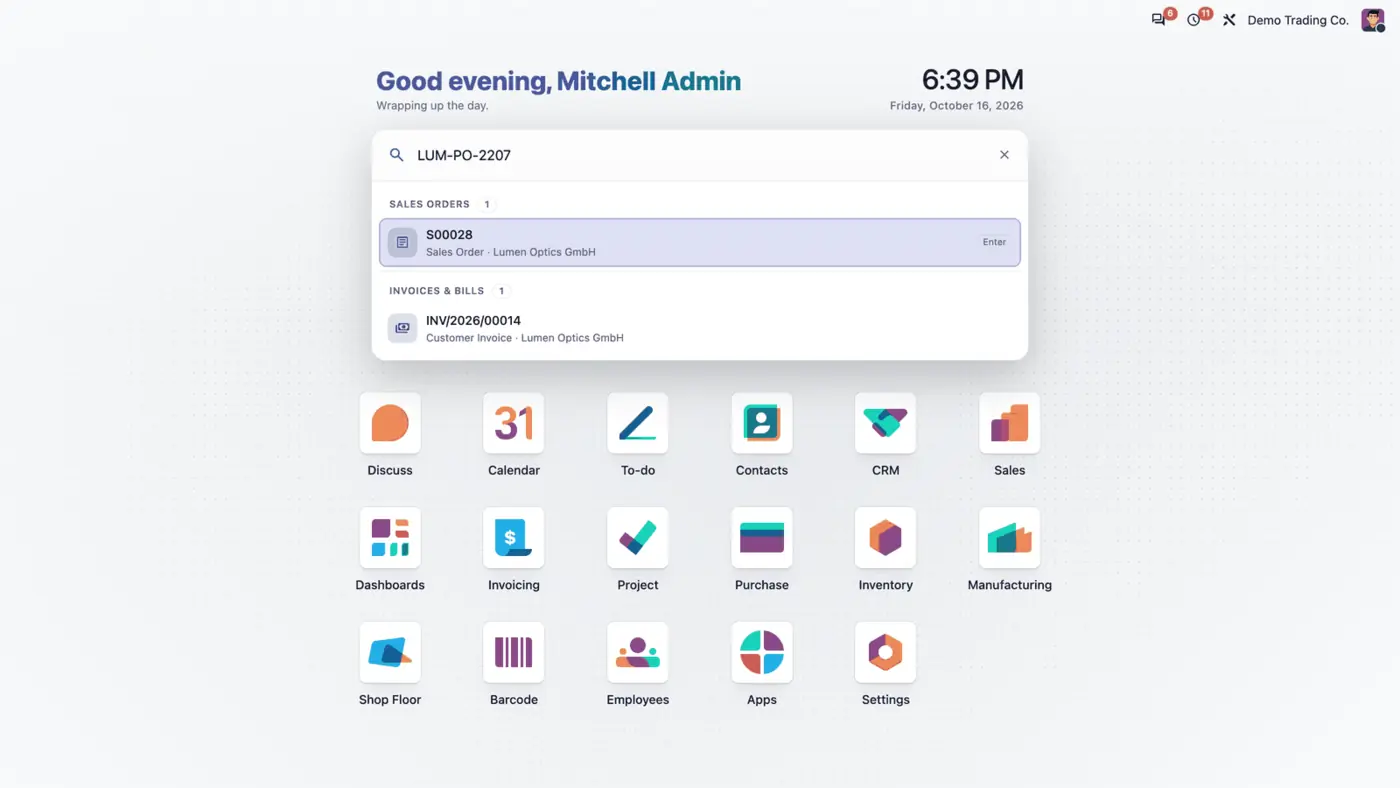
Find a document by the customer's reference
- Type the customer's purchase order number, for example from an e-mail.
- The sales order that carries it and the invoice created from it are listed together.
Limits
- It works on the apps home screen only. The search box does not appear inside the apps.
- Odoo Enterprise only, because it extends the Enterprise home screen.
- It cannot be installed on Odoo Online (SaaS).
FAQ
Can a user find records he is not allowed to see?
No. Every query runs as the user: access rights, record rules and the companies selected in the company switcher apply, and a model the user cannot read is skipped.
Which fields are searched?
Each search source has its match fields: text fields, or relational fields that match the name of the linked record. Without match fields a source uses the name and reference fields of the model.
What happens when I install another app later?
Its ready-made search source, if there is one, is added when the app is installed. Other models are found through the menu-model search, or by adding them as a source.
Does it work in Odoo Community?
No. It extends the apps home screen of Odoo Enterprise (web_enterprise), which Community does not have.
Can I use it without the mouse?
Yes. The arrow keys move between the results, Enter opens the highlighted record and Esc closes the list.
Company Announcements
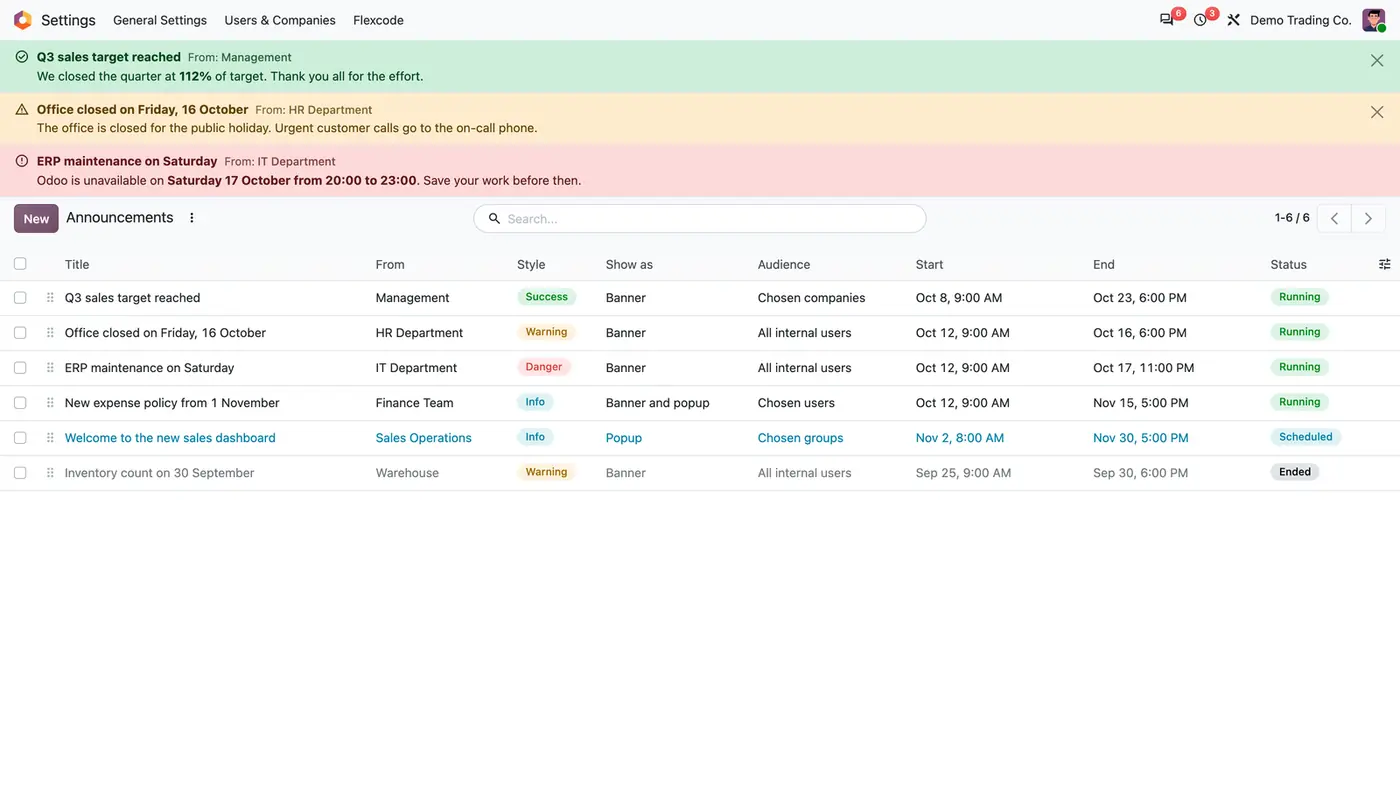
Staff notices as Odoo-style banners or one-time popups, aimed at chosen users and scheduled.
Partner Codes & Name Standard
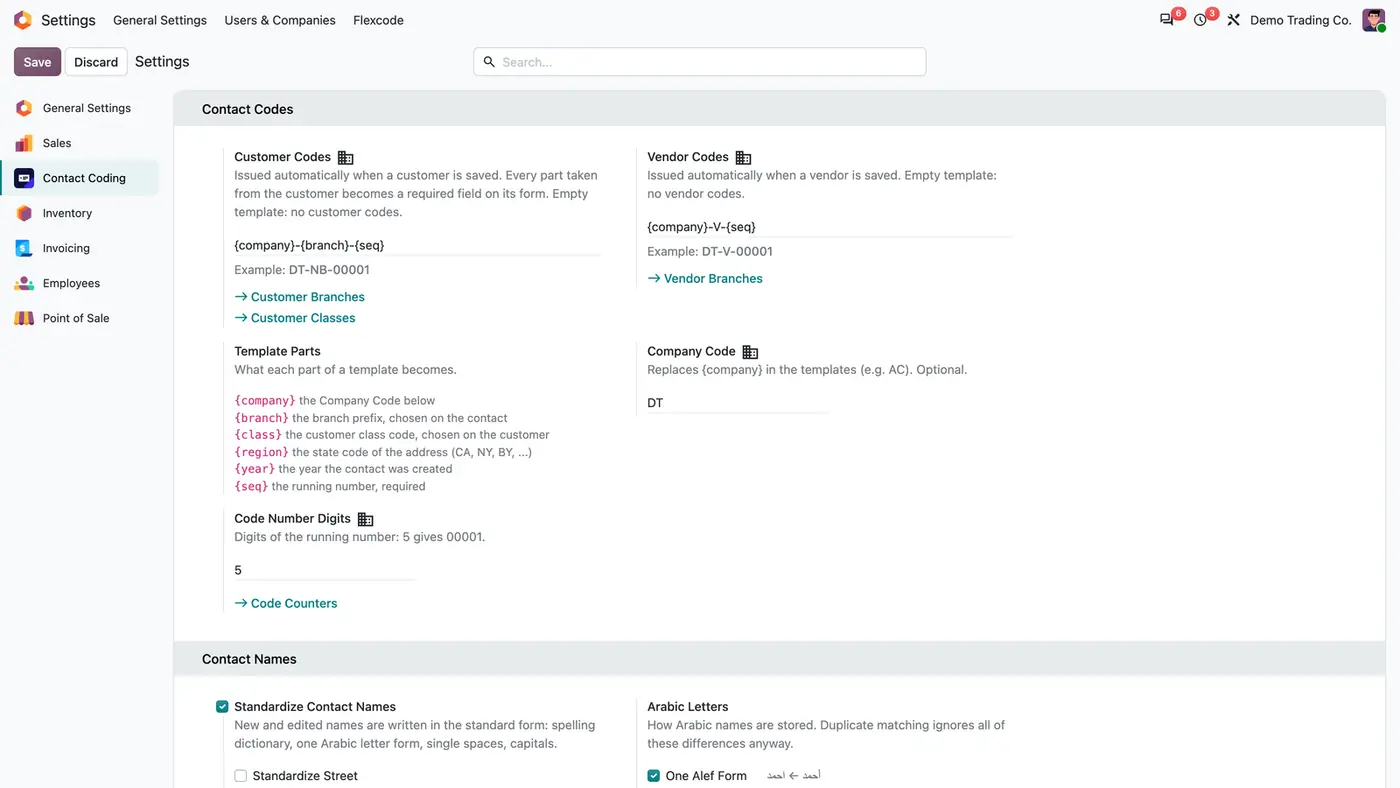
Customer and vendor codes from a template that never repeat, one spelling per name, same-name warnings.
Email Cc and Bcc Fields
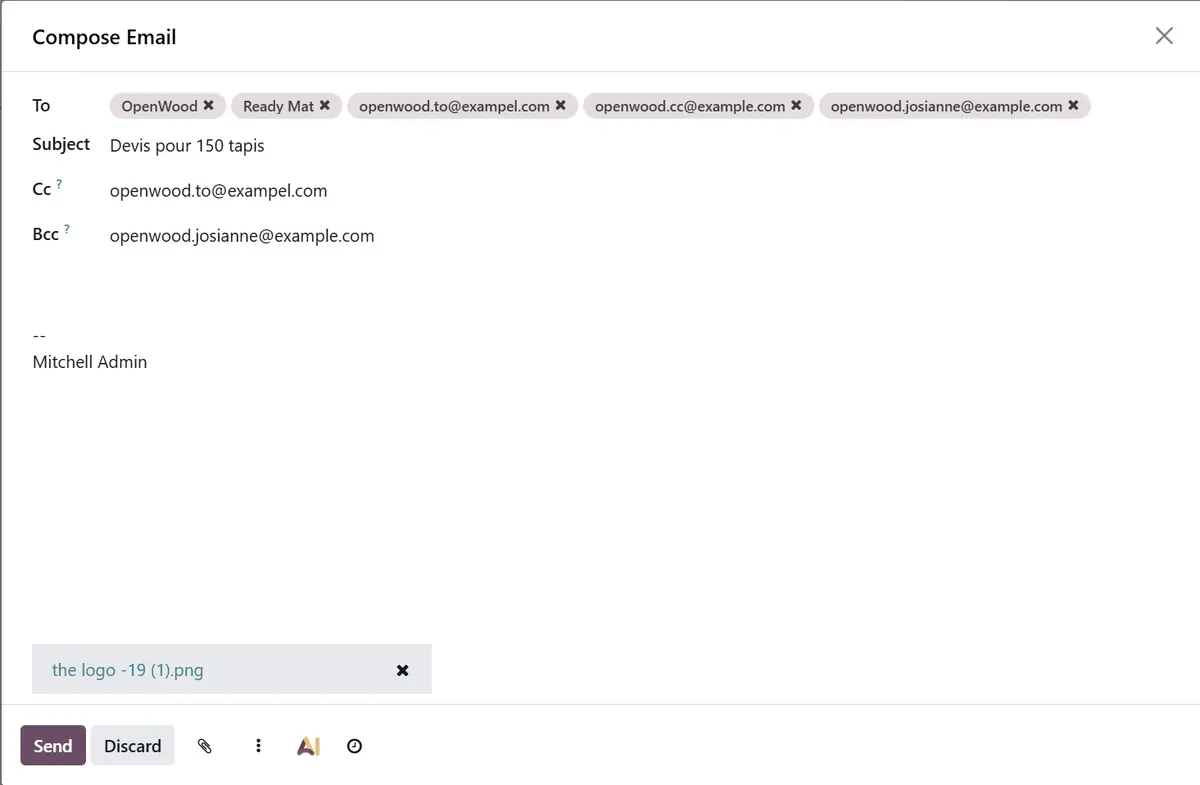
Real Cc and Bcc fields in the email composer, for any address.
Suite Upgrade Controller
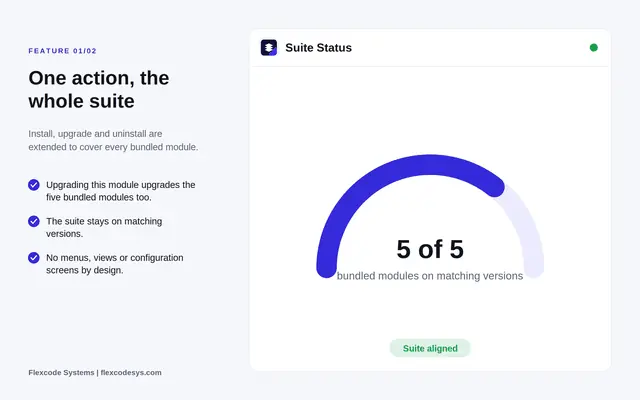
Upgrade all bundled modules together from one technical controller module.
Offline Mode
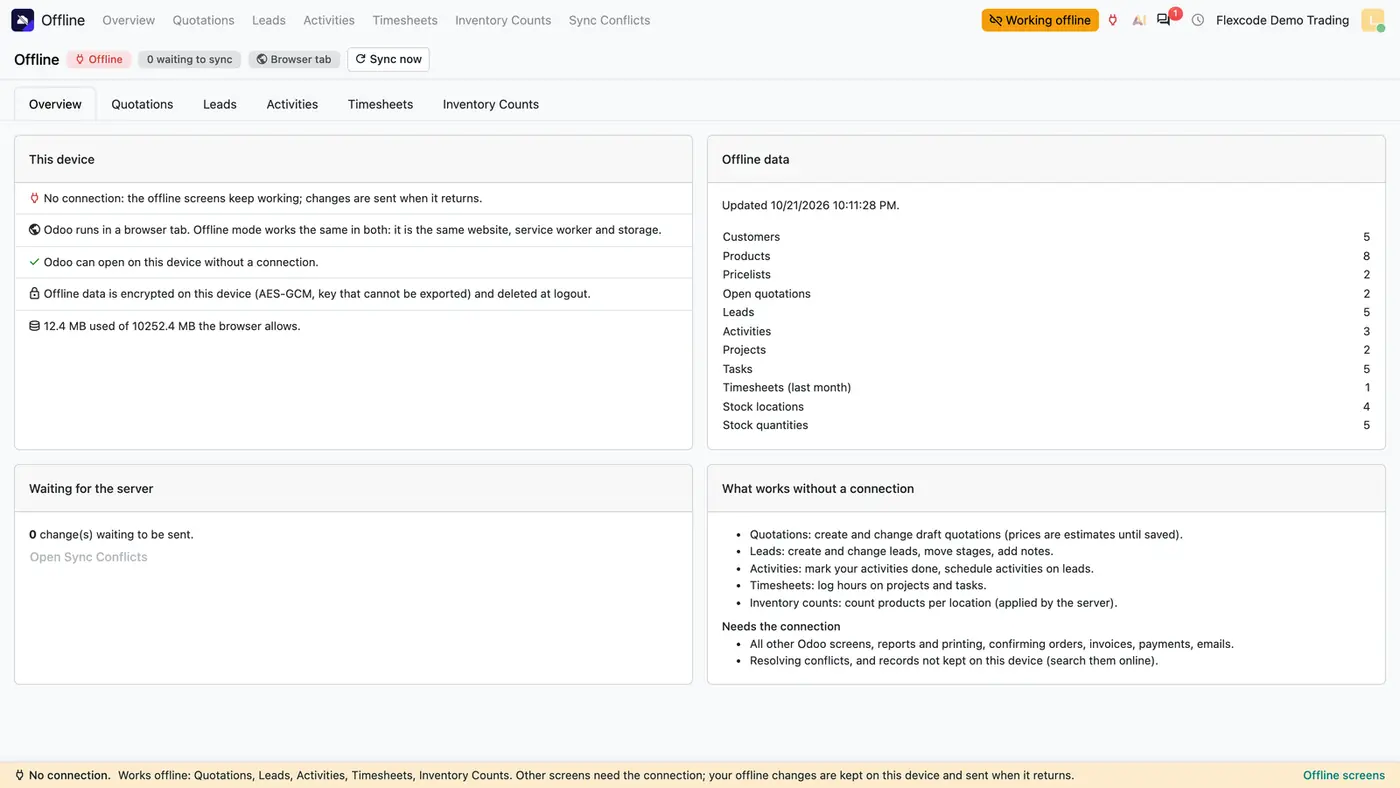
Quotations, leads, activities, timesheets and stock counts keep working offline and sync once.
Need it set up or adapted?
We configure our apps for your process, train your team and build the extra pieces you need.