Skip to Content

Accounting & Finance · Odoo 20, Odoo 19, Odoo 18

New Daily Invoice Numbering

Invoice numbers that show the day and start again every morning

Daily Invoice Numbering numbers the invoices, credit notes, bills or entries of a chosen journal as YYYYMMDDXXX, for example 20260102001. The three-digit counter starts again at 001 every day, and each journal chooses whether the number carries the confirmation date or the accounting date. All other journals keep Odoo's numbering.

Key features

The problem

Odoo's standard numbers such as INV/2026/00001 do not tell you on which day a document was issued, and the counter keeps running for the whole year. Businesses that want the day to be readable from the number, and a fresh count every morning, have to rename documents by hand or live without it.
Screenshots

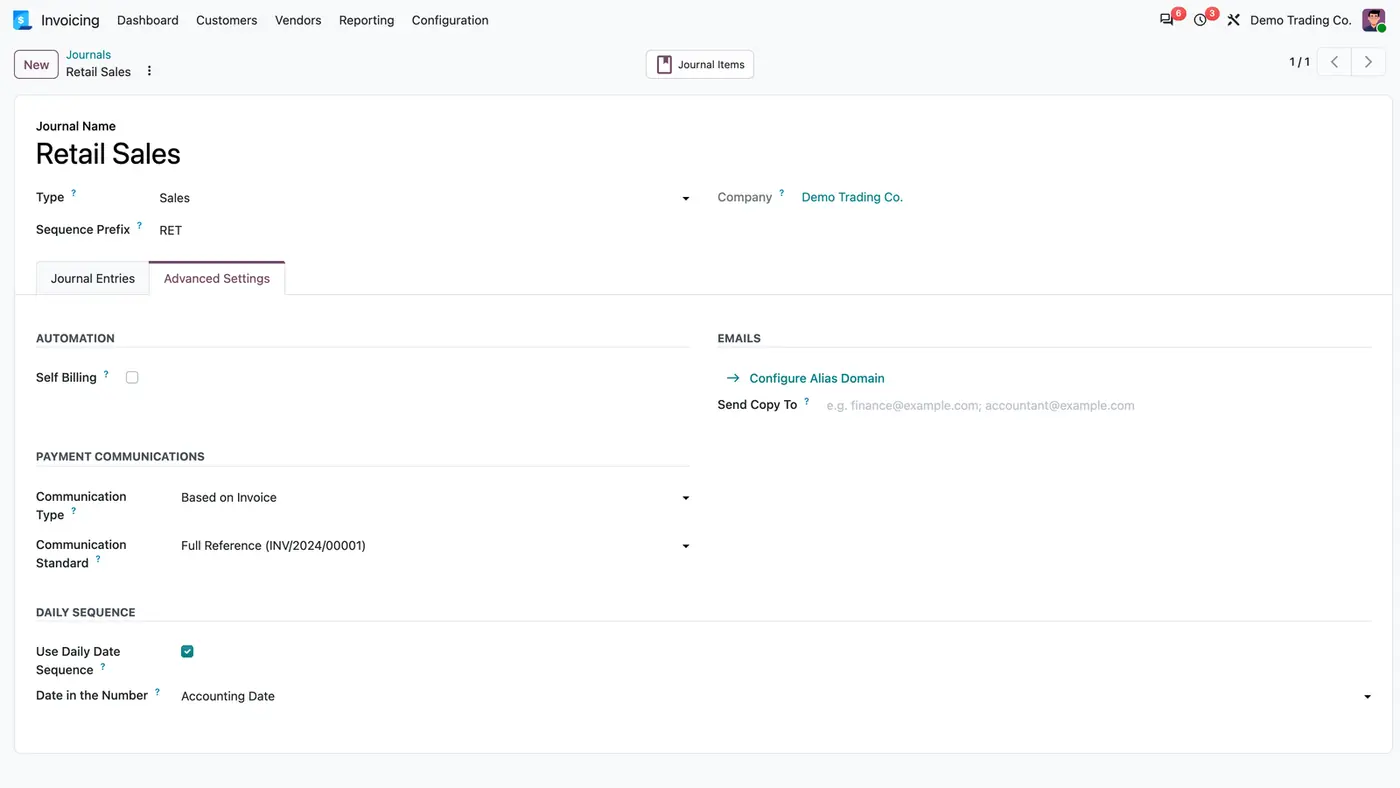
Journal Retail Sales, Advanced Settings tab with the Daily Sequence group, option ticked, Accounting Date selected
Daily numbering is switched on per journal, together with the date that goes into the number.
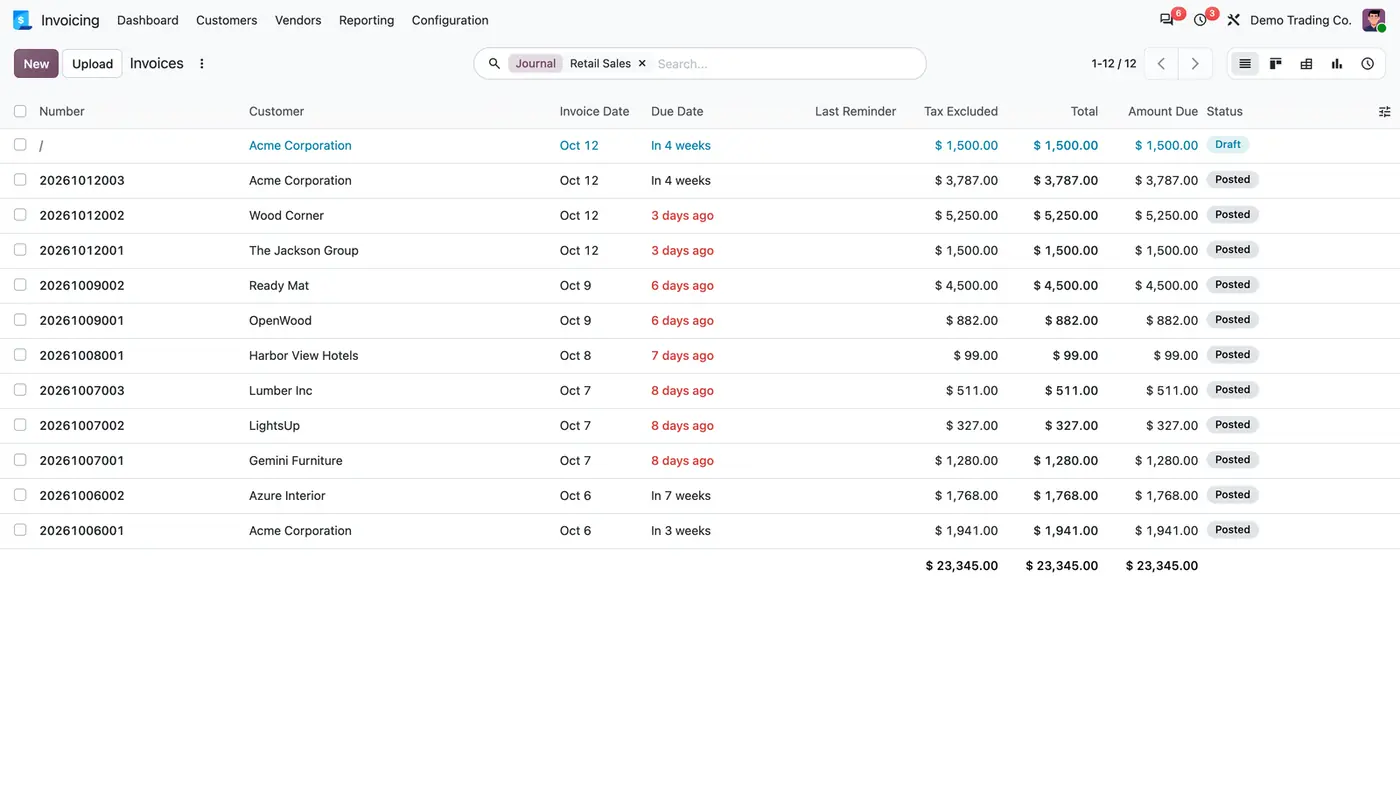
Invoice list of the Retail Sales journal with numbers such as 20261006001 and 20261007003 and one draft without number
The counter starts again at 001 each day, and drafts get their number only on confirmation.
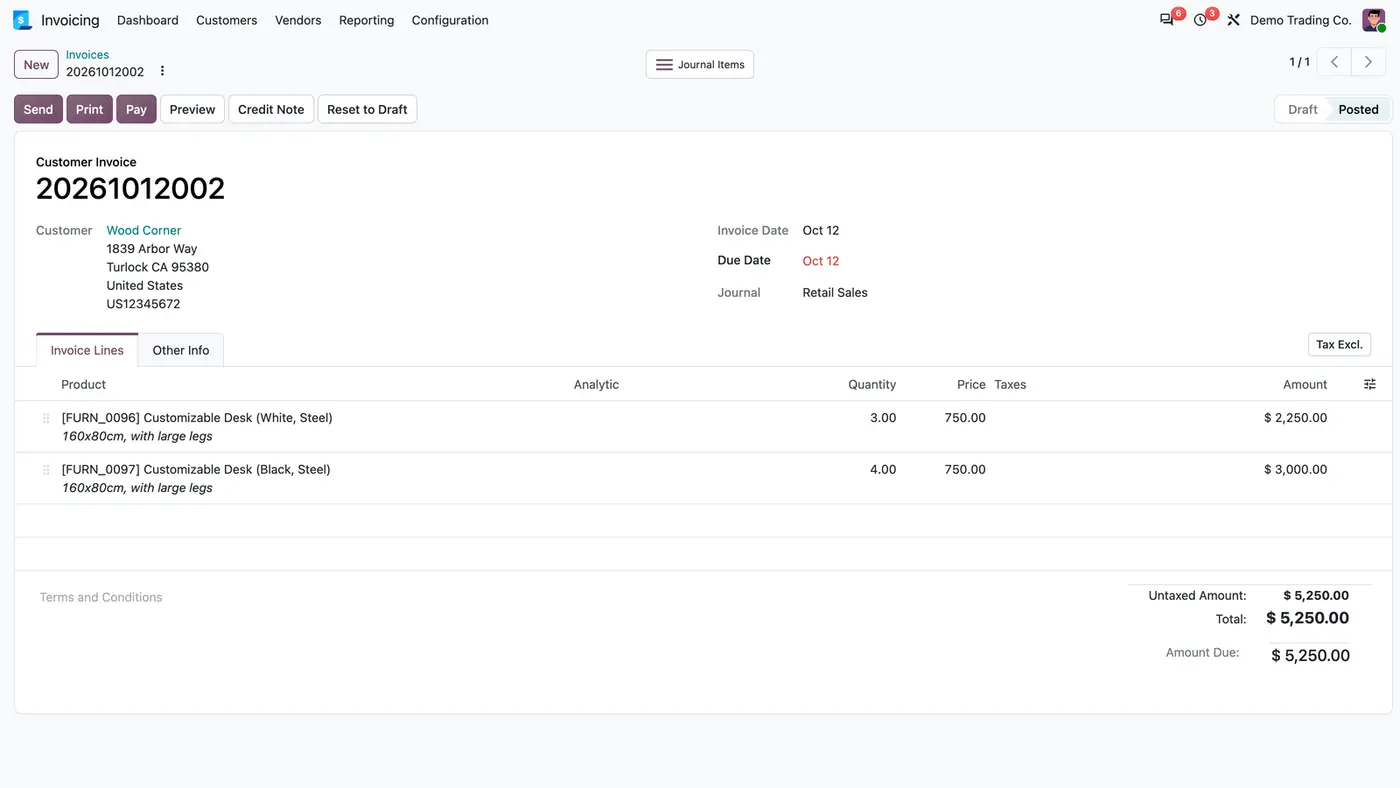
Posted customer invoice 20261012002 for Wood Corner in the Retail Sales journal
The daily number is the invoice reference on the standard invoice form.
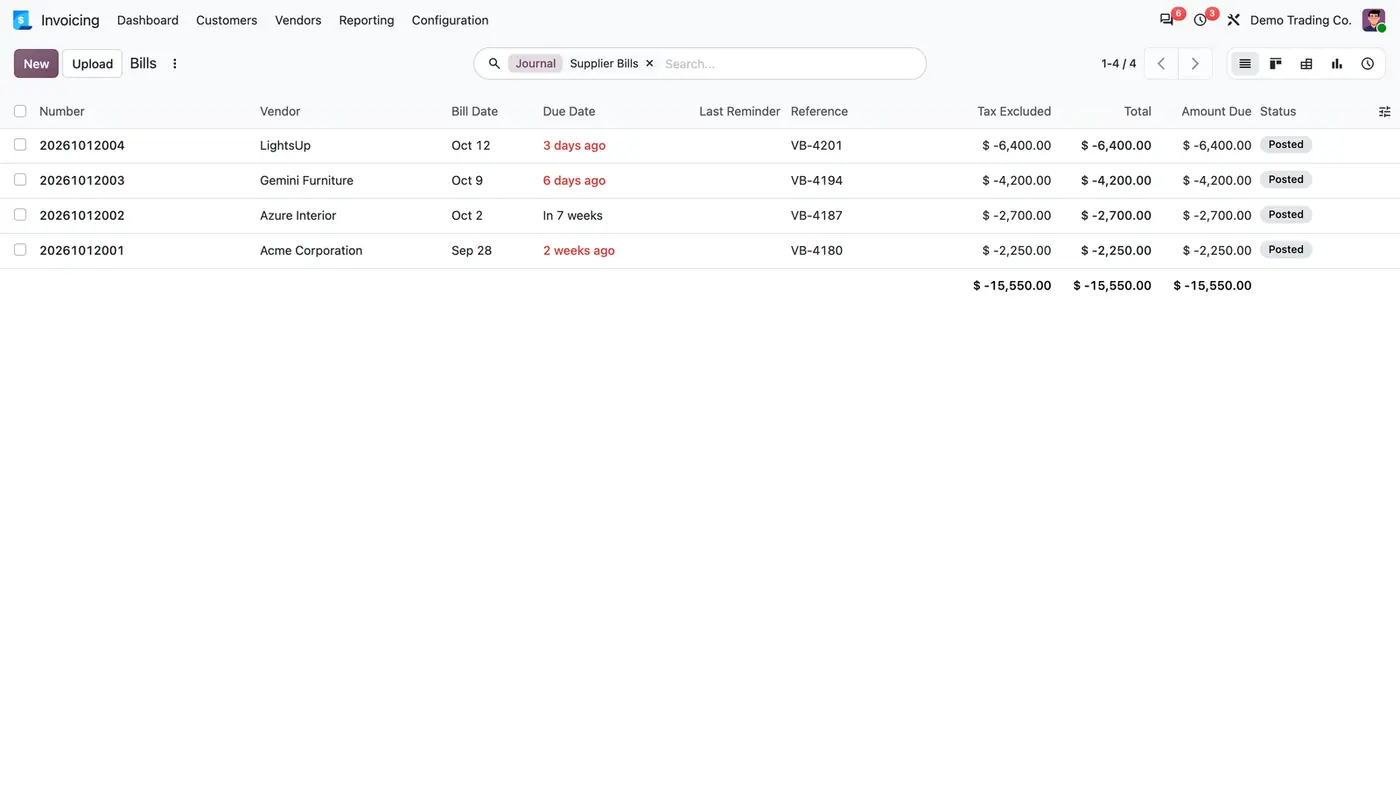
Supplier bills dated 28 September to 12 October, numbered 20261012001 to 20261012004
With Confirmation Date, bills carry the day they were confirmed, whatever their bill date.
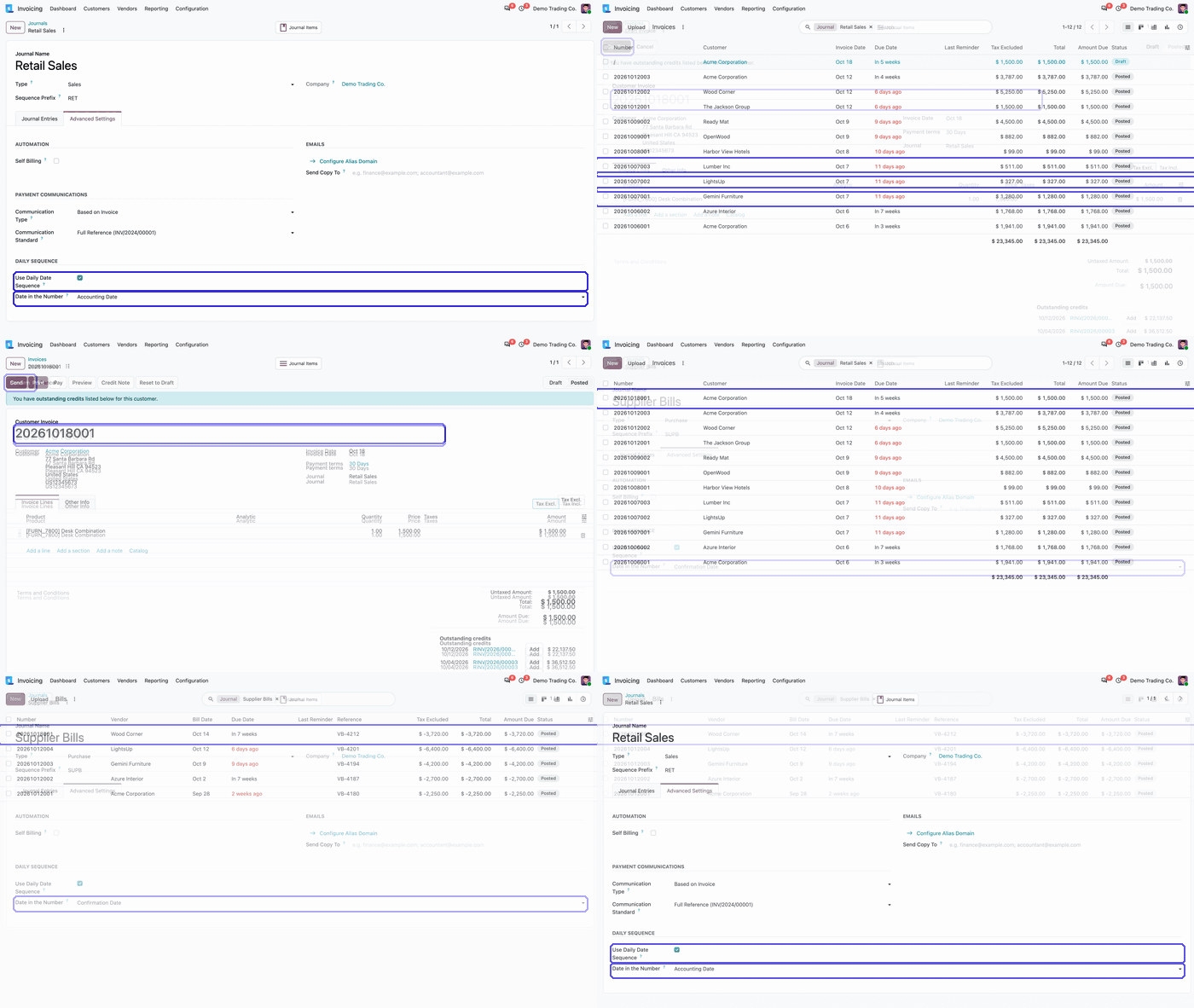
Animated demo: journal settings with Use Daily Date Sequence and Date in the Number highlighted Play demo
A short walk-through of the two journal settings.

What it does

Number format

  • Numbers follow YYYYMMDD plus a three-digit counter, for example 20260102001.
  • The counter restarts at 001 every day.
  • Above 999 entries in one day the counter grows to four digits, for example 202601021000, and starts again at 001 the next day.

Per journal

  • Switch the daily numbering on journal by journal with Use Daily Date Sequence.
  • Sales, purchase and miscellaneous journals offer the option.
  • Journals without the option keep Odoo's numbering unchanged.

Date of your choice

  • Choose per journal whether the number carries the confirmation date or the accounting date.
  • The confirmation date is the day the entry is posted, in the user's time zone.
  • The accounting date is the entry's own date, which is the invoice date for customer invoices.

Uniqueness and safety

  • Odoo's own locked numbering keeps numbers unique, even when several users confirm at the same time.
  • Credit notes in a journal with a separate credit note sequence use the same daily format and never reuse an invoice number of that day.
  • Reposted entries keep their number, and a draft gets its number only when it is confirmed.

Who it is for

A good fit for

  • Companies that want the issue day readable from every invoice number.
  • Accounting teams that need a counter that restarts every day.
  • Businesses that want daily numbering only on some journals, such as one sales or purchase journal.

Not a fit for

  • Renumbering entries that already have a number.
  • Number formats with a prefix or suffix.
  • Databases on Odoo Online (SaaS), which cannot install third-party apps.

Install

Requires: Invoicing (account), Discuss (mail)

  1. Buy Daily Invoice Numbering on the Odoo Apps Store for your Odoo version (18.0, 19.0 or 20.0).
  2. Add the module to your Odoo.sh project or to the addons path of your on-premise server.
  3. Update the apps list in Odoo and install Daily Invoice Numbering.

Odoo Online (SaaS) does not allow third-party apps, so the app cannot be installed there. Use Odoo.sh or an on-premise Odoo database, Community or Enterprise.

Every purchase includes 90 days of free support from FlexCode Systems.

Configure

  1. Open Invoicing / Accounting > Configuration > Accounting > Journals and open a sales, purchase or miscellaneous journal.
  2. On the Advanced Settings tab, tick Use Daily Date Sequence in the Daily Sequence group.
  3. Choose the Date in the Number: Confirmation Date or Accounting Date.
SettingWhat it does
Use Daily Date SequenceTurns the YYYYMMDDXXX numbering on for this journal.
Date in the NumberConfirmation Date is the posting day; Accounting Date is the entry's own date.

How to use it

Confirm documents as usual

  1. Create and confirm invoices, bills or entries in the journal as before.
  2. Each confirmed document gets a number such as 20261012002, the second document of 12 October.
  3. The number appears everywhere Odoo shows the document name. The invoice form and its buttons stay the same.

Number bills by the confirmation day

  1. Set Date in the Number to Confirmation Date on the supplier bills journal.
  2. Bills confirmed on the same day are numbered in confirmation order with that day's date, whatever their bill date.

Limits

  • Entries that already have a number are not renumbered.
  • The format has no prefix or suffix.
  • It cannot be installed on Odoo Online (SaaS).

FAQ

Which date is in the number?

The one chosen on the journal: the confirmation date (the day the entry is posted, in the user's time zone) or the accounting date, which is the invoice date for customer invoices.

Does it affect my other journals?

No. Only journals with Use Daily Date Sequence ticked use the format; all others keep Odoo's numbering.

What if a journal posts more than 999 entries in one day?

The counter grows to four digits, for example 202601021000, and starts again at 001 the next day.

Are numbers unique when several users confirm at the same time?

Yes. The app keeps Odoo's own locked numbering, so two entries confirmed at once never get the same number.

Does it work with multi-company databases?

Yes. The module respects the active company and its records, and has been tested in multi-company databases.

Need it set up or adapted?

We configure our apps for your process, train your team and build the extra pieces you need.