Skip to Content

Connectors · Odoo 19

New Amazon Connector

Amazon orders in Odoo, your listings, prices and stock managed from Odoo

Amazon Connector links your Amazon seller account to Odoo 19 through the Selling Partner API, using your own SP-API application. Orders come in as confirmed sale orders, products go out as Amazon listings with price and stock, and validated deliveries go back with their tracking numbers. Fees, payouts and returns are imported too, and the Amazon Overview shows what needs attention.

Key features

The problem

Selling on Amazon without a connector means copying every order into Odoo by hand, with buyer, address and items, and typing tracking numbers back into Seller Central. Prices and merchant-fulfilled stock change in Odoo, but Amazon only learns about it when someone updates the offer. And what Amazon actually kept per order in fees stays in the settlement reports, far away from your books.
Screenshots

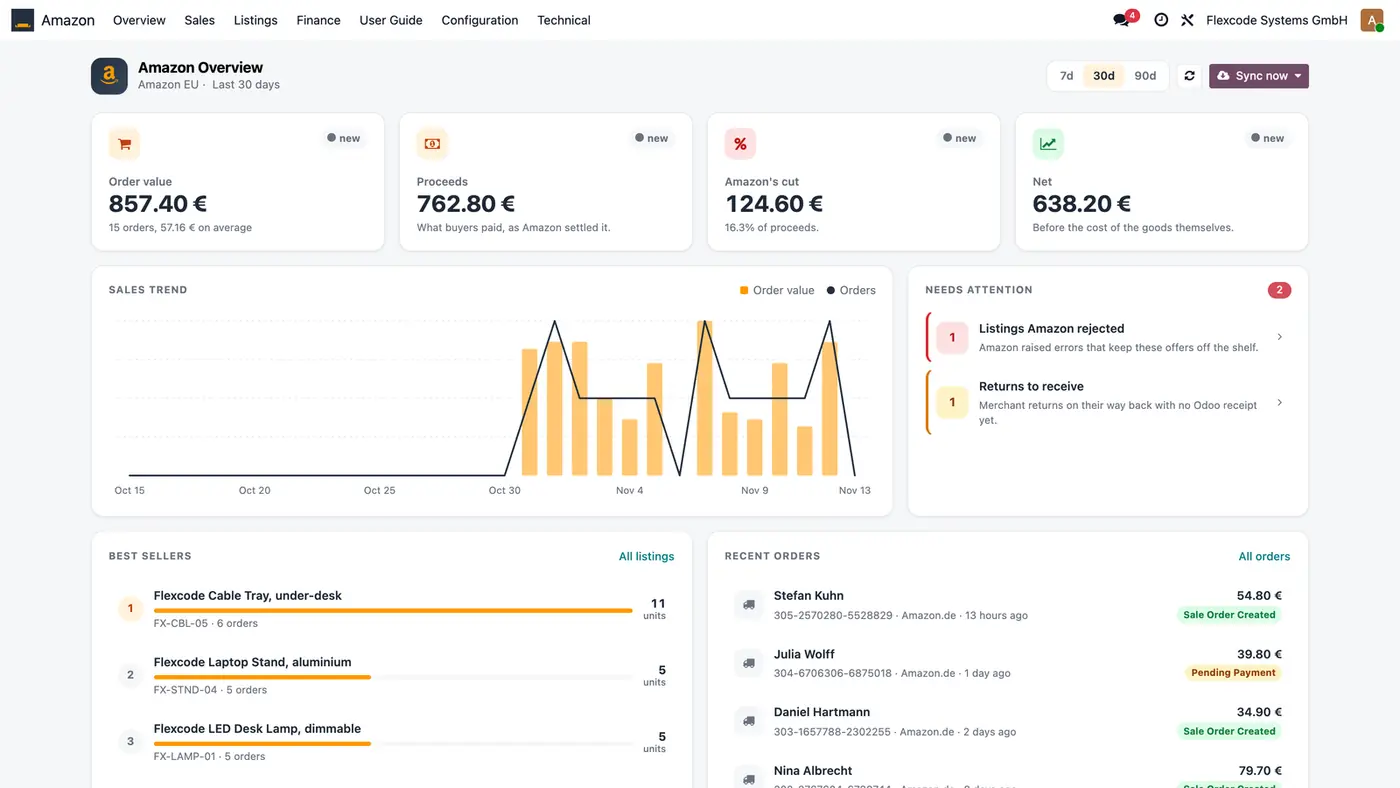
Amazon Overview in Odoo with order value, proceeds, Amazon's cut, net, sales trend, needs attention and best sellers
The Amazon Overview shows the last 30 days at a glance and lists what needs attention.
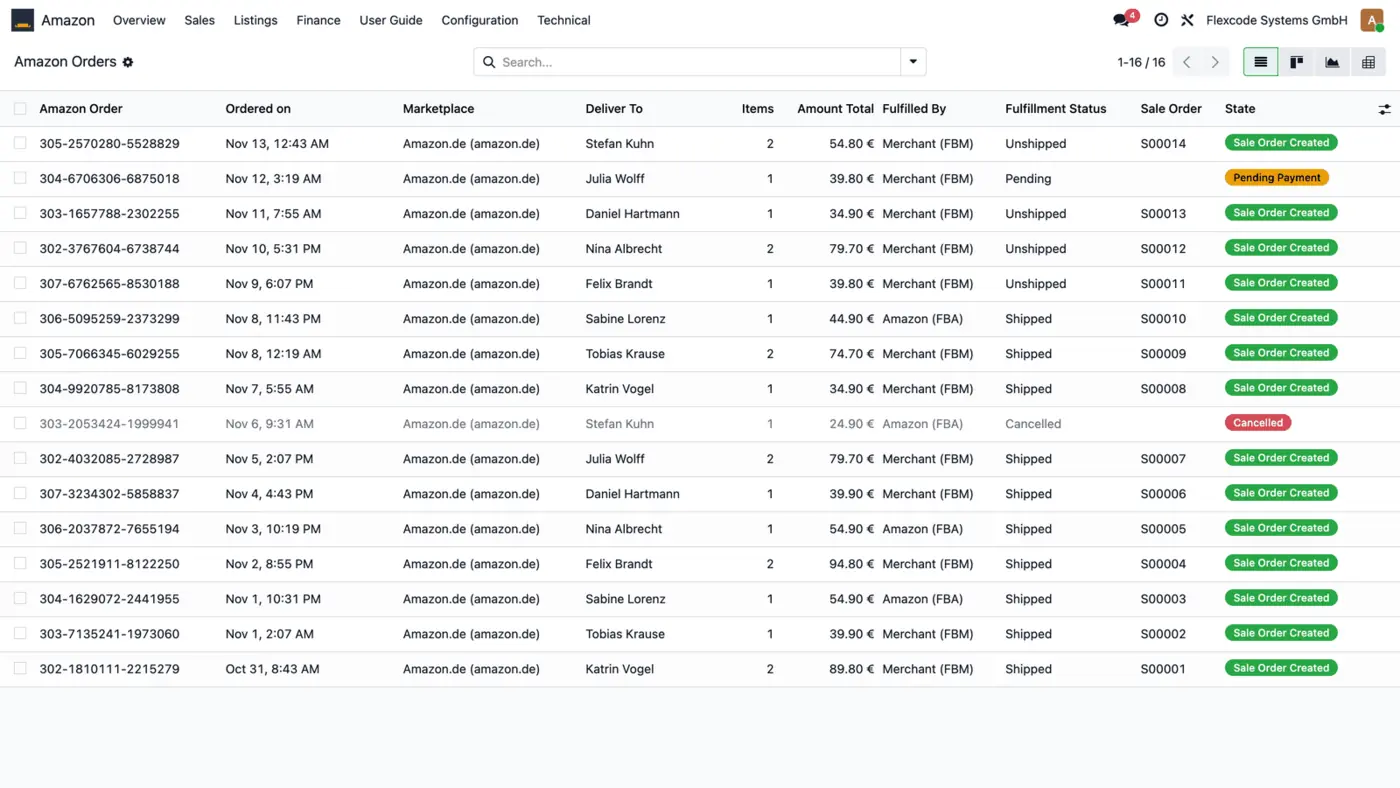
List of imported Amazon orders with marketplace, buyer, amount, FBM or FBA, fulfilment status and linked sale order
Each imported Amazon order is linked to its Odoo sale order; pending and cancelled orders get none.
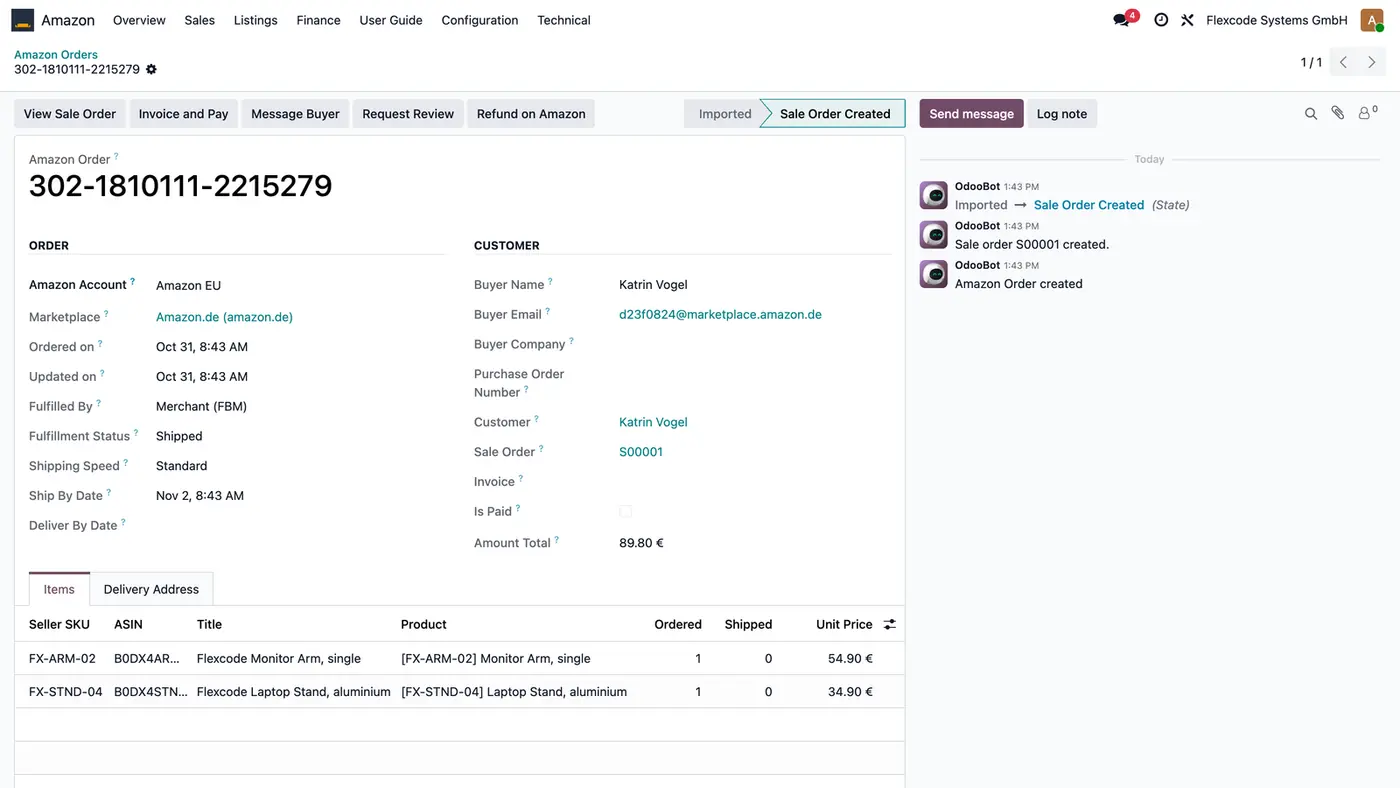
Amazon order form with buyer, relay email, sale order S00001 and two lines matched by seller SKU
One Amazon order became one sale order, with lines matched to products by seller SKU.
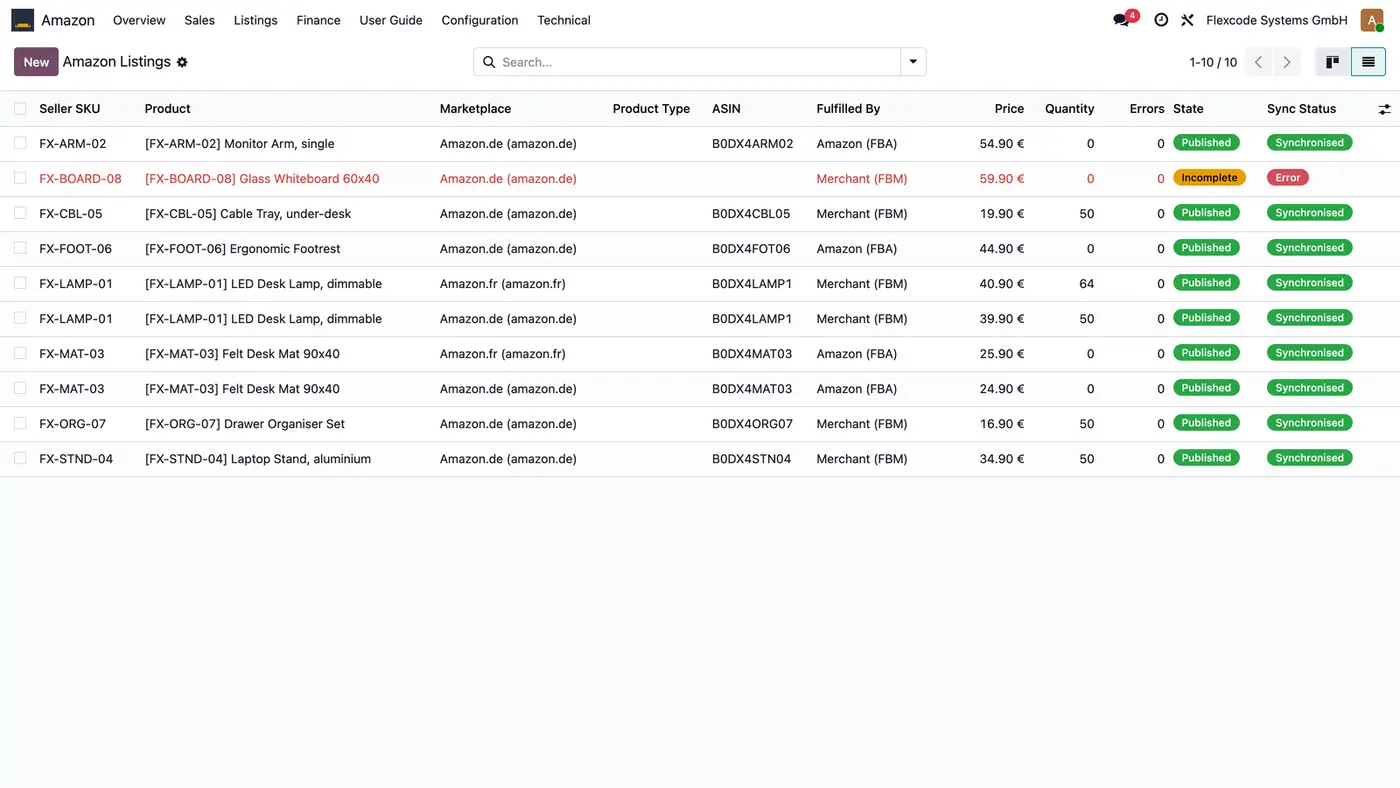
Amazon listings per marketplace with ASIN, FBA or FBM, price, quantity, state and sync status, one listing in error
Listings show Amazon's state per marketplace; an Incomplete listing is marked in red.
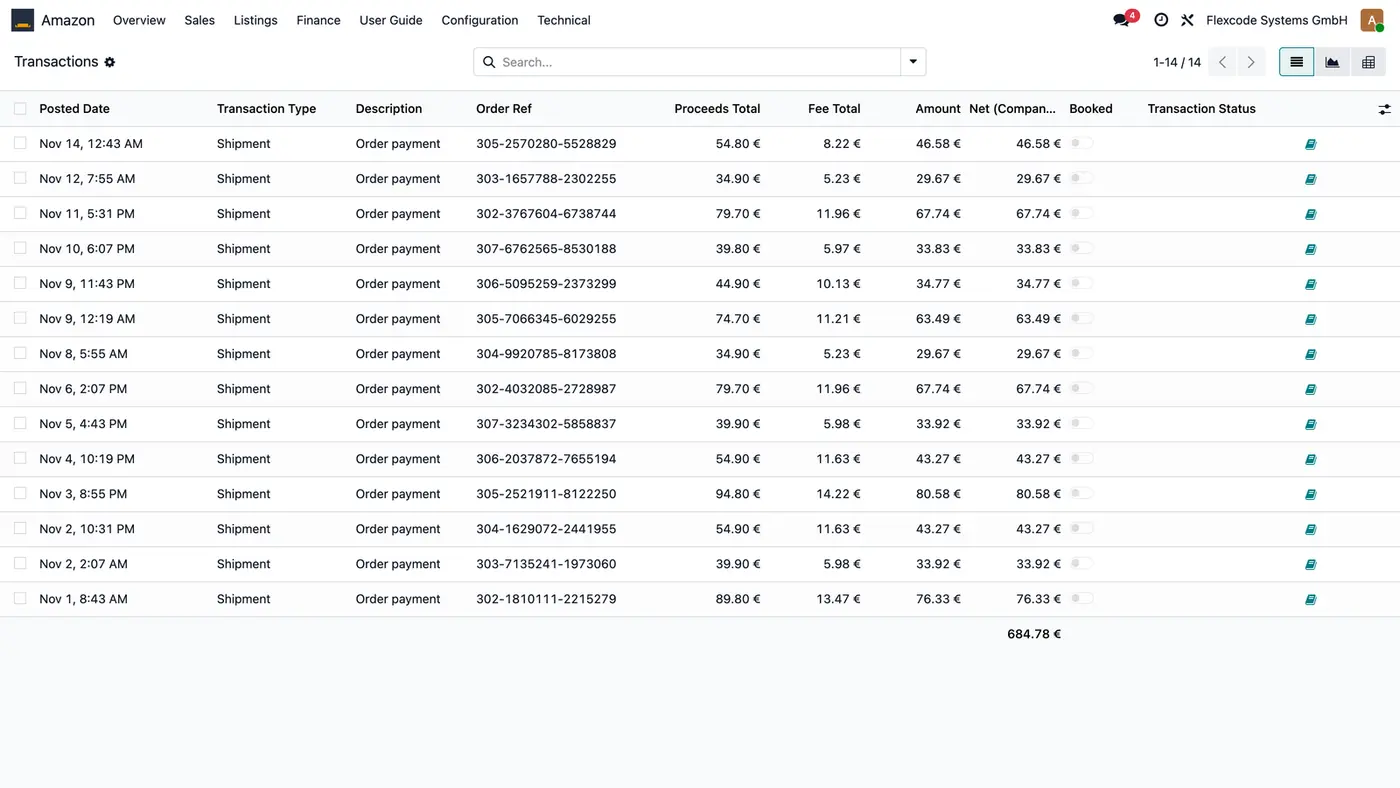
Amazon finance transactions with order reference, proceeds, fees, amount, company-currency net and Booked flag
Transactions show what the buyer paid, what Amazon kept and what was left, per order.
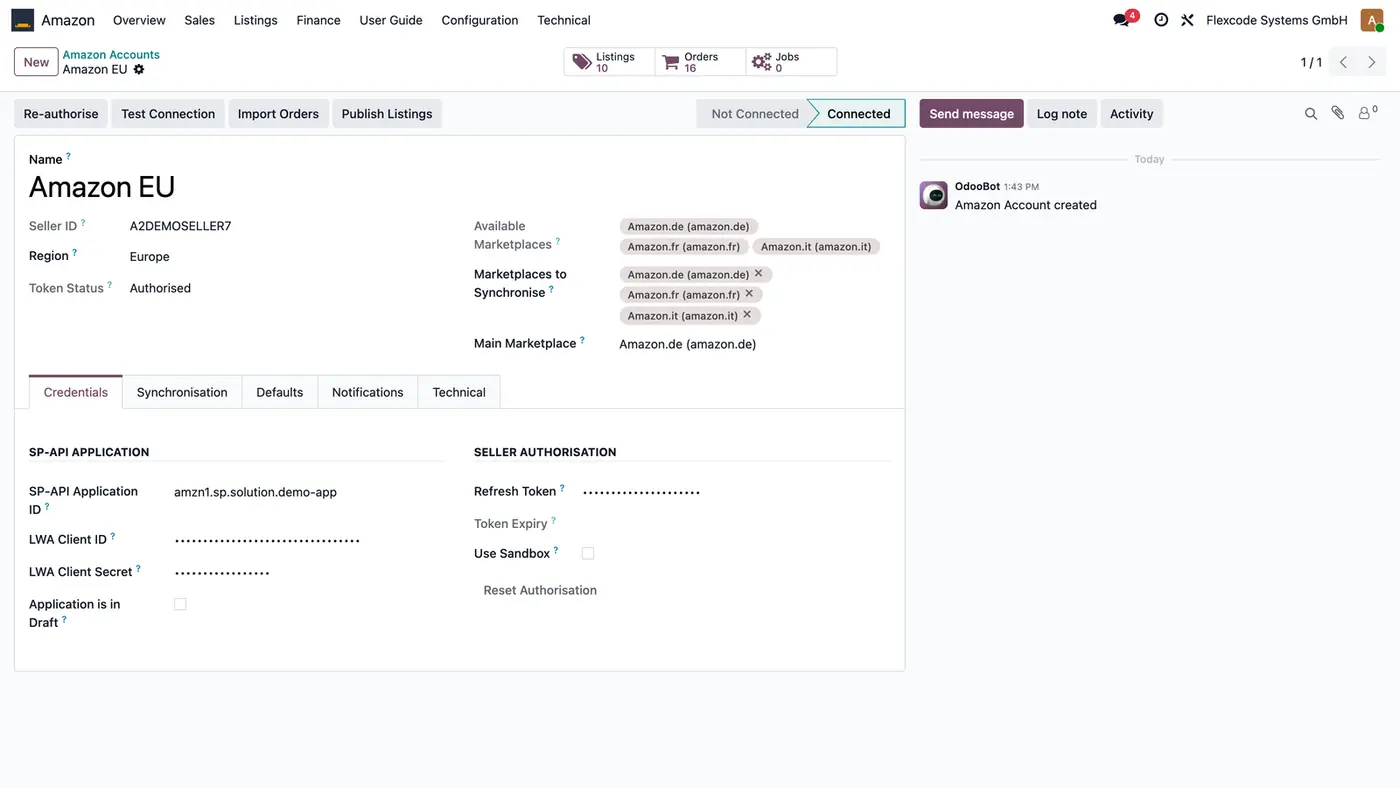
Amazon account form with region Europe, marketplaces, masked SP-API credentials and Test Connection button
The Amazon account holds the connection to your seller account and your own SP-API credentials.

What it does

Confirmed sale orders

  • Import Amazon orders as confirmed sale orders with buyer, delivery address and items, in the store's currency.
  • Match items to your products by SKU, then by barcode. An unknown SKU can fall back to a product you choose.
  • Find the same buyer again through Amazon's relay email instead of creating a duplicate contact.
  • Keep Pending Payment orders waiting until Amazon releases them. Cancelled orders create nothing.

Listings published from Odoo

  • Pick the marketplace and the product type, let Amazon check the listing without publishing, then publish.
  • Get status, ASIN and Amazon's issues back, so an Incomplete listing says what to fix.
  • Publish variation families with a parent and one child per variant.
  • Already selling on Amazon? Discover existing listings and match them to products by internal reference, a mapped ASIN or barcode.

Prices and stock, only what changed

  • Take the price from the account's pricelist or the listing, and the quantity from the free stock of the account's warehouse.
  • Send a change only when it differs from what Amazon confirmed. Many changes go as one listings feed.
  • Push quantities for merchant-fulfilled offers only. FBA stock is read, never sent.
  • Publishing listings and pushing prices and stock are off by default, so nothing reaches Amazon before you switch them on.

Back to the buyer

  • Send the carrier and tracking number per parcel when a delivery is validated.
  • Send cancellations of unshipped orders and buyer refunds when the sale order is cancelled or a credit note is posted.
  • Upload invoice and credit note PDFs for the buyer, request reviews and message buyers from the order.
  • Create Buy Shipping labels.

What Amazon kept

  • Import transactions with proceeds and fees per order, fee breakdowns, payouts with the transactions they settled, balances and expected payouts.
  • Optionally book fees and payouts against a clearing account, with fee mapping rules and SKR03 suggestions. Revenue comes from the order invoices, so it is not booked twice.
  • Read FBA and merchant returns, FBA stock and sales and traffic per ASIN from Amazon reports.

Nothing half-applied

  • Run every Amazon call as a job that respects Amazon's rate limits and retries with backoff.
  • Raise a To-Do for failures that need a person.
  • Log every call with the request ID that Amazon Support asks for.
  • See on the Amazon Overview what needs attention, with order value, proceeds, Amazon's cut, net, best sellers and latest orders.

Who it is for

A good fit for

  • Amazon sellers who run sales, stock and invoicing in Odoo.
  • Teams that copy Amazon orders into Odoo by hand today.
  • Sellers with merchant-fulfilled and FBA offers on one or more Amazon marketplaces.
  • Businesses that want to see Amazon fees and payouts in Odoo and book them.

Not a fit for

  • Sellers without their own SP-API application in Seller Central: the connector does not work without it.
  • Sending quantities for FBA offers: Amazon owns that stock and Odoo only reads it.
  • Databases on Odoo Online (SaaS), which cannot install third-party apps.

Install

Requires: Sales (sale_management), Inventory (stock), Invoicing (account), Discuss (mail), Delivery - Stock

  1. Buy Amazon Connector on the Odoo Apps Store for Odoo 19.0.
  2. Add the module to your Odoo.sh project or to the addons path of your on-premise server.
  3. Update the apps list in Odoo and install Amazon Connector. The Sales, Inventory and Invoicing apps are installed with it if they are missing.

Odoo Online (SaaS) does not allow third-party apps, so the connector cannot be installed there. Use Odoo.sh or an on-premise Odoo 19 database, Community or Enterprise.

Every purchase includes 90 days of free support from FlexCode Systems.

Configure

  1. Under Amazon > Configuration > Amazon Accounts, create an account. Enter the SP-API Application ID, LWA Client ID and LWA Client Secret of your own SP-API application, choose the region, approve in Seller Central, then press Test Connection.
  2. On the Synchronisation tab, press Refresh marketplaces and pick the Marketplaces to Synchronise and the Main Marketplace.
  3. On the Defaults tab, set the sales team, salesperson, pricelist and fiscal position for orders, the warehouse whose stock is pushed, and a Fallback Product for SKUs Odoo does not know.
  4. Switch on the flows you want under Amazon to Odoo and Odoo to Amazon. If you already sell on Amazon, press Discover listings on Amazon first.
  5. To publish a product, open it under Sales > Products, go to the Amazon tab and press Publish on Amazon. Open the listing and press Check with Amazon before you publish.
SettingWhat it does
SP-API Application ID, LWA Client ID and LWA Client SecretThe credentials of your own SP-API application, stored masked on the account.
RegionThe Amazon region of the seller account, for example Europe.
Marketplaces to Synchronise and Main MarketplaceThe stores the account sells in that Odoo should work with.
Fallback ProductUsed for order lines whose SKU Odoo does not know.
Publish Listings, Push Prices, Push Stock QuantitiesOff by default. Nothing is sent to Amazon until you switch them on.
Push Tracking Numbers, Send Cancellations, Send RefundsSend shipment confirmations, cancellations and refunds from Odoo to Amazon.
Import Fees and Payouts, Book Amazon Fees and PayoutsImport financial data and, optionally, book it against a clearing account.
Use SandboxPoints the account at Amazon's sandbox, which answers with fixed sample data only.

How to use it

Handle Amazon orders

  1. Orders arrive on the scheduled run every 15 minutes, through Import Orders on the account, or within a minute when notifications are on.
  2. Check Amazon > Sales > Orders. Each order shows its marketplace, buyer, fulfilment channel and the sale order created from it.
  3. Validate the delivery in Odoo. With Push Tracking Numbers on, the carrier and tracking number go back to Amazon.

Fix an order with an unknown SKU

  1. The order is imported without a sale order and shows in error with the reason. The No Sale Order filter lists what is waiting.
  2. Give the product that SKU as its Internal Reference and press Retry on the order, or set a Fallback Product on the account.

Fix an Incomplete listing

  1. Open Listings > Needs Attention to see every listing in error.
  2. Read Amazon's reasons on the listing's Issues tab and fix the named fields.
  3. Press Check with Amazon to validate without publishing, then publish again.

Review fees and payouts

  1. Open Amazon > Finance > Transactions to see proceeds, fees and the amount left per order, also in the company currency.
  2. The Booked column shows which transactions have been posted to accounting.

Limits

  • It needs your own SP-API application in Seller Central. Amazon reviews the developer profile and the roles you request.
  • Without the Direct to Consumer Shipping role, orders still import, but buyer names and addresses stay empty.
  • A feature whose SP-API role is missing fails on its own and says so; the rest keep working.
  • Quantities are never sent for FBA offers.
  • It cannot be installed on Odoo Online (SaaS).

FAQ

Which Amazon API does the connector use?

The Amazon Selling Partner API (SP-API), through your own SP-API application registered in Seller Central. Odoo signs in with Login with Amazon and refreshes the access token itself. No AWS account, IAM role or request signing is needed.

Which SP-API roles do I need?

Product Listing to create and update listings, Inventory and Order Tracking for orders, Direct to Consumer Shipping for buyer names and addresses, and Finance and Accounting for fees and payouts.

Does it work with FBA and FBM?

Yes, per listing. For merchant-fulfilled offers Odoo pushes the quantity and confirms the shipment. For FBA offers Amazon owns the stock: Odoo reads it, including unfulfillable units, and can plan shipments to Amazon's warehouses.

I already sell on Amazon. Will Odoo create a second offer?

Not if you run Discover listings on Amazon first. Existing listings are matched to products by internal reference, then by an ASIN already mapped, then by barcode. A listing that matches nothing arrives with no product, so no price or stock is pushed onto the wrong offer.

Can it run next to Odoo Enterprise's own Amazon connector?

Yes. Both can be installed in the same database. Odoo's connector can keep importing orders while this one manages listings, or you let this one do everything.

Need it set up or adapted?

We configure our apps for your process, train your team and build the extra pieces you need.