Skip to Content

Connectors · Odoo 19

New OTTO Market Connector

Sell on OTTO Market and keep orders, stock and shipments in Odoo

OTTO Market Connector links your OTTO Market seller account to Odoo 19 through the OTTO Partner API. OTTO orders become Odoo sale orders, Odoo products go to OTTO as variations with prices and stock, and each validated delivery is reported to OTTO as a shipment. Returns, receipts and price reductions come back into Odoo, and every call runs as a background job that retries when OTTO fails.

Key features

The problem

Without a connector, every OTTO order is retyped in Odoo, and because OTTO order lines carry no quantity, three of one article arrive as three separate items. Stock and prices are maintained twice, tracking numbers are copied into OTTO Partner Connect by hand, and OTTO's receipts have to be downloaded one by one. OTTO also deletes customer addresses eight weeks after fulfilment, so orders that are not imported on time lose data.
Screenshots

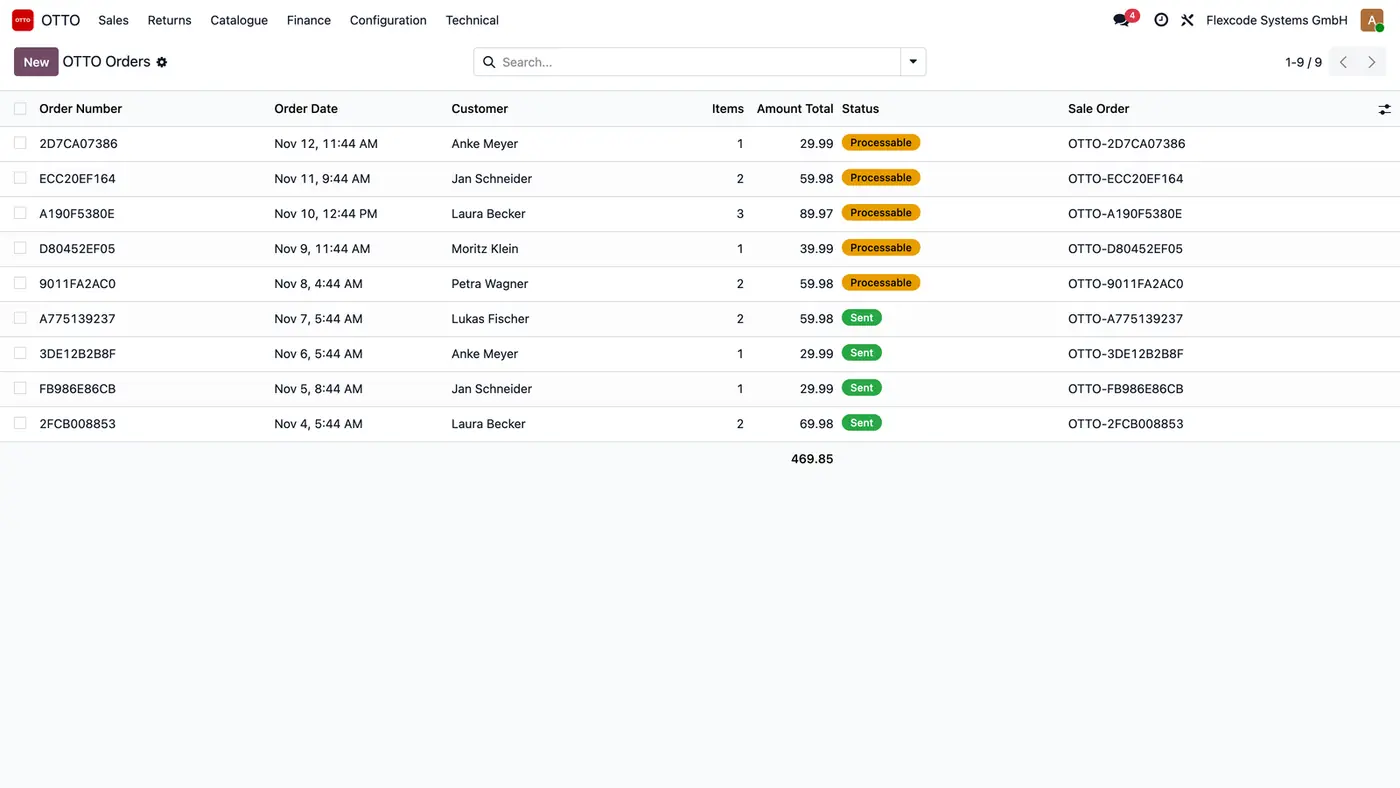
OTTO Orders list with order number, date, customer, items, total, status Processable or Sent and linked sale order
Every imported OTTO order with its status at OTTO and the Odoo sale order it became.
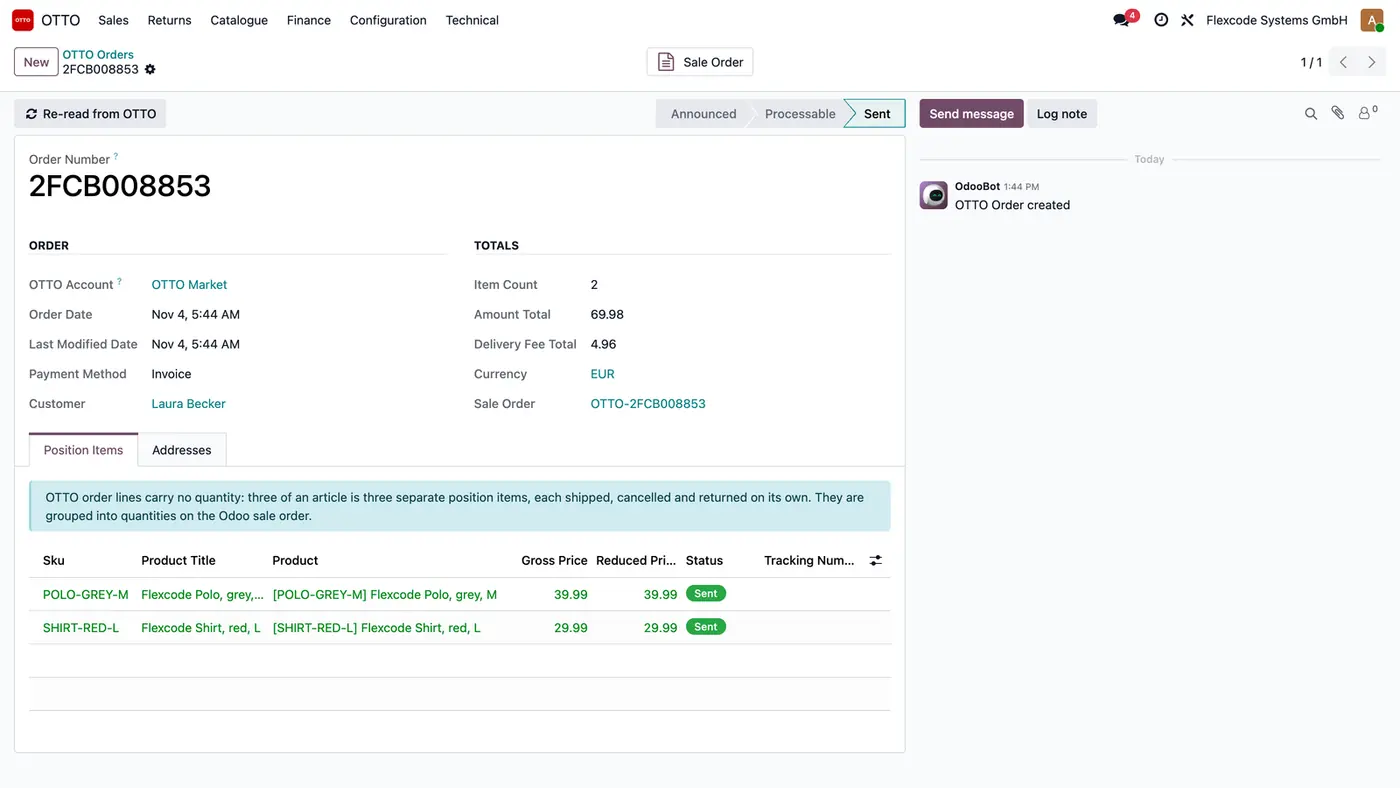
OTTO order 2FCB008853 with order data, totals, delivery fee and two position items with SKU and status
One OTTO order item by item, with a link to its Odoo sale order.
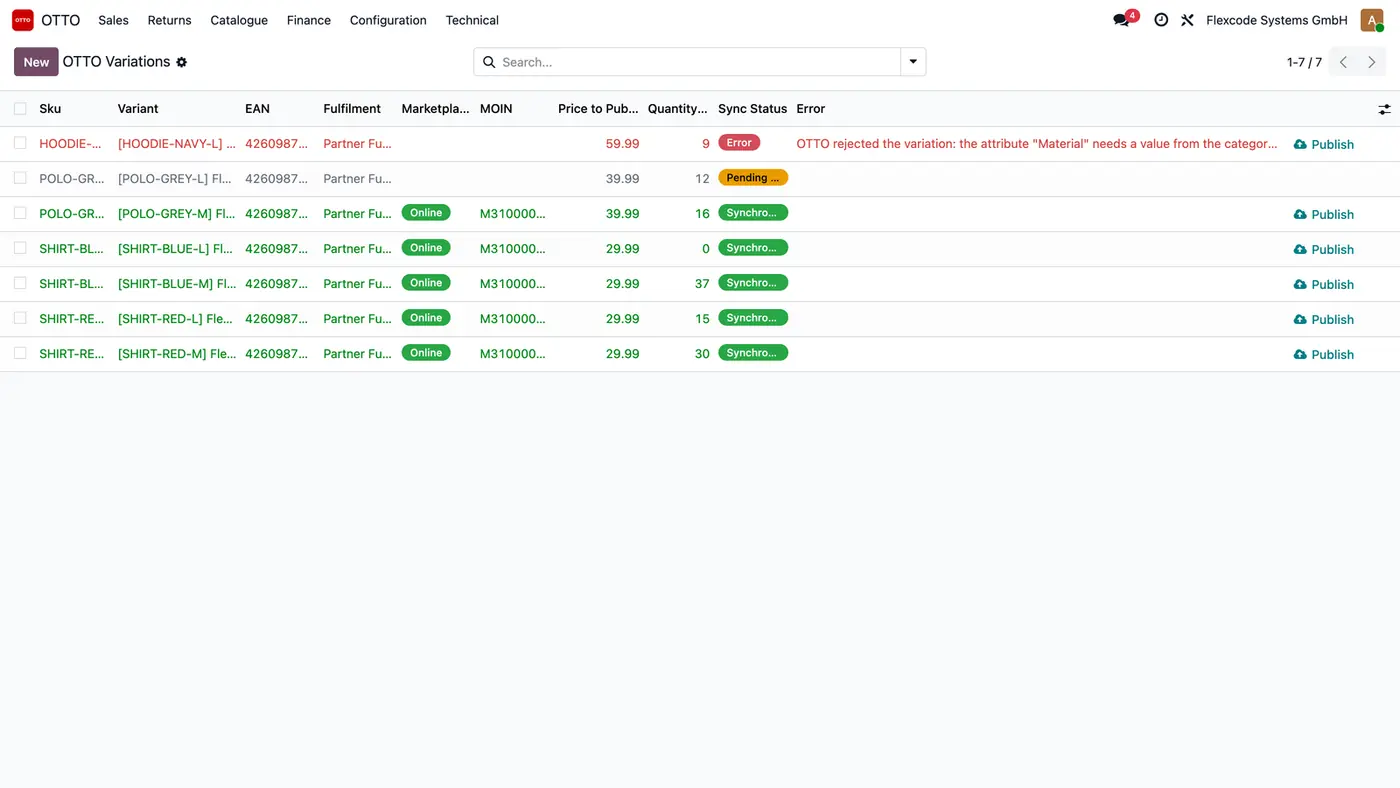
OTTO Variations list with EAN, fulfilment, marketplace status, MOIN, price, quantity, sync status and an error message
Published variations with their state at OTTO, including OTTO's reason when one is rejected.
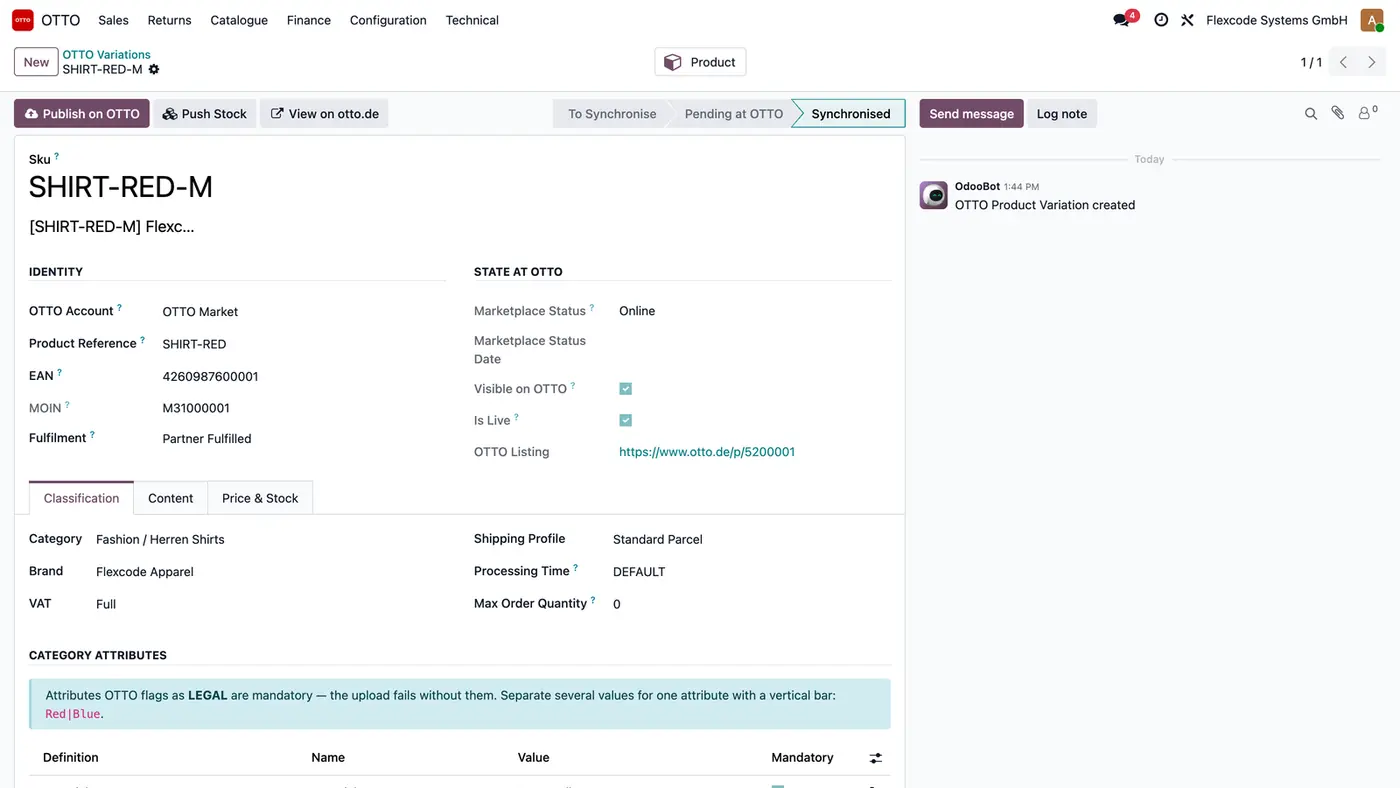
Variation SHIRT-RED-M with EAN, MOIN, marketplace status Online, otto.de link, category, shipping profile and buttons
One variation with its identity, OTTO's verdict and the category attributes OTTO asks for.
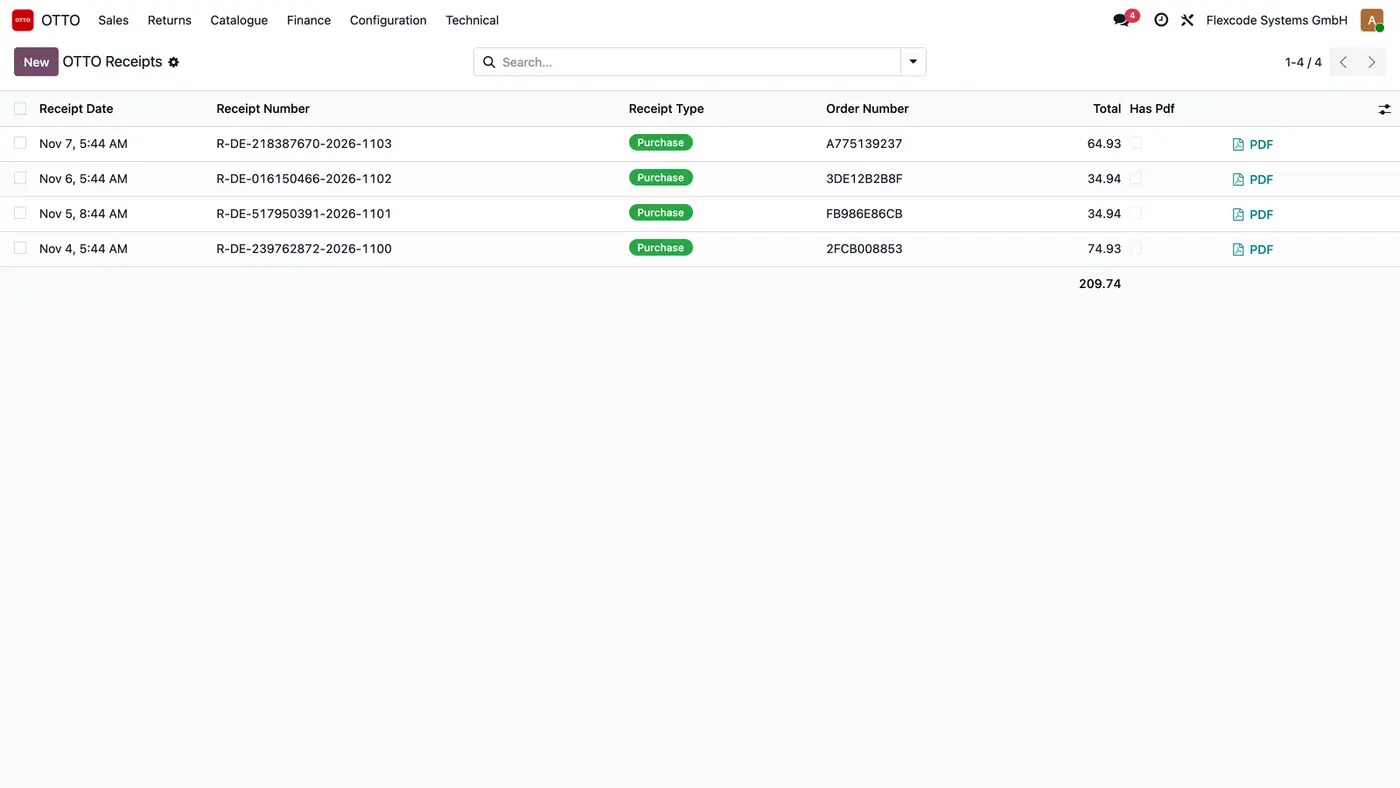
OTTO Receipts list with receipt date, number, type Purchase, order number, total and PDF button
Receipts OTTO issued in your name, imported with their PDFs for reconciliation.

What it does

Orders into Odoo

  • Import OTTO orders with their position items and customers on a schedule every ten minutes, or at once with Synchronise Now.
  • Keep one position item per unit, as OTTO does, and group them into quantities on the Odoo sale order with the customer and the delivery fee.
  • Name each sale order OTTO- plus the OTTO order number, and show the order status as OTTO names it: Announced, Processable, Sent.
  • Cancel the items at OTTO by cancelling the sale order in Odoo, while OTTO still allows it.

Products as OTTO variations

  • Publish selected products on OTTO with brand, category, category attributes, shipping profile and VAT rate.
  • See the upload result and OTTO's shop validation separately on each variation, with OTTO's error message when it is rejected.
  • Load brands, categories with their attributes, shipping profiles and return warehouses from OTTO daily or on demand.
  • OTTO downloads product images from a public base URL you set on the account.

Prices and stock

  • Send price changes through OTTO's price-only interface when Export Prices is on.
  • Push stock moves for variations that are live at OTTO (they have a MOIN) and fulfilled by you, with a safety quantity and a cap per account.
  • Fulfilment by OTTO variations never get stock or shipment reports, because OTTO owns both.

Shipments, returns and receipts

  • Report each validated delivery to OTTO with carrier, tracking number and the return tracking key OTTO requires.
  • Import returns and send your accept or reject decision from the returns list. Automatic acceptance can be switched on per account.
  • Import receipts, the invoices OTTO issues in your name, with their PDFs, as the base for reconciling OTTO sales.
  • Send price reductions (partial refunds) from a position item, and import them when switched on.

Nothing half applied

  • Every OTTO call runs as a background job. A failing call is retried with a growing delay.
  • Failed jobs stay visible under OTTO > Technical > Jobs until they are solved.
  • Every request is logged with OTTO's error text.

Accounts and environments

  • Connect with a seller app or a service partner app created in OTTO Partner Connect.
  • Run each account as Sandbox or Production with its own credentials. A sandbox account can generate test orders at OTTO.
  • The module respects the active company and has been tested in multi-company databases.

Who it is for

A good fit for

  • Sellers on OTTO Market who run sales, stock and invoicing in Odoo.
  • Teams that retype OTTO orders or tracking numbers by hand today.
  • Service partners who manage OTTO Market for several sellers.
  • Businesses that want OTTO receipts in Odoo for reconciliation.

Not a fit for

  • Journal entries for OTTO fees or payouts: OTTO has no settlement API, so reconciliation is against receipts.
  • Sponsored Product Ads.
  • Real-time order import: OTTO sends no webhooks, so every import is a scheduled poll.
  • Databases on Odoo Online (SaaS), which cannot install third-party apps.

Install

Requires: Sales (sale_management), Inventory (stock), Invoicing (account), Discuss (mail), Delivery - Stock

  1. Buy OTTO Market Connector on the Odoo Apps Store for Odoo 19.0.
  2. Add the module to your Odoo.sh project or to the addons path of your on-premise server.
  3. Update the apps list in Odoo and install OTTO Market Connector. Sales, Inventory and Invoicing are installed with it if they are missing.

Odoo Online (SaaS) does not allow third-party apps, so the connector cannot be installed there. Use Odoo.sh or an on-premise Odoo 19 database, Community or Enterprise.

Every purchase includes 90 days of free support from FlexCode Systems.

Configure

  1. In OTTO Partner Connect, create a seller app (or a service partner app), enable the interfaces you need and copy the client secret, which OTTO shows only once.
  2. In Odoo, open OTTO > Configuration > Accounts, choose the App Type and environment, enter the client ID and secret, tick the same scopes as on the app and press Test Connection. Service partners also press Authorise Seller.
  3. Use Run One Sync on the account to load brands, categories, shipping profiles and return addresses.
  4. Set the defaults on the account: brand, category, shipping profile, public image URL, warehouse, order prefix and delivery fee product.
  5. Select products under Sales > Products > Products and use Action > Publish on OTTO.
  6. Under Synchronisation, tick what to import and export: orders, returns and receipts, and once the catalogue is live, prices and stock.
SettingWhat it does
App TypeSeller app or service partner app, as created in OTTO Partner Connect.
EnvironmentSandbox or Production, each with its own credentials.
Client ID and client secretThe keys of the app created in OTTO Partner Connect.
ScopesMust match the interfaces enabled on the OTTO app.
Public image URLBase URL from which OTTO downloads product images.
Warehouse, order prefix and delivery fee productDefaults used for imported orders and stock.
Export Products, Export Prices, Export StockSwitch the outgoing synchronisations on per account.
Import ReceiptsImports OTTO receipts with their PDFs on schedule.
Accept Returns AutomaticallyOff by default; accepting a return refunds the customer at once and cannot be undone.

How to use it

Process OTTO orders

  1. New orders arrive under OTTO > Sales > Orders, each linked to its Odoo sale order.
  2. Ship the sale order in Odoo. Validating the delivery reports carrier, tracking number and return tracking key to OTTO.
  3. Use Re-read from OTTO on an order to fetch it again.

Watch the catalogue

  1. Open OTTO > Catalogue > Variations to see EAN, fulfilment, marketplace status, MOIN, price, quantity and sync status.
  2. For a variation in Error, read OTTO's message, fix the product, for example a missing category attribute, and use Publish again.

Handle returns and receipts

  1. Accept or reject imported returns from the returns list.
  2. Open OTTO > Finance > Receipts to see OTTO's receipts with number, type, order and total, and open the PDF.

Limits

  • No journal entries for OTTO fees or payouts; reconciliation is against receipts.
  • Sponsored Product Ads are not covered.
  • Orders are polled on a schedule, because OTTO publishes no webhooks.
  • OTTO Market is euro only, and OTTO deletes customer addresses eight weeks after fulfilment, so import orders on time.
  • It cannot be installed on Odoo Online (SaaS).

FAQ

Which OTTO interfaces does it use?

The OTTO Partner API: Products, Availability, Orders, Shipments and Return Shipments, Returns, Receipts, Price Reductions, Shipping Profiles and Returns Warehouse. Each interface version is pinned in the module. Sponsored Product Ads are not covered.

Seller app or service partner app?

Both. A seller app is created in your own OTTO seller account and needs only the client ID and secret. A service partner app acts for sellers who install it: the seller authorises it once with Authorise Seller, and the connector renews the tokens itself.

Why are orders not imported in real time?

OTTO publishes no webhooks, so every import is a scheduled poll. The main schedule runs every ten minutes, and Synchronise Now on the account starts it at once.

Does it create journal entries for OTTO fees and payouts?

No. OTTO has no settlement or payout interface. The connector imports the receipts OTTO issued and links them to the Odoo invoices, so reconciliation is against receipts.

Can I test without touching my live shop?

Yes. Each account is Sandbox or Production, with its own credentials. A sandbox account can generate test orders at OTTO.

Need it set up or adapted?

We configure our apps for your process, train your team and build the extra pieces you need.