Skip to Content

Sales & Customers · Odoo 20, Odoo 19, Odoo 18

New Sales Margin Steering

See the real margin of every quotation line before the order is confirmed

Sales Margin Steering costs each quotation line from the best source there is: a manual cost on the line, the linked purchase order line, the vendor price tier for the ordered quantity, or else the product cost. A target margin typed on a line becomes its unit price with one click, and every such change is recorded and can be reverted. A Margin Analysis report sits under Sales reporting.

Key features

The problem

For resold or made-to-order goods, the vendor's price depends on the quantity ordered, so the product cost on a quotation line is often not the cost you will actually pay. Salespeople then quote on a margin that does not exist. Working out the unit price for a wanted margin, discount included, is done on a calculator, and nobody can see later who changed a price and why.
Screenshots

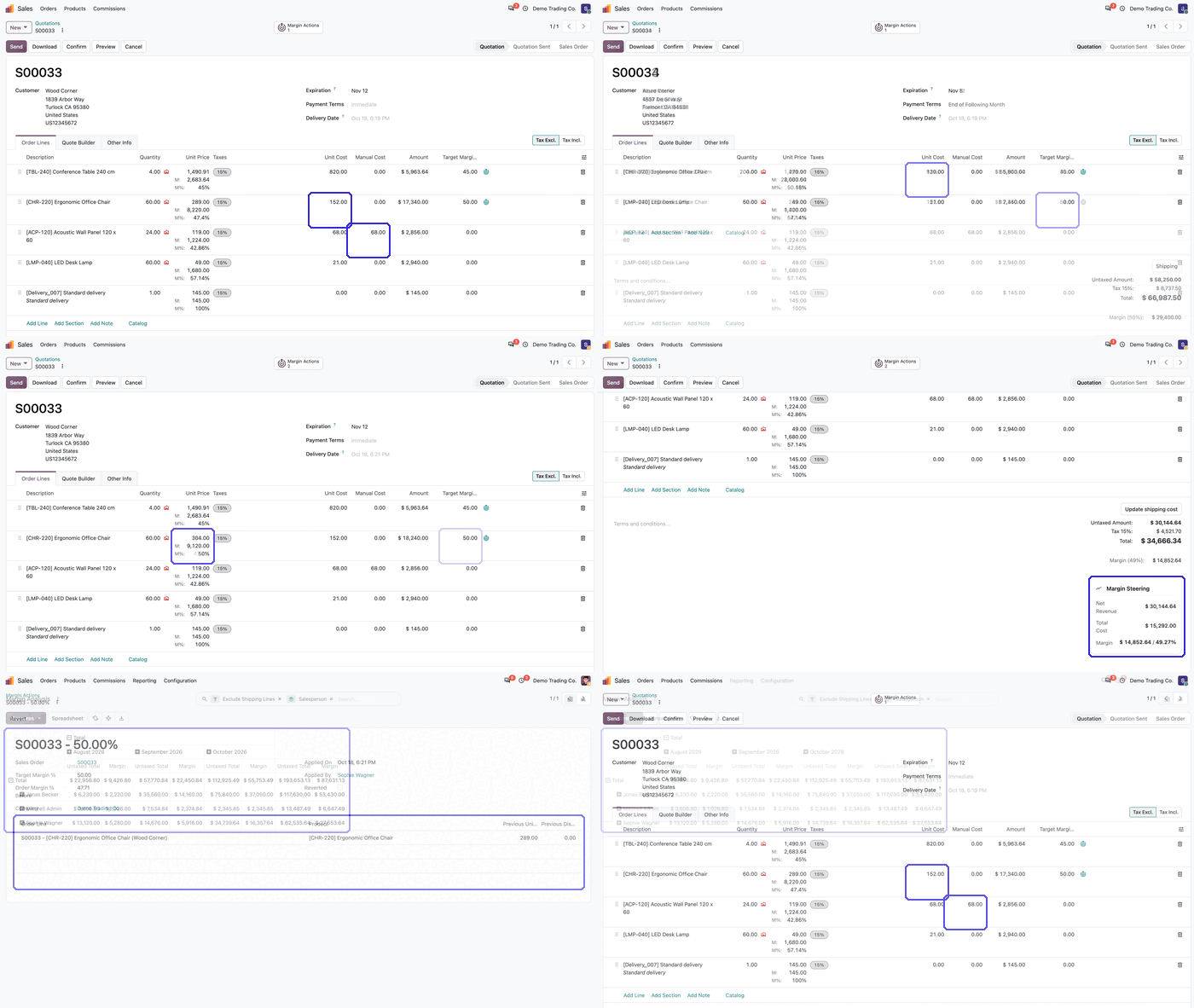
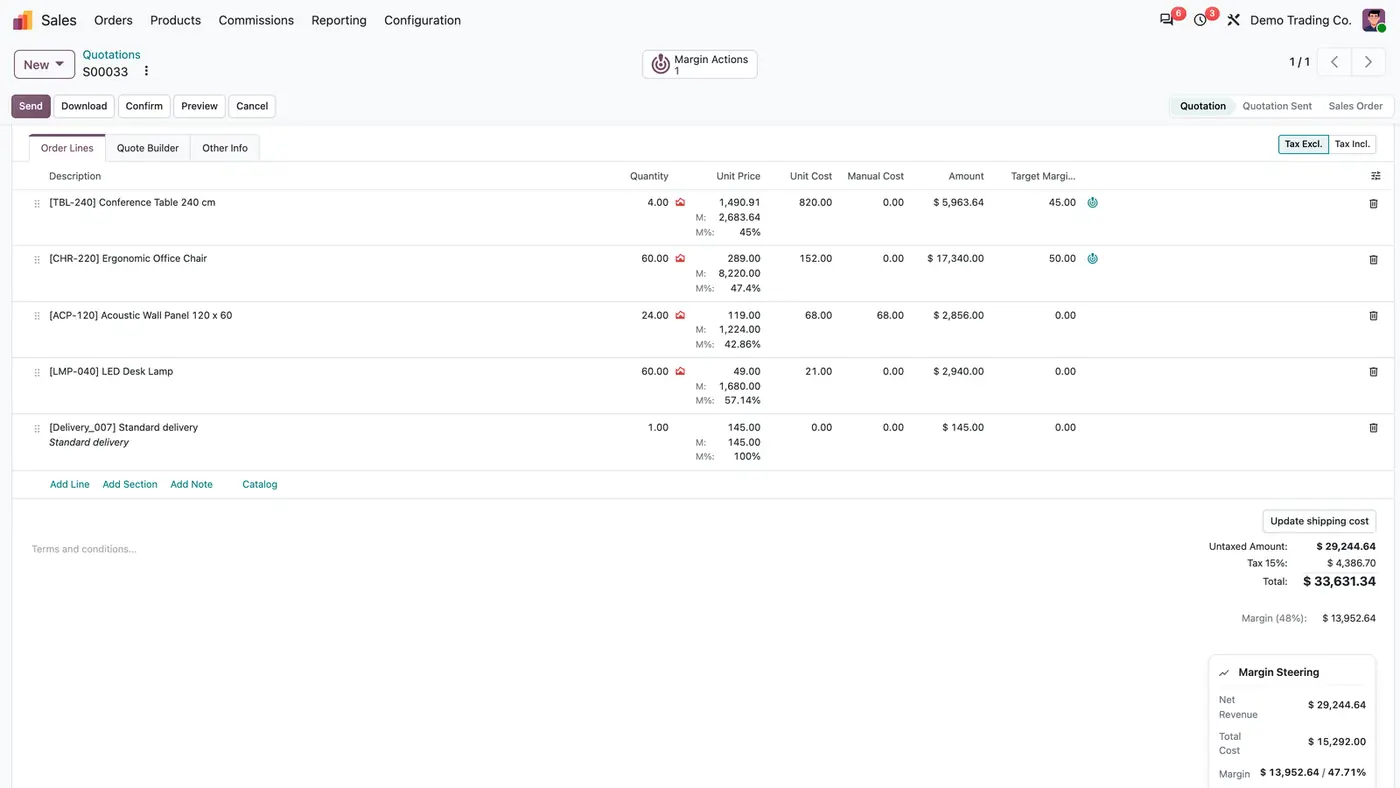
Quotation S00033 with Unit Cost, Manual Cost and Target Margin columns per line and the Margin Steering card
Each quotation line shows its real cost, margin and target margin, and the Margin Steering card sums up the order.
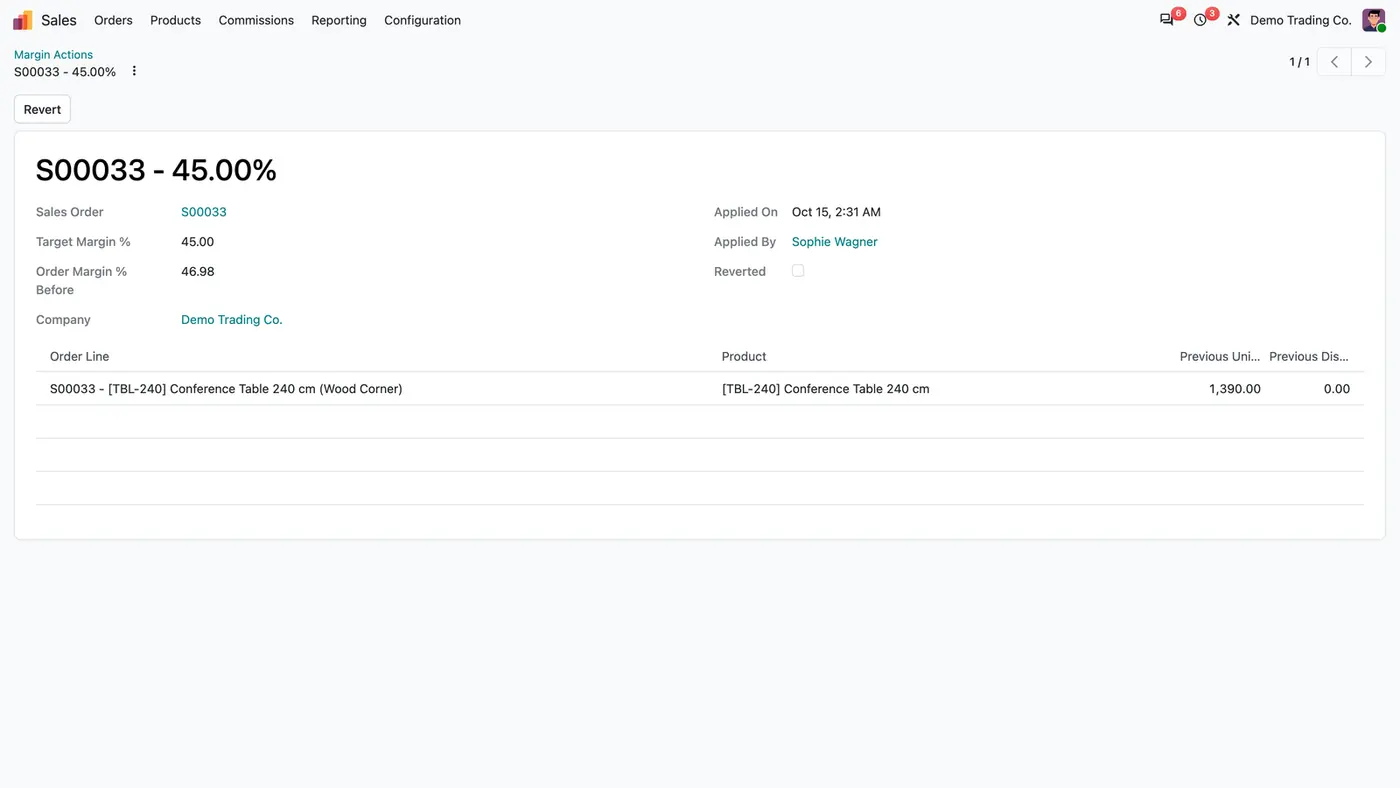
Margin Action S00033 45.00% applied by Sophie Wagner, with previous unit price 1,390.00 and a Revert button
Every target-margin apply keeps the previous price and discount, so a sales manager can revert it.
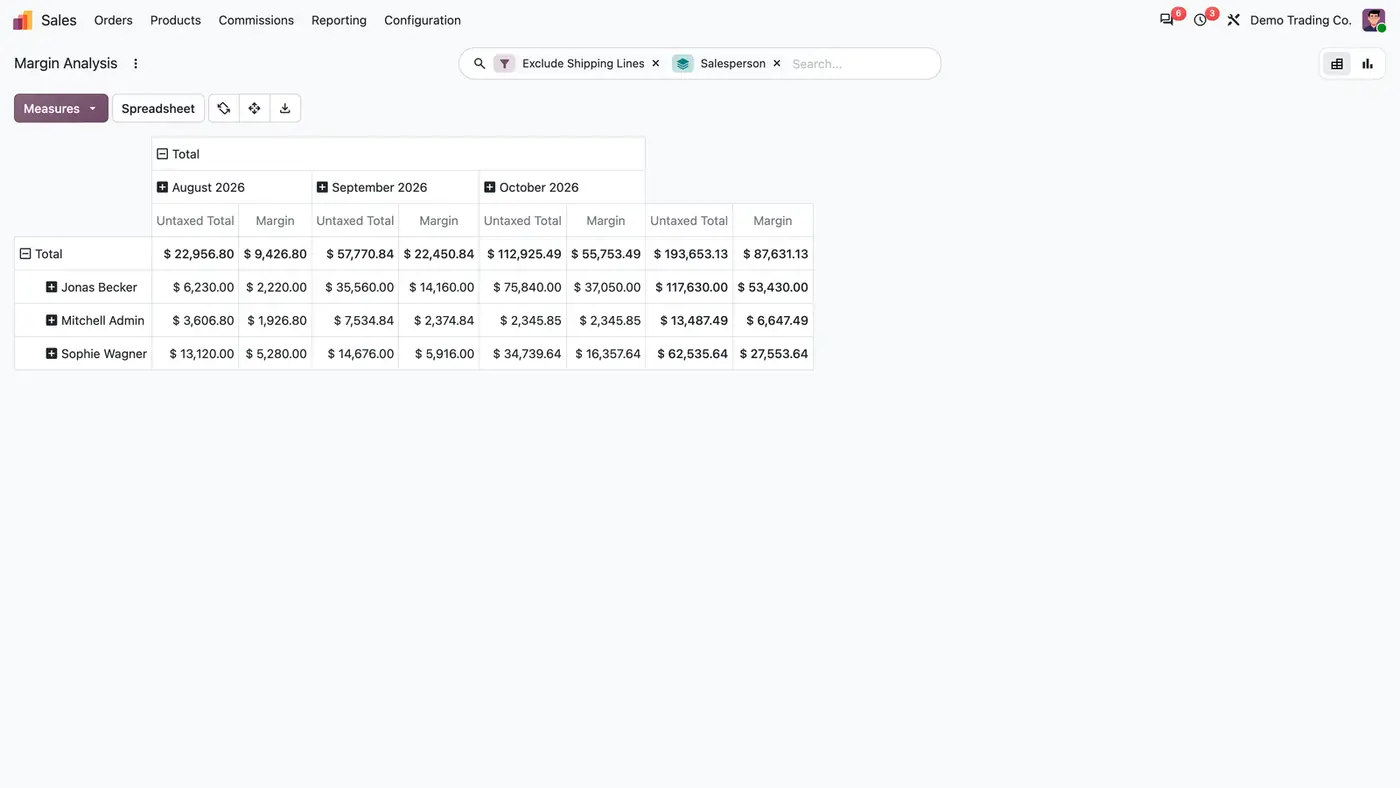
Margin Analysis pivot with untaxed total and margin by salesperson and month, filtered to exclude shipping lines
Margin Analysis shows untaxed total and margin by salesperson and month, with shipping lines left out by default.
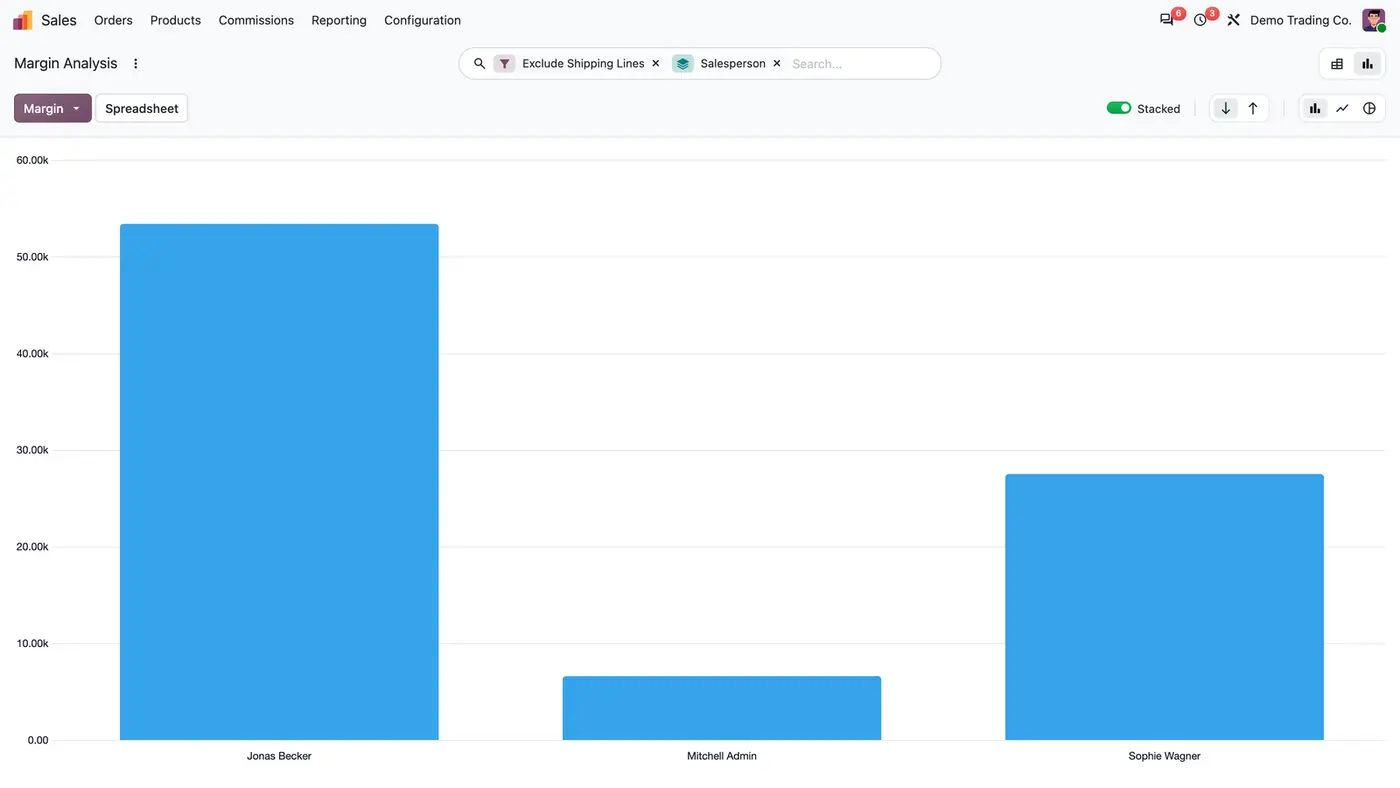
Bar chart of margin per salesperson in the Margin Analysis report
The same analysis as a bar chart of the margin per salesperson.
Animated demo of quotation S00033 highlighting the Unit Cost from a vendor tier and a Manual Cost on the lines Play demo
A short demo of line costs and target margins on a quotation.

What it does

Real cost per line

  • Each line is costed in this order: a manual cost typed on the line, the linked purchase order line, the vendor price tier that applies at the ordered quantity and order date, else the product cost.
  • Vendor unit, discount and currency are respected.
  • A Manual Cost belongs to the line only, wins over every other source and survives confirmation.
  • The product cost is never written.

Price to a target margin

  • Type a Target Margin % on a line and click the target button next to it. The unit price is set to reach that margin.
  • The discount is taken into account: the line reaches the target after its discount.
  • A line with a cost of 0, a 100 % discount or a shipping line cannot be priced to a target.

Audit trail and revert

  • Every apply is recorded under Margin Actions with the previous unit price and discount.
  • A sales manager can revert an apply while the order is still a quotation.
  • The order's chatter notes every apply, and a Margin Actions button on the order lists them.

Margin card on the order

  • The Margin Steering card in the order totals shows Net Revenue, Total Cost and Margin.
  • Each line shows its unit cost, margin and margin percentage.

Margin Analysis

  • Sales > Reporting > Margin Analysis shows untaxed total and margin as a pivot table or bar chart.
  • Shipping lines are excluded by default, and the report is grouped by salesperson.
  • Group by customer, product, company or status, for quotations and sales orders.

Who it is for

A good fit for

  • Distributors and resellers whose vendor prices change with the quantity ordered.
  • Companies selling made-to-order goods with a cost agreed per order.
  • Sales managers who want salespeople to quote on a target margin.
  • Teams that need to see who changed a price for margin reasons, and undo it.

Not a fit for

  • Changing the product cost: a manual cost stays on the line.
  • Blocking orders with a low margin: they can still be confirmed.
  • Reverting a target-margin price after the quotation is confirmed.
  • Databases on Odoo Online (SaaS), which cannot install third-party apps.

Install

Requires: Sales (sale_management), Margins in Sales Orders, Delivery Costs, Invoicing (account), Discuss (mail)

  1. Buy Sales Margin Steering on the Odoo Apps Store for Odoo 18.0, 19.0 or 20.0.
  2. Add the module to your Odoo.sh project or to the addons path of your on-premise server.
  3. Update the apps list in Odoo and install Sales Margin Steering. Sales and the other dependencies are installed with it if they are missing.

Odoo Online (SaaS) does not install custom apps from the Apps Store, so the app cannot be installed there. Use Odoo.sh or an on-premise database, Community or Enterprise.

Every purchase includes 90 days of free support from FlexCode Systems.

Configure

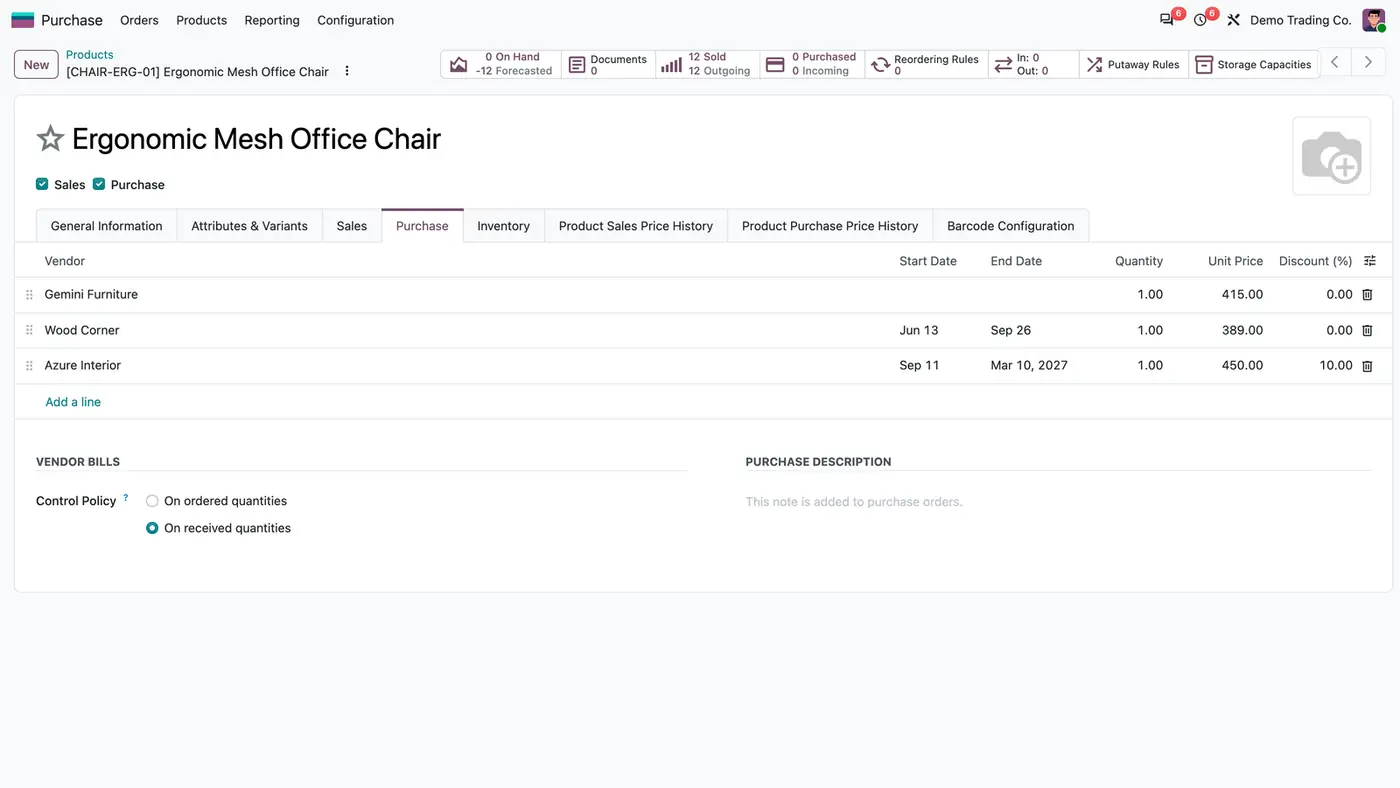
  1. With the Purchase app, enter vendor price tiers on products: Sales > Products > product > Purchase, one vendor line per minimum quantity gives the cost at that quantity.
  2. Or type a cost agreed for one order in the Manual Cost column of the quotation line.
  3. Price a line to a target margin: type the Target Margin % and click the target button next to it.
SettingWhat it does
Manual CostPer quotation line: a cost agreed for this order that wins over every other source.
Target Margin %Per quotation line: the margin the unit price is set to reach, discount included.
Vendor price tiersVendor lines with a minimum quantity on the product, used as cost at the ordered quantity.

How to use it

Check a quotation

  1. Add the lines as usual. Each line shows its unit cost from the best source, its margin and margin percentage.
  2. Read the Margin Steering card for Net Revenue, Total Cost and Margin of the whole order.

Price a line to a target

  1. Type the Target Margin % on the line.
  2. Click the target button. The unit price is set and the change is recorded under Margin Actions.
  3. If needed, a sales manager opens the Margin Action and clicks Revert while the order is a quotation.

Review margins

  1. Open Sales > Reporting > Margin Analysis.
  2. Switch between pivot and chart, and group by salesperson, customer, product, company or status.

Limits

  • Low-margin orders are not blocked.
  • Lines with a cost of 0, a 100 % discount or shipping lines cannot be priced to a target.
  • Reverting is possible only while the order is a quotation, and only for sales managers.
  • It cannot be installed on Odoo Online (SaaS).

FAQ

Where does the line cost come from?

In this order: a manual cost typed on the line, the linked purchase order line (when a Purchase module links sale lines), the vendor price tier that applies at the ordered quantity and order date, else the product cost.

Does it change the product cost?

No. A manual cost belongs to the line only; the product cost is never written.

Can a target margin be undone?

Yes. Every apply keeps the previous unit price and discount under Margin Actions, and a sales manager can revert it while the order is still a quotation.

Does the target margin take the discount into account?

Yes. The unit price is set so that the line reaches the target after its discount. A line with a cost of 0, a 100 % discount or a shipping line cannot be priced to a target.

Does it work with multi-company databases?

Yes. The module respects the active company and its records, and has been tested in multi-company databases.

Need it set up or adapted?

We configure our apps for your process, train your team and build the extra pieces you need.