Skip to Content

Inventory & Purchase · Odoo 20, Odoo 19, Odoo 18

New Replenish on Company-wide Stock

Reorder on the stock of the whole company, not of one warehouse

Replenish on Company-wide Stock adds one setting per company to Odoo 18, 19 and 20. When it is on, reordering rules count On Hand and Forecast over all the warehouses of the company, together with the requests for quotation and draft manufacturing orders in progress. When a product has rules in several warehouses, only one of them orders, and the order still goes to the rule's own location and route.

Key features

The problem

In standard Odoo each reordering rule only looks at the stock of its own location. A company with two warehouses can have plenty of a product in one and still get a purchase proposal from the rule in the other. When a product has rules in several warehouses, each of them may order, and the company ends up buying the same need twice.
Screenshots

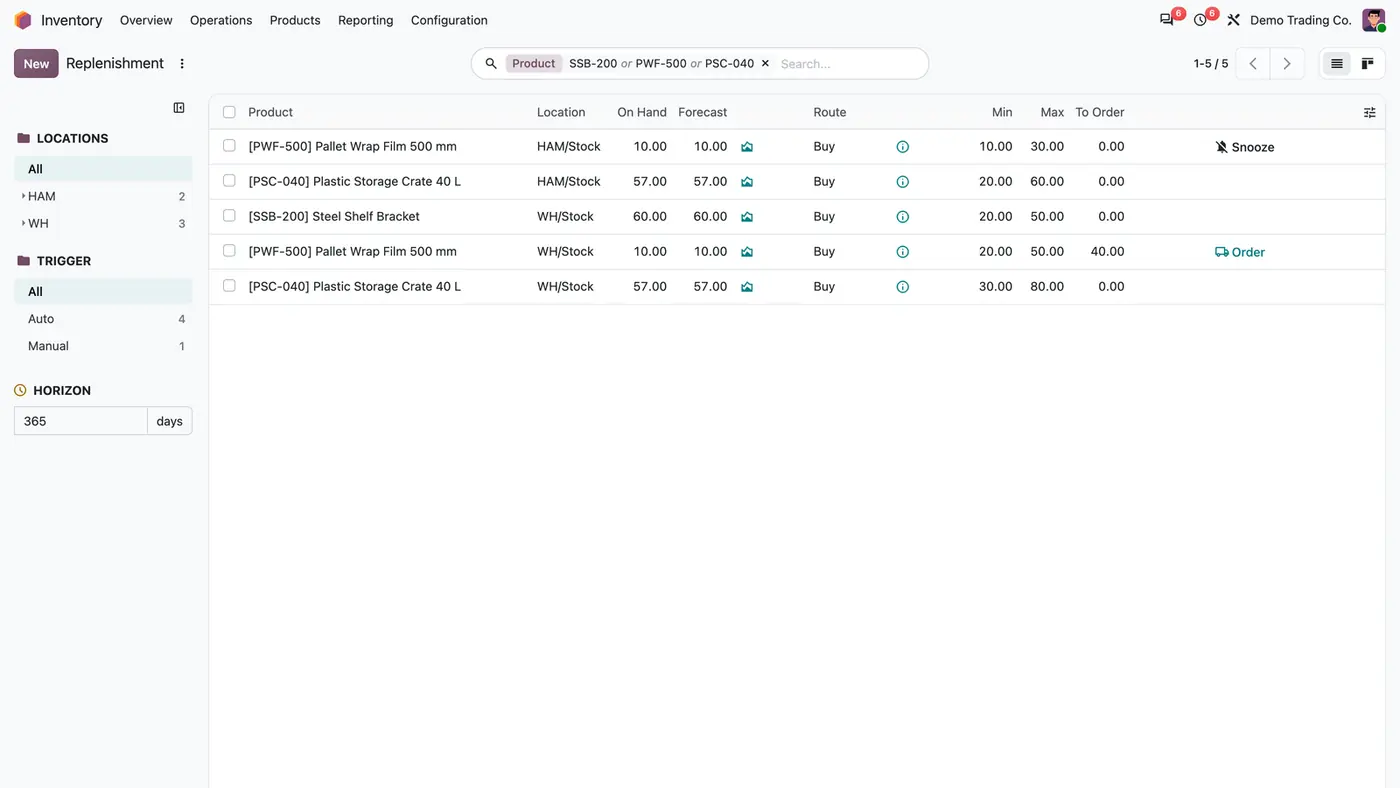
Replenishment report with rules in HAM/Stock and WH/Stock; only the WH rule for Pallet Wrap Film proposes 40 to order
Every rule shows On Hand and Forecast for all warehouses of the company, and only one rule per product orders.
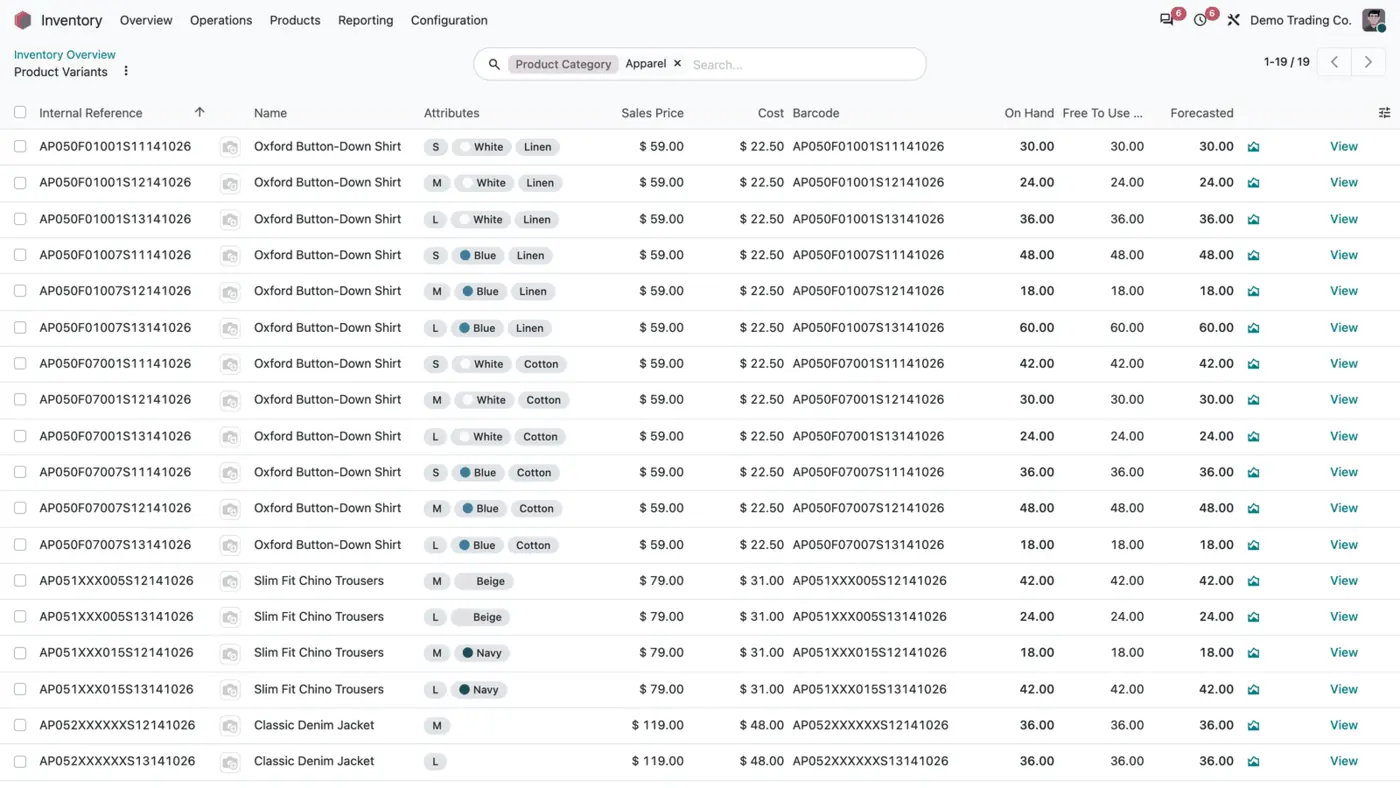
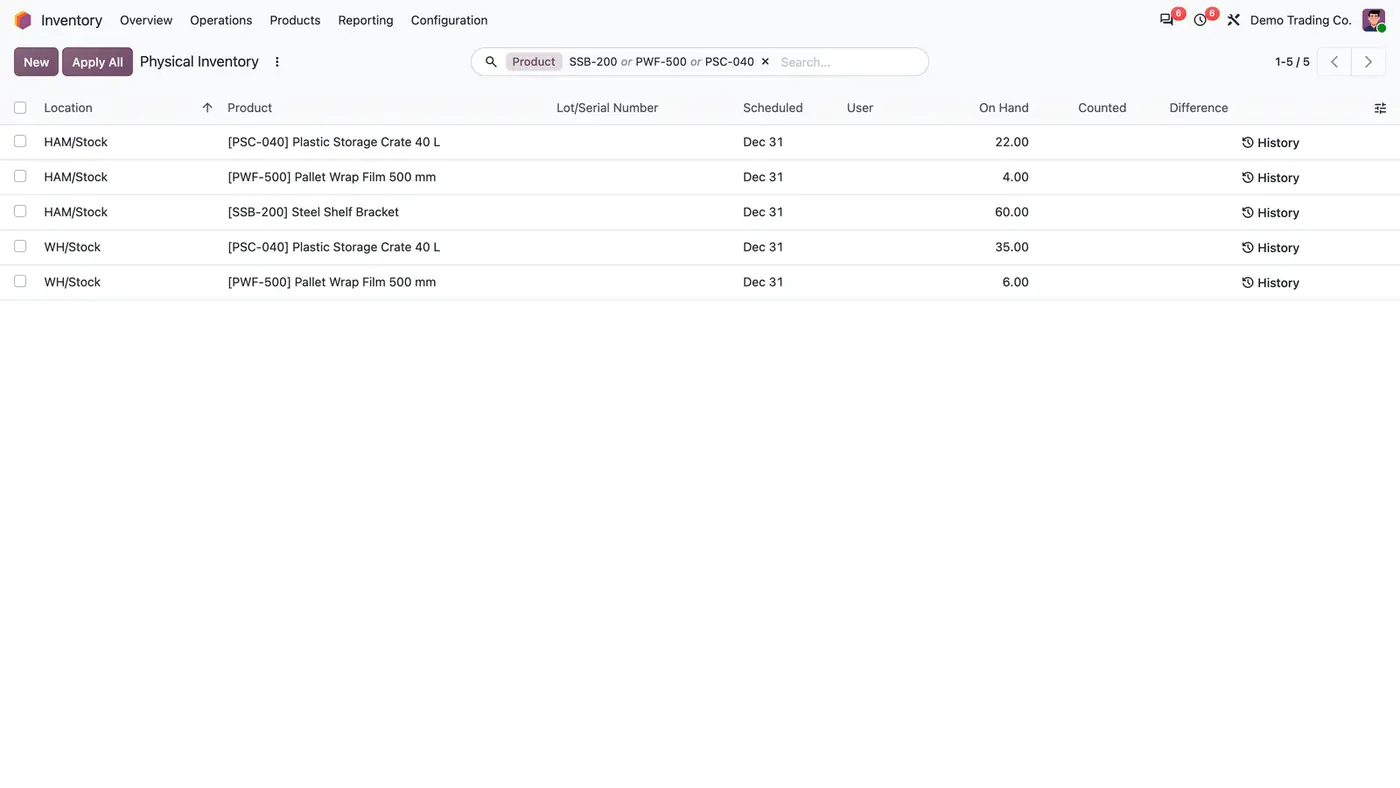
Physical Inventory list showing the same three products per location in HAM/Stock and WH/Stock
Where the stock really is: the rules count both warehouses together.
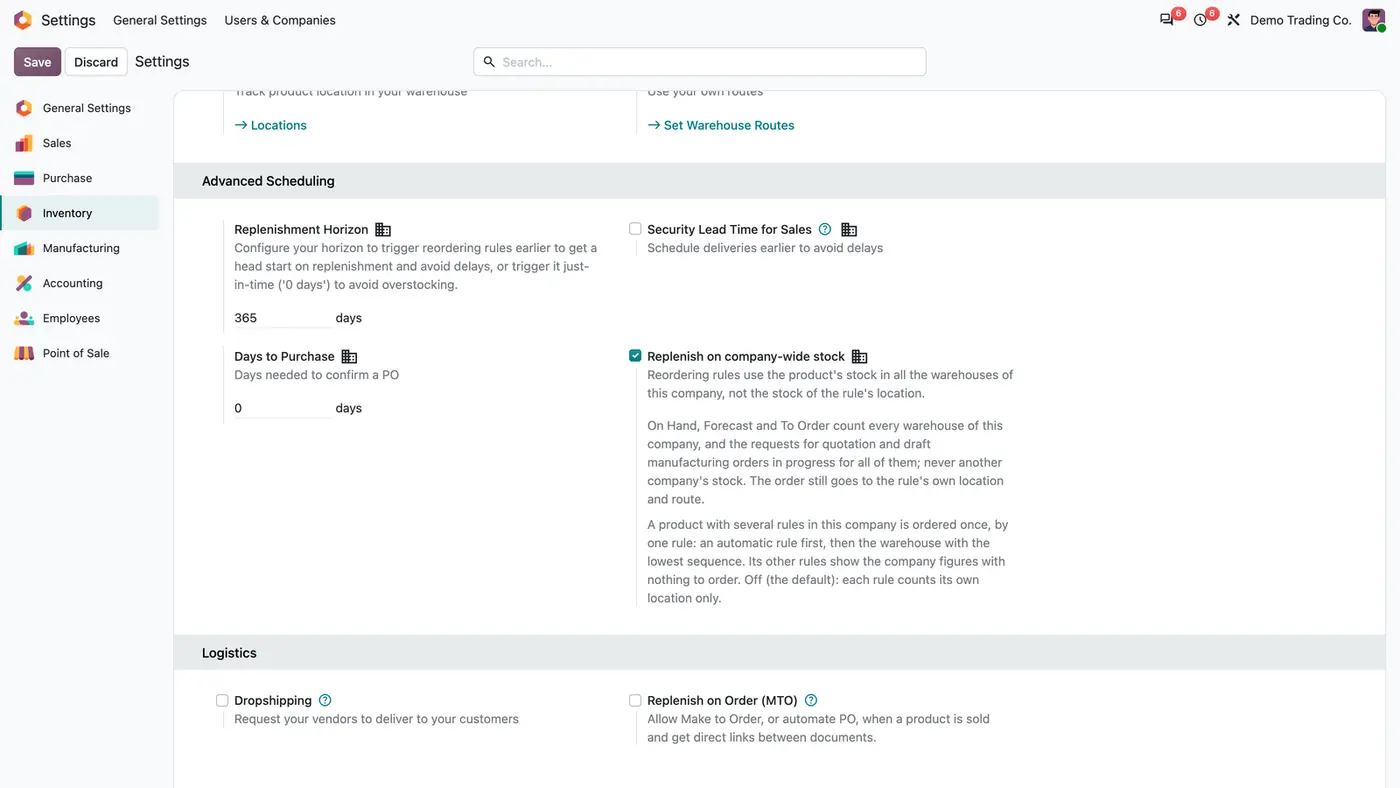
Inventory settings, Advanced Scheduling: Replenish on company-wide stock ticked, with its explanation
One setting per company, off by default and available to Inventory Administrators only.
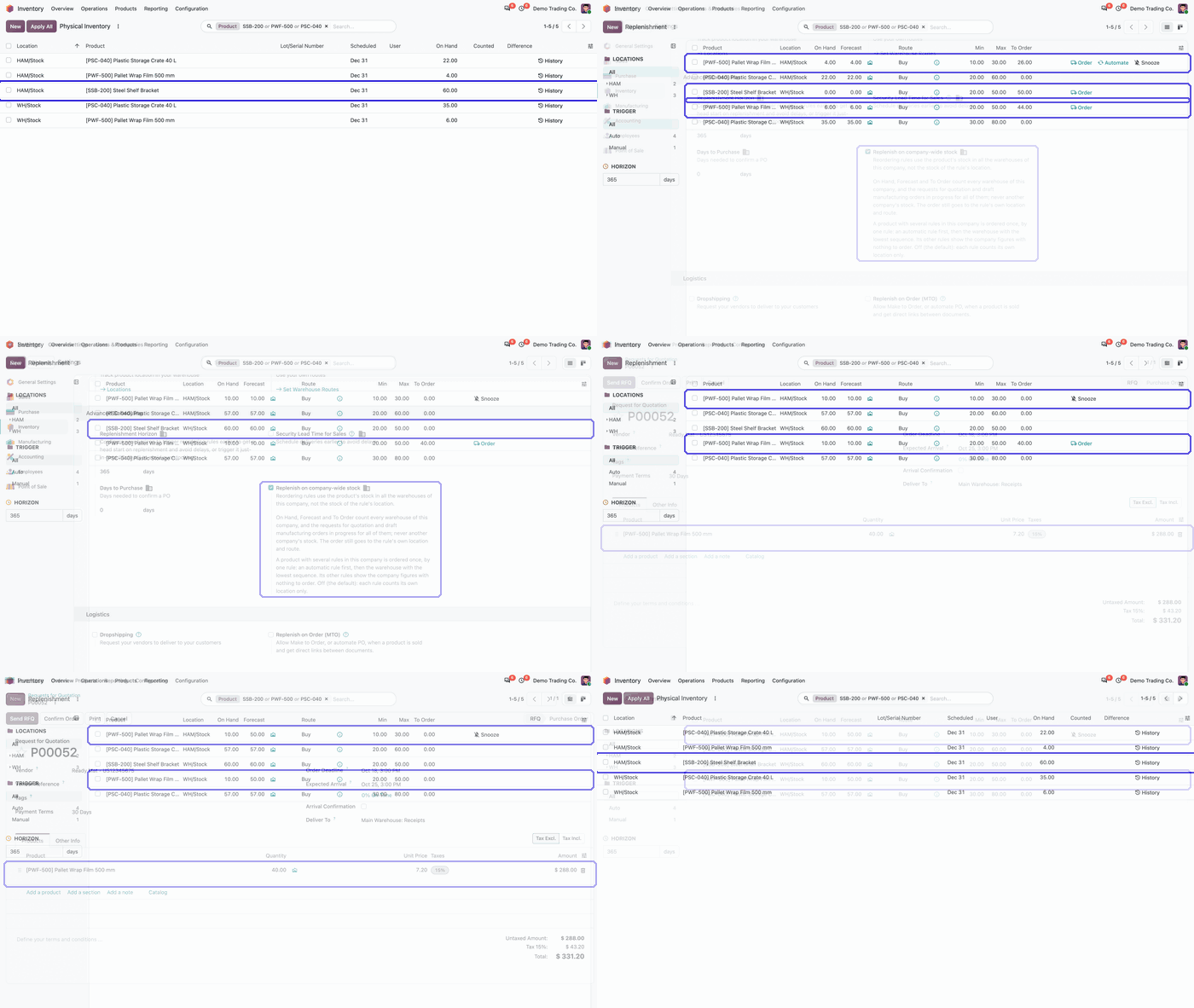
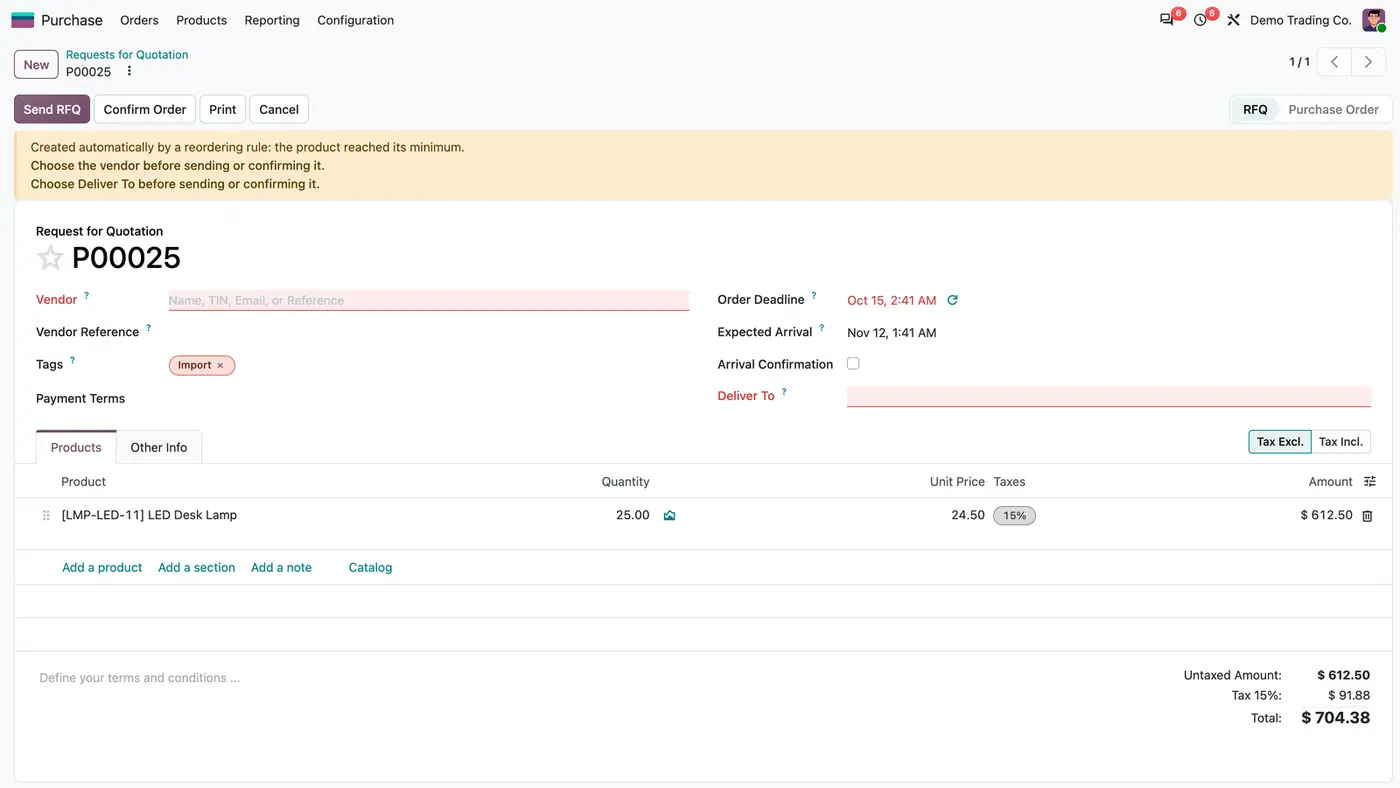
Animated demo: the setting, the Replenishment report, the resulting request for quotation and the stock per location Play demo
From the company setting to the one request for quotation the leading rule creates.

What it does

Company-wide quantities

  • On Hand and Forecast are counted over the internal locations of all warehouses of the rule's company.
  • Quantities are taken within the rule's lead-days horizon.
  • Requests for quotation and draft manufacturing orders for any warehouse of the company are counted, and nothing is counted twice.
  • Stock of another company never counts.

One rule orders

  • When a product has rules in several warehouses, only one of them proposes a quantity; the others show the company figures with nothing to order.
  • Priority: a rule set up by a user before a line the Replenishment report created, an automatic rule before a manual one, then the warehouse with the lowest sequence.
  • The Order button skips the secondary rules.

Ordering stays as in standard Odoo

  • The order goes to the rule's own location.
  • The rule's route is kept.
  • Only the figures used to decide are company-wide.

Replenishment report

  • Every line shows the company figures.
  • A line that the stock of the company already covers is removed.

Scope

  • One setting per company, off by default.
  • Only Inventory Administrators can turn it on.

Who it is for

A good fit for

  • Companies with several warehouses that buy or produce for the company as a whole.
  • Buyers who get purchase proposals for products that are in stock in another warehouse.
  • Multi-company databases where each company decides whether to use company-wide replenishment.

Not a fit for

  • Moving stock between warehouses: the app only changes the figures the rules decide on.
  • Counting stock across companies.
  • Databases on Odoo Online (SaaS), which cannot install third-party apps.

Install

Requires: Purchase Stock (purchase_stock), Manufacturing (mrp), Inventory (stock), Purchase (purchase)

  1. Buy Replenish on Company-wide Stock on the Odoo Apps Store for Odoo 18.0, 19.0 or 20.0.
  2. Add the module to your Odoo.sh project or to the addons path of your on-premise server.
  3. Update the apps list in Odoo and install Replenish on Company-wide Stock. Purchase and Manufacturing are installed with it if they are missing.

Odoo Online (SaaS) does not allow third-party apps, so the app cannot be installed there. Use Odoo.sh or an on-premise database, Community or Enterprise.

Every purchase includes 90 days of free support from FlexCode Systems.

Configure

  1. As an Inventory Administrator, open Inventory > Configuration > Settings > Advanced Scheduling and tick Replenish on company-wide stock for the current company.
  2. Open Inventory > Operations > Procurement > Replenishment and check the To Order column: one rule per product proposes the quantity, the others propose 0.
SettingWhat it does
Replenish on company-wide stockPer company, off by default. When on, On Hand, Forecast and To Order count every warehouse of the company. When off, each rule counts its own location only.

How to use it

Check the proposals

  1. Open the Replenishment report. Each line shows On Hand and Forecast for all warehouses of the company.
  2. A product that is covered by stock in another warehouse shows nothing to order.
  3. For a product with rules in several warehouses, only the leading rule shows a quantity in To Order.

Place the order

  1. Click Order on the line that proposes a quantity. The request for quotation goes to the rule's own location and route.
  2. Use Physical Inventory to see where the stock really is per location.

Limits

  • No stock is moved between warehouses.
  • Stock of other companies is never counted.
  • It cannot be installed on Odoo Online (SaaS).

FAQ

Does stock of another company count?

No. Only the internal locations of the warehouses of the rule's company count.

Where does the order go?

To the rule's own location, with its route, exactly as in standard Odoo; only the figures used to decide are company-wide.

Which rule orders when there are several?

A rule set up by a user before a line the Replenishment report created, an automatic rule before a manual one, then the warehouse with the lowest sequence. The others propose 0.

Are orders in progress counted?

Yes. Requests for quotation and draft manufacturing orders for any warehouse of the company count, and nothing is counted twice.

What does the Replenishment report show?

The company figures on every line. A line that the stock of the company already covers is removed.

Need it set up or adapted?

We configure our apps for your process, train your team and build the extra pieces you need.