Keep your Loops audience in sync with Odoo and send Odoo emails through Loops
Loops.so Connector pushes your Odoo contacts and the fields you choose to Loops, and sends mapped Odoo mail templates through your Loops transactional templates. Every API call is logged, and a failed send falls back to your normal Odoo mail server.
Many teams design their emails in Loops but keep their customers in Odoo. Someone exports a CSV and uploads it by hand, until the week nobody does, and new customers never hear from you. The same email gets rebuilt as an Odoo template and the two versions drift apart by the second edit. When support asks whether a customer got their confirmation, nobody can prove a send.
What it does
One connection to set up
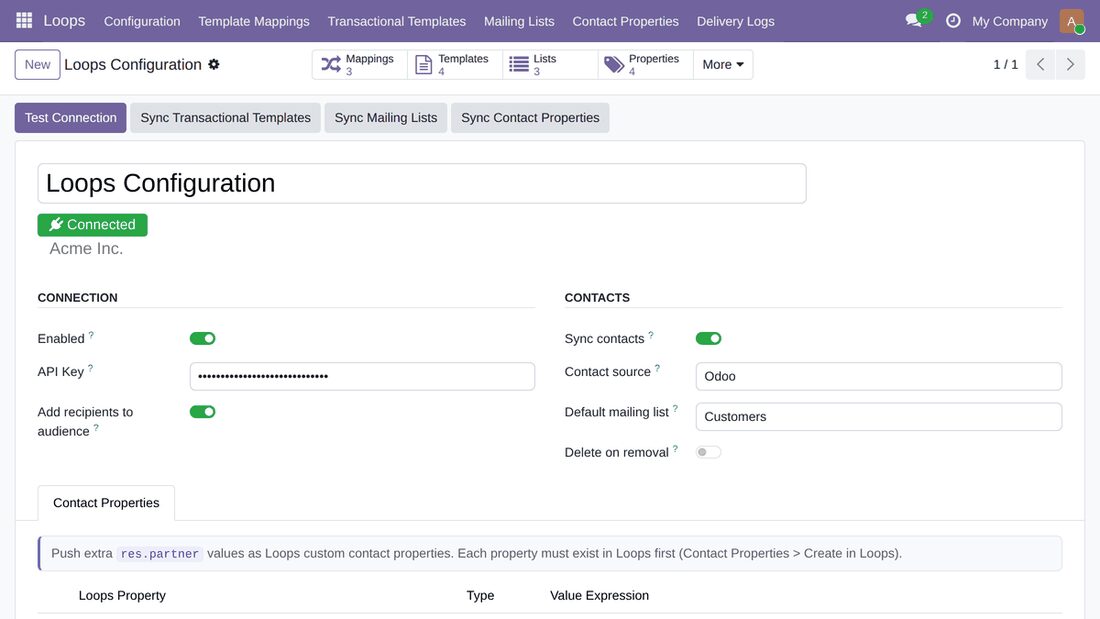
Enable the connector, paste the Loops API key and test the connection.
The contact source stays labelled Odoo, so both sides agree on where the truth lives.
Only Settings users can open the Loops screens, and the API key is never readable by other staff.
Contact sync you control
Turn Sync contacts on or off, choose a Default mailing list for new contacts and decide with Delete on removal what happens when a contact is deleted in Odoo.
Contact changes are queued as you save and sent in batches of 50 every 15 minutes, so a slow API never holds up a user.
Contacts are upserted on their email address, so a second run updates instead of duplicating.
Custom contact properties
Push extra partner values to Loops custom contact properties, each one a value expression rendered against the record, such as the partner city or country.
Each property must already exist in your Loops account.
Template mappings
Pair an Odoo mail template with a Loops template, or type a Loops transactional ID for a template not yet listed.
Choose per mapping whether the send also adds the recipient to your audience and whether Odoo attachments are sent along.
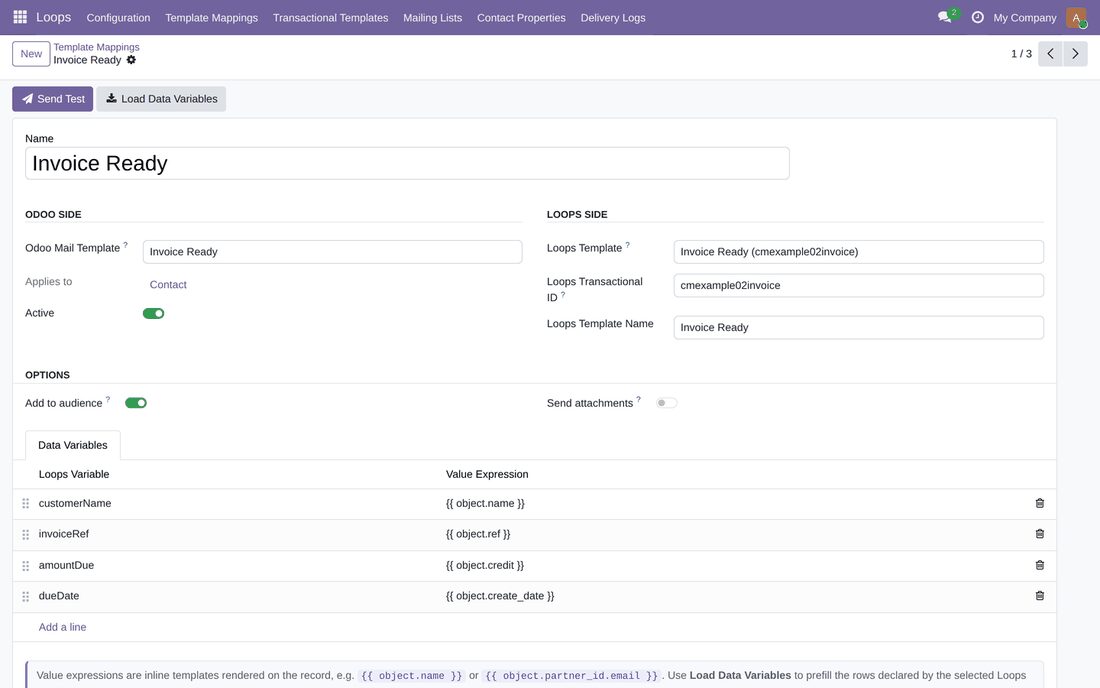
Bind each Loops data variable to a value expression on the record. Load Data Variables prefills the rows the Loops template declares.
Built for the bad days
If a Loops send fails, Odoo falls back to your normal outgoing mail server and records the failure.
Transactional calls carry an idempotency key, so a repeat is not a second email.
Rate limited calls are retried, and every request times out rather than tying up a worker.
Proof of every send
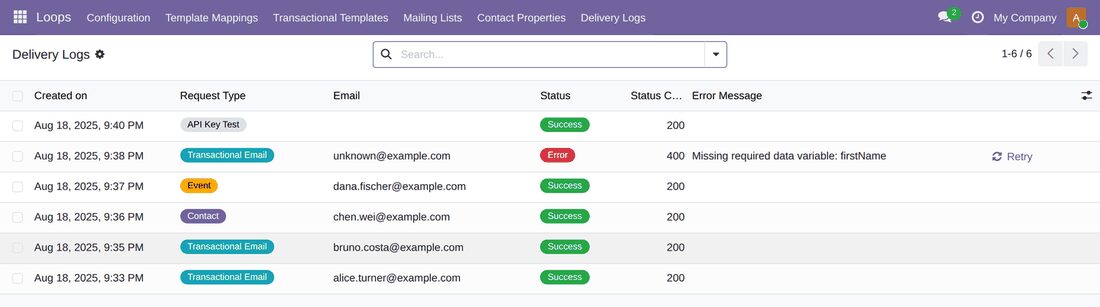
The delivery log shows every call with its status, payload and response, and a failed call can be retried in one click.
Send Test on each mapping issues one real call, so you can check the result before the first customer gets the email.
Odoo talks to Loops directly. There is no middleware, no licence server and no telemetry.
The Loops configuration: connection, contact sync and counters in one place.A template mapping with its Loops data variables bound to the record.The delivery log: every call with its status, and a one-click retry for failures.
Who it is for
Companies that keep customers in Odoo and design their emails in Loops.
Marketing teams that want one audience, maintained by Odoo, instead of CSV uploads.
Support teams that need to show whether a confirmation email was sent.
Administrators who want a direct integration without middleware.
Not a fit when:
Teams that need unsubscribes and bounces written back to the Odoo partner.
Anyone who wants to design Loops emails, campaigns or sequences inside Odoo.
Teams that need open and click analytics reported in Odoo.
Databases on Odoo Online (SaaS), which cannot install third-party apps.
Install
Requires: Discuss (mail), Python requests library
Buy the app on the Odoo Apps Store for Odoo 19.0.
Add the module to your Odoo.sh project or to the addons path of your on-premise server.
Update the apps list in Odoo and install Loops.so Connector. Discuss is installed with it if it is missing.
Odoo Online (SaaS) does not allow third-party apps, so this app cannot be installed there. Use an Odoo.sh project or an on-premise Odoo 19 database.
Configure
In your Loops settings, create an API key for this integration and note the transactional templates you want Odoo to send.
Open the Loops configuration in Odoo, paste the key and click Test Connection.
Turn on Sync contacts, choose a default mailing list and decide whether Delete on removal should be on.
Add a row under Contact Properties for each partner value you want in Loops. The property must already exist in Loops.
Sync your Loops transactional templates, create a template mapping, click Load Data Variables and use Send Test to check the call in the delivery log.
Setting
What it does
Enabled
Turns the connector on or off for this database.
API Key
The Loops API key. It is stored for Settings users only.
Sync contacts
Sends Odoo contacts with an email address to Loops on the 15 minute schedule.
Contact source
The source label Loops shows for these contacts, set to Odoo.
Default mailing list
The Loops mailing list new contacts join.
Delete on removal
Decides whether a contact deleted in Odoo is removed from Loops or simply stops updating.
Contact Properties
Rows of Loops property, type and value expression that push partner values to Loops custom properties.
How to use it
Keep your Loops audience current
Work in Odoo as usual: create customers, correct email addresses, confirm orders.
The connector queues each contact change and sends it to Loops in batches of 50 every 15 minutes.
Check the delivery log if you want to see exactly what was sent.
Send an Odoo email through Loops
Create a template mapping between the Odoo mail template and the Loops template.
Bind the Loops data variables to value expressions on the record and run Send Test once.
From then on, when Odoo sends that template, the connector sends it through Loops immediately with the record's data.
Check and retry a failed call
Open the delivery logs and filter for errors.
Read the status, payload and response to see why Loops refused the call.
Fix the cause, for example a missing data variable, and click Retry.
Limits
Unsubscribes and bounces are not written back to the Odoo partner yet.
Loops emails, campaigns and sequences are designed in Loops, not in Odoo.
Open and click analytics are not reported inside Odoo.
Ordinary Odoo mail keeps using your outgoing mail server; only mapped templates go through Loops.
Contacts created only in Loops are not imported into Odoo.
One Loops account per Odoo database.
Frequently asked questions
How do I sync Odoo contacts to Loops.so?
Install Loops.so Connector, paste your Loops API key and turn on Sync contacts. Contacts with an email address and the custom properties you map are sent from Odoo to Loops every 15 minutes in batches of 50.
Can I send Odoo emails through Loops transactional templates?
Yes. A template mapping pairs an Odoo mail template with a Loops template and binds each Loops data variable to a value on the record. When Odoo sends that template, the connector sends it through Loops immediately. Your designs stay in Loops.
What happens when the Loops API is down?
A mapped email falls back to your Odoo outgoing mail server, so the customer still receives it. A contact that could not be sent stays queued for the next run. Every failure is in the delivery log with the response and can be retried by hand.
Does the Loops connector replace my Odoo outgoing mail server?
No. Ordinary Odoo mail keeps going through your mail server. Loops.so Connector only sends the mail templates you map to a Loops transactional template.
Does my data pass through FlexCode servers?
No. Your Odoo database talks to the Loops API and to nothing else. There is no middleware, no licence check and no telemetry.
Which Odoo versions does the Loops connector support?
Odoo 19.0, Community and Enterprise, on Odoo.sh or a self-hosted server. It depends only on standard Odoo modules and the Python requests library. Odoo Online does not allow third-party apps.