Skip to Content

Connectors · Odoo 19

New Fleet Tracking (Traccar)

See where every company vehicle is, right inside Odoo Fleet

Fleet Tracking connects Odoo Fleet to your own Traccar server, the open source GPS tracking server. Trackers are linked to vehicles or drivers, a live map and the vehicle form show where every vehicle is, and trips arrive with their route and a replay. Geofences, speed limits and idling raise alerts, and tracking can be limited to working hours.

Key features

The problem

The vehicles are in Odoo Fleet, but their positions live in a separate GPS portal. Fleet managers switch between two systems to find a vehicle, odometer readings are typed in by hand, and nobody can say afterwards who drove which trip. Speeding, idling or a vehicle leaving its area only shows up when someone happens to look.
Screenshots

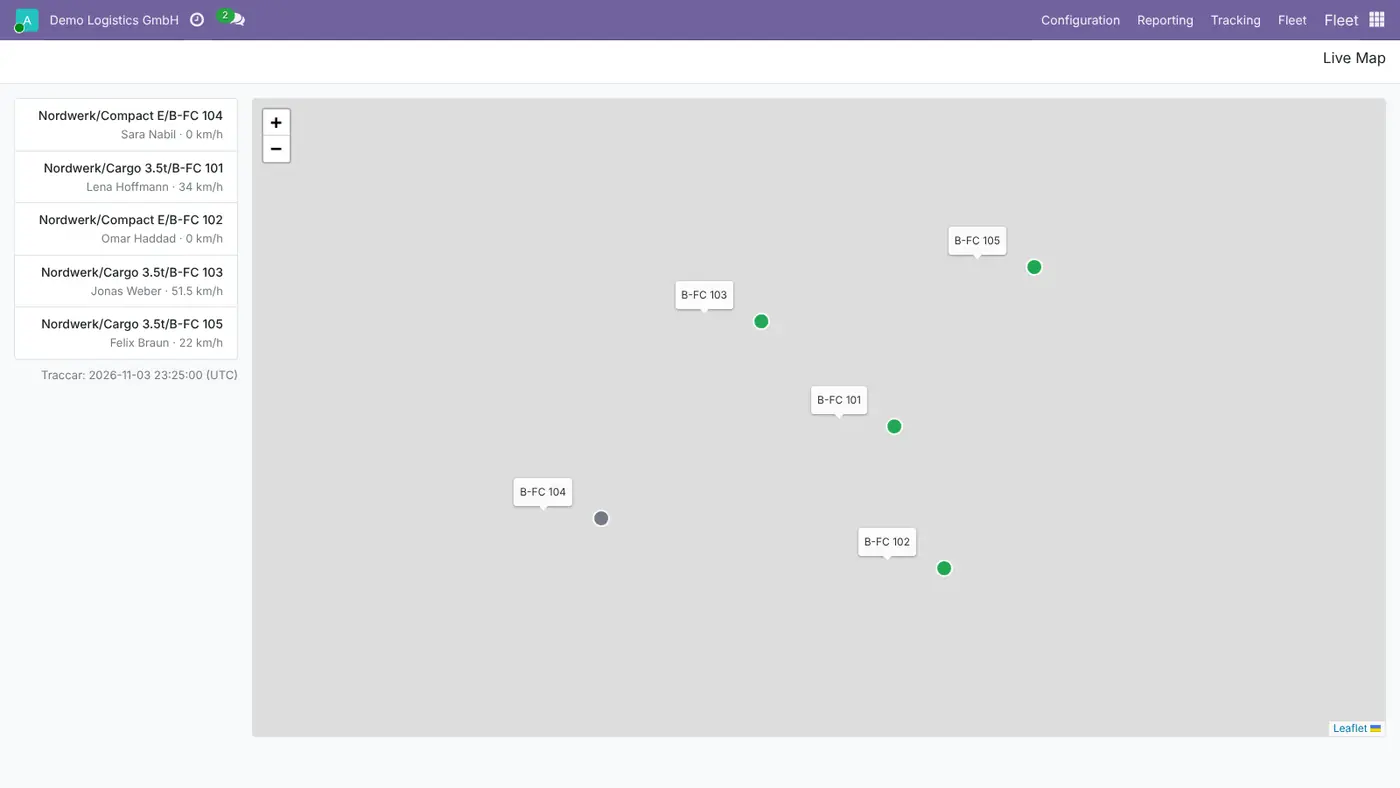
Live Map in Odoo Fleet with five vehicles as green and grey dots and a list of drivers and speeds
The live map shows every tracked vehicle with its status, next to a list with driver and speed.
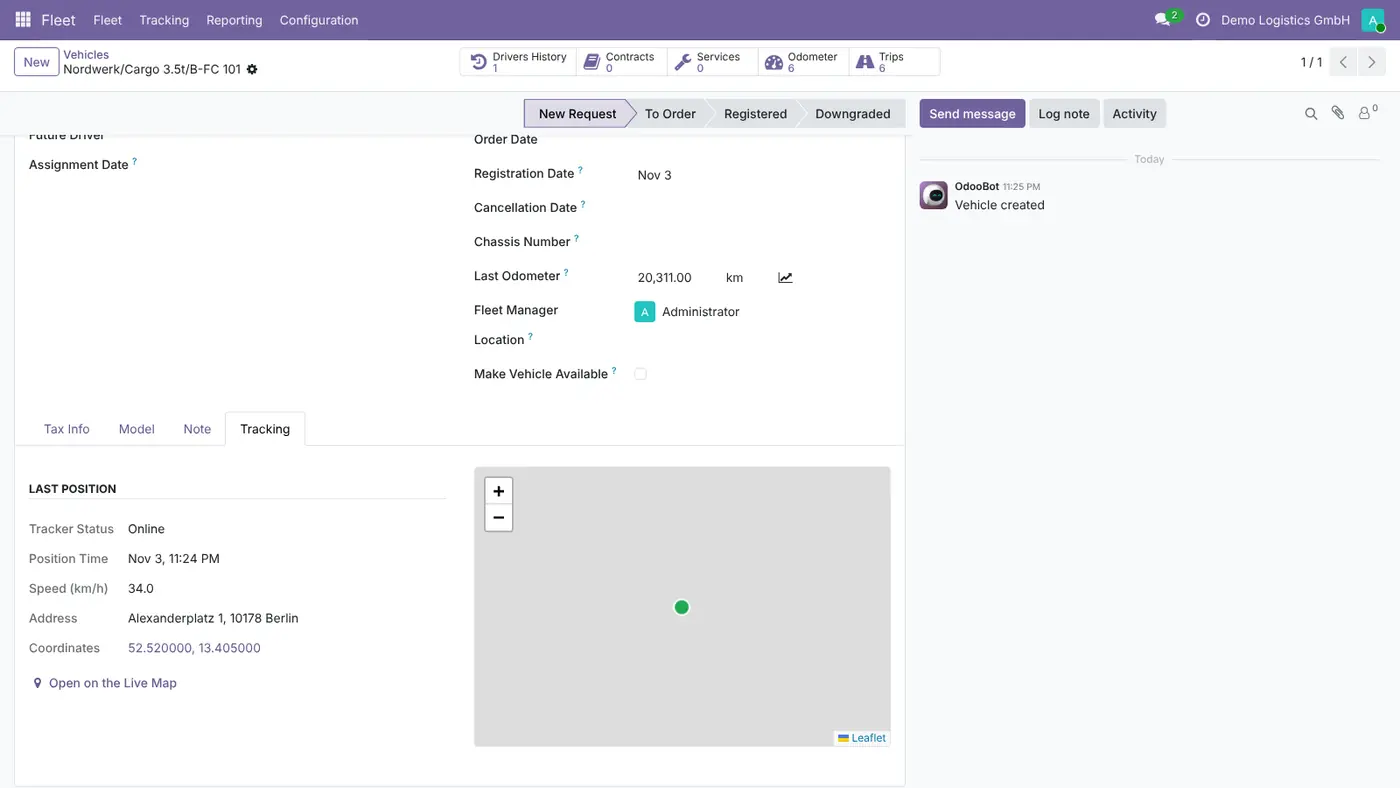
Vehicle form, Tracking tab: tracker online, position time, speed, Berlin address, coordinates and a small map
The vehicle's Tracking tab shows the last position read from Traccar, with a link to the live map.
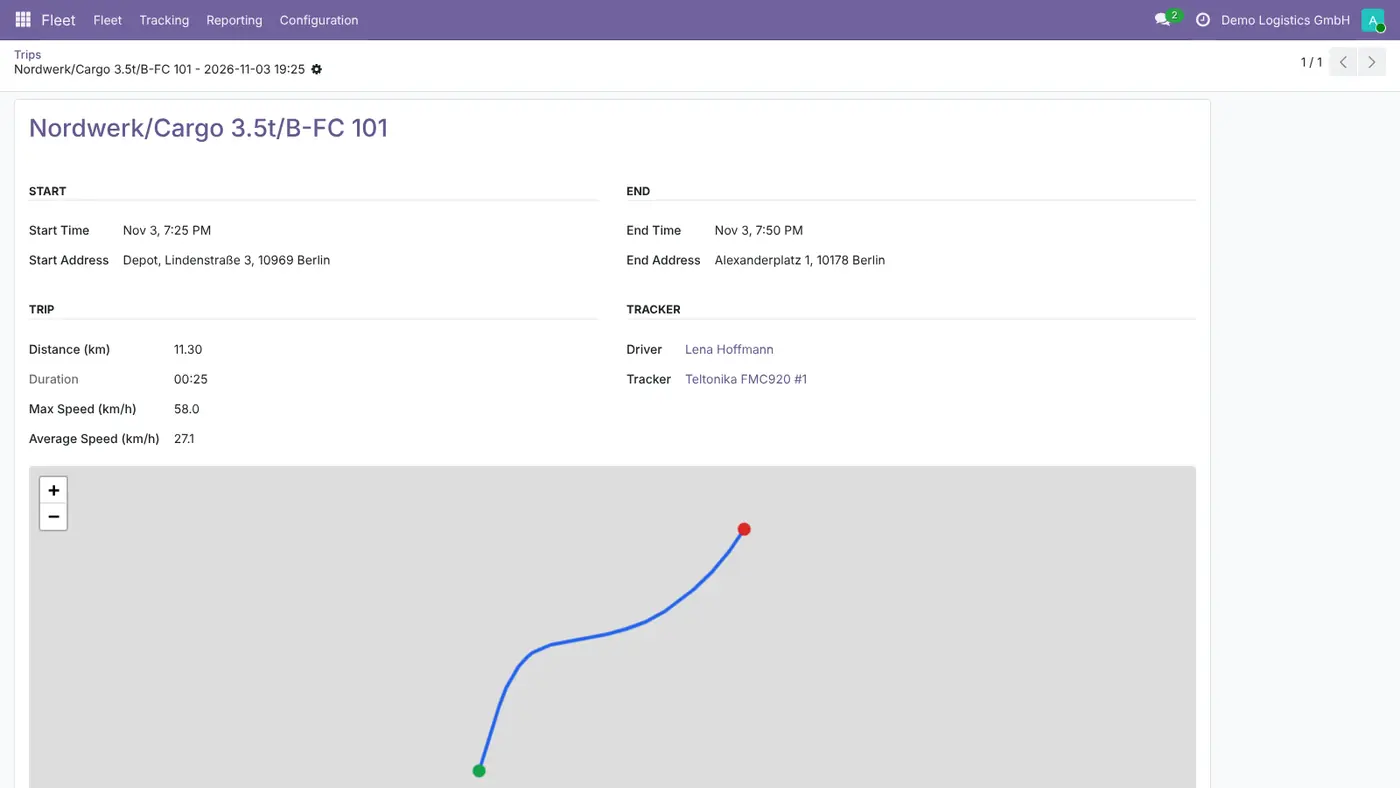
Trip record with start and end address, 11.30 km distance, speeds, driver, tracker and the route on a map
Each trip arrives with distance, duration, speeds, driver and its route on a map.
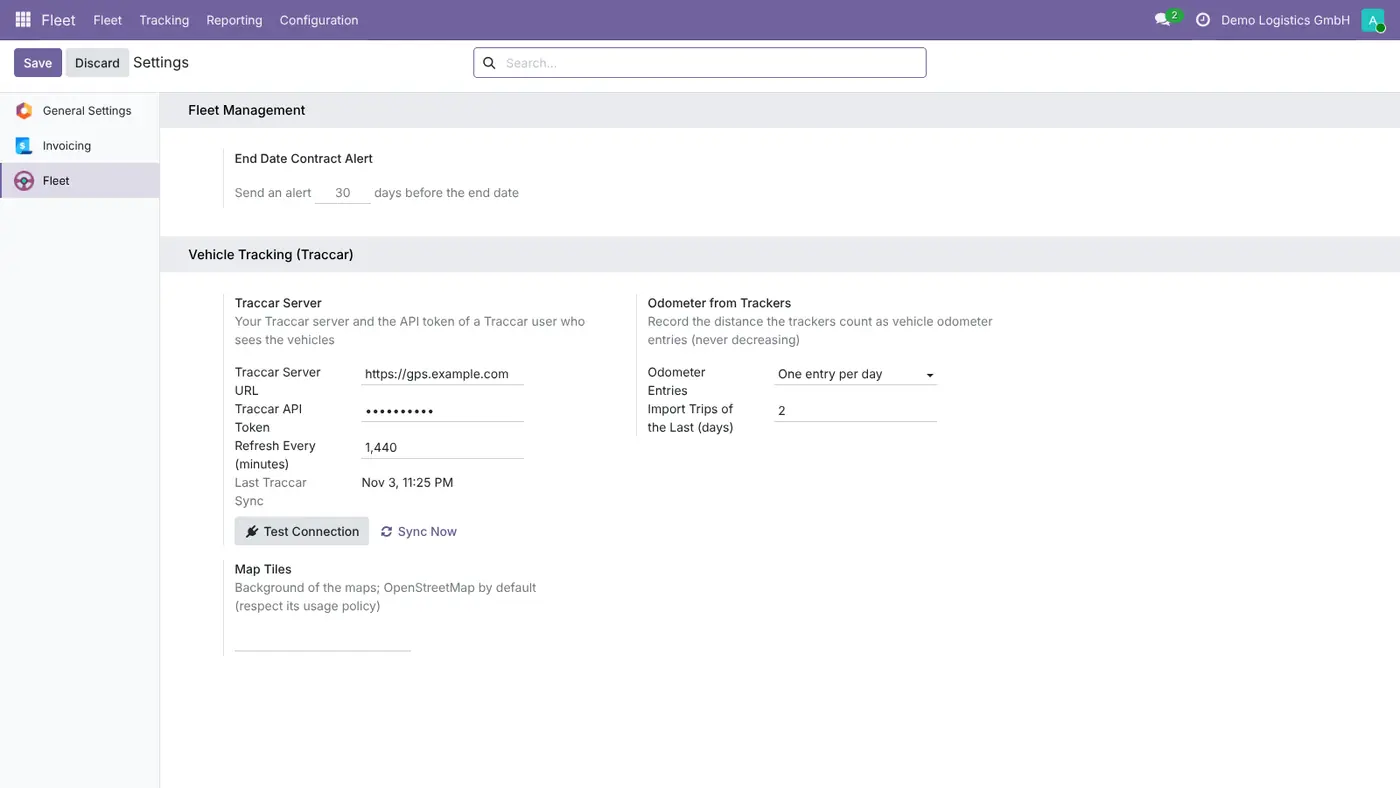
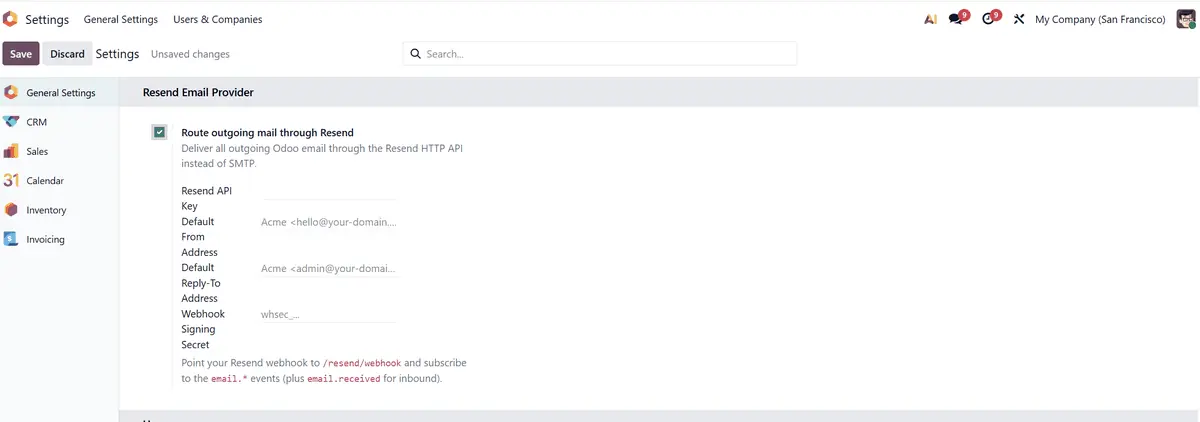
Fleet settings, Vehicle Tracking (Traccar): server URL, API token, refresh interval, odometer rule and map tiles
The Traccar connection, odometer rule and map tiles are set in the Fleet settings, per company.

What it does

Live map and last position

  • See every tracked vehicle of the company on one map, refreshed every 30 seconds, green when online and grey when offline.
  • See the vehicles beside the map with driver and speed; a click opens the vehicle form.
  • Read the last position on the vehicle's Tracking tab: tracker status, position time, speed, address and coordinates on a small map, with a link to OpenStreetMap.

Trips, replay and reports

  • Import trips every hour from Traccar with start and end, distance, duration, top and average speed and the route on a map. A trip is never imported twice.
  • Replay a trip or a vehicle over a period with play, x4, x16 and a time slider.
  • Analyse usage and events per vehicle, driver and day, and print a Trip Log per vehicle for a period.

Geofences, speed and idling

  • Draw circles and polygons on a map in Odoo. Odoo writes them to Traccar and links them to the vehicles they apply to.
  • Set a speed limit per vehicle or per company; it is written to the Traccar device.
  • Detect idling from stops with the engine running.
  • Alert the fleet manager on enter, exit, over-speed and idling events, as you choose.

Drivers and privacy

  • Use a driver's phone with the free Traccar Client app as a tracker. A driver phone travelling with a vehicle sets the driver of the trip.
  • Track during working hours only, per company or per vehicle. Outside them Odoo imports nothing and shows Private time instead of a position.
  • Fleet Administrators see everything, Fleet Officers the vehicles they manage, drivers only their own vehicle and trips.

Odometer

  • Record the distance the trackers count as odometer entries, once a day or every N km.
  • A new entry is only written when it is higher than the highest one, so the odometer never goes down.
  • Set an odometer offset when a tracker started counting from zero.

Who it is for

A good fit for

  • Companies that manage their vehicles in Odoo Fleet and want GPS positions there too.
  • Teams that already run a Traccar server, or are willing to host one.
  • Fleet managers who need trip logs, odometer entries and speed or geofence alerts without a separate portal.
  • Companies that want tracking limited to working hours and to the people who need it.

Not a fit for

  • Replacing the Traccar server: Odoo reads Traccar and does not receive GPS data itself.
  • Sending SMS.
  • Apple AirTags or other Bluetooth tags, which do not report to a server.
  • Databases on Odoo Online (SaaS), which cannot install third-party apps.

Install

Requires: Fleet (fleet), Discuss (mail)

  1. Download Fleet Tracking (Traccar) free of charge from the Odoo Apps Store for Odoo 19.0.
  2. Add the module to your Odoo.sh project or to the addons path of your on-premise server.
  3. Update the apps list in Odoo and install Fleet Tracking (Traccar). Fleet is installed with it if it is missing.

Odoo Online (SaaS) does not allow third-party apps, so the app cannot be installed there. Use Odoo.sh or an on-premise Odoo 19 database, Community or Enterprise.

Questions: info@flexcodesys.com.

Configure

  1. Run a Traccar server, self-hosted with Docker or Coolify (the module's doc/traccar_setup.rst has a ready docker-compose file), or use one you already have.
  2. Add the devices in Traccar. GPS trackers send to the port of their protocol (Teltonika 5027, GT06/Concox 5023); the Traccar Client phone app sends to port 5055.
  3. In Fleet, Configuration, Settings, Vehicle Tracking (Traccar), enter the server URL and the API token of a Traccar user, then click Test Connection and Sync Now.
  4. In Fleet, Tracking, Trackers, open each tracker and choose its vehicle. A driver's phone is a Driver phone with its driver and no vehicle.
  5. In the same settings, set the default speed limit, the idle threshold, the events that alert the fleet manager and whether vehicles are tracked during working hours only.
  6. In Fleet, Tracking, Geofences, click the map to place a circle and drag its radius, or click the corners of a polygon.
SettingWhat it does
Traccar Server URL and API TokenYour Traccar server and the token of a Traccar user who sees the vehicles (Traccar: Settings, Preferences, Token). Per company.
Refresh Every (minutes)How often the scheduled action reads Traccar; 5 minutes by default.
Odometer EntriesOne entry per day or every N km, never decreasing.
Import Trips of the Last (days)How far back trips are imported from Traccar.
Map TilesBackground of the maps; OpenStreetMap by default, or your own tile server.
Speed limit, idle threshold and alertsDefault speed limit (each vehicle can have its own), idle threshold and which events alert the fleet manager.
Track During Working Hours OnlyPer company or vehicle; outside working hours Odoo imports nothing.

How to use it

Watch the fleet

  1. Open Fleet, Tracking, Live Map to see every tracked vehicle of the company.
  2. Click a vehicle to open its form and see the last position on the Tracking tab.

Review trips

  1. Open Fleet, Tracking, Trips, or the Trips button on a vehicle.
  2. Open a trip to see its route, distance, duration and speeds, and replay it.
  3. To replay a vehicle over a period, use Fleet, Tracking, Replay.

Read the reports

  1. Open Fleet, Tracking, Reports, Usage Analysis or Events Analysis to group by vehicle, driver and day.
  2. Print the Trip Log to get the logbook of a vehicle for a period.

Limits

  • A Traccar server is required. Odoo reads it through its REST API and does not receive GPS data itself.
  • The app sends no SMS.
  • Apple AirTags and other Bluetooth tags do not work.
  • With working-hours tracking, Traccar itself still receives the positions of hardware trackers; only Odoo imports nothing.
  • It cannot be installed on Odoo Online (SaaS).

FAQ

Do I need a Traccar server?

Yes. Traccar is the free, open source GPS tracking server that receives the positions of the devices, and this app reads it through its REST API. You can run it yourself with Docker or Coolify, using the ready docker-compose file in the module's documentation, or use a hosted Traccar.

Can a driver's phone be the tracker?

Yes. Install the free Traccar Client app on Android or iPhone, point it to your Traccar server on port 5055, and the phone appears as a tracker in Odoo.

How often are positions updated?

The scheduled action reads Traccar every 5 minutes by default. The live map refreshes itself every 30 seconds and reads Traccar again once the interval is over. Trips are imported every hour.

Which trackers work?

Every device Traccar supports, for example Teltonika, GT06/Concox, Queclink and Coban, plus the free Traccar Client app on Android and iPhone. Apple AirTags and other Bluetooth tags do not work.

What about the privacy of the drivers?

Tracking people is personal data. Inform the drivers in writing, get their consent where the law asks for it, and give access only to those who need it. Fleet Officers see only the vehicles they manage and drivers only their own vehicle. With Track During Working Hours Only, Odoo imports nothing outside working hours.

Need it set up or adapted?

We configure our apps for your process, train your team and build the extra pieces you need.