One customer, one contact and one history across all your companies
Cross-Company Contact Merge merges duplicate customers and vendors that exist once per company into one contact shared with every company. The wizard shows each contact's company, codes, balances and documents, suggests the one to keep and finds more duplicates. Invoices, journal items, payments, orders and messages move to the kept contact, which keeps each company's accounting settings.
In a multi-company database the same customer often exists once per company. Its invoices, payments and orders are split over several contacts, so nobody sees the full history or the total balance in one place. Odoo's own merge only handles contacts you can see and keeps the destination's company, so the duplicates stay.
Screenshots
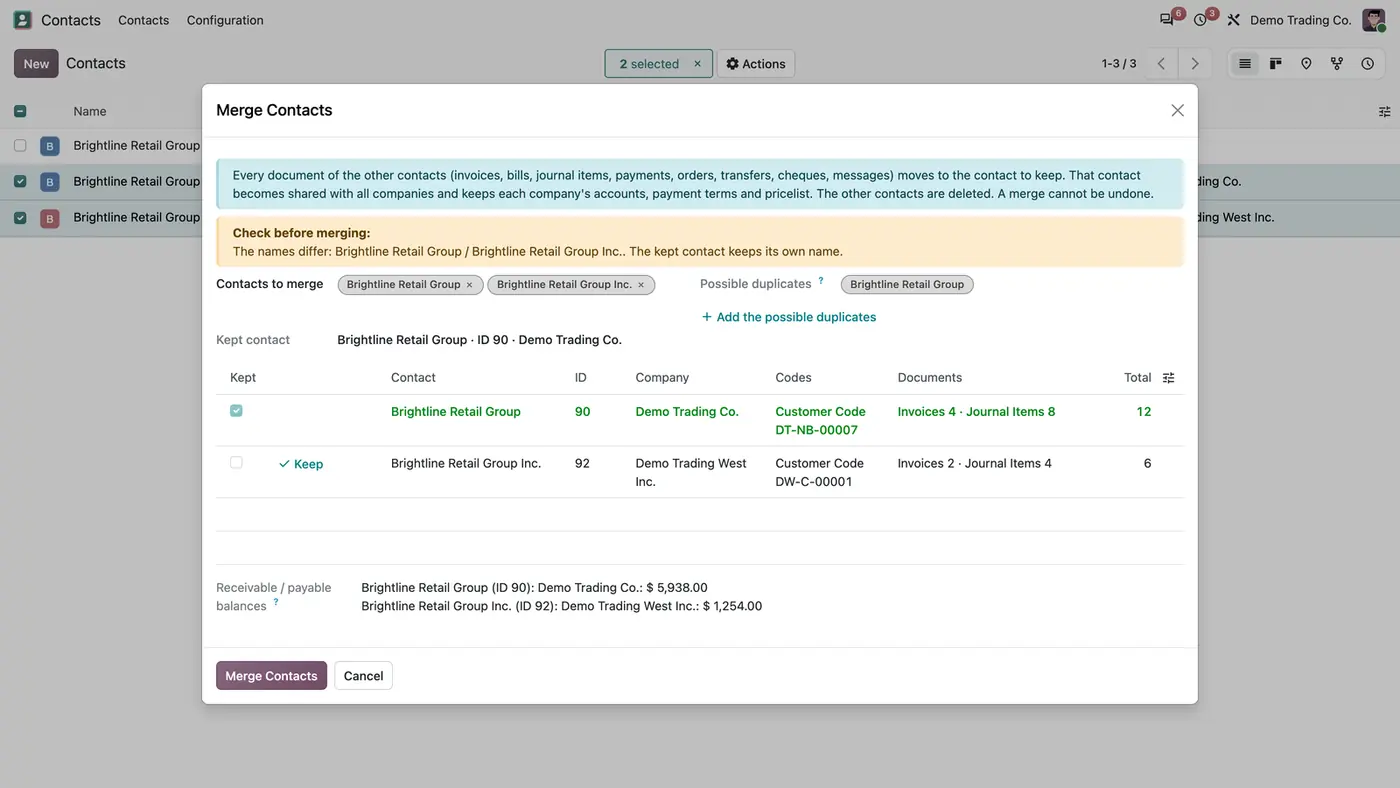
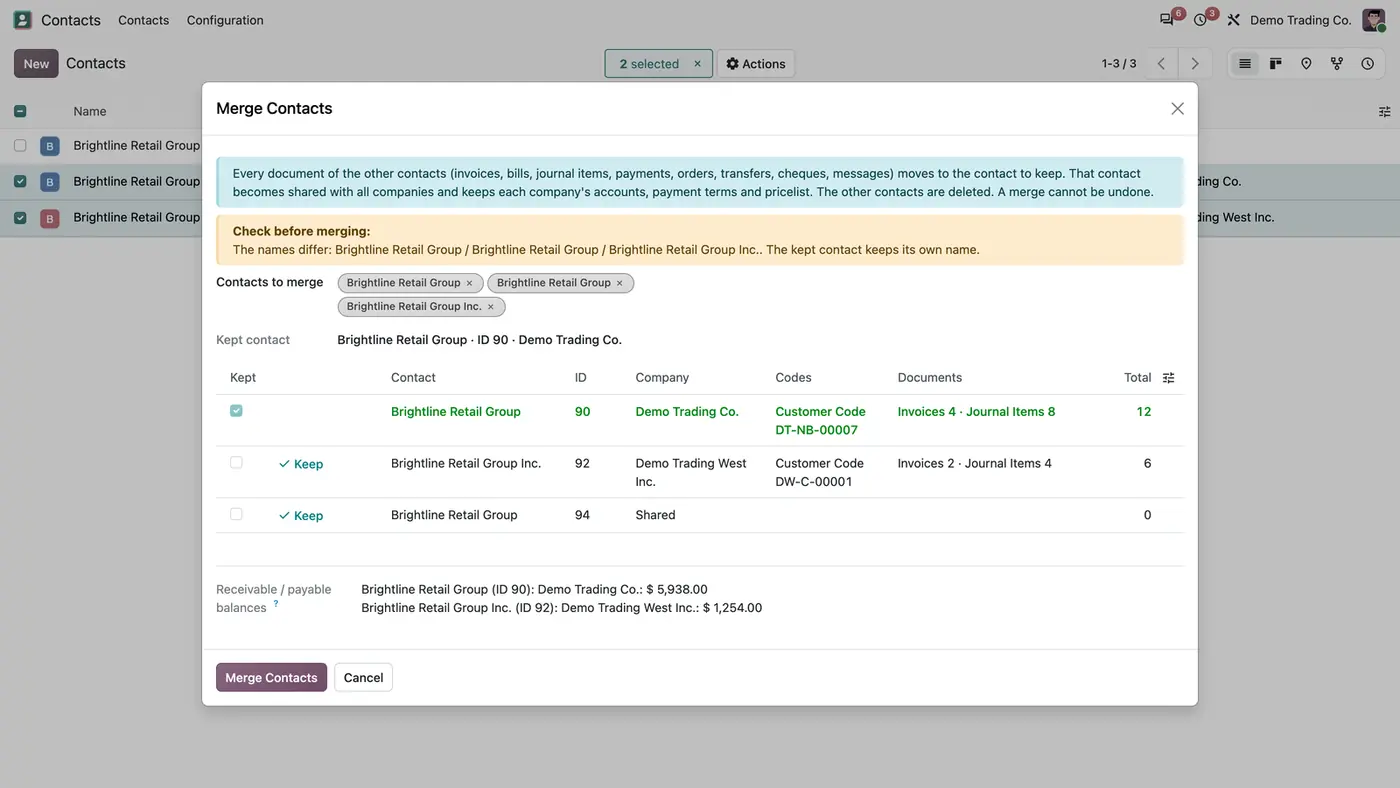
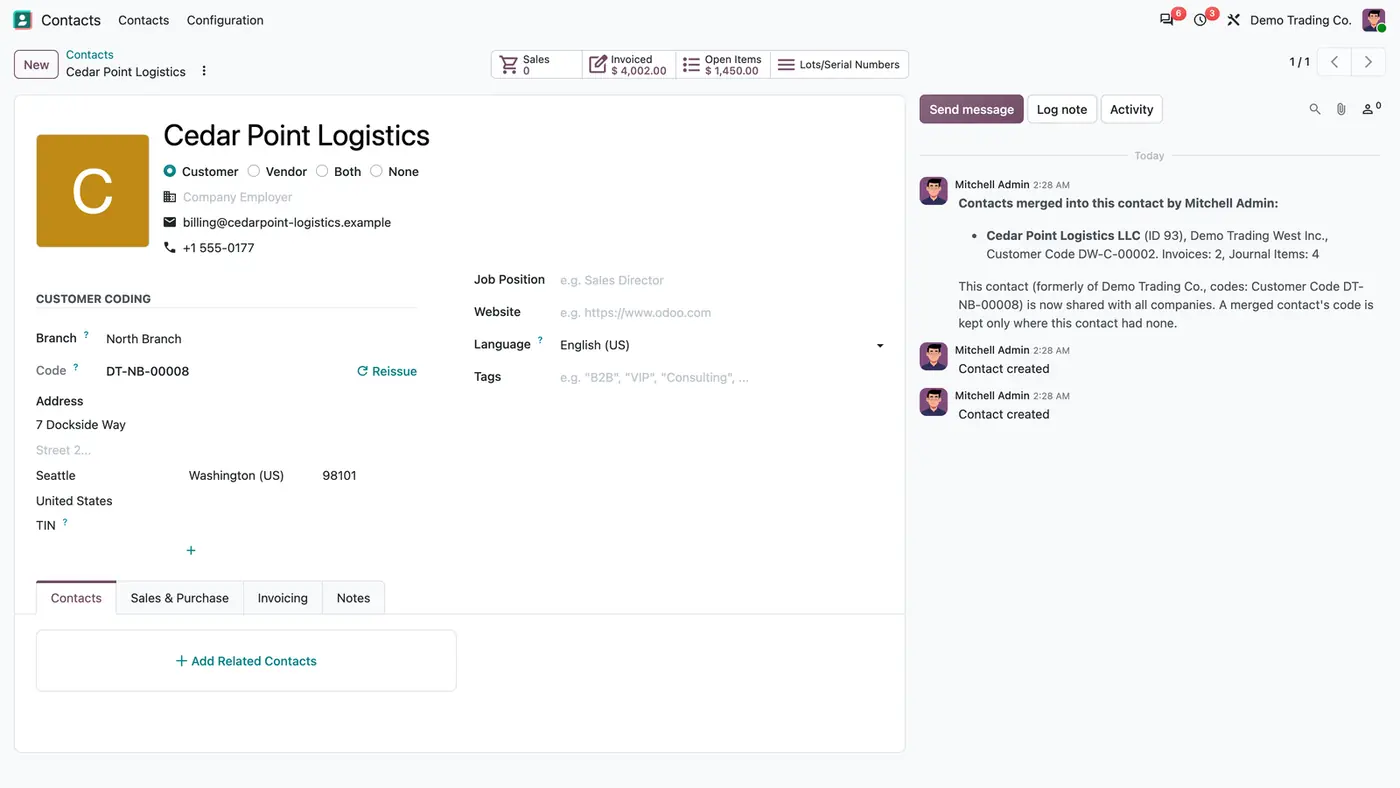
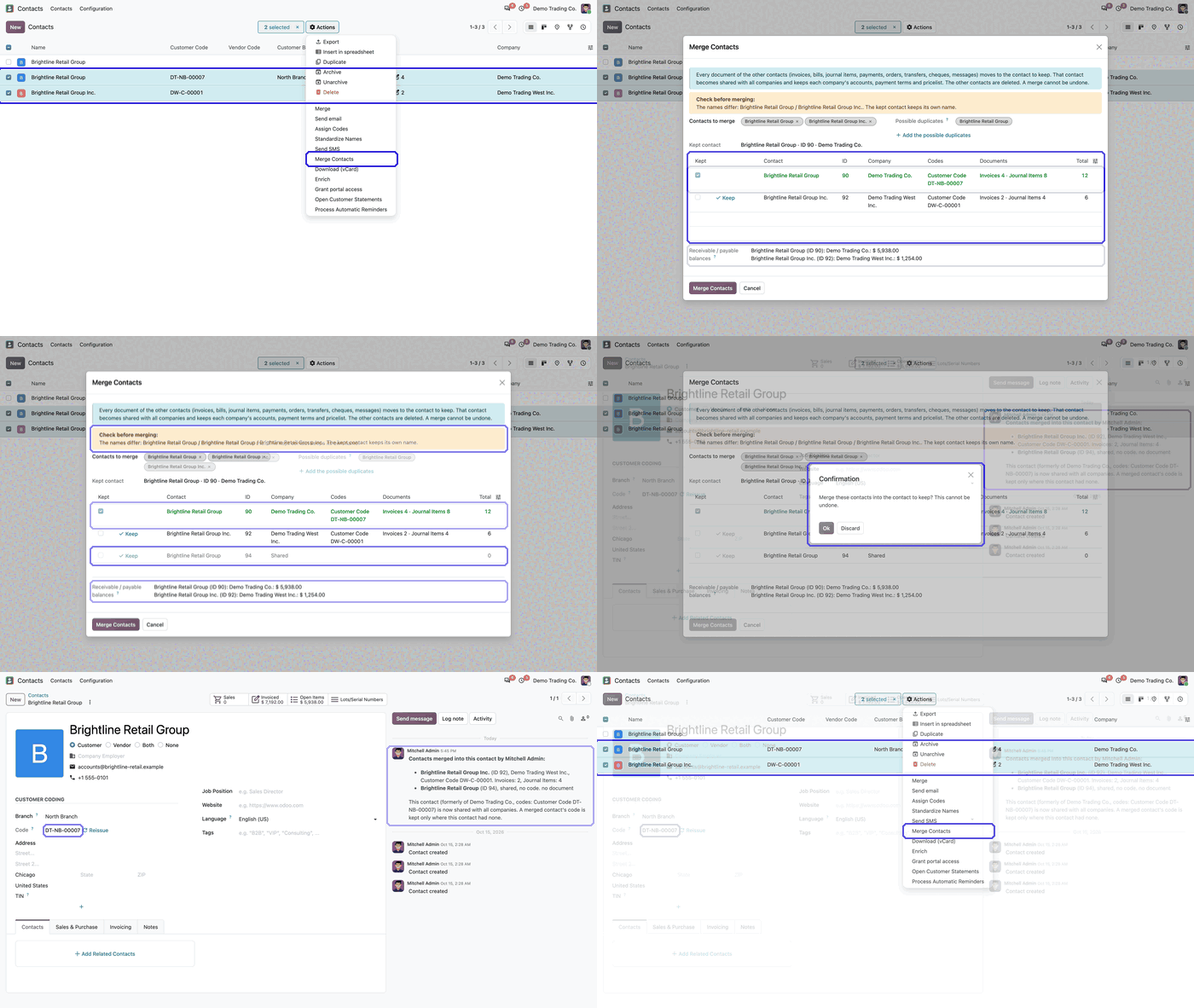
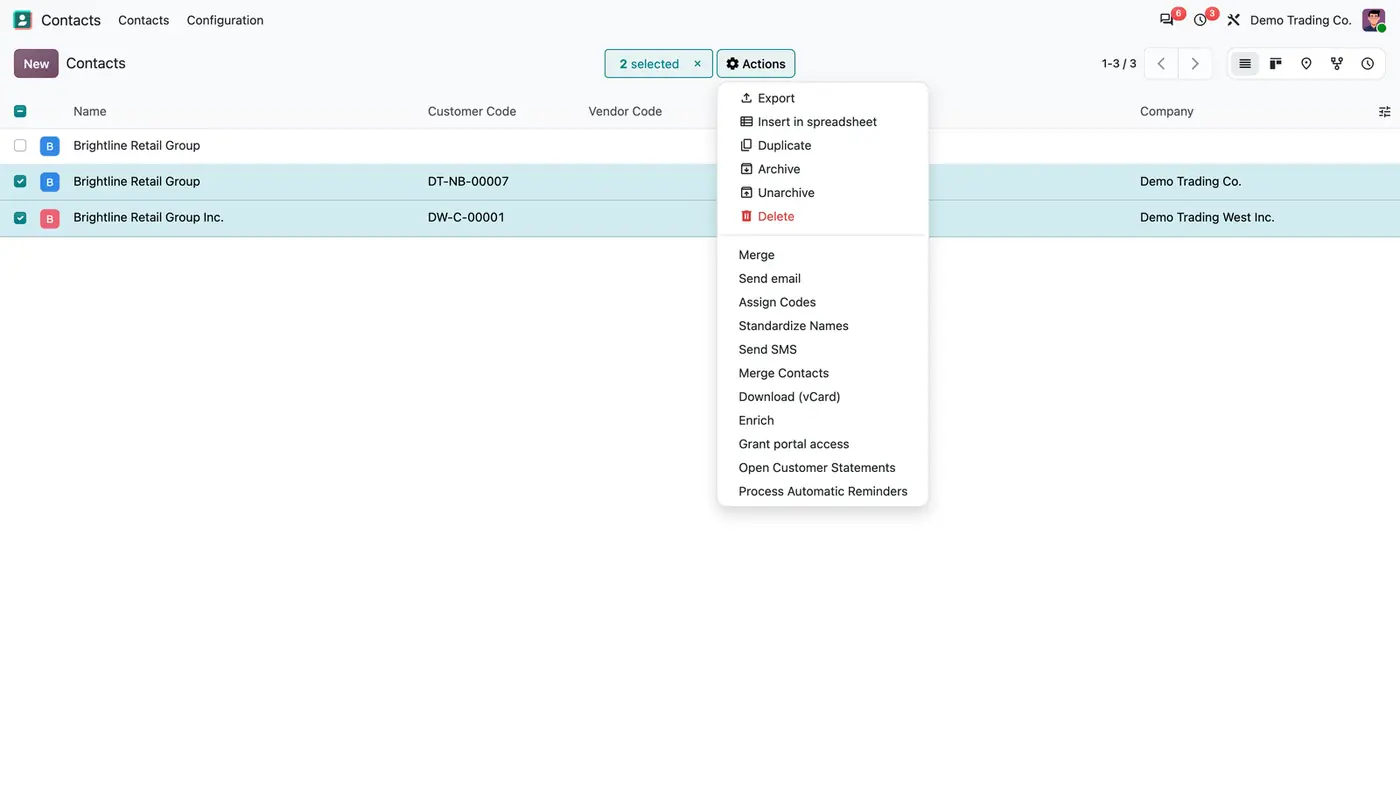
Select the duplicates in Contacts and start the merge from the Actions menu.The wizard compares the contacts and suggests the one with the most documents to keep.Possible duplicates from any company are added, and differences are flagged before the merge.After the merge, one contact is shared with every company and the chatter records what was merged. Play demoThe merge flow from contact list to wizard in a short animation.
What it does
Find the duplicates
Select the duplicates in Contacts and open Actions > Merge Contacts.
Let the wizard find more possible duplicates in any company by name, phone, tax ID or e-mail.
Arabic name forms are folded, so different spellings of the same name are found.
Merge any number of contacts at once.
Compare before you merge
See each contact with its company, codes, documents and total before anything changes.
See the receivable and payable balance per company.
Get a suggested contact to keep: the one with the most documents, or the oldest on a tie. Click Keep on another line to keep that one instead.
Read the warnings first, for example when the names differ.
Move every document
Move invoices, bills, journal items, payments, orders, transfers, cheques and messages to the kept contact.
Move bank accounts and the linked user as well.
Make the kept contact shared with every company, while it keeps each company's accounts, payment terms and pricelist.
Record the merged contacts and their codes in the chatter of the kept contact.
Safety checks
Refuse a merge that would break a hashed journal, unless the affected contact is the one you keep.
Refuse a contact together with its parent company, the contact of one of your own companies, and two contacts that each have a user.
Block contacts with different tax IDs until you confirm they are the same entity.
Allow merges only for users with the Contact Merge right.
Who it is for
A good fit for
Multi-company Odoo databases where customers or vendors were created once per company.
Accounting teams that want one balance and one history per customer across companies.
Administrators who clean up master data before or after merging companies into one database.
Not a fit for
Automatic or background deduplication: every merge is started and confirmed by a user.
Teams that need to undo a merge: the merged contacts are deleted and a merge cannot be undone.
Databases on Odoo Online (SaaS), which cannot install third-party apps.
Buy Cross-Company Contact Merge on the Odoo Apps Store for your Odoo version (18.0, 19.0 or 20.0).
Add the module to your Odoo.sh project or to the addons path of your on-premise server.
Update the apps list in Odoo and install Cross-Company Contact Merge. Contacts and Invoicing are installed with it if they are missing.
Odoo Online (SaaS) does not allow third-party apps, so the module cannot be installed there. Use Odoo.sh or an on-premise Odoo 18, 19 or 20 database, Community or Enterprise.
Every purchase includes 90 days of free support from FlexCode Systems.
Configure
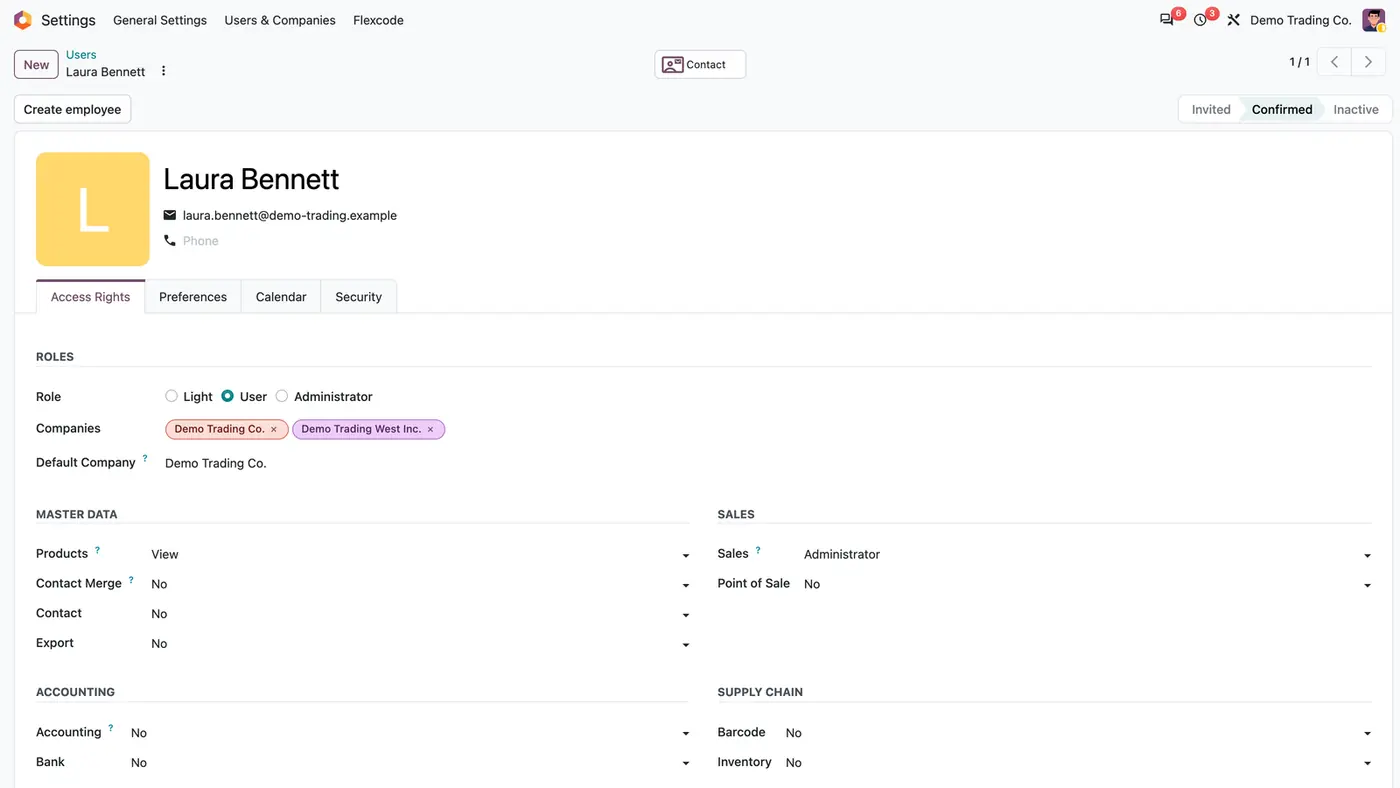
Go to Settings > Users & Companies > Users, open a user and grant Contact Merge under Master Data. Settings administrators already have it, because a merge cannot be undone.
No further setup is needed. The Merge Contacts action appears in the Actions menu of the contact list.
Setting
What it does
Contact Merge
The user right that allows running a merge. Settings administrators have it by default.
How to use it
Merge duplicates across companies
In Contacts, select the duplicate contacts and open Actions > Merge Contacts.
Press Add the possible duplicates to bring in matching contacts from other companies.
Check the list, the balances and the warnings. Click Keep on another line if a different contact should stay.
Press Merge Contacts. If the tax IDs differ, tick the confirmation that the contacts are the same entity first.
Check the result
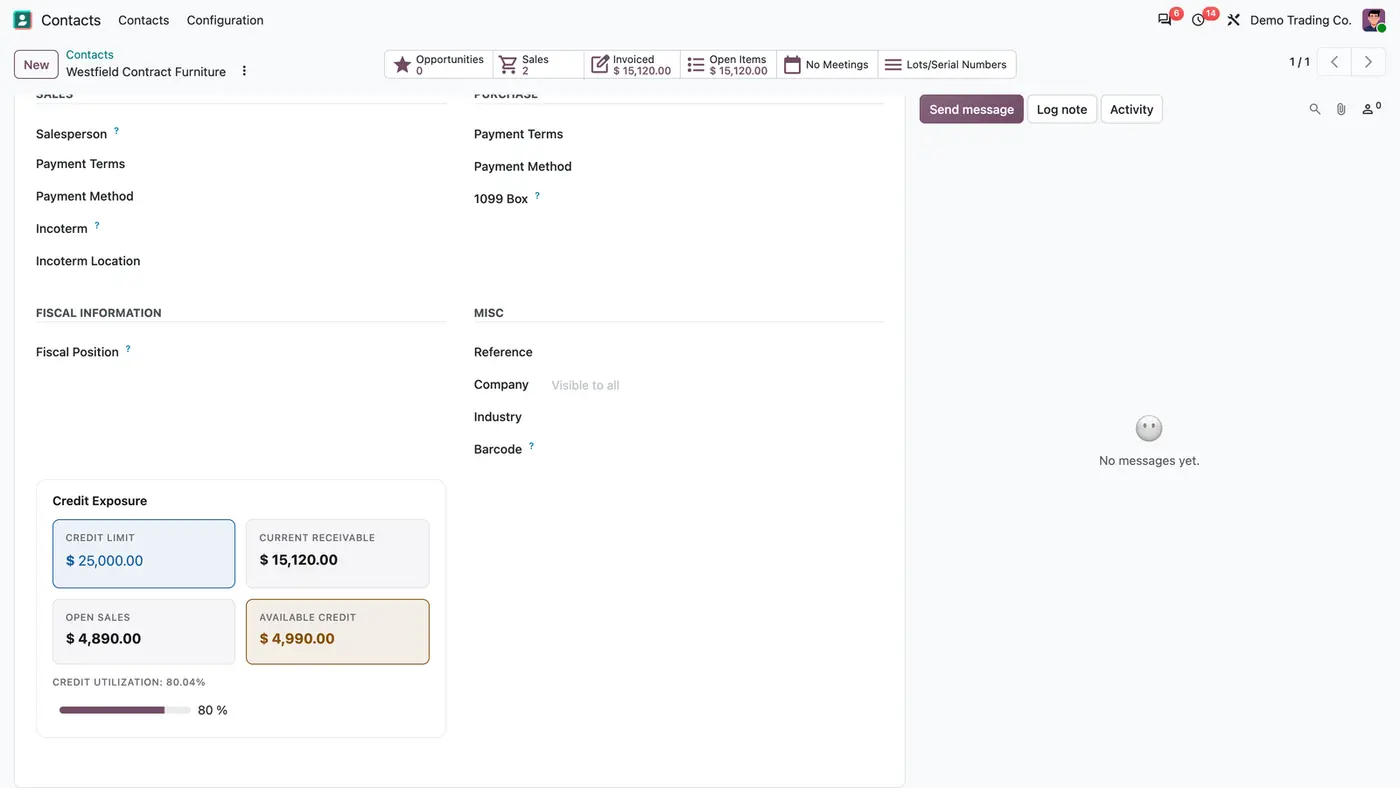
Open the kept contact. It is now shared with every company.
The Invoiced and Open Items buttons count the documents of all merged contacts.
The chatter lists each merged contact with its ID, company, code and document counts.
Limits
A merge cannot be undone. The merged contacts are deleted.
Merges run only when a user starts and confirms them.
Some merges are refused: a contact with its parent company, the contact of one of your companies, two contacts that each have a user, and contacts with entries in a hashed journal unless they are the kept contact.
It cannot be installed on Odoo Online (SaaS).
FAQ
How is this different from Odoo's own Merge Contacts?
Odoo's merge handles up to three contacts that you can see and keeps the destination's company. This wizard reads all companies, merges any number of contacts, makes the result shared with every company, keeps each company's accounting properties, shows balances and documents per contact, and refuses merges that would break a hashed journal.
Can a merge be undone?
No. As with Odoo's own merge, the merged contacts are deleted. That is why only users with the Contact Merge right can run it and the wizard lists everything first.
What if the tax IDs differ?
The merge is blocked until you tick the confirmation that the contacts are the same entity.
Which contact is kept?
The wizard suggests the one with the most documents, and on a tie the oldest. Click Keep on another line to keep that one instead.
Which Odoo versions are supported?
Odoo 18, 19 and 20, Community and Enterprise, on Odoo.sh or on-premise. It has been tested in multi-company databases.