Product data from Akeneo in Odoo, without copy and paste
Akeneo PIM Connector reads Akeneo through its REST API and keeps Odoo products in line with it. Product models become products with variants, mapped attributes fill the Odoo fields you choose, and each linked Akeneo locale arrives as a translation. Changes come in on a schedule or at once through signed Akeneo events.
When product data lives in Akeneo, someone copies names, barcodes, weights, descriptions and prices into Odoo by hand, and again for every language. Variants are built twice, once in the PIM and once in Odoo, and they drift apart. After a few weeks nobody knows whether the product in Odoo still matches the one the marketing team maintains in Akeneo.
Screenshots
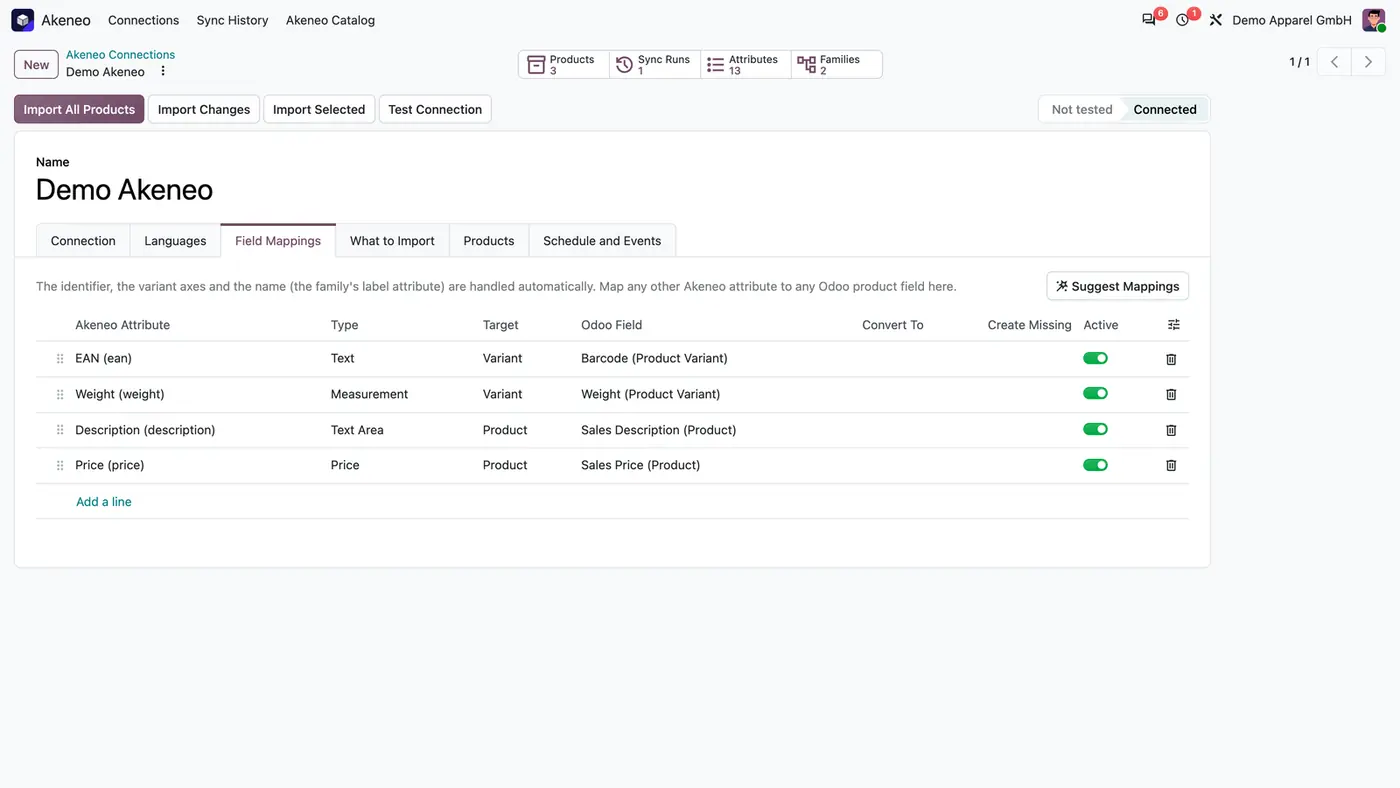
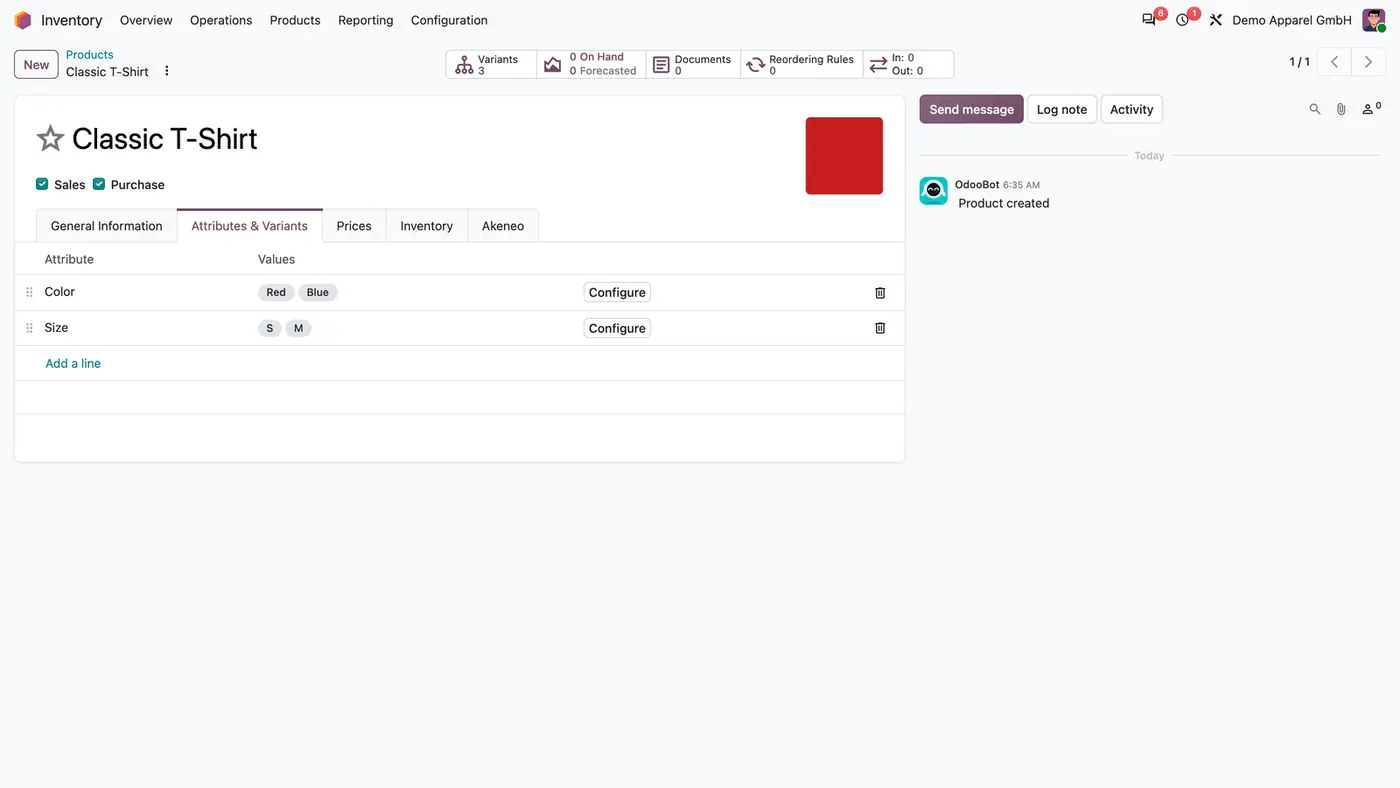
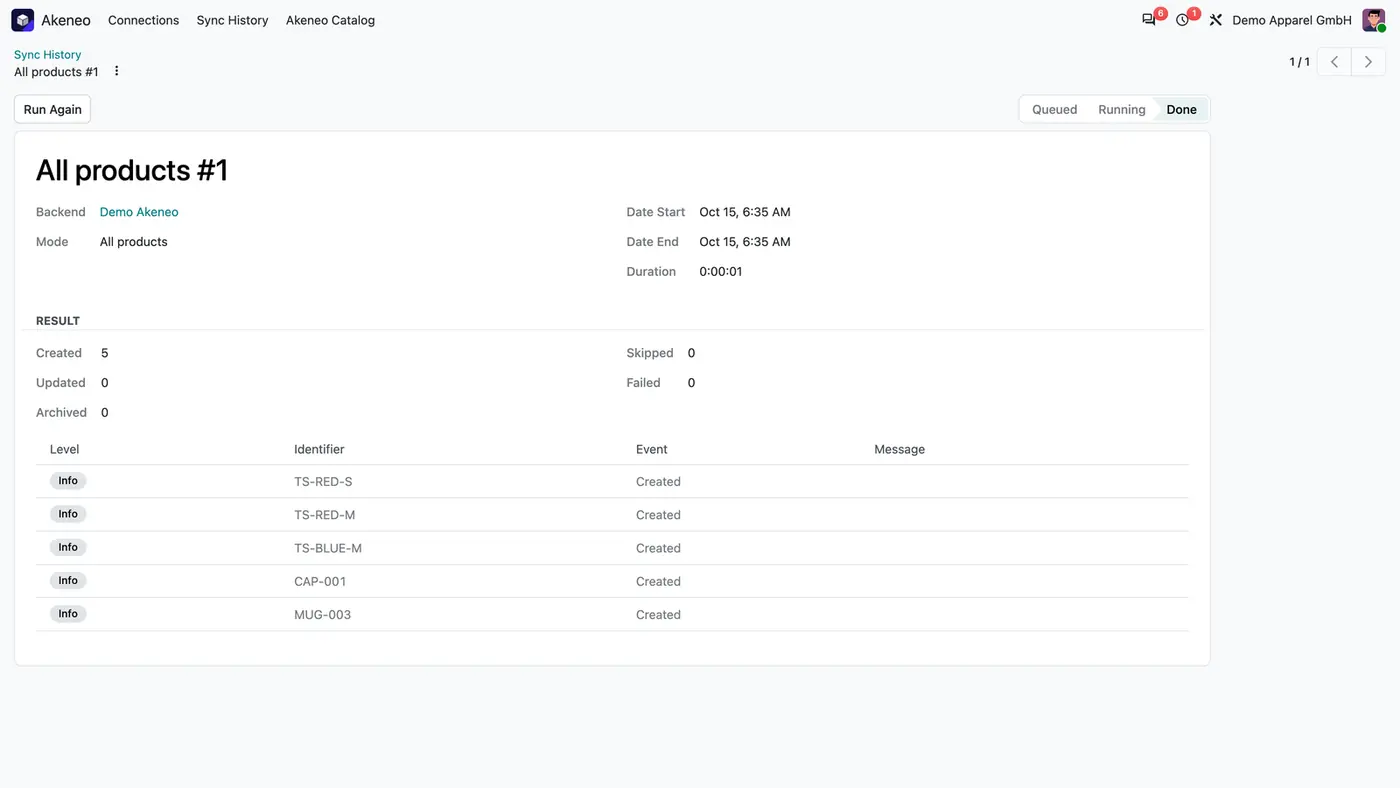
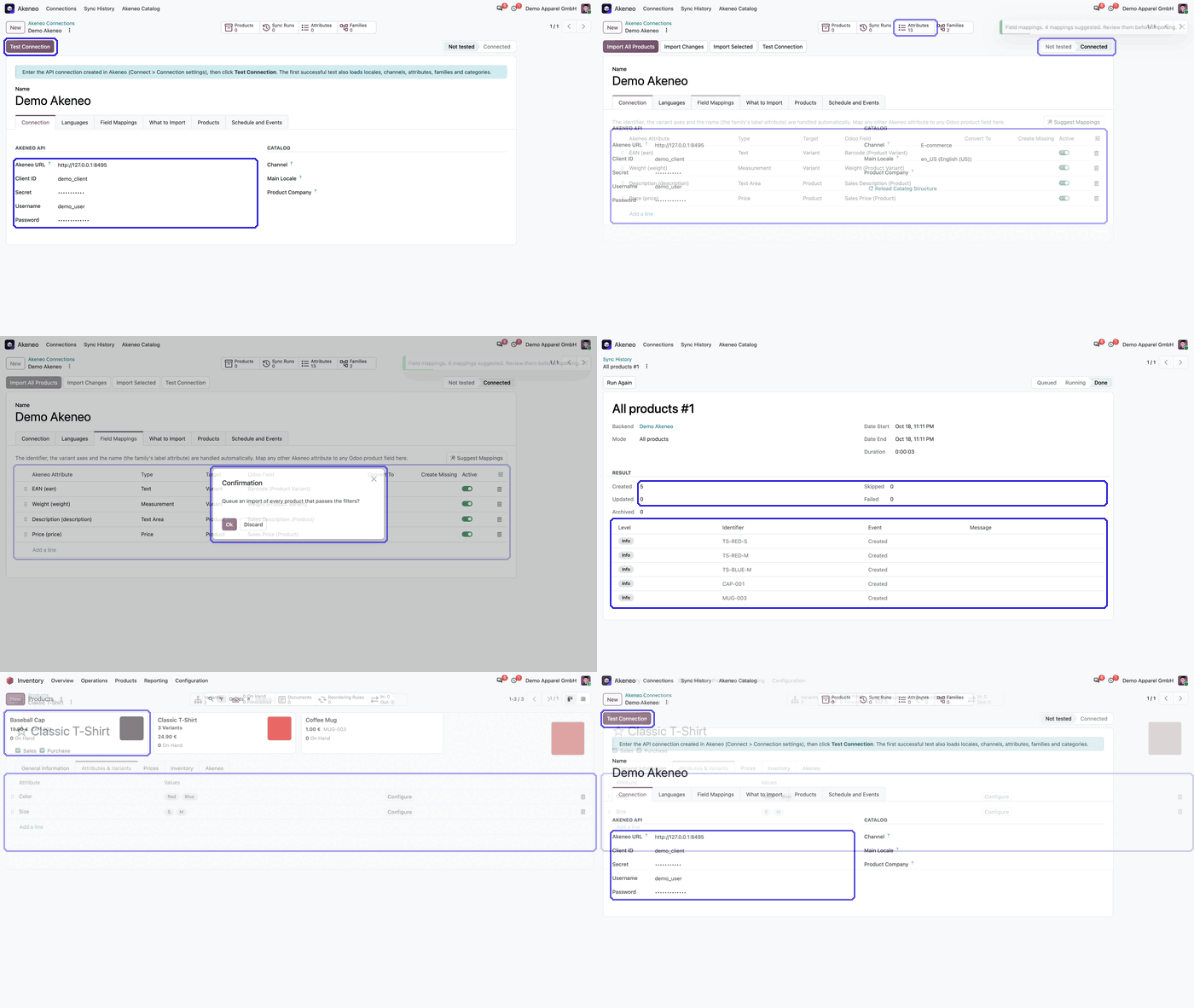
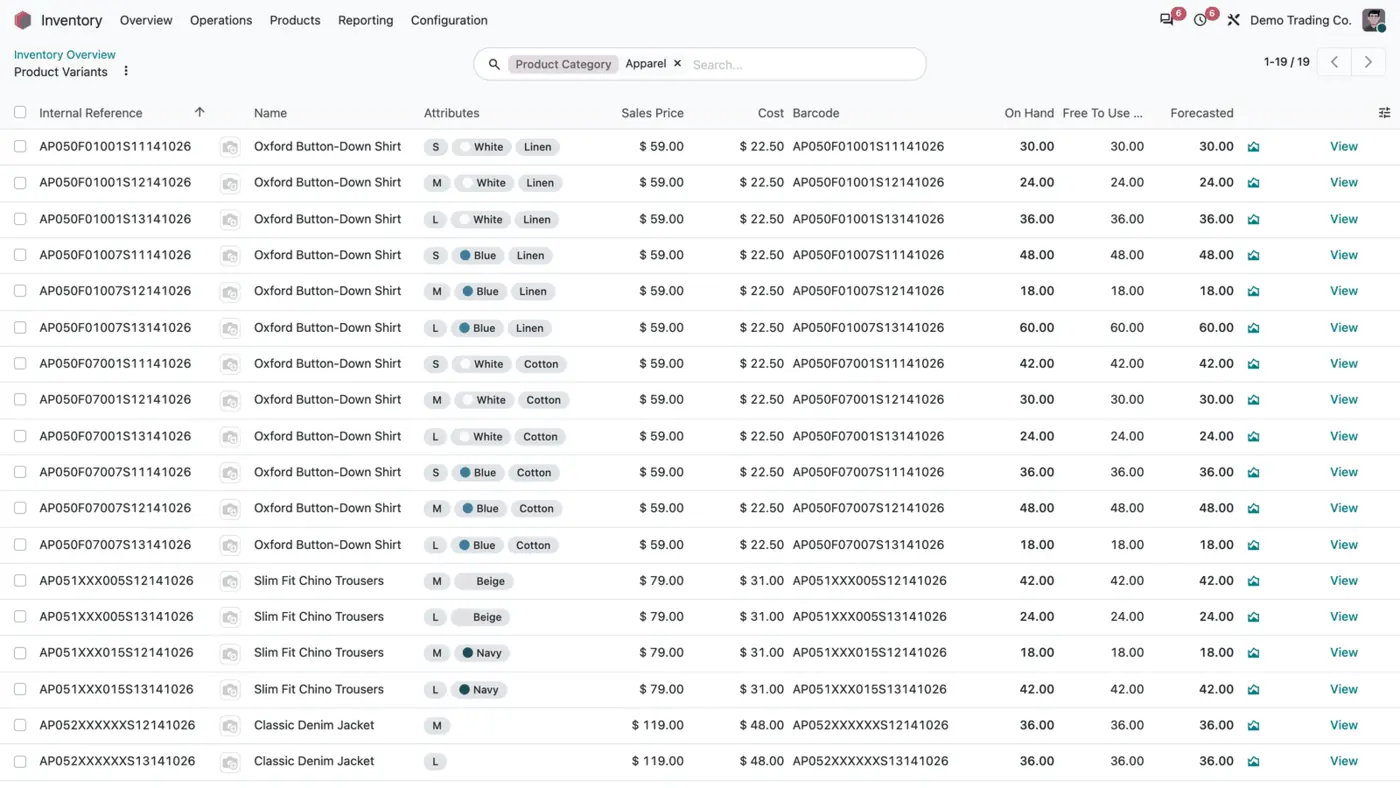
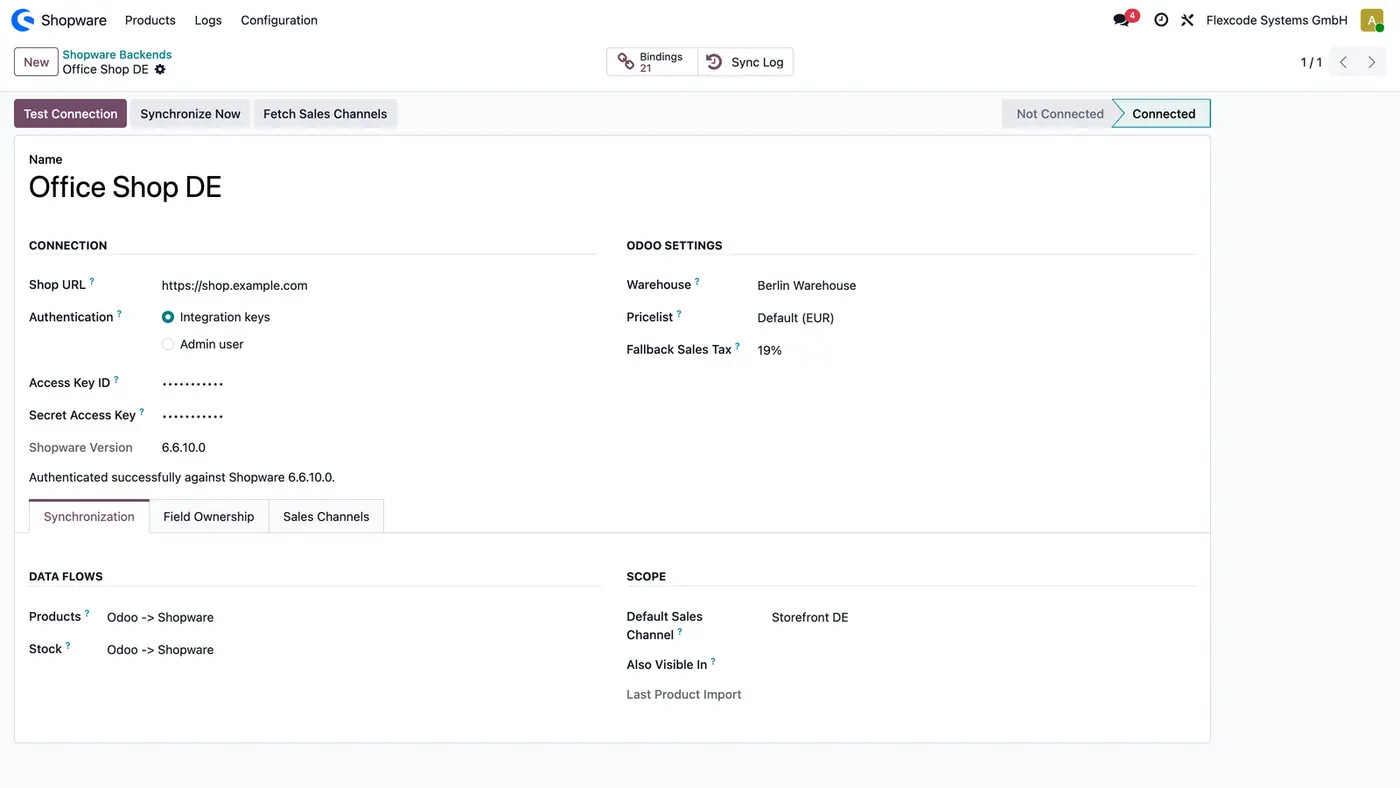
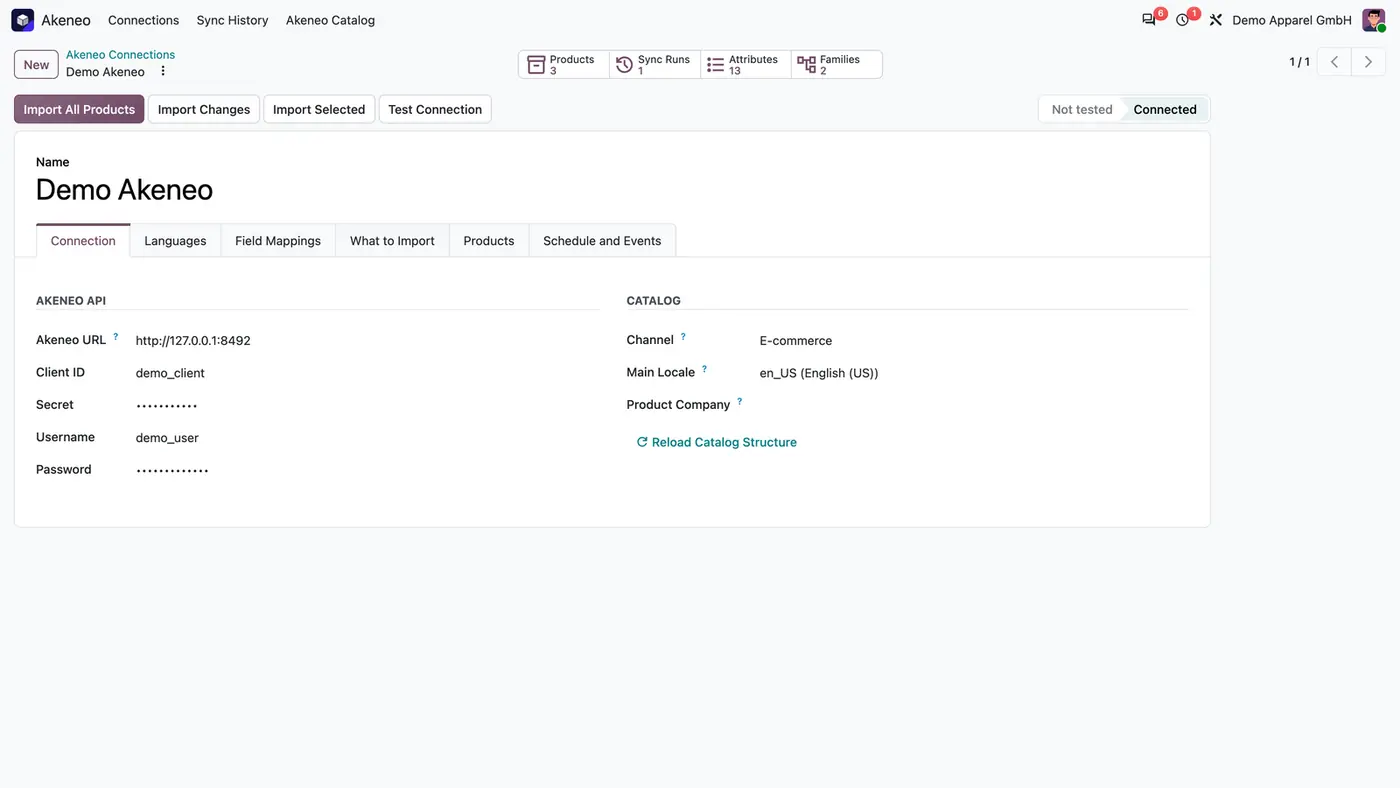
One connection holds the Akeneo API credentials, the channel and the main locale, with the import buttons in the header.Each mapping line sends an Akeneo attribute to the Odoo field you choose; Suggest Mappings proposed these four.An Akeneo product model became one Odoo product with three variants, built from its family variant axes.Every sync run is kept with its counters and one line per product, and can be repeated with Run Again. Play demoThe demo walks through connecting Odoo to Akeneo and testing the connection.
What it does
Import what you need
Import all products, only the products changed in Akeneo, or a selection of products, product models or families you list by code.
Update a single product from its Akeneo tab in Odoo with the Update from Akeneo button.
Run every import in the background and keep each run in the sync history.
Product models and variants
Turn an Akeneo product model and its variant products into one Odoo product with its variants.
Turn the family variant axes, on one or two levels, into Odoo variant attributes and values. Only the combinations that exist in Akeneo are created.
Import a product without a parent model as a product with one variant.
Use the family's label attribute as the product name, and link each variant by Internal Reference to the Akeneo product identifier.
Field mappings and translations
Send any Akeneo attribute to any product or variant field you choose, for example EAN to the variant barcode or weight in grams to the variant weight in kg.
Let Suggest Mappings propose lines from the attribute codes for barcode, weight, volume, description and price.
Link each Akeneo locale to an Odoo language. Names, descriptions, attribute values and categories arrive as translations.
Filters, categories and images
Limit the import by family, by category or by a yes/no flag attribute on the What to Import tab.
Choose whether disabled or deleted Akeneo products are ignored or archived in Odoo.
Use the Akeneo category tree, or one category per family, as product categories.
Take the main image from an image or asset attribute for products and variants.
Keeping products in line
Import changed products every 15 minutes with Scheduled Sync.
Add a signed Akeneo event subscription (webhook), so products and product models named in an event are queued at once.
See each run with its counters and one line per product. Problems are always logged; created and updated products too when Log Every Product is on.
Repeat an import with Run Again, or start a queued run with Run Now.
Who it is for
A good fit for
Companies that maintain product data in Akeneo PIM and run sales and stock in Odoo.
Teams that copy product names, barcodes and descriptions from Akeneo into Odoo by hand.
Businesses that sell in several languages and want Akeneo translations in Odoo.
Catalogues with product models and variants that must look the same in both systems.
Not a fit for
Writing data back to Akeneo: the connector only reads from the PIM.
Downloading images stored as external links in Akeneo assets.
Databases on Odoo Online (SaaS), which cannot install third-party apps.
Install
Requires: Inventory (stock), Discuss (mail)
Buy Akeneo PIM Connector on the Odoo Apps Store for your version: Odoo 18.0, 19.0 or 20.0.
Add the module to your Odoo.sh project or to the addons path of your on-premise server.
Update the apps list in Odoo and install Akeneo PIM Connector. Inventory is installed with it if it is missing.
Odoo Online (SaaS) does not allow third-party apps, so the connector cannot be installed there. Use Odoo.sh or an on-premise Odoo 18, 19 or 20 database, Community or Enterprise.
Every purchase includes 90 days of free support from FlexCode Systems.
Configure
Open Akeneo, Dashboard, then your connection. Enter the URL, client ID, secret, user and password of an Akeneo API connection and click Test Connection. The first successful test loads locales, channels, attributes, families and categories.
On the Languages tab, link each Akeneo locale to an Odoo language. Each linked locale is imported as a translation.
On the Field Mappings tab, click Suggest Mappings and add any other attribute you need.
To import only part of the catalogue, set the What to Import tab, then click Import All Products.
On the Schedule and Events tab, switch on Scheduled Sync, or add an Akeneo event subscription with the webhook URL and secret.
Setting
What it does
Akeneo URL, client ID, secret, username, password
The credentials of an Akeneo API connection. Secret and password are visible to administrators only.
Channel
The Akeneo channel whose values are imported.
Main locale
The main Akeneo locale of the connection.
Languages
Links Akeneo locales to Odoo languages for translations.
Field Mappings
One line per Akeneo attribute and the product or variant field it fills.
What to Import
Filters by family, category or yes/no attribute, and whether disabled products are ignored or archived.
Scheduled Sync
Imports changed products every 15 minutes.
Log Every Product
Also logs created and updated products in the sync history, not only problems.
How to use it
Run the first import
Test the connection so the catalogue structure is loaded.
Check the field mappings and the What to Import tab.
Click Import All Products. The run starts in the background and appears in Akeneo, Monitoring, Sync History.
Keep products current
Let Scheduled Sync import changed products every 15 minutes, or let Akeneo events queue changes as they happen.
Use Import Changes or Import Selected for a manual run.
On a single product, open the Akeneo tab and click Update from Akeneo.
Check the sync history
Open Akeneo, Monitoring, Sync History.
Each run shows created, updated, archived, skipped and failed counts and one line per product.
Click Run Again to repeat the same import.
Limits
Data flows from Akeneo to Odoo only. Odoo never writes back to the PIM.
Images stored as external links in Akeneo assets are not downloaded.
Asset collections need an Akeneo edition with the Asset Manager.
It cannot be installed on Odoo Online (SaaS).
FAQ
Does it change products in Akeneo?
No. The connector only reads from Akeneo. Odoo products are created and updated from the PIM.
What happens to products that already exist in Odoo?
A product whose Internal Reference equals the Akeneo identifier is linked and updated, not duplicated. A plain product can become the first variant of its Akeneo product model. Nothing is merged or deleted.
Which Akeneo editions work?
Any edition with the REST API: Community, Growth and Enterprise, self-hosted or SaaS. Asset collections need an edition with the Asset Manager.
How fast do changes arrive?
Scheduled Sync imports changed products every 15 minutes. With an Akeneo event subscription, changes are queued as soon as Akeneo sends them.
What if a product has no EAN in Akeneo?
An empty Akeneo value never clears a barcode or an Internal Reference already in Odoo, so one typed in Odoo or made by a barcode generator stays. Other mapped fields follow Akeneo and are cleared when emptied there.